The Canopy Connect 2-Way Sync feature allows real-time data exchange between InsuredMine and Canopy Connect. Policy, quote, and client information remain consistent and up to date across both platforms, helping agents work more efficiently while reducing manual data entry.
Use Case: The Canopy Connect 2-Way Sync feature automatically transfers lead details from Canopy Connect to InsuredMine, eliminating the need for manual entry. This automation helps agents save time, minimize errors, and improve overall workflow efficiency.
Note:
This integration can only be set up by an Admin.
To establish the integration, you must have:
A Canopy Connect plan that supports integrations (Agency Plus, Complete, or Pro).
An active InsuredMine account.
For the integration to work:
If you are using agency-level credentials, no additional requirements apply.
If you are using agent-level credentials, the user must have Admin access on Canopy Connect, and the login email used in InsuredMine and Canopy Connect must be the same.
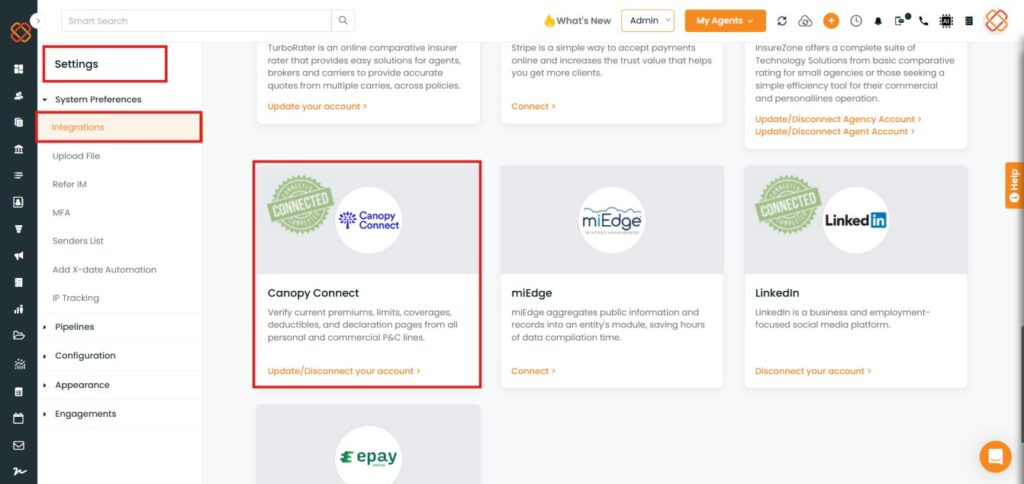
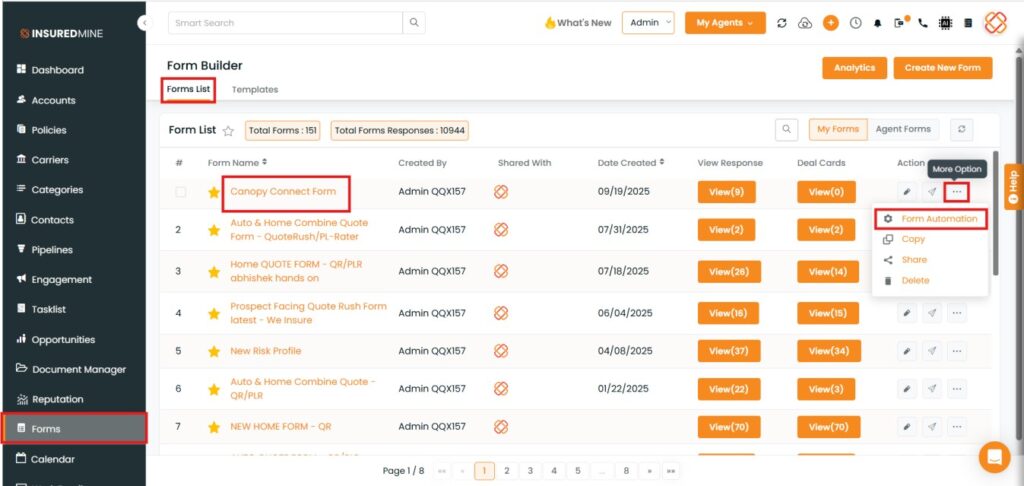
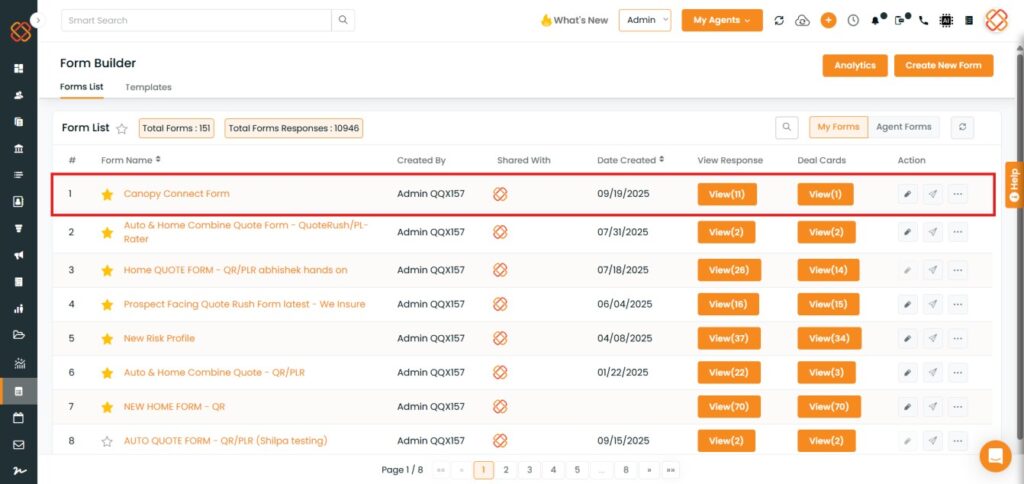
Now, InsuredMine automatically creates a form for the agency when it connects to Canopy Connect. Therefore, all agencies must disconnect and reconnect to Canopy Connect. Only after doing so will InsuredMine create the Canopy Connect Form under the Form List.
Additionally, agents must enable Form Automation — this step is also mandatory.
Steps to Follow ➖
Enable Form Automation via More Actions in the Form List.
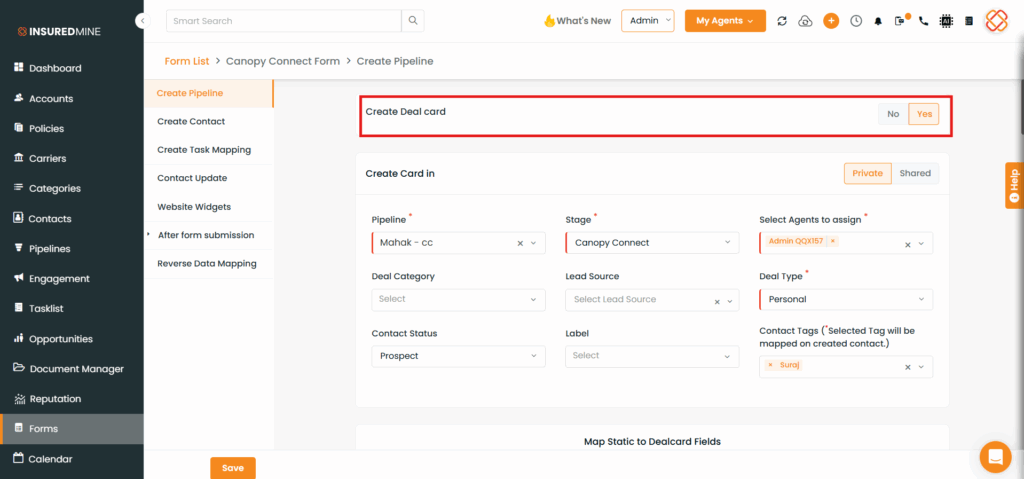
2.Enable Create Deal Card, enter the required details, and click Save.
Note: Form Automation must be enabled to allow the creation of Accounts, Contacts, and Deal Cards.
Now,
3.Log in to the Canopy Connect platform with your credentials.
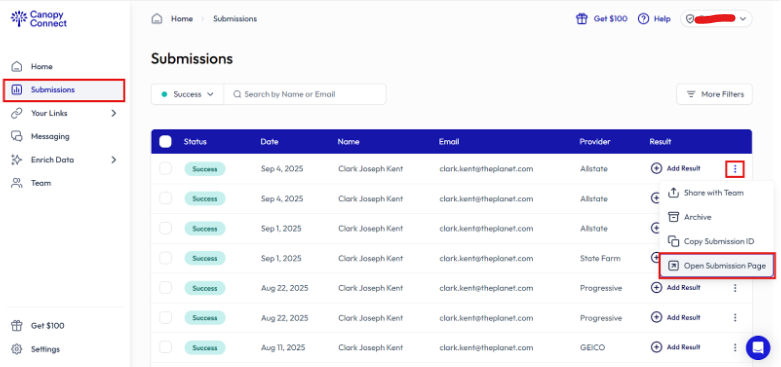
4.From the left navigation menu, click Submissions.
5.Select a lead, then go to More Actions and choose Open Submission Page.
6.You will be redirected to the lead’s information page.
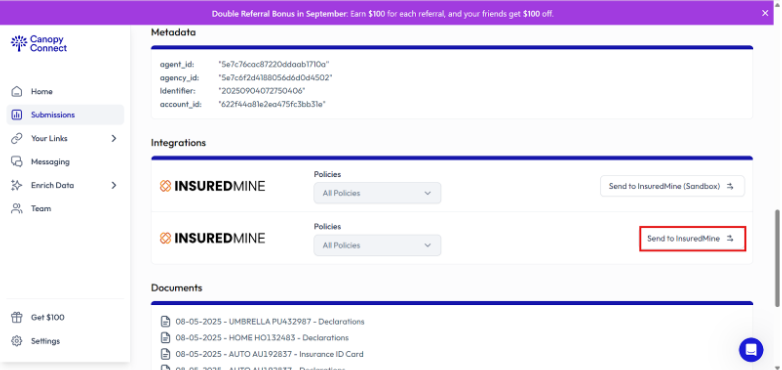
7.Scroll down and click Send to InsuredMine.
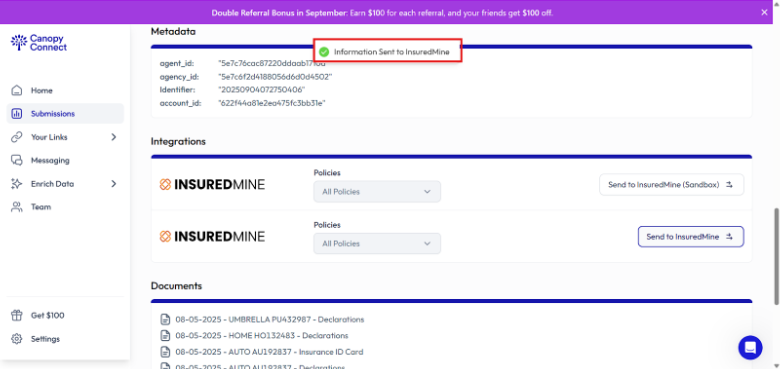
8. A success message will appear confirming that the information has been sent to InsuredMine.
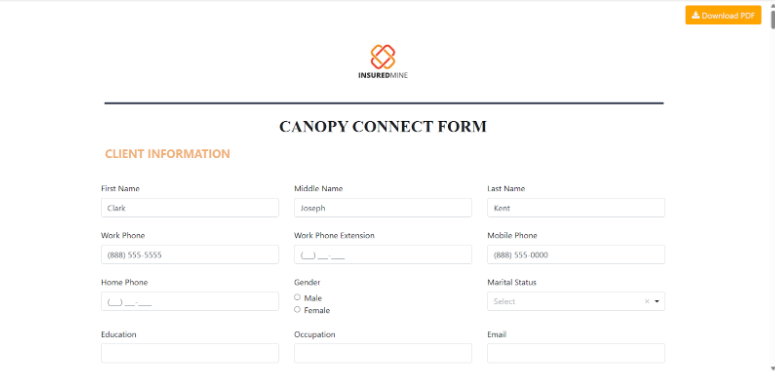
9.At the same time, the lead information will open in a new tab within the form.
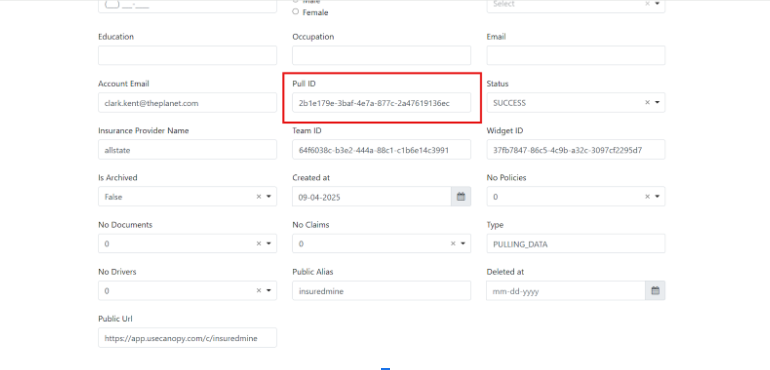
You can verify the information by matching the Pull ID from the Canopy Connect platform URL with the Pull ID in the InsuredMine form.
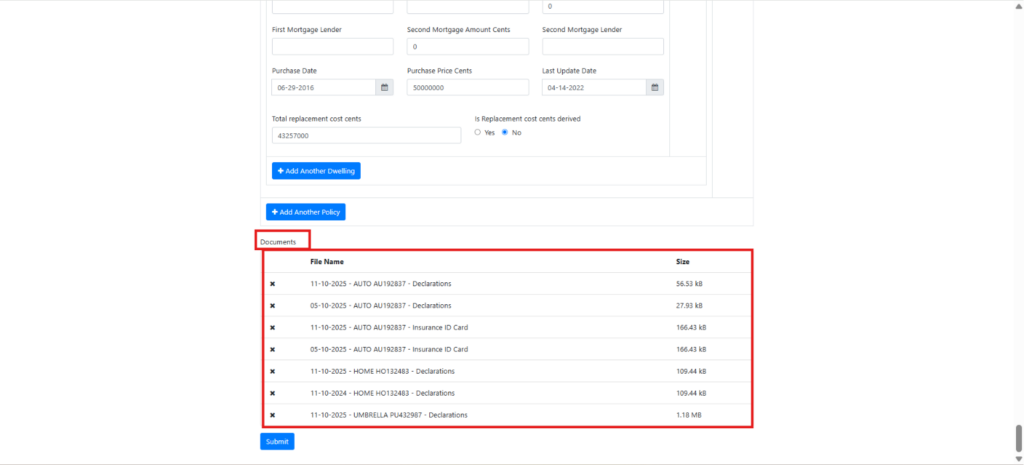
Scroll down to view the files pulled from Canopy Connect, along with the file names added to the form.
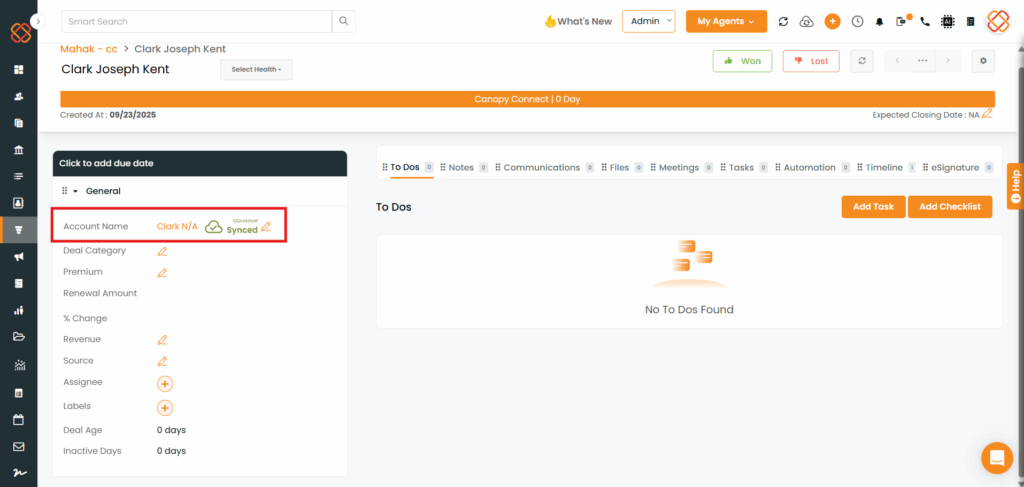
When you open the Deal Card, you will see that the Account has been created.
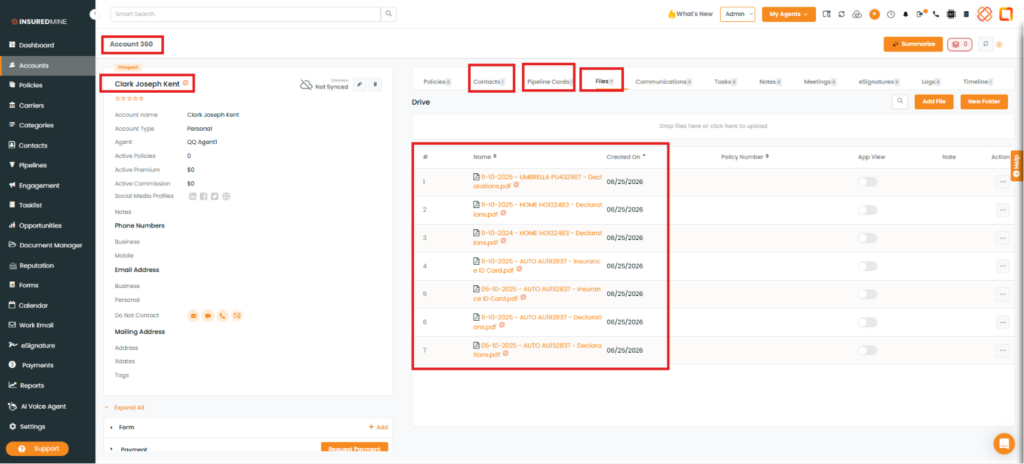
Clicking the account name opens the Account360 page, where you can view the associated Contact and Deal Card by selecting the respective tabs.
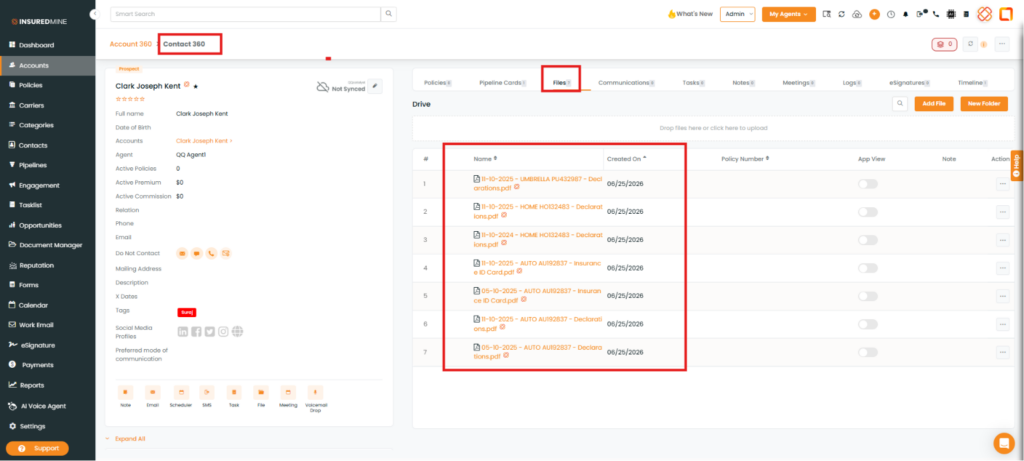
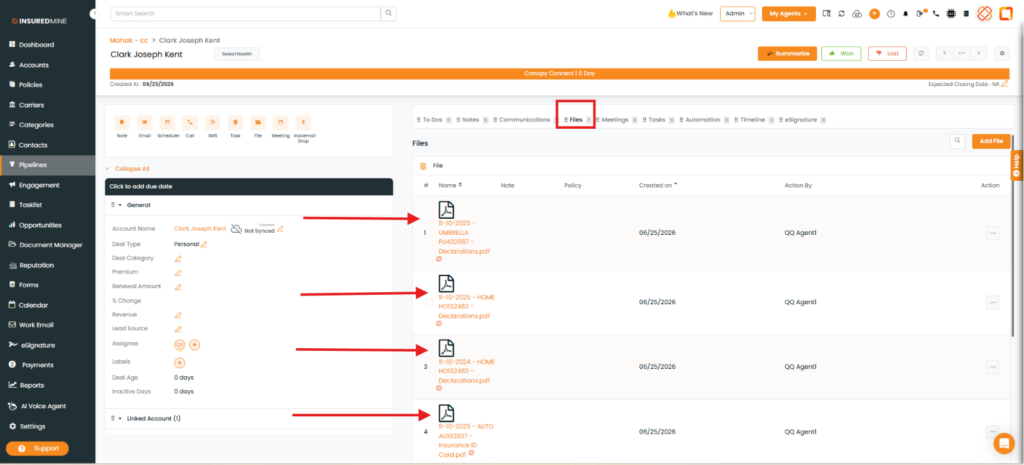
Note: Attachments are available in the Files section of Account360, Contact360, and the associated Deal Card. Users can view the file name and Created On date, and click the file name to open the attachment.
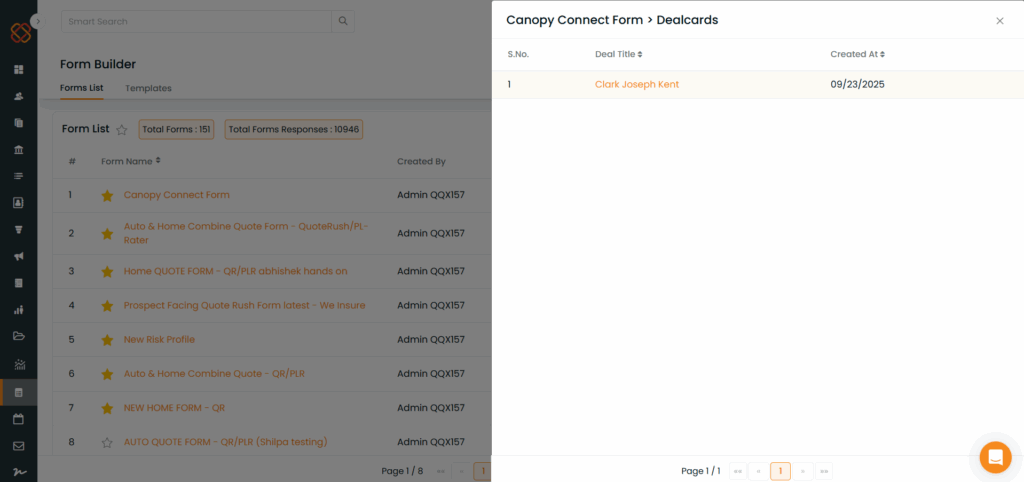
You can also view the form under ‘View Responses’ in the Canopy Connect Form within the Forms module.
Note: If an agent later disconnects from Canopy Connect, the responses and deal cards will still appear under the existing Canopy Connect form.
Upon reconnecting, InsuredMine will not create a duplicate form; instead, it will map to the same Canopy Connect Form where the previous responses and deal cards were recorded.