We have introduced a new enhancement that allows policies created in InsuredMine to automatically sync to QQ. Previously, only Accounts, Contacts, and Activities could be synced from InsuredMine to QQ. With this update, policy data is now included, ensuring better data consistency across systems.
Use Case: This feature helps sync policy data from InsuredMine to QQ without manual effort, reducing duplicate work, double entry, saving time, and preventing data mismatches, while ensuring both systems reflect the most up-to-date policy information.
This improves operational efficiency and maintains accurate records across both platforms.
To view the enhancement:
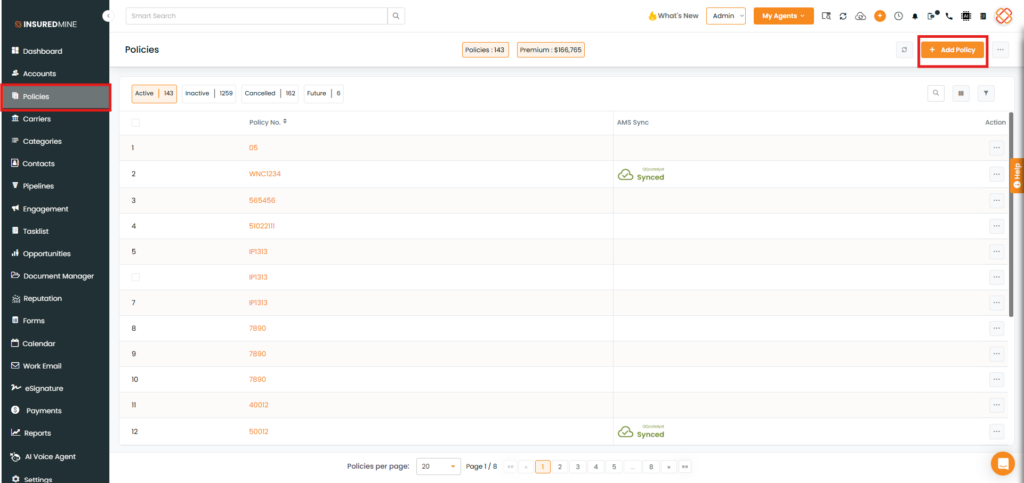
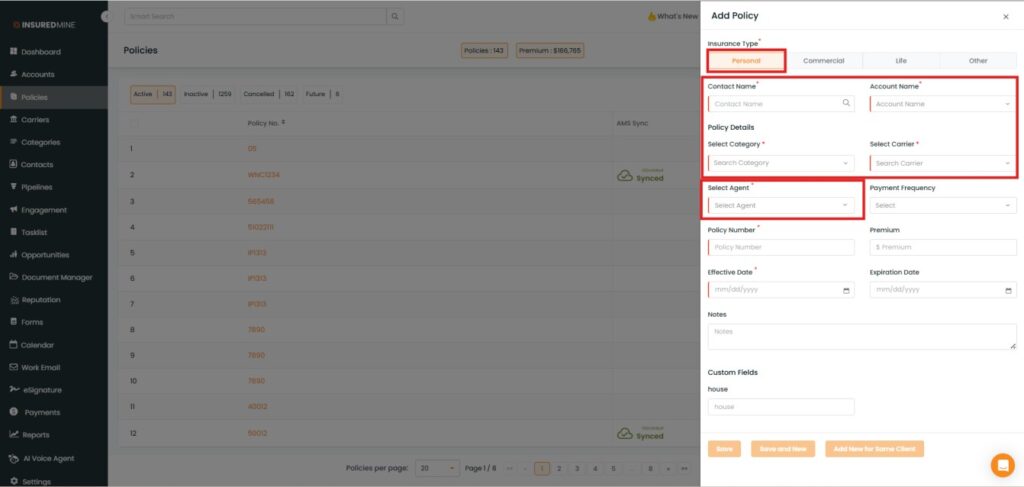
Navigate to Policies.
Click Add Policy.
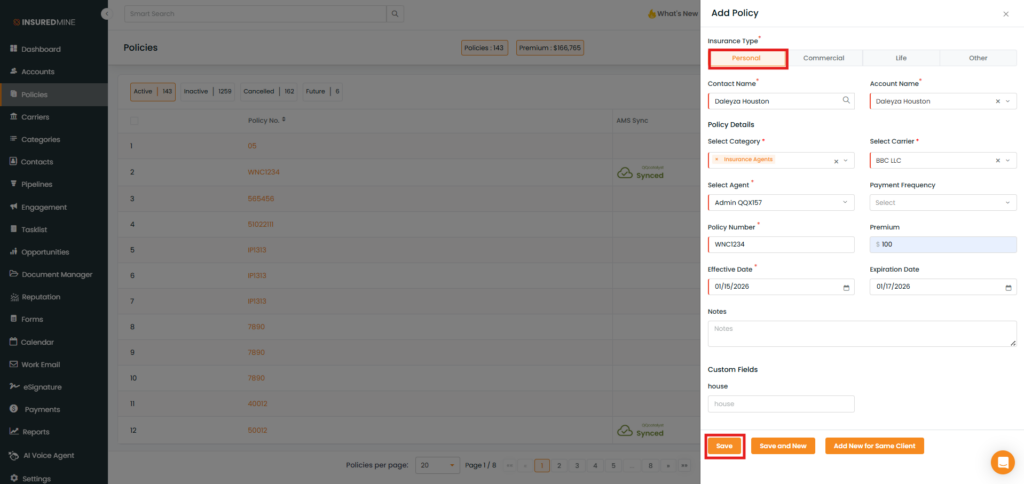
The Add Policy panel appears.
Select the preferred Insurance Type.
Fill in the required details.
Choose one of the following options, as shown below: Save Save and New Add New for the Same Client
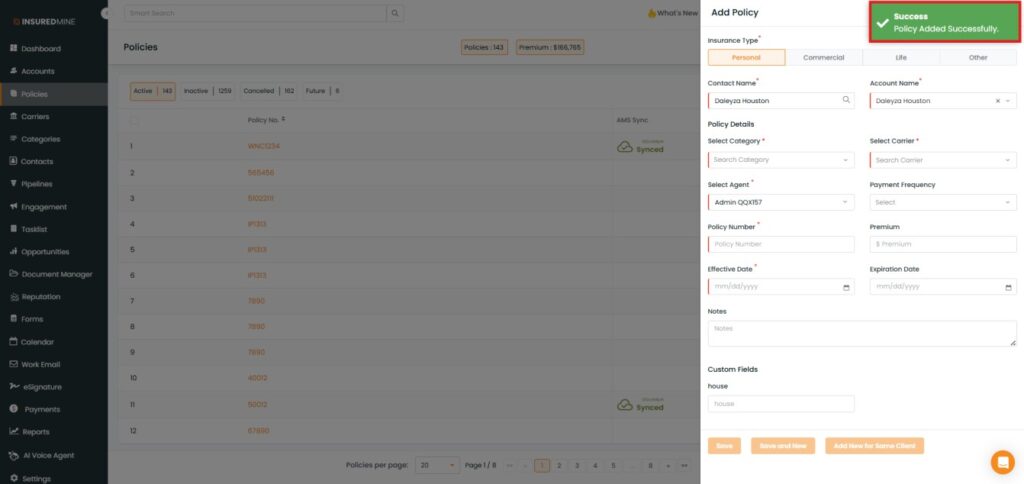
A success message, “Policy Added Successfully”, appears.
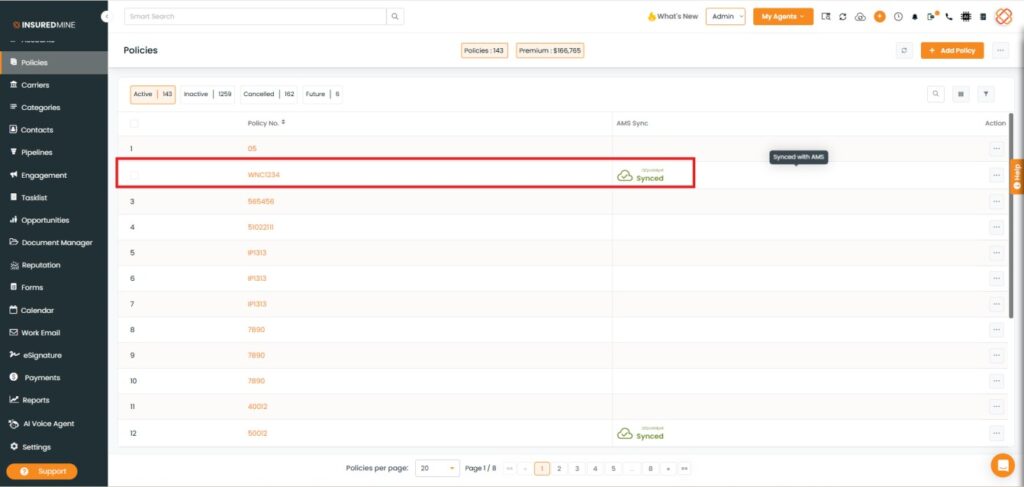
Policy Sync Confirmation
As shown below, you can also view the added policy on the Home page with the policy number, confirming that the policy has been synced to QQ.
Notes:
Personal Insurance Types:
Policy information from InsuredMine will sync to QQ only if the following details are already synced to QQ: Account Name Contact Name Policy Details (Category/LOB and Carrier) Agent
Commercial Insurance Types:
Policy information from InsuredMine will sync to QQ only if the Account Name is already synced to QQ.
Premium Amount:
The premium amount entered in InsuredMine will not automatically sync to QQ. You must manually enter the gross premium amount in QQ for the respective account. Sync Configuration Requirement:
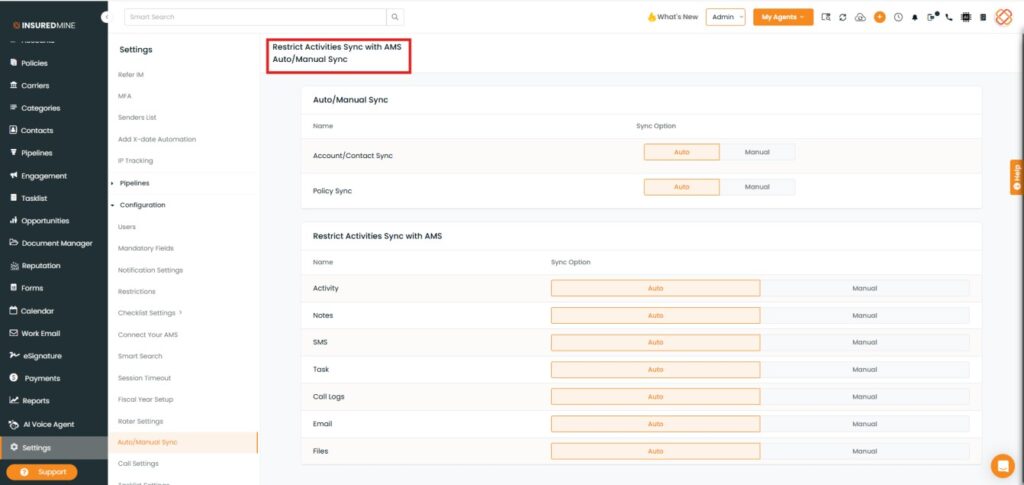
To use this feature, the sync setting must be configured to Manual.
Steps to Configure Auto/ Manual Sync:
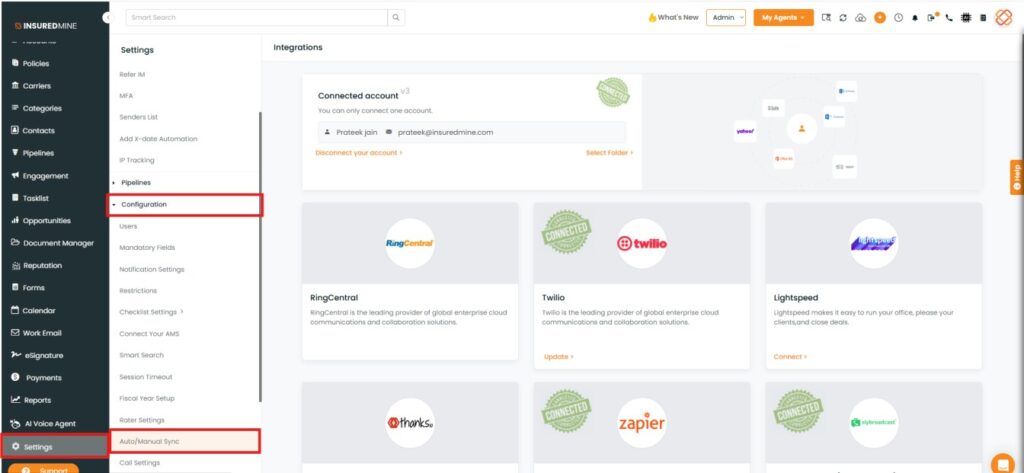
Navigate to Settings.
From the Configuration dropdown, select Auto/Manual Sync.
You are redirected to the Restricted Activities Sync with AMS – Auto/Manual Syncpage.