


Release Date: 19 March 2026
Overview
The Epic Activities feature in InsuredMine allows you to log and view activity records directly from an Account 360 or Policy Detail page, with those activities synced in real time with your Epic system of record. This gives your entire team a shared, up-to-date history of every customer interaction without leaving InsuredMine
Activities can include policy changes, account additions, follow-ups, and more. Each activity is stamped with a code, description, priority, owner, and start date, and can be associated with either a Policy or an Account.
How Sync Works
Your InsuredMine account is synced to Epic, so you never have to enter activities twice. Whatever you create here shows up in Epic automatically, and anything logged in Epic appears here just the same. Look for the “Applied Epic / Synced” label on the account/ policy to confirm your sync is active.
Add a New Epic Activity
You can create a new activity directly from the Epic Activities tab. The activity will be synced to Epic automatically after saving.
- Click Add Activity: In the top-right corner of the Epic Activities section, click the orange Add Activity button.
- Select an Activity Category: From the Activity Category dropdown, choose the category that best describes the activity (e.g., policy change, account update).
- Choose a Code and enter a Description: Code is required, select it from the Code dropdown. Then type a Description in the adjacent text field to give more context.
- Set Priority: Choose the priority level from the Priority dropdown: Normal, High, or Low.
- Assign an Owner: Select the Owner Name from the dropdown. This corresponds to the Epic user responsible for the activity.
- Set Activity Status: Under the Status section, select either Open or Closed using the radio buttons.
- Fill in Additional Details (optional): Optionally complete: Issuing Company, Premium Payable Type, Premium Payable Name, Amount Qualifier, Amount, and Note Content.
- Complete Who To Contact: The Name field is pre-filled with the account holder. Set the Contact Via method (e.g., Email) and provide the contact Value.
- Save the Activity: Click the orange Save button at the bottom of the form. The activity will appear in the list and sync to Epic.
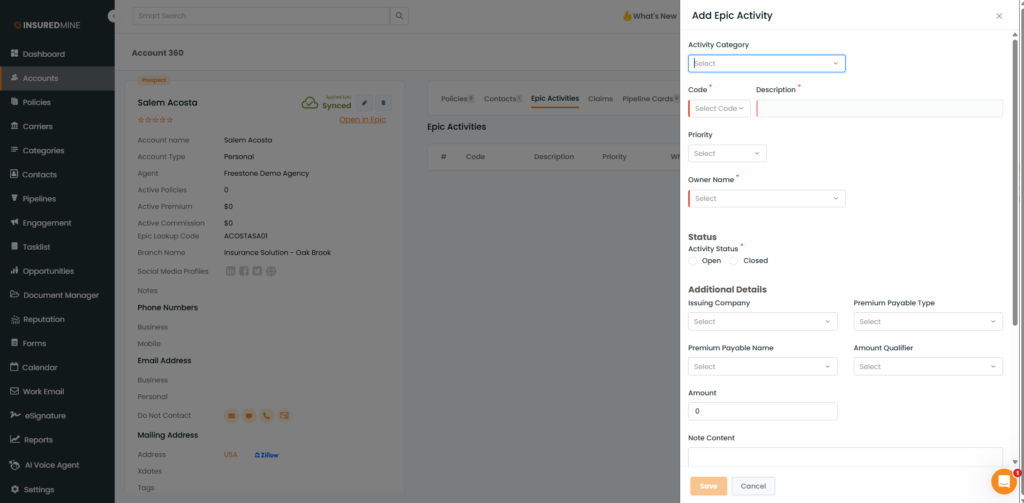
Field Reference — Add Epic Activity
Field | Required? | Description |
Activity Category | Optional | Broad grouping for the activity type. |
Code | Required | Epic activity code. Must be selected from the predefined list. |
Description | Required | Free-text description of what the activity represents. |
Priority | Optional | Urgency level: Normal (default), High, or Low. |
Owner Name | Required | The Epic user is responsible for this activity. |
Activity Status | Required | Open = in progress; Closed = completed. |
Issuing Company | Optional | The carrier or company issuing the related policy. |
Premium Payable Type | Optional | How the premium is structured for payment. |
Premium Payable Name | Optional | Name associated with the premium payment method. |
Amount Qualifier | Optional | Qualifier for the amount field (e.g., Estimated, Actual). |
Amount | Optional | Monetary amount associated with the activity. Defaults to 0. |
Note Content | Optional | Free-text notes or internal comments about the activity. |
Who To Contact — Name | Optional | Pre-filled with the account holder’s name. |
Contact Via | Optional | Method of contact: Email, Phone, etc. |
Value | Optional | The contact value (e.g., email address or phone number). |
View Epic Activities
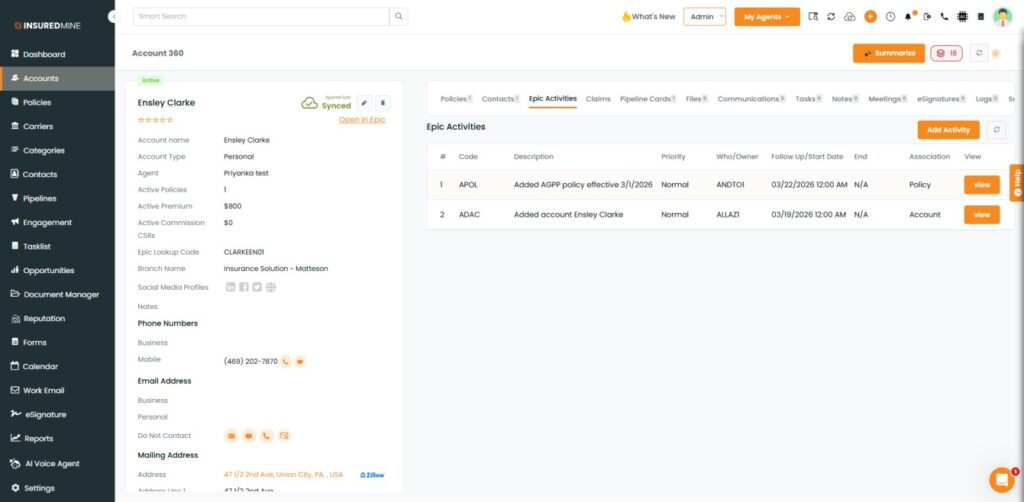
The Epic Activities tab displays all activity records associated with the account or policy. Here is how to navigate to it.
- Open an Account or Policy: Navigate to Accounts (or Policies) from the left sidebar and select the desired record.
- Go to the Epic Activities tab: On the Account 360 or Policy Detail page, click the Epic Activities tab.
- Review the list: The table shows activities with details including #, Code, Description, Priority, Who/Owner, Follow Up/Start Date, End Date, Association, and a View button.
- View details: Click the orange View button to see the full activity details.
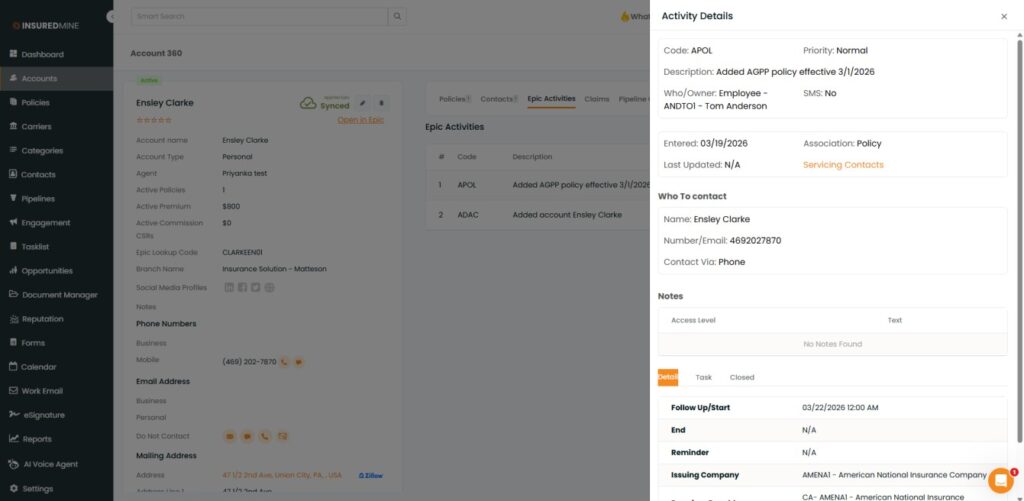
Quick Reference Summary
Action | How to Start | Result |
Add Activity | Click the orange Add Activity button | New activity created and synced to Epic |
View Activities | Open Account 360 or Policy Detail > Epic Activities tab | See all activities synced from Epic |


