We have introduced a new enhancement in the Dashboard module under Pipeline Dashboard. A new Branch filter has been added to the Master Report, allowing users to view complete deal card details for selected branches.
Use Case: This enhancement helps agencies quickly filter pipeline reportsbranch-wise, making it easier to analyze data and access branch-specific deal card details for better tracking and reporting.
Note: This feature applies only to Epic Agency.
To view the Enhancement:
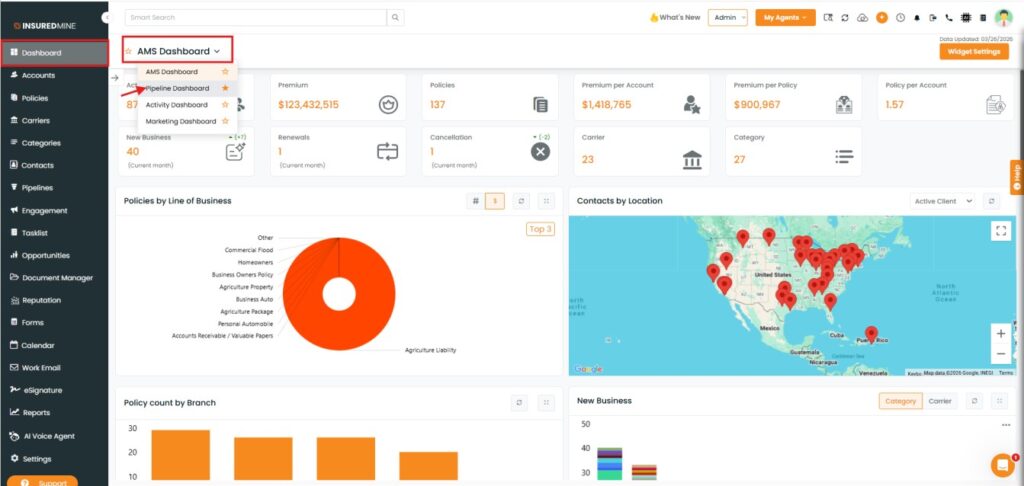
Navigate to Dashboard.
From the Dashboard dropdown, select Pipeline Dashboard.
You are redirected to the Pipeline. Dashboard page.
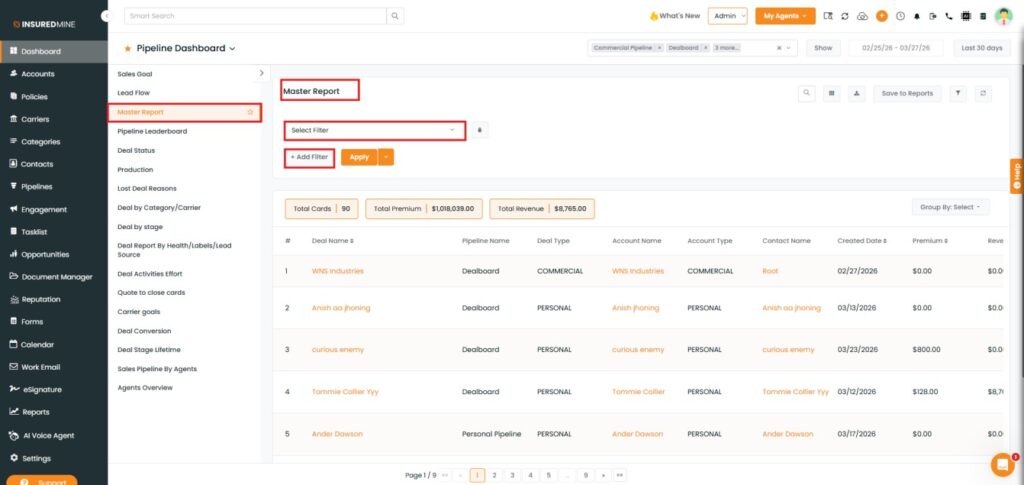
From the Pipeline Dashboard dropdown, select Master Report.
The Master Report page appears.
Click Add Filter.
A Select Filter box appears, as shown below.
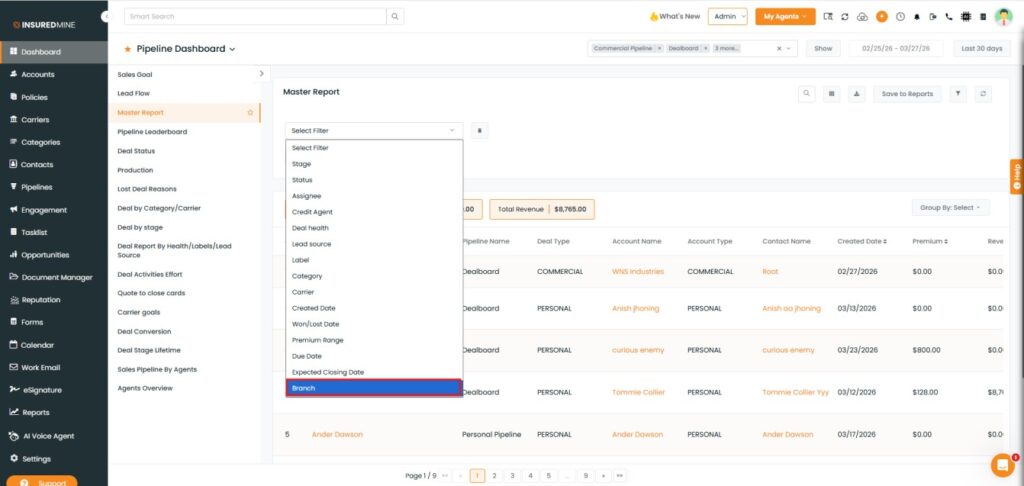
As shown below, a new Branch filter has been added.
From the Select Filter dropdown, select Branch.
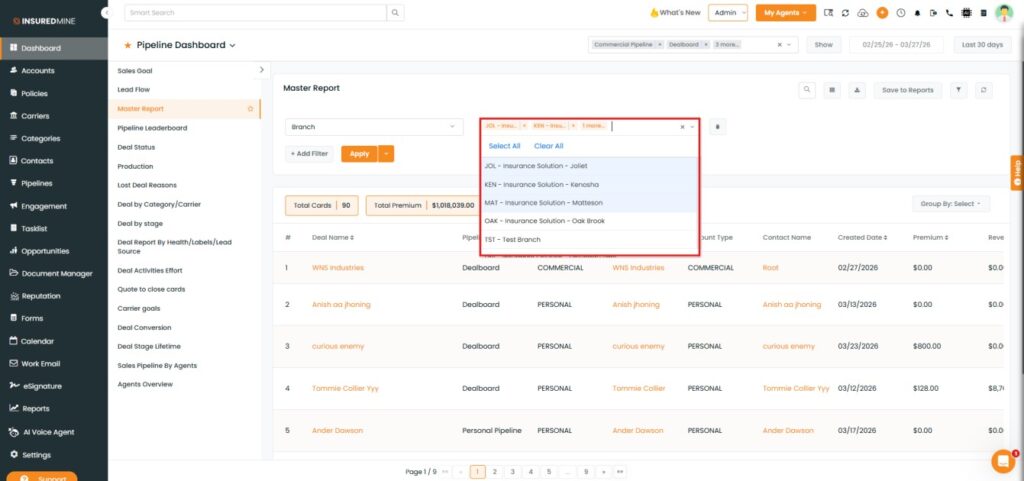
Select one or multiple branches from the dropdown list.
Click Apply
Note: Use Select All to choose all branches at once, or Clear All to remove selections.
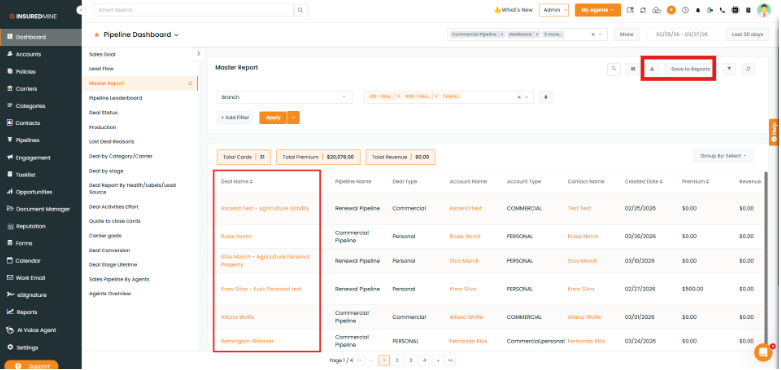
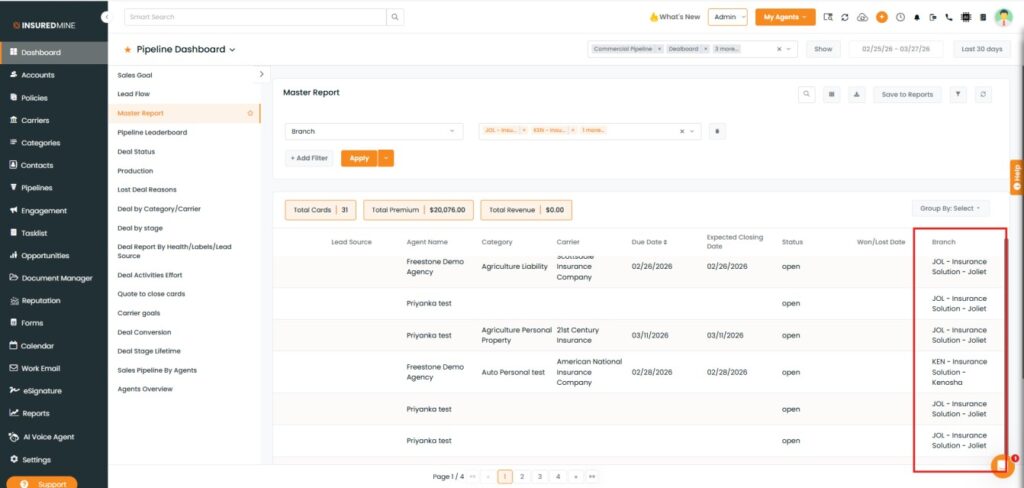
As shown below, Deal Names are displayed based on the selected branches.
You also have the option to download or save to Reports.
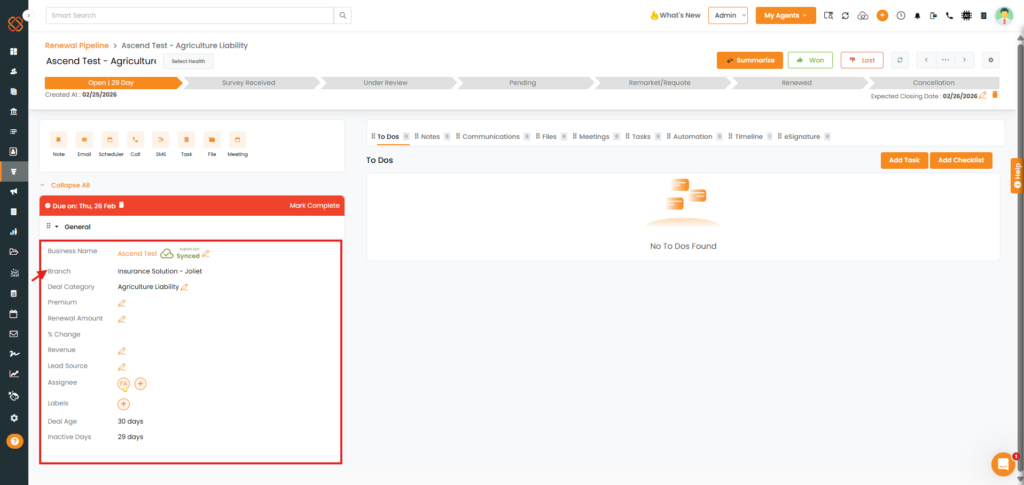
Click on the preferred Deal Name to view the complete details of the deal card (e.g., Ascend Test)
The Branch associated with the selected pipeline card is displayed under the General section of the deal card.
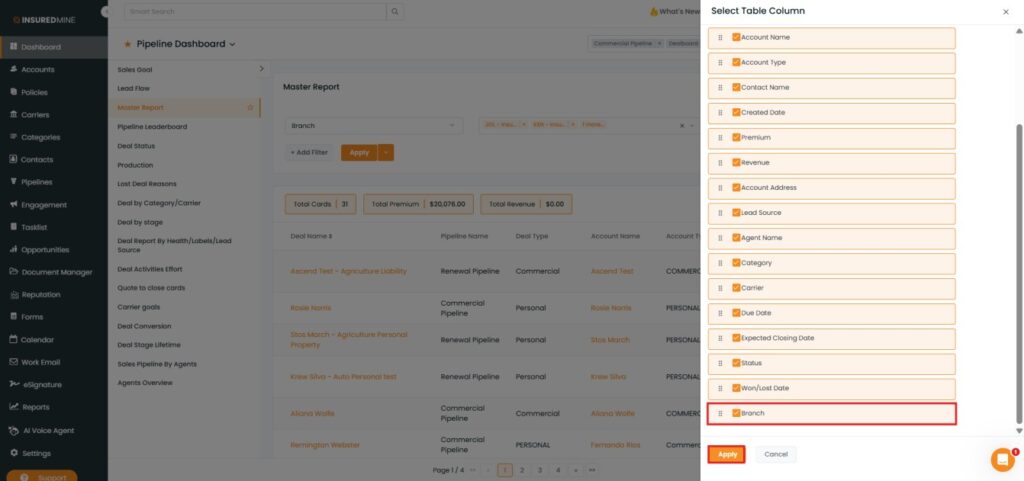
Note:To display branch data in the report table, the Branch option has also been selected and applied under the Select Table Column.