Release Date: 12 May 2026
We have introduced a new enhancement in the Settings module under Web Lead Integration. This feature allows agencies to automatically import leads from external vendors into InsuredMine through API integration, eliminating the need for manual CSV uploads and data entry.
The integration supports Home, Auto, and Home & Auto lead forms. Users can also access auto-generated API documentation and Postman collections for easier API configuration and testing.
Use Case: This enhancement helps agencies streamline lead import processes by automatically transferring lead data from vendor platforms into InsuredMine. It reduces manual effort, minimizes data entry errors, and saves time by enabling direct API-based lead submission.
Users can efficiently manage lead integrations, access API documentation, and test APIs using Postman, without needing to switch to external systems or manually configure payload structures.
To view the enhancement:
- Navigate to Settings
- From the configuration dropdown, select Web Lead Integration.
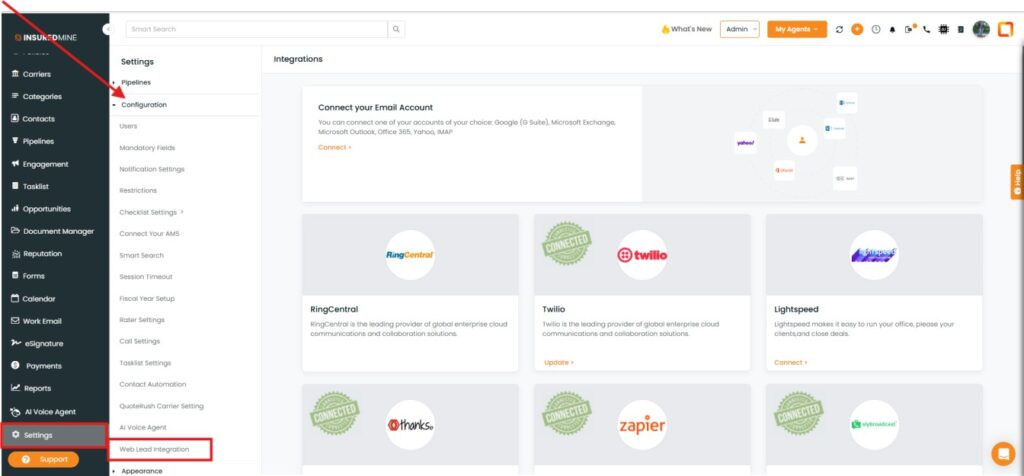
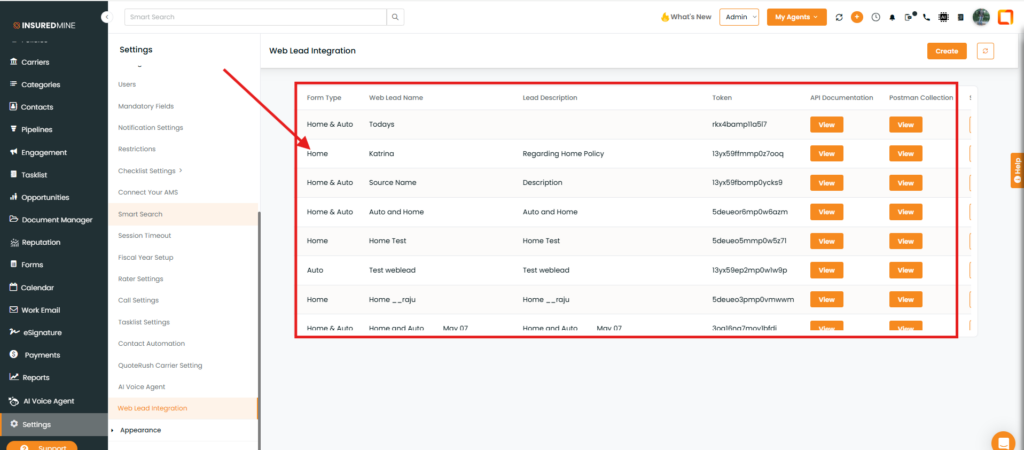
- The Web Lead Integration page appears.
- Click on Create. A Web Lead pop-up appears.
- Fill in the required fields.
- Click on Save.
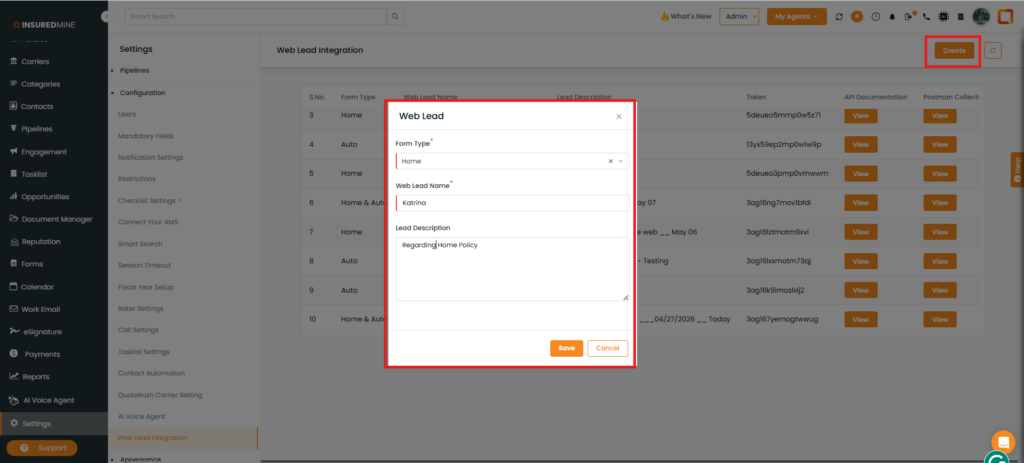
- The system automatically generates a Token for API authentication and creates a form type with other details.
- Click on View under API Documentation to access the generated API details (Authorization and Payload).
- Click on View under Post Men Collection to access the CURL.
Note: The API documentation includes the Authentication API for generating access tokens and the Lead Submission API endpoint for submitting lead data. It also provides the payload structure required for lead submission, including prospect details such as First Name, Last Name, Phone Number, Date of Birth, Property Details, Vehicle Information, and Driver’s License Information. Users can also copy and download the payload.
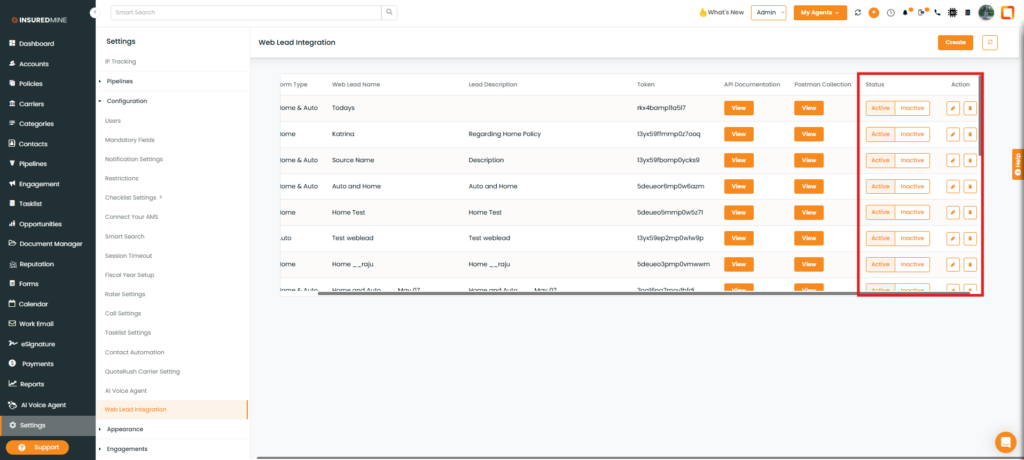
Note: Users can activate or deactivate integrations using the Active/Inactive toggle. The Edit option allows modification of only the Web Lead Name and Lead Description. The selected Form Type cannot be changed after the integration is created. Users also have the option to archive the integration.
Note: The system automatically creates a non-editable form in the Forms module when integration is saved.
To view:
- Navigate to Forms.
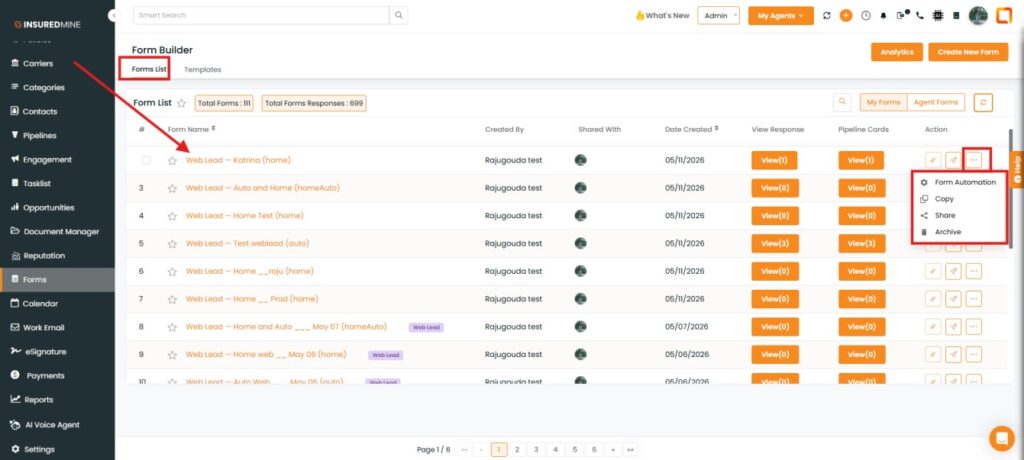
- As shown below, the lead source form with the same name appears.
- Click on the three dots to Share, Archive, or Copy the form.
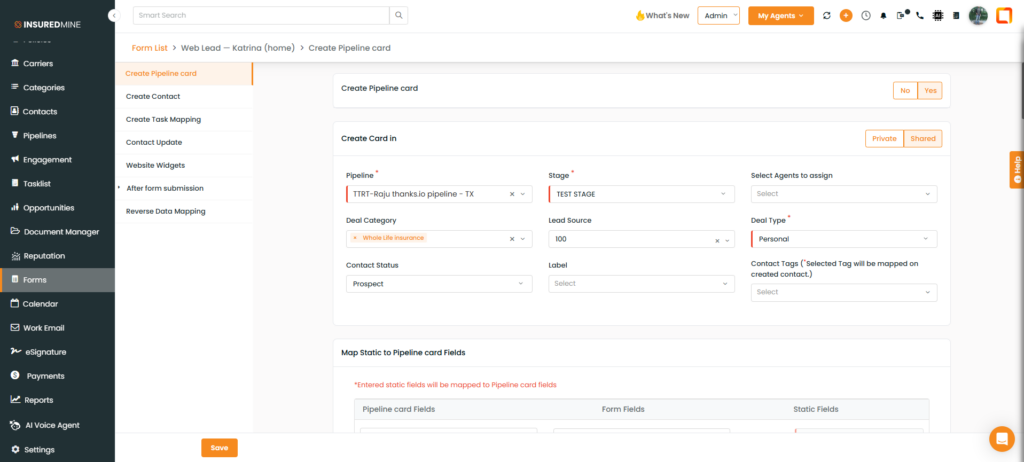
- Click on Form Automation to configure pipeline stages and set up data mapping for Account and Contact fields.
- Multiple integrations are supported for different sources and form types.
Note: Clients cannot edit or add custom fields to these forms. Any customization requests must be handled through InsuredMine Support.