


Release Date: July 2, 2026
Overview
The InsuredMine Connector allows you to securely connect your InsuredMine account to ChatGPT, granting it access to your InsuredMine data so it can provide more relevant insights and help you complete CRM tasks more efficiently.
With the InsuredMine Connector, you can:
- Get personalized AI insights based on your InsuredMine contacts, accounts, policies, deals, and other CRM data.
- Visualize your data using charts and graphs generated from your InsuredMine records.
- Create and update CRM records, including contacts and deals, directly from the ChatGPT conversation. (Availability is scheduled for Phase 2)
- Log activities such as tasks, notes, and other CRM updates without leaving ChatGPT.
- Analyze customer engagement history, including emails, calls, meetings, tasks, and notes, to generate actionable insights and recommendations.
- Take action faster by using ChatGPT to retrieve information, answer questions about your CRM data, and perform supported InsuredMine actions through natural language.
Prerequisites
Before configuring the connection, ensure that you have:
You have an active InsuredMine user account (Admin)
An active ChatGPT account.
- Access to ChatGPT Connectors..
Configuring the InsuredMine connector with ChatGPT
Step 1: Copy Your InsuredMine Credentials
- Sign in to InsuredMine using your login credentials.
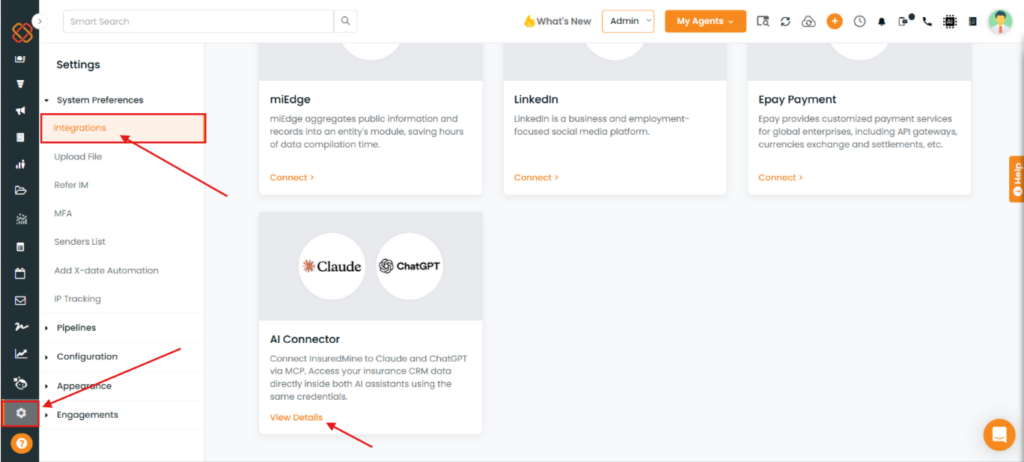
- Go to Settings → Integrations.
- In the AI Connector section, click View Details.
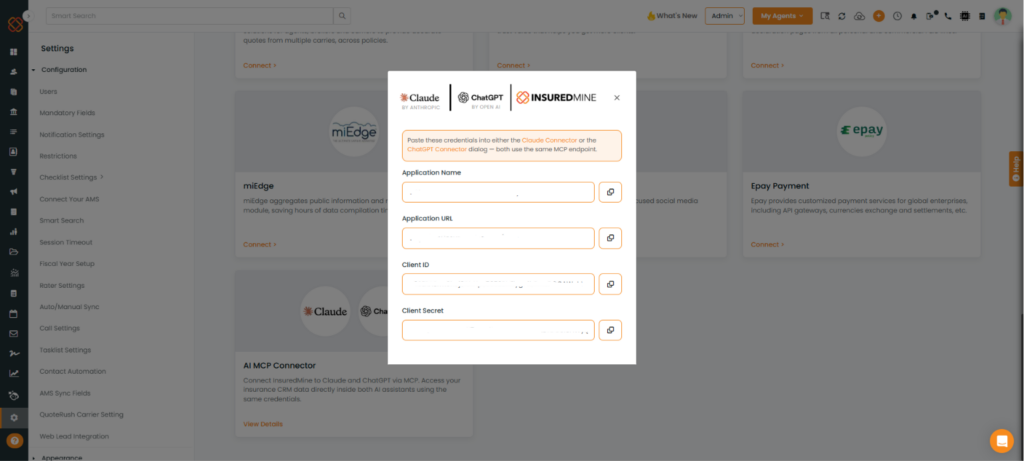
Copy the following values using the Copy icon next to each field:
- Application Name
- Application URL
- Client ID
- Client Secret
Step 2: Create the Connection in ChatGPT
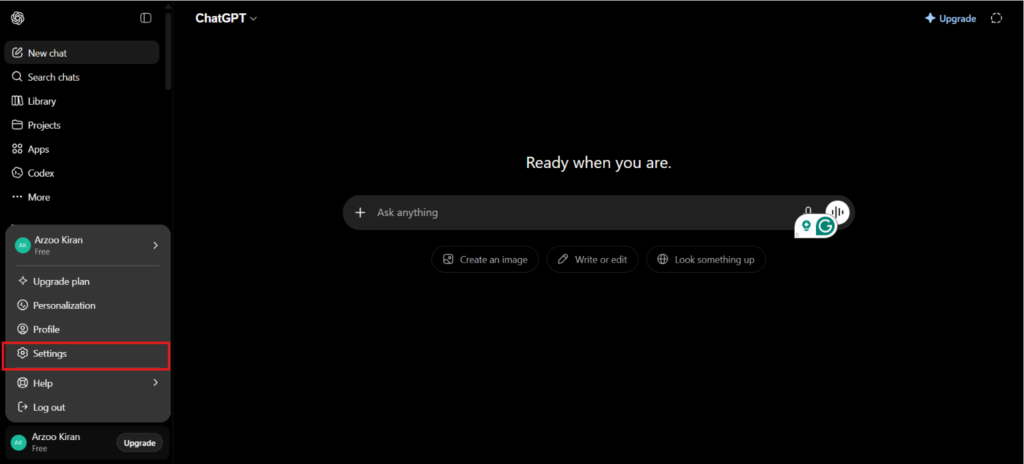
- Sign in to your ChatGPT account.
- Click your Profile icon and select Settings.
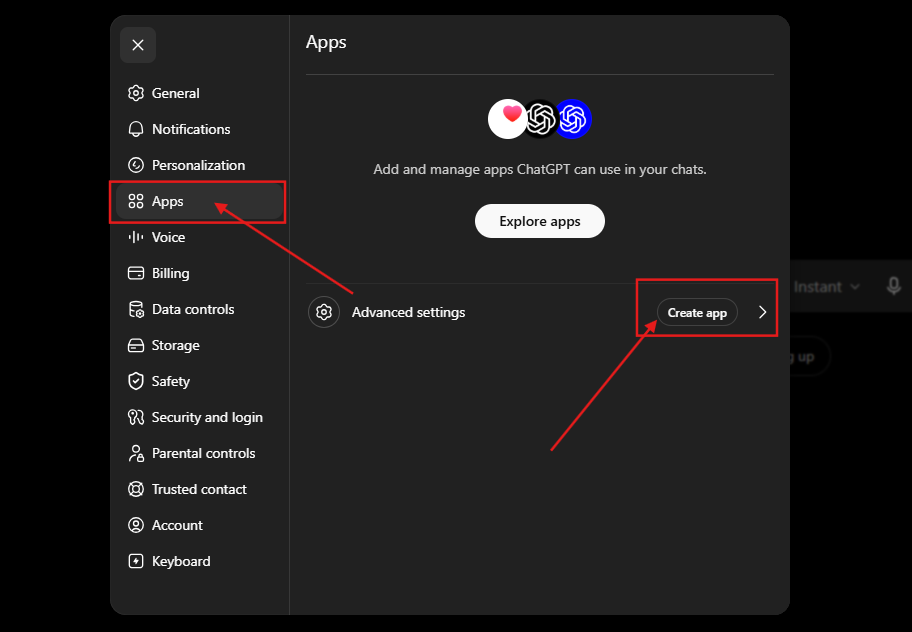
3. Go to Apps.
4. Click Advanced Settings.
5. Select Create App.
Step 3: Configure the App
- Paste the Application Name from InsuredMine into the Name field.
- Paste the Application URL into the Connection field.
- Under Authentication, select OAuth.
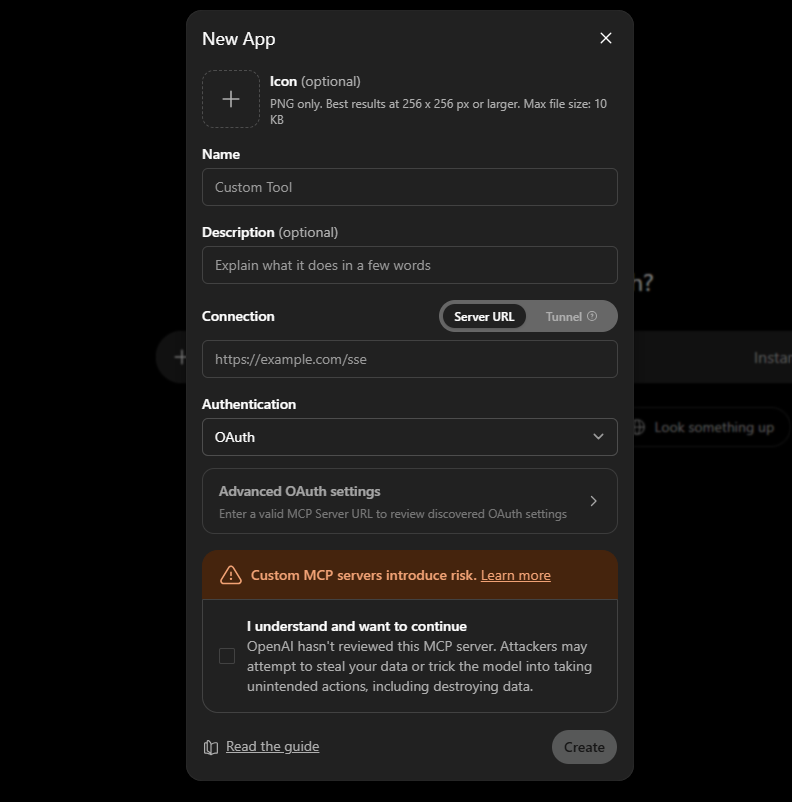
- Expand Advanced OAuth Settings.
- Paste the following credentials:
- Client ID into the OAuth Client ID field.
- Client Secret into the OAuth Client Secret field.
- Review the requested permissions.
- Select I understand and want to continue.
- Click Create.
Your InsuredMine account is now connected to ChatGPT and ready to use.
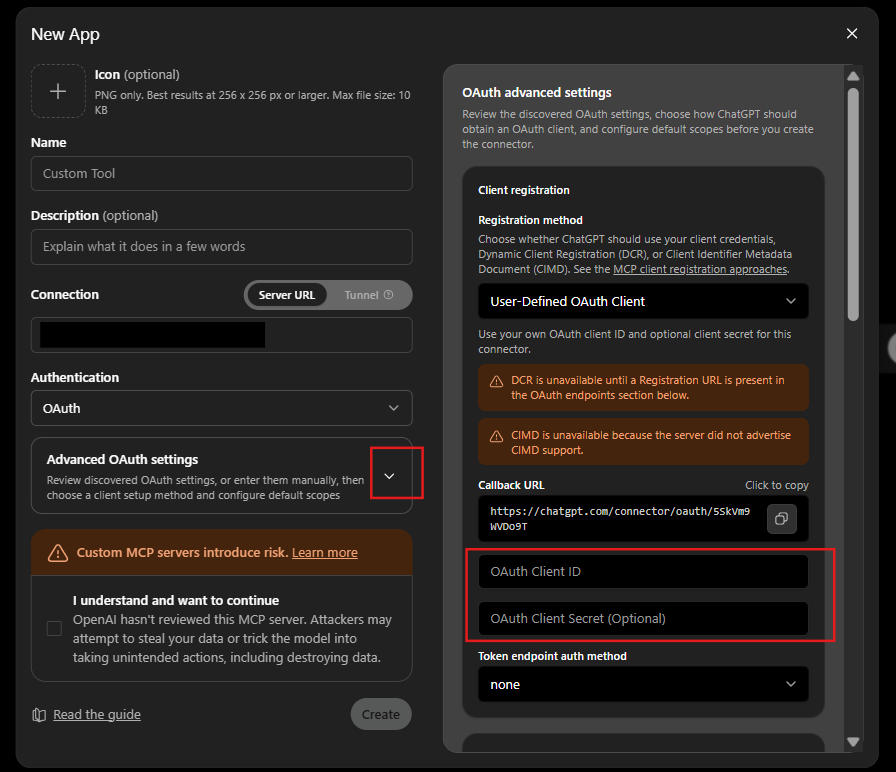
Once your MCP connector has been integrated, you can access your connected data in ChatGPT by following these simple steps:
- Open ChatGPT and start a New Chat.
- Click the + icon next to the message box.
- Select your MCP Connector (for example, InsuredMine – QA Agent Portal).
- Type your question in natural language and press Enter.
Examples:
- Show me my active clients.
- How many active accounts do I have?
- Find policies renewing this month.
- Show commercial accounts in California.
Note: After the connector is attached, ChatGPT will use it automatically for relevant requests throughout the conversation. If you start a new chat, simply attach the MCP connector again using the + menu.
Before You Get Started
Please keep the following in mind when using the InsuredMine Connector with ChatGPT:
- Rate Limit: The connector supports up to 60 requests per minute across all users. If this limit is reached, wait a few moments before trying again.
- Exercise Caution with AI Output: Since ChatGPT may produce inaccurate or incomplete data, it is essential to double-check and validate all AI-generated information before finalizing CRM updates or making strategic business decisions.
Note: Currently, we are launching Phase 1, with Phase 2 scheduled for upcoming releases. |
Object | Phase 1 (Read) | Phase 2 (Create & Update) |
Account | ✓ | ✓ |
Contact | ✓ | ✓ |
Policy | ✓ | ✓ |
Carrier | ✓ | NA |
Categories (LOB) | ✓ | NA |
Pipeline | ✓ | NA |
Pipeline Cards | ✓ | ✓ |
Calls (Twilio/RingCentral) | ✓ | NA |
Text Messages (SMS) | ✓ | NA |
Emails | ✓ | NA |
Tasks | ✓ | NA |
Files | ✓ | NA |
Notes | ✓ | ✓ |
Users | ✓ | NA |
What Can You Ask ChatGPT?
Use ChatGPT to search, summarize, and analyze your InsuredMine data using natural language.
- Policies – Find policies by carrier, status, premium, renewal date, or agent.
- Example: “Show policies expiring next month.”
- Accounts – Search business accounts by agent, location, or lead source.
- Example: “Show referral accounts.”
- Contacts – Find contacts by name, email, phone, or assigned agent.
- Example: “Find Jane Smith.”
- Pipelines & Deals – View opportunities, deal values, stages, and pipeline performance.
- Example: “Show my open deals.”
- Calls – Review RingCentral or Twilio call history.
- Example: “Show missed calls this week.”
- SMS & Emails – Search communication history.
- Example: “Find emails about renewals.”
- Notes & Tasks – View notes, follow-ups, and overdue tasks.
- Example: “Show my overdue tasks.”
- Files – Find documents attached to accounts or contacts.
- Example: “Show files for ABC Corp.”
- Agents – Look up agency users and team members.
- Example: “List all agents.”
Tip: Combine filters for more specific results, such as “Show commercial policies assigned to Sarah that renew next month.” |
Security and Permissions
The InsuredMine Connector respects all existing user permissions.
ChatGPT can access only the information that the authenticated user is authorized to view.
For example:
- Agents can access their assigned accounts.
- Users cannot access administrator-only modules.
- Agency permissions remain unchanged.
- Authentication is performed using secure OAuth credentials.
Can ChatGPT hallucinate or provide inaccurate data? What can customers do to protect against that?
Yes. Like any AI assistant, ChatGPT can occasionally generate incorrect, incomplete, or misleading information. To help ensure the responses generated using the InsuredMine Connector are accurate and reliable, we recommend the following best practices:
- Keep your InsuredMine data up to date and accurate.
- Review, verify, and refine ChatGPT’s responses before taking action.
- Ask ChatGPT to reference the records or data it used to generate its response so you can easily verify the information in your InsuredMine account.
- Use AI-generated responses as a productivity aid, not as the sole basis for important business decisions. Always validate critical information before relying on it.
Release Date: 07/29/2026
Enhancements
The InsuredMine Connector continues to expand its read capabilities. The following InsuredMine data is now available through the connector:
- Email Campaigns
- Text Campaigns
- eSign
- Form Submissions
- Form Templates
- Google Reviews
- Lead Sources
- Labels/Tags
- NPS Surveys
These enhancements allow ChatGPT to access a broader range of InsuredMine information and provide more comprehensive responses.
InsuredMine MCP Integration – Privacy & Security Statement


