


Release Date: 09/25/2026
Overview
InsuredMine introduces Stale Deals, a new feature available in the Pipeline Dashboard under the Dashboard module.
In the Pipeline module, the Pipeline card becomes stale when no activity occurs for longer than the Inactive days threshold configured for its current stage.
Stale Deals helps Admins and Agents identify pipeline cards that have remained inactive beyond the configured inactivity threshold for their current stage.
The feature provides:
- Automated inactivity tracking.
- Visual identification of stale cards.
- Pipeline, date, and agent-based filtering.
- A dedicated Stale Deals view in the Pipeline Dashboard.
- Detailed information for individual stale deals.
Note: If Inactive Days is set to 0 or left blank, stale-deal tracking is disabled for that stage. |
Prerequisites:
Before using Stale Deals:
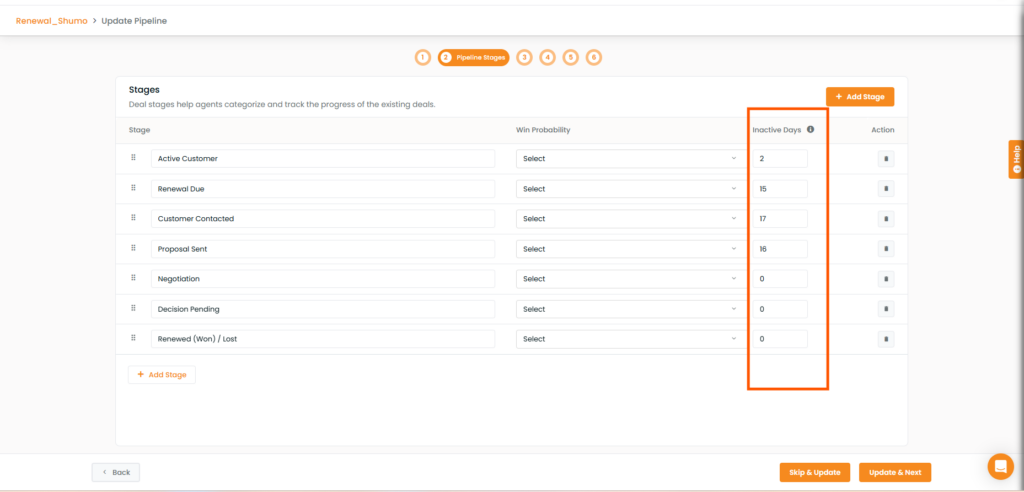
- An Inactive Days threshold should be configured for the relevant pipeline stages.
- Only Admins can configure or update the Inactive Days Threshold.
- Agents can view Stale Deals only for the pipelines an Admin has granted them access to.
How to Configure Inactive Days
Only Admins can configure the inactivity threshold for each pipeline stage.
Steps
- Log in to InsuredMine.
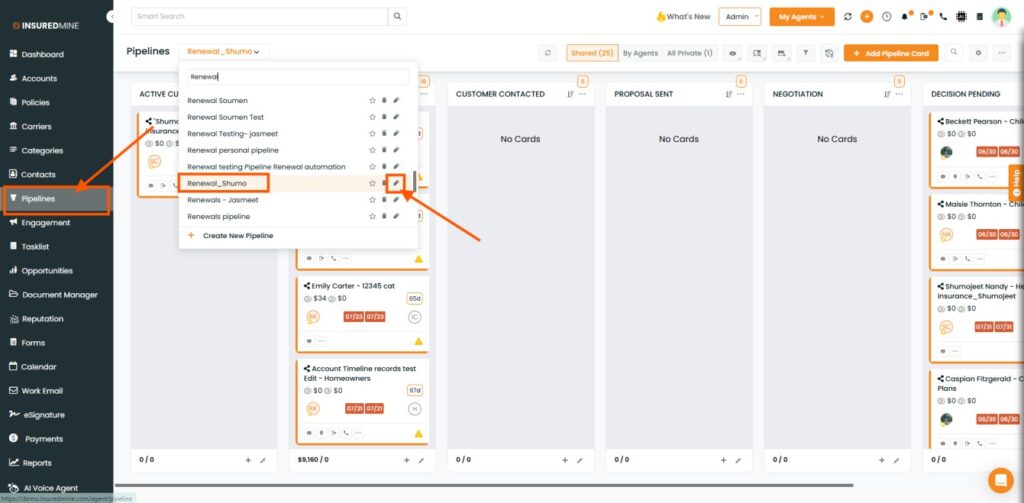
- Go to the Pipeline module from the left-side menu.
- Open the Pipeline section.
- Click the Edit (pencil) icon for the pipeline you want to configure the Inactive Days threshold for.
- On Step 2 of the Pipeline Configuration page, enter the number of inactive days for each stage.
- Save the pipeline configuration.
How to Access Stale Deals
Steps
- Log in to InsuredMine.
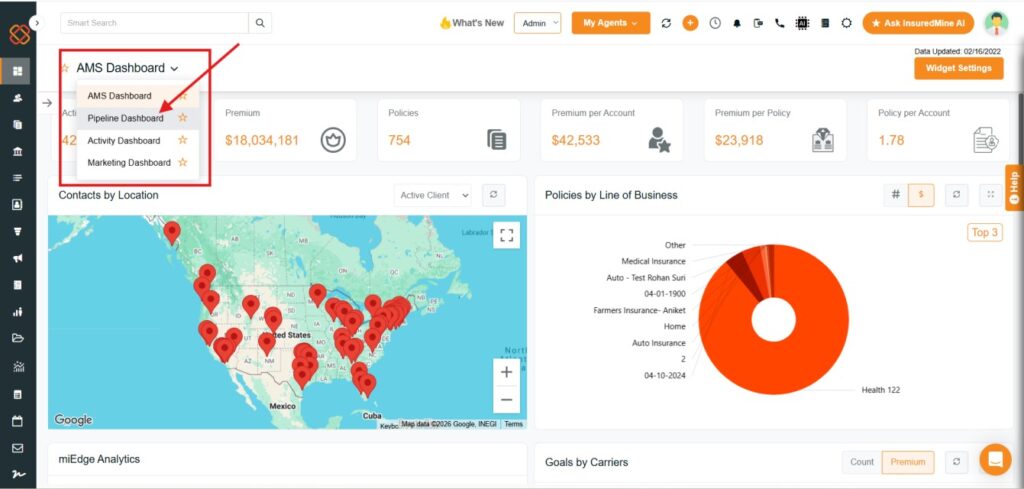
- Go to the Dashboard module from the left-side menu.
- Click on Pipeline Dashboard from the dropdown.
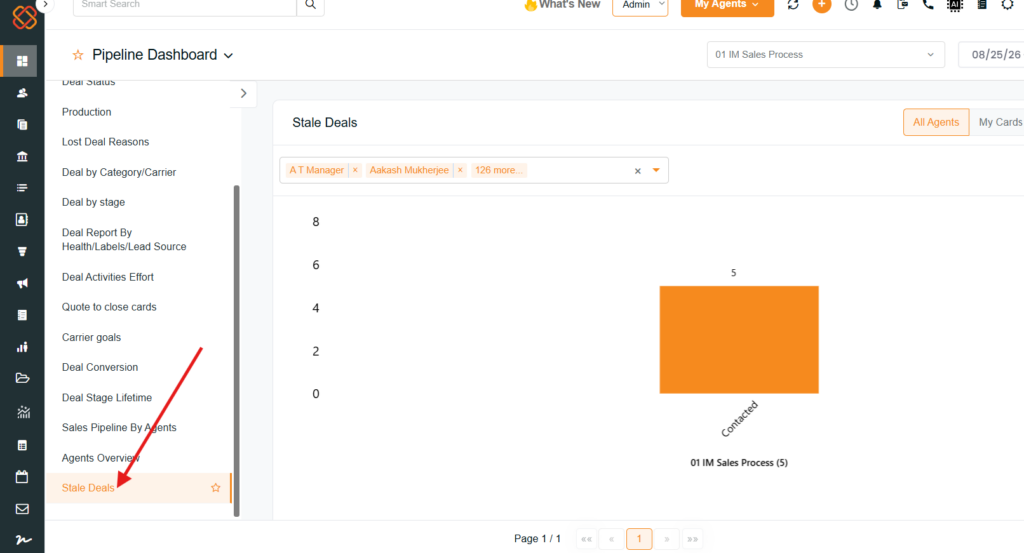
4. Scroll down the left column to locate Stale Deals.
5. Click on Stale Deals.
The Stale Deals section opens on the right side of the Pipeline Dashboard.
How to Filter Stale Deals
Once the Stale Deals section is open, you can filter the results based on the available options.
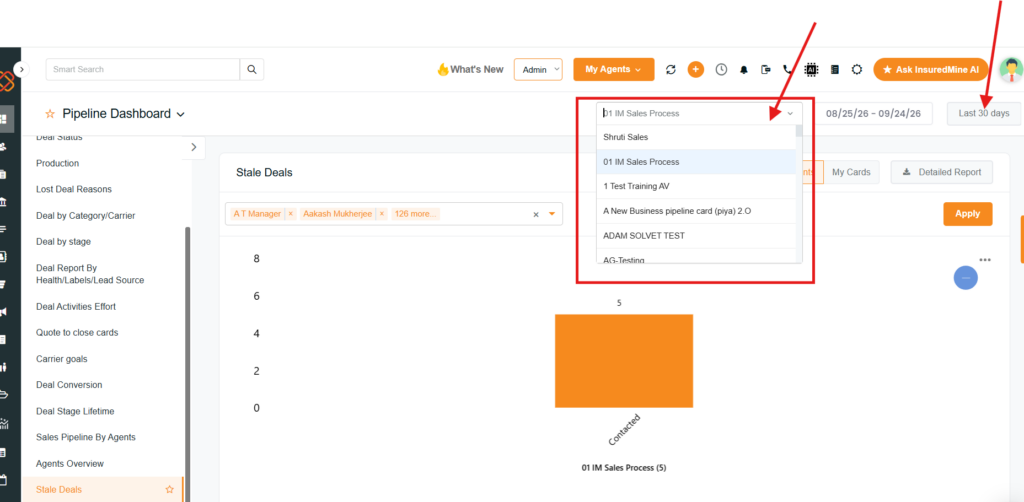
1. Select a Pipeline
Select the pipeline for which you want to view stale deals.
2. Select a Date Range
Select a predefined date range or choose a Custom date range.
Note: The date range filters cards based on their Card Created Date.
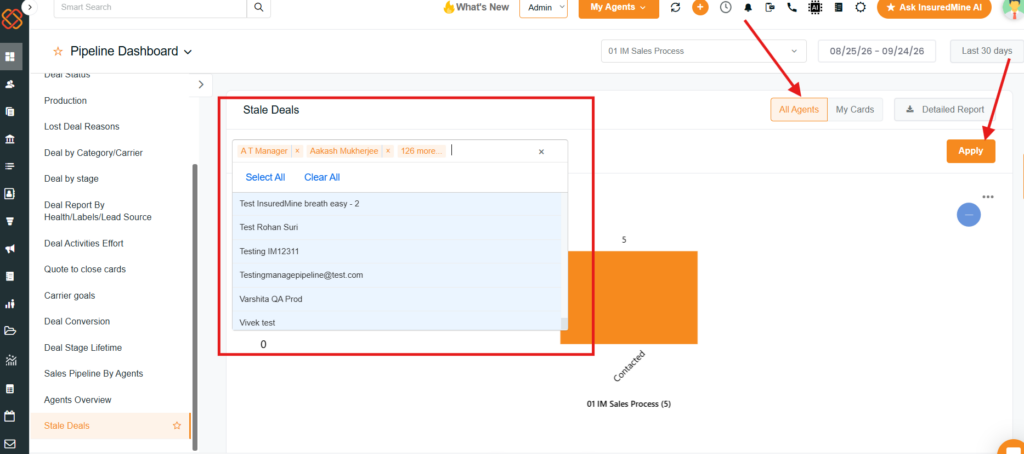
3. Select Agents
- Admins: Can select All Agents or use Select Agents to view stale deals assigned to specific agents.
- Agents: Can view their assigned cards within pipelines that have been shared with them.
4. Apply Filters
Select Apply to load the stale deals based on the selected filters.
How Stale Deals Are Identified
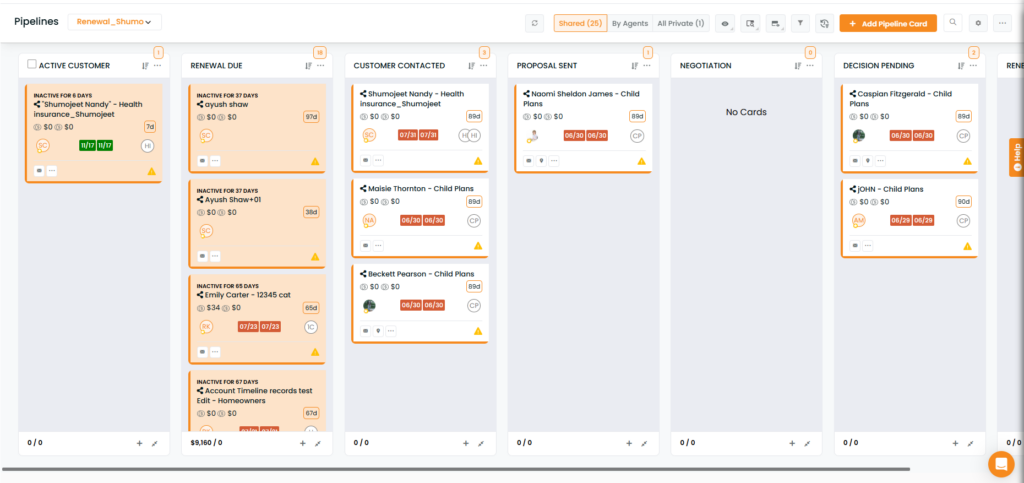
The system uses the card’s Last Activity Date to determine inactivity.
- The system calculates the number of days elapsed since the card’s Last Activity Date.
- The system compares the elapsed time with the Inactive Days threshold configured for the card’s current stage.
- If the inactivity period exceeds the configured threshold, the card is classified as Stale / Inactive.
- Stale cards are highlighted visually in the Pipeline module.
Viewing Stale Deal Details
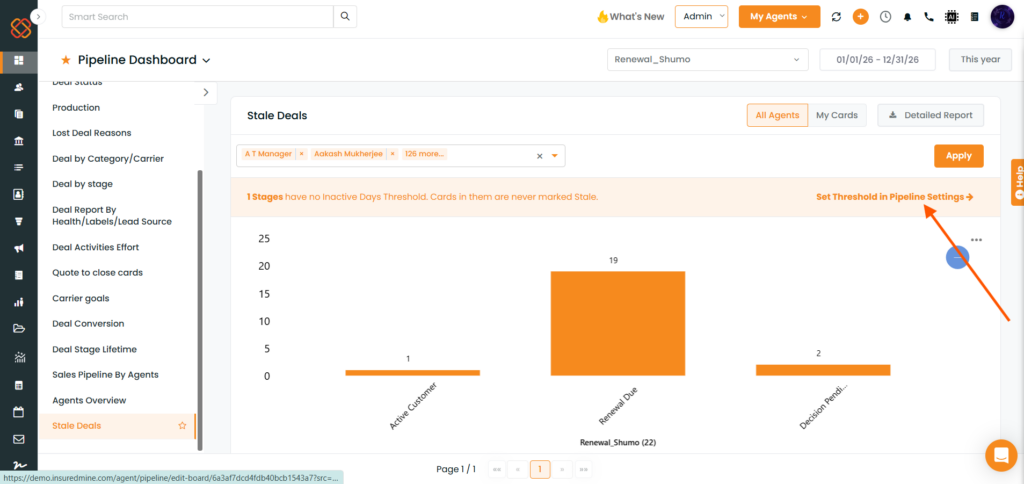
The Stale Deals dashboard provides a overview of stale deals by stage.
Steps
- Open Dashboard → Pipeline Dashboard → Stale Deals.
- Select the required pipeline and filters.
- Review the stale-deal information displayed in the dashboard.
- Select the relevant bar/stage information to view the stale deal present in that stage.
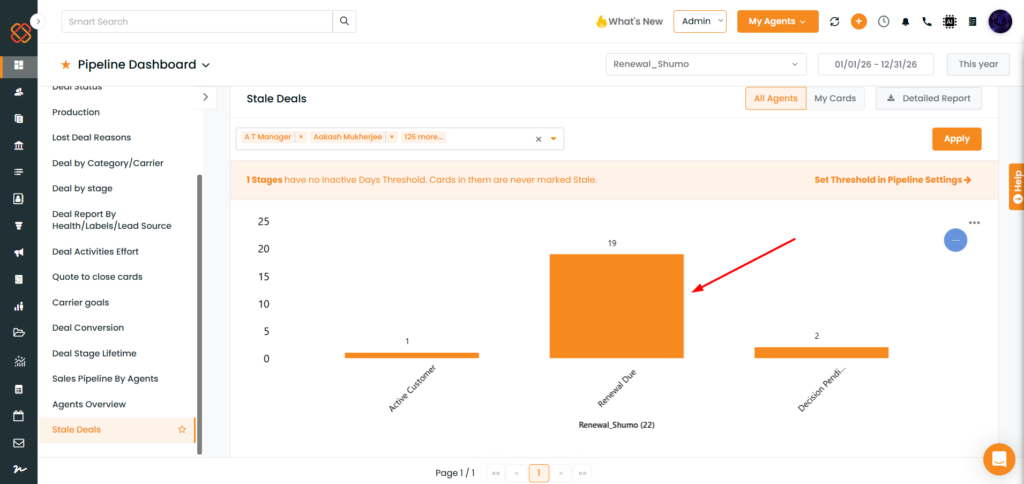
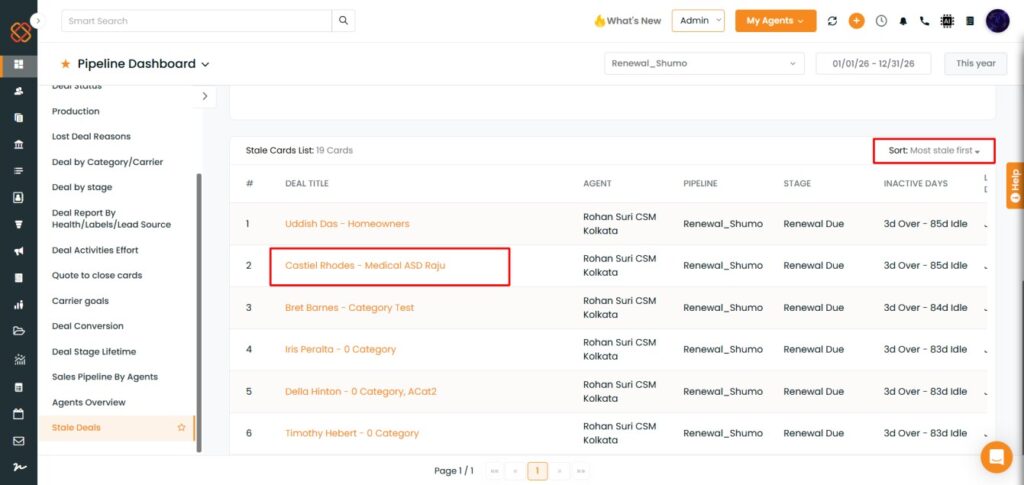
5. A table displaying the details of all stale deals will appear.
6. Click the Deal Title to open the corresponding pipeline card.
7. The stale-deal list can be sorted based on inactive time.
Select Sort to arrange the results in:
- Ascending order of inactive time
- Descending order of inactive time
Missing Inactive Days Threshold
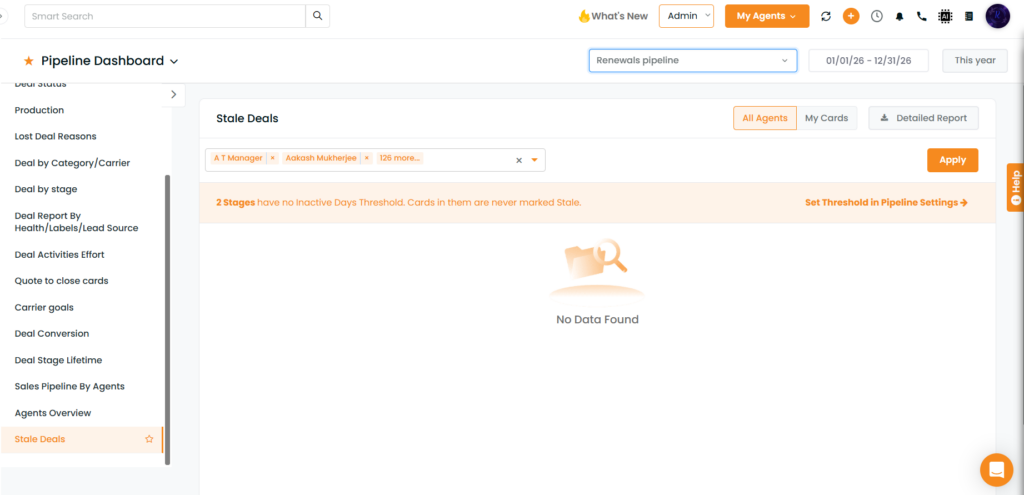
If one or more stages do not have an Inactive Days threshold configured, stale-deal information will not be reported for those stages.
The dashboard displays a status message when a stage does not have an inactivity threshold configured.
For example:
1 stage has no inactive days threshold
For Admins, the message includes a link to the pipeline configuration page so the missing threshold can be configured.
Use Case:
Provide automated detection and visibility into inactive deal cards across all sales pipelines based on customizable, stage-specific inactivity thresholds.
- Cards can sit in a stage with no follow-up, and these dead leads are easy to miss on a busy board.
- Admins need a single view of inactive cards across agents and pipelines, so they can see who has cards that need attention. Admins can set rules or tasks for when a deal has been inactive too long at each stage.
- Agents need a focused list of their own inactive cards so they can act on them. Stale deals are highlighted right on your pipeline board so team members spot them immediately.
- The report should use a per-stage inactivity limit, because a reasonable wait in one stage may be too long in another.


