


Release Date: 10/23/2026
Overview
InsuredMine now allows its users to enable or disable email notifications when sharing checklists and templates with recipients.
This feature gives users greater control over email notifications and helps reduce unnecessary email notifications for routine CRM activities. Users can choose whether a notification email should be sent when a checklist or template is shared.
Note: Disabling the email notification does not prevent the recipient from receiving the checklist or template. It only controls whether the notification email is sent.
Prerequisites
Before using this feature, ensure that:
- You have access to the relevant pipeline to manage checklists.
- You have access to the Engagement section to manage templates.
- If you are sharing a template, you are the user who created that template. The share option is available to its creator.
Use Cases
1: Reduce Unnecessary Checklist Notifications: Agents may receive frequent email notifications for checklist-related activities. Users can disable the notification email when sharing a checklist to reduce unnecessary email alerts.
2: Control Template Sharing Notifications: When sharing a template with other users, the template creator can decide whether recipients should receive an email notification.
3: Customize Notification Preferences: Users can choose whether to send an email notification based on their team’s communication preferences and workflow requirements.
Managing Email Notifications for Checklists
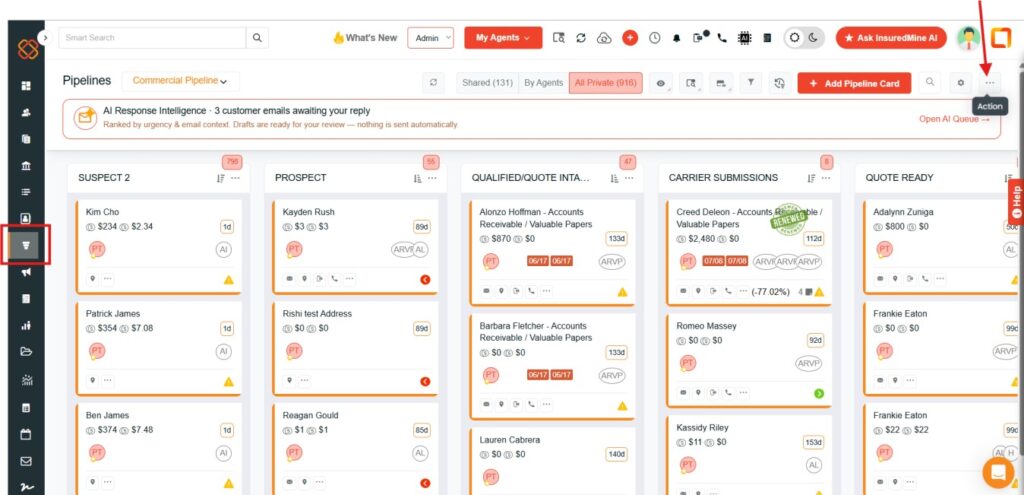
Step 1: Navigate to the Pipeline
- Log in to your InsuredMine portal.
- Navigate to the Pipeline section.
- Open the relevant pipeline where you want to manage the checklist.
Step 2: Open the Checklist Option
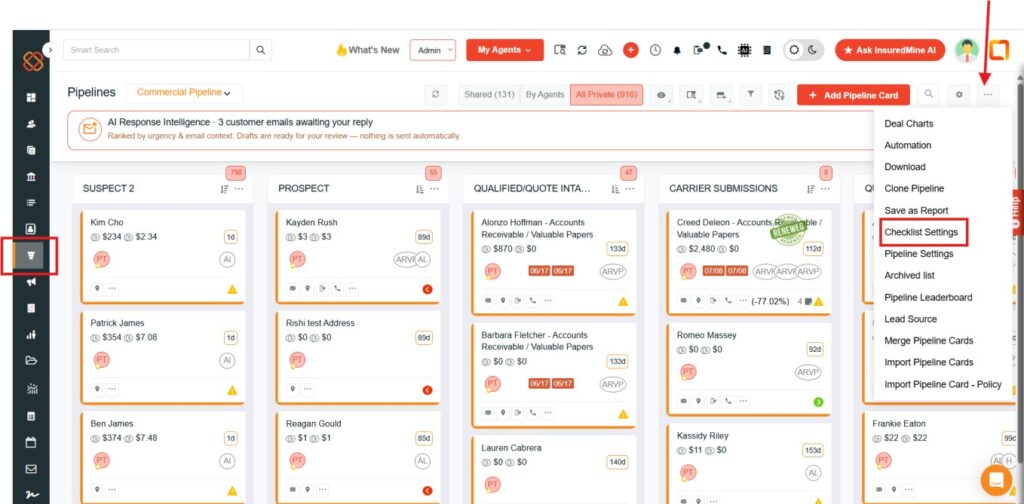
- Locate the Checklist option within the pipeline.
- Open it to access the available checklist actions.
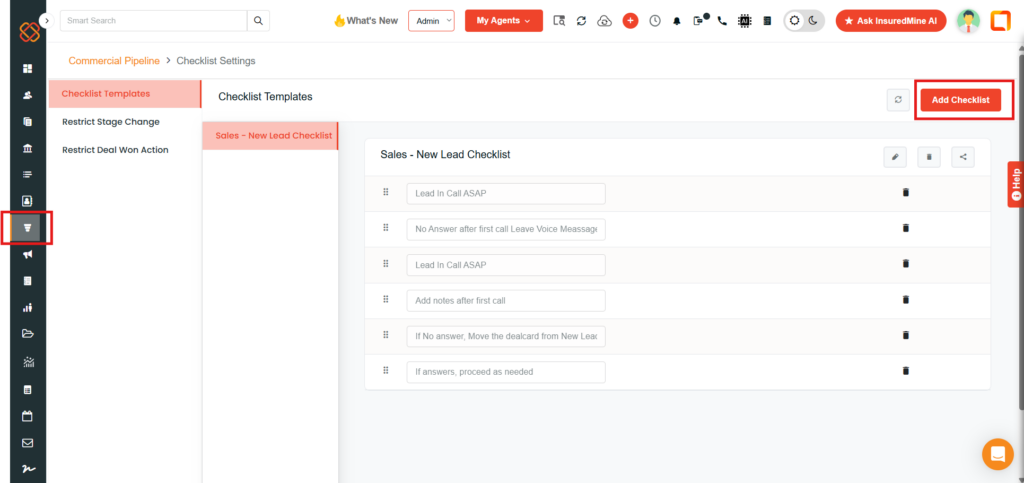
- Select the option to add or share a checklist, as applicable to the workflow.
Step 3: Configure the Email Notification
Creating and Sharing a New Checklist
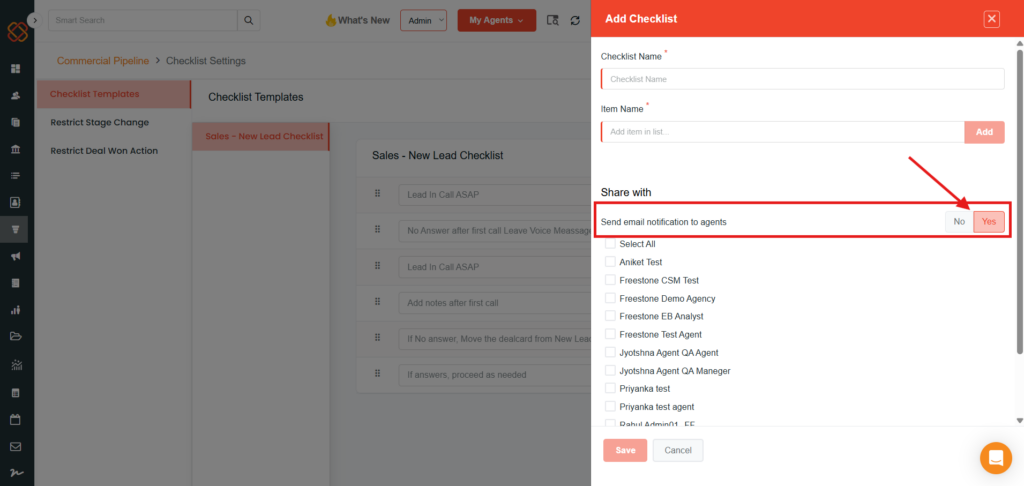
- Locate the email notification setting in the checklist workflow.
- Choose whether the email notification should be enabled or disabled for the recipient.
- Review your selection before proceeding with the checklist action.
- Enable: The recipient receives an email notification.
- Disable: The recipient does not receive the email notification.
Step 4: Complete the Checklist Action
Proceed with the checklist action using the selected notification preference.
The recipient can still receive the checklist even when the email notification is disabled.
Sharing an Existing Checklist
In addition to adding a checklist, you can use the Share the Checklist option to manage email notification preferences for an existing checklist –
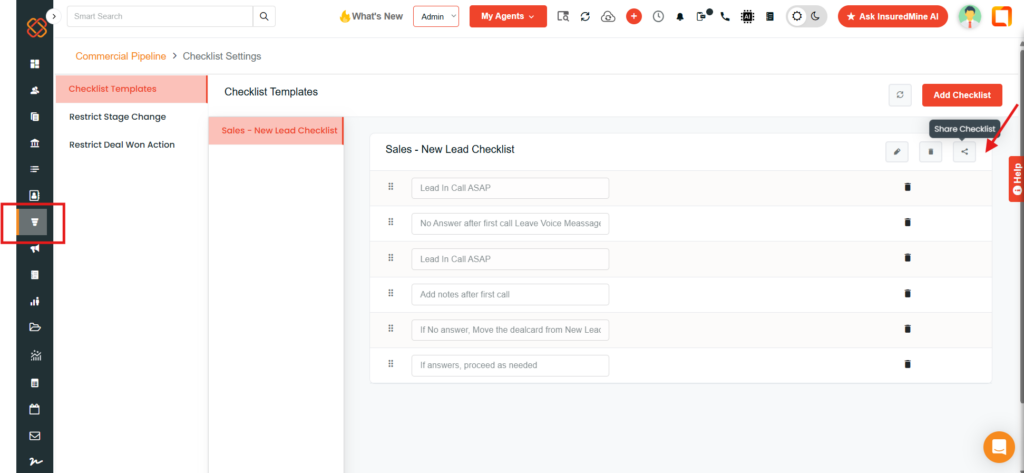
- Locate the checklist you want to share.
- Click the Share icon corresponding to the checklist. You will be automatically redirected to the Share Checklist panel.
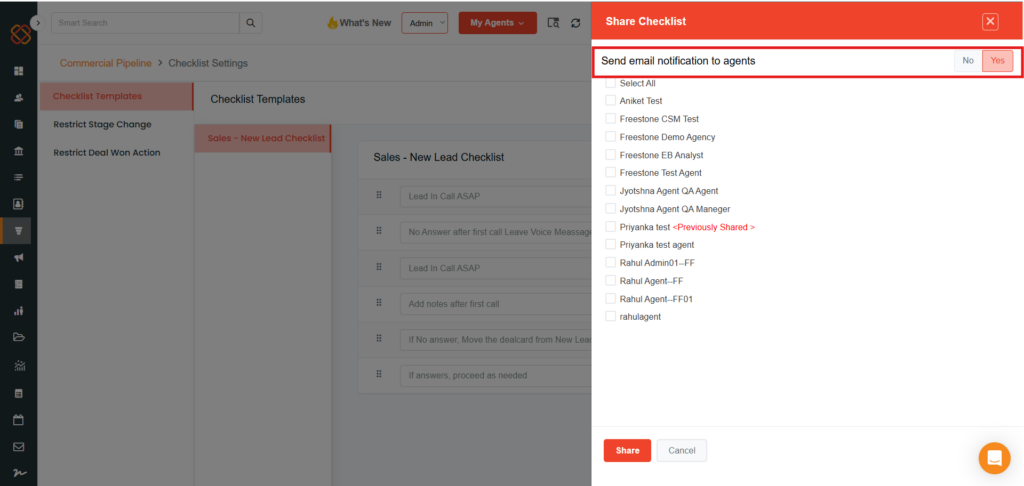
- Locate the email notification setting and choose your preferred option.
- Enable: The recipient receives an email notification.
- Disable: The recipient does not receive an email notification.
Managing Email Notifications for Templates
Step 1: Navigate to Engagement
- Log in to your InsuredMine portal.
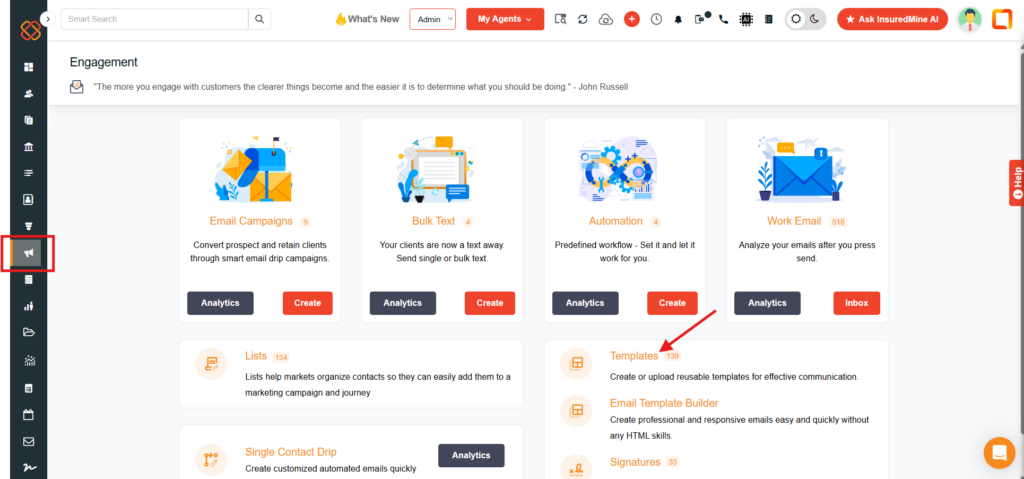
- Navigate to the Engagement section.
- Open Template.
Step 2: Open or Create a Template
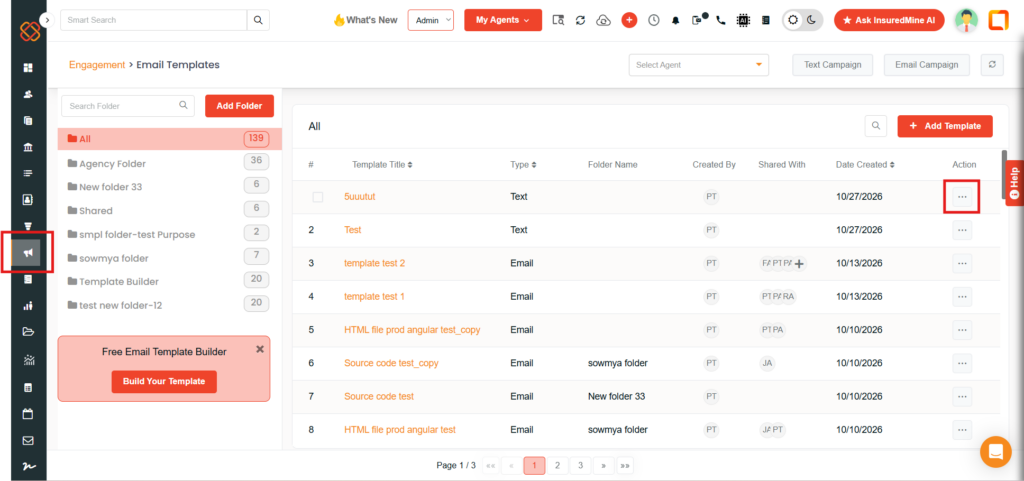
- Locate the relevant template.
- If you are creating a new template, complete the required template setup.
- Ensure you are working with a template you created, as the share option is available to its creator.
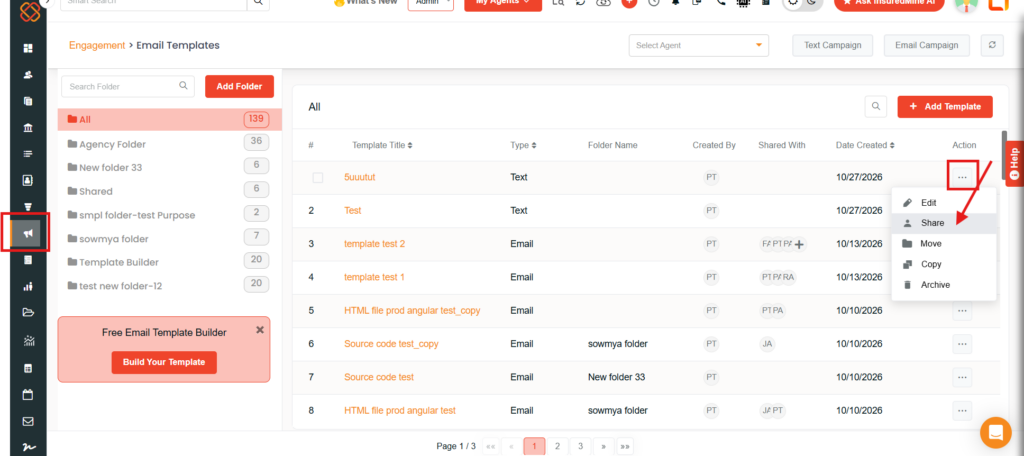
Step 3: Open the Template Sharing Option
- Open the relevant template.
- Locate the option to share the template with other users.
- Open the sharing workflow.
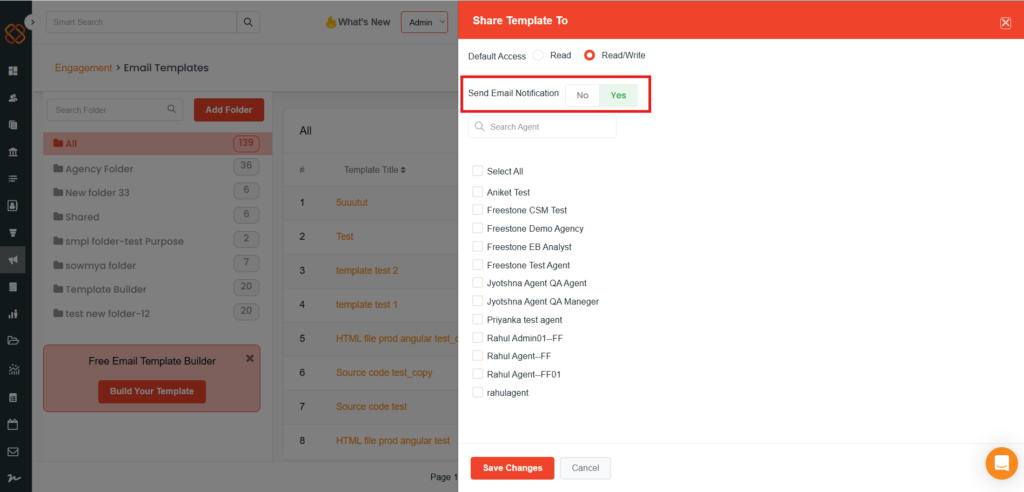
Step 4: Configure the Email Notification
- Locate the email notification setting in the template-sharing workflow.
- Choose whether to send an email notification to the recipients.
- Review the selected preference before completing the sharing action.
- Enable: Recipients receive an email notification about the shared template.
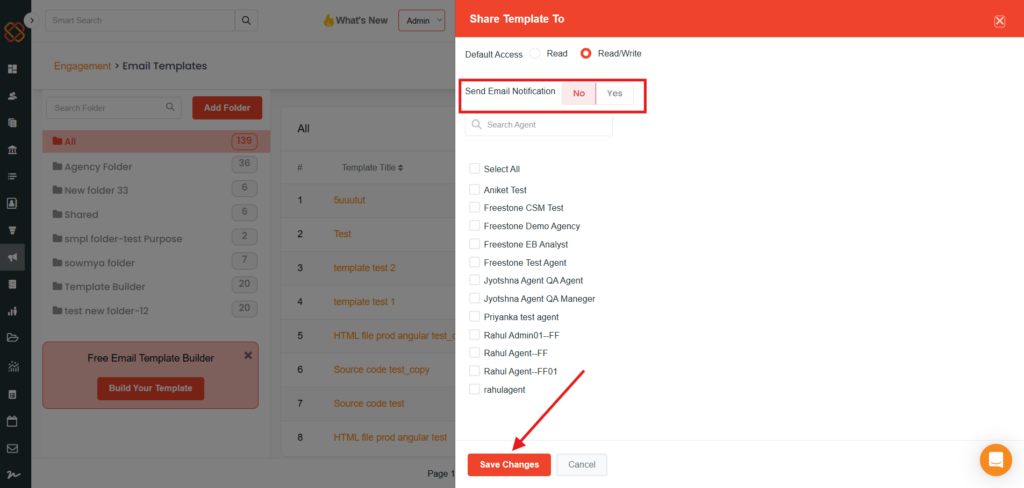
- Disable: Recipients do not receive the email notification.
Step 5: Complete the Sharing Action
Proceed with sharing the template by opting for Save using the selected notification preference.
Disabling the email notification does not prevent the recipient from receiving the shared template. It only stops notification, not the execution of the action.
Important Notes/ Limitations:
- The email notification setting controls whether an email notification is sent to the recipient.
- Disabling the notification does not prevent the checklist or template from being received.
- The checklist notification option is accessed through the Pipeline section.
- Template notification settings are accessed through Engagement → Template.
- The template sharing option is available to only the user who created the template.
Key takeaway: InsuredMine now gives users control over email notifications for checklists and templates, helping teams manage communication without preventing recipients from receiving the shared items.


