The integration between AMS360 and Benefit Point (BP) establishes an easy data exchange mechanism between these two platforms, catering to the specific needs of insurance agencies. AMS360 serves as the primary system for managing client accounts, contacts, and policies, while Benefit Point specializes in employee benefits admin. This integration ensures that when information is added or updated in AMS360, it’s automatically transferred to BenefitPoint and then synced within InsuredMine.
Use Case:This Integration ensures that any changes made in AMS360 are swiftly mapped to Benefit Point and synced to Insuredmine in real-time sync and daily sync option, maintaining data integrity and consistency across both systems.’
Note : In InsuredMined, we are not auto-syncing accounts, contacts and policies. We are giving an option to manually sync. The agent can choose where they want to sync the data (BenefitPoint/AMS360).
How Does the Architecture Work 👇?
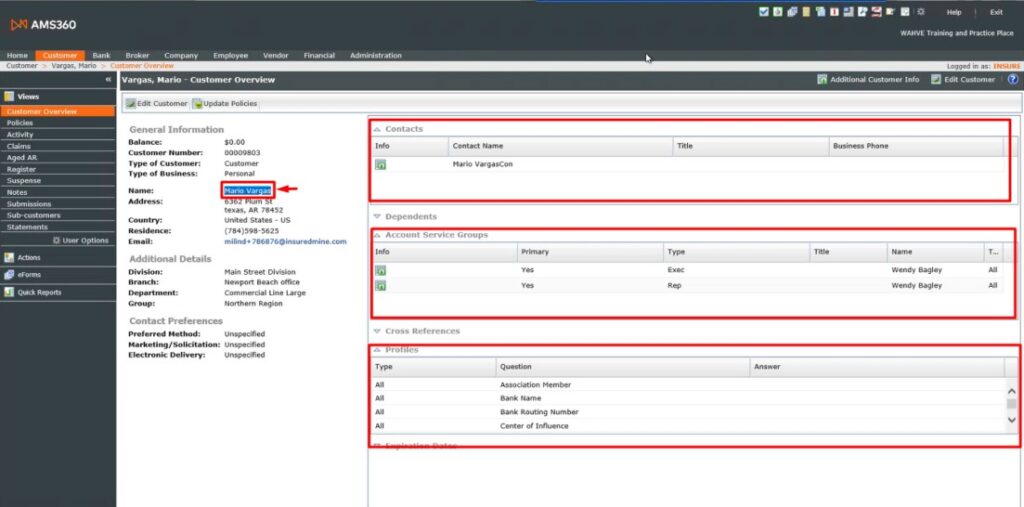
Suppose there is an account, contact, and policy created within AMS360.
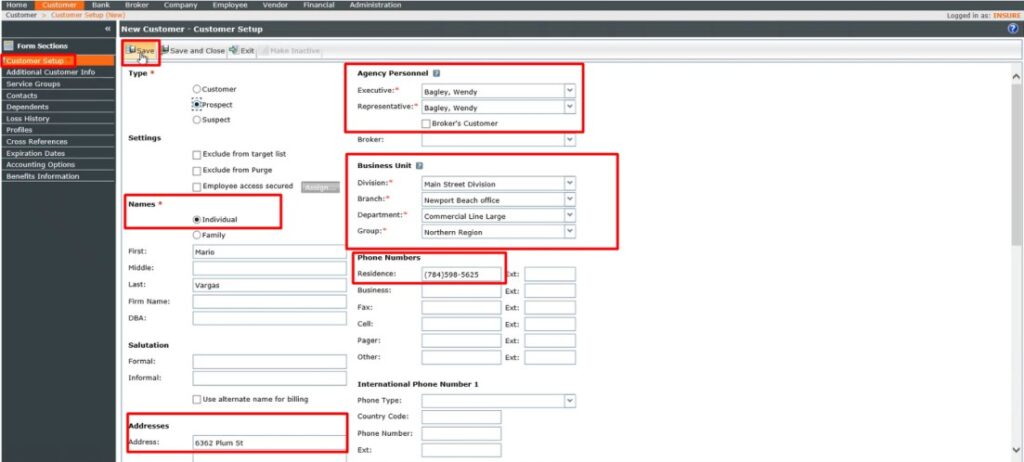
Account Details in AMS360:
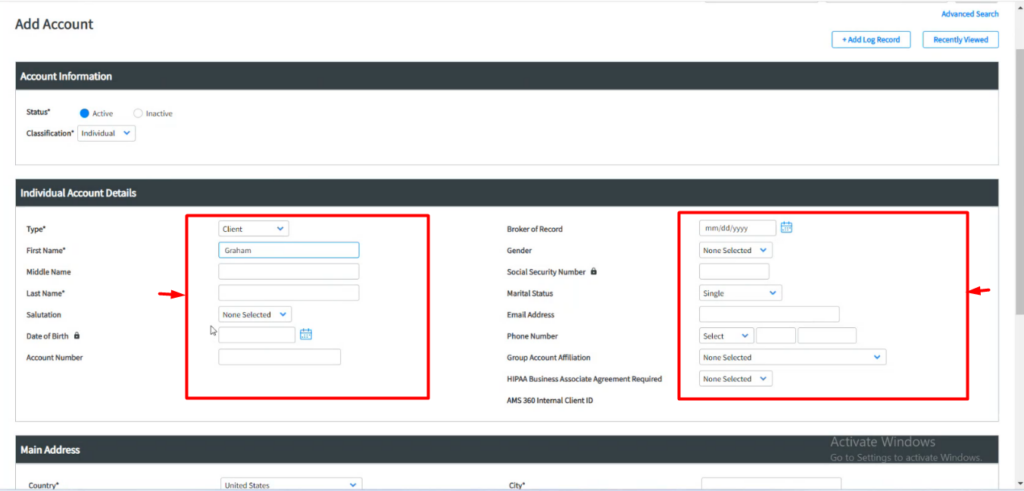
Fill in the mandatory fields to add an account in AMS360.
Click on Save.
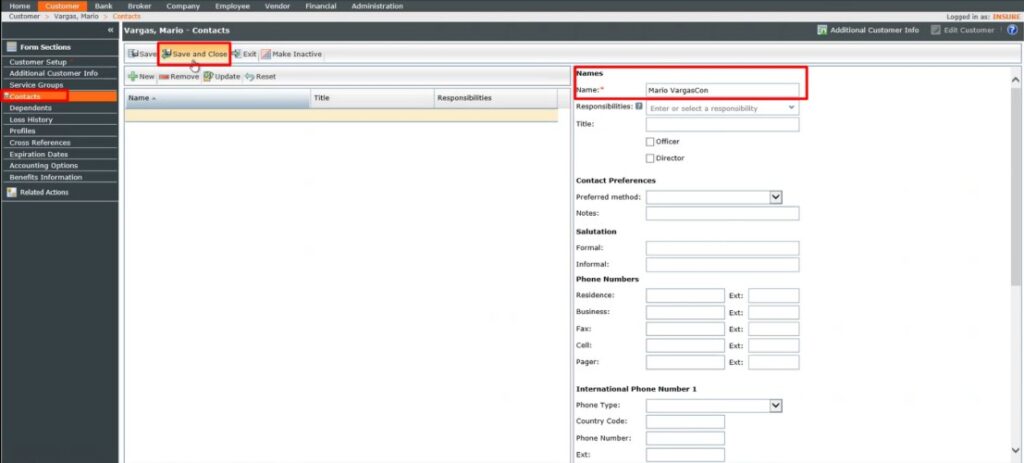
Contact Details in AMS360:
Fill in the mandatory fields to add an account in AMS360.
Click on Save.
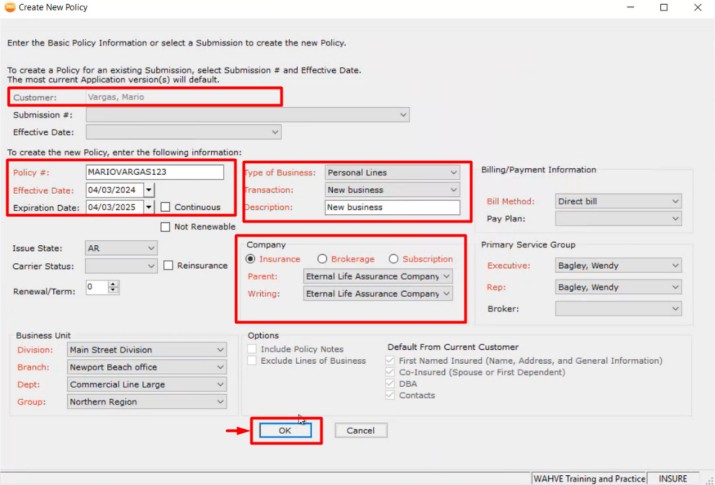
Policy Details in AMS360:
Enter the basic policy information of the customer and then click ok.
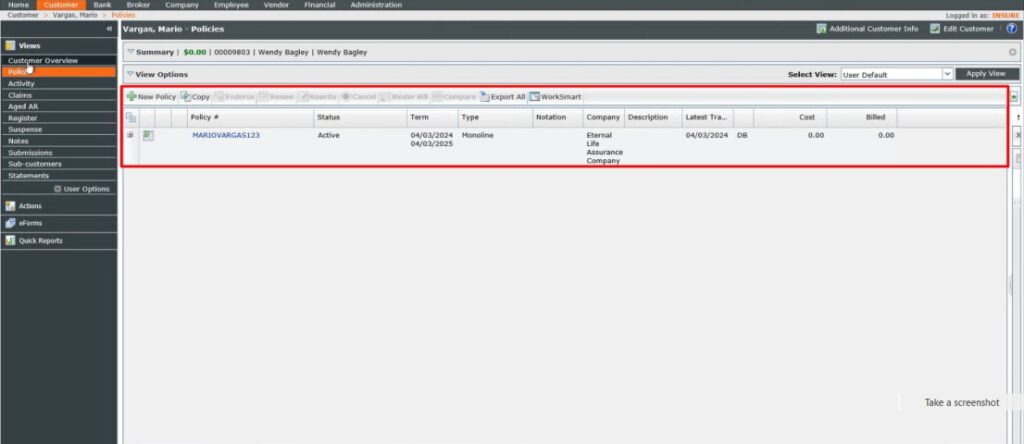
A policy will then be created.
An Account associated with a contact and policy has been added.
Data sync in AMS360 is realtime.
1st Scenario: How to get the data mapped from AMS360 to Benefit Point?
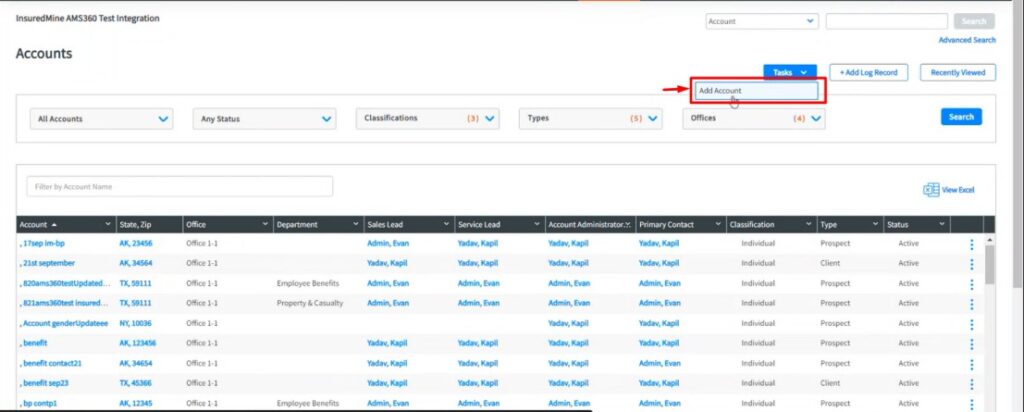
To do so, we can create an account in BenefitPoint by searching for the account with its name. If found, it will retrieve all the data for account creation directly from AMS360. Additionally, we will have the BenefitPoint Account ID and AMS360 Customer Account ID when coming into InsuredMine from the daily sync.
Click on Add Account.
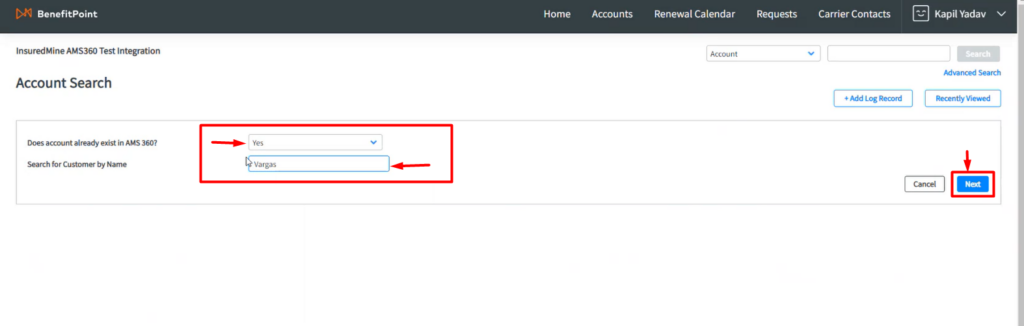
If we select “Yes,” it will fetch and display the AMS360 account data.
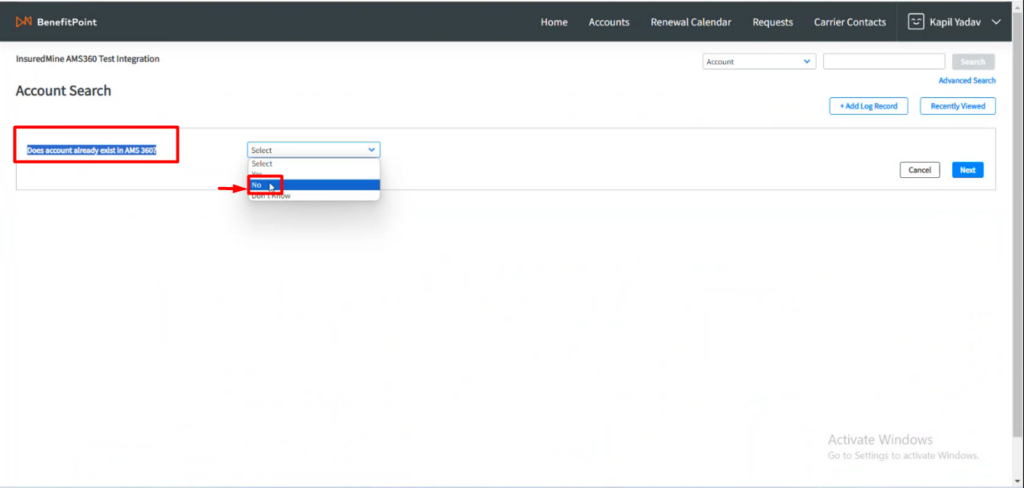
Now, within the Benefit Point search for the account, where it asks you, ‘Does the account already exist in AMS360?
Note: Within the Benefit point search for the account name using your last name.
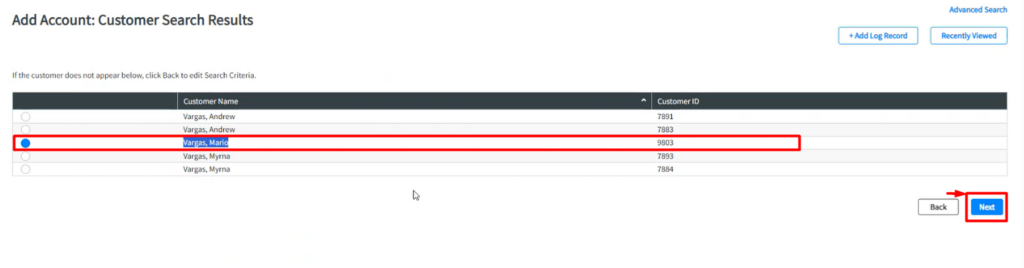
Then, search results will be displayed as shown in the image provided above.
Now, regardless of the search results displayed within the Benefit Point, the data will be sourced exclusively from AMS360. However, there will be a classification of accounts created both within AMS360 and Benefit Point.
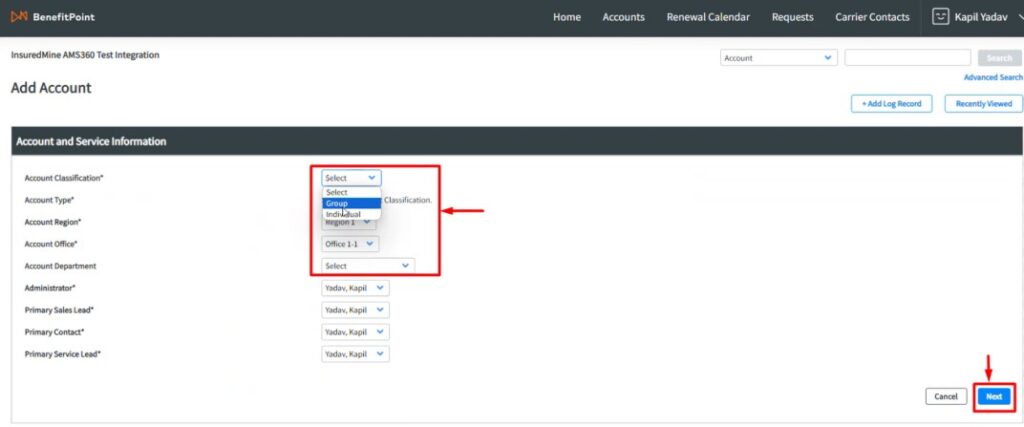
Given that BenefitPoint will also create an account under the same name, you have the flexibility to categorize it as either a group or an individual account within the BenefitPoint system. Subsequently, you can designate the account type, regional office, and department accordingly.
Click on Next.
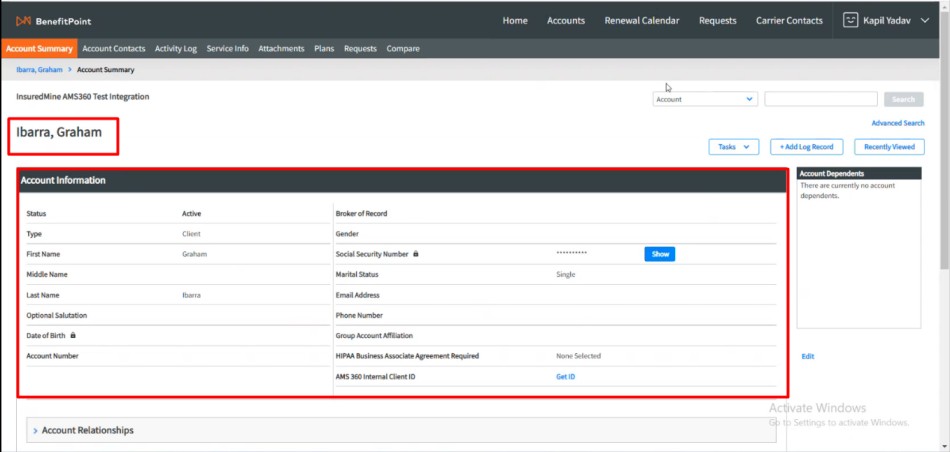
You will get the account information from AMS360 mapped to the BenefitPoint eliminating manual efforts.
Click on Save.
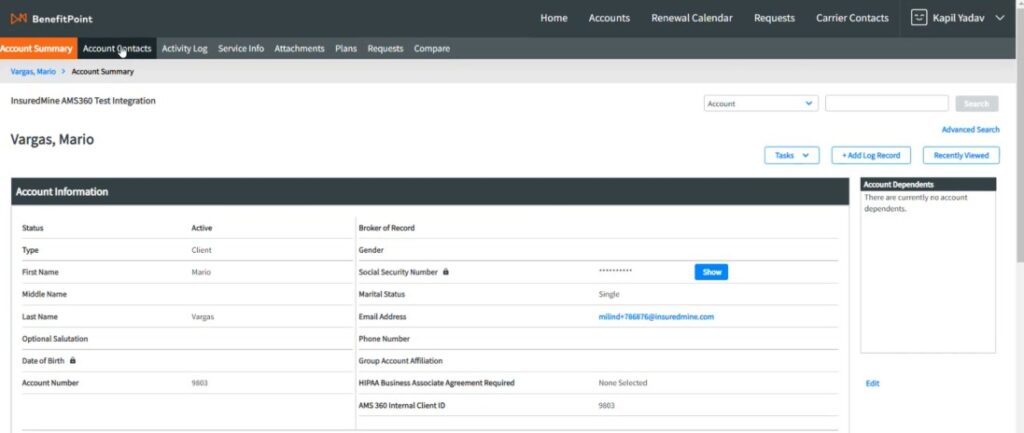
A window will then appear within Benefit Point displaying the data of the account.
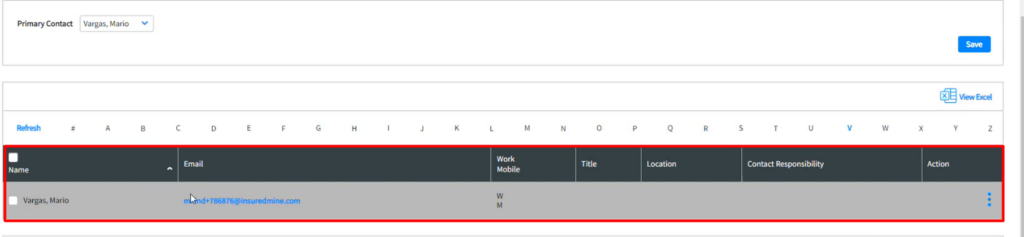
After adding an Individual account, a primary contact will automatically be created with the same name within Benefit Point on the mentioned account details.
Note: “In BenefitPoint, if you are updating any details within the account and contact, the update will stay in BenefitPoint and won’t get mapped with AMS360.”
Adding any Policy to the BenefitPoint:
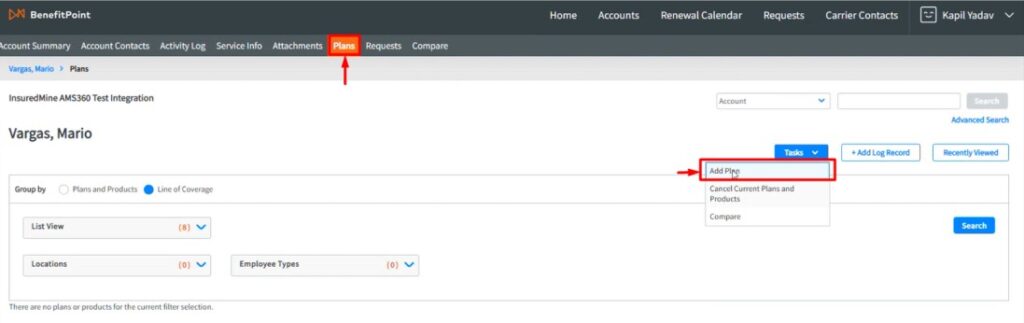
Click on Plans. ( In Benefit point plans means Policies).
Then, click on Tasks to add a Plan. (Policies).
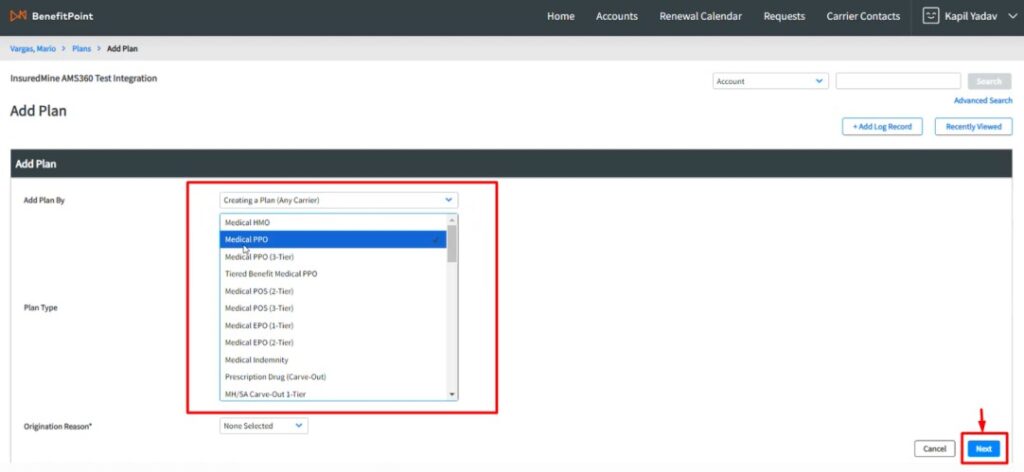
After adding a Plan, click Next.
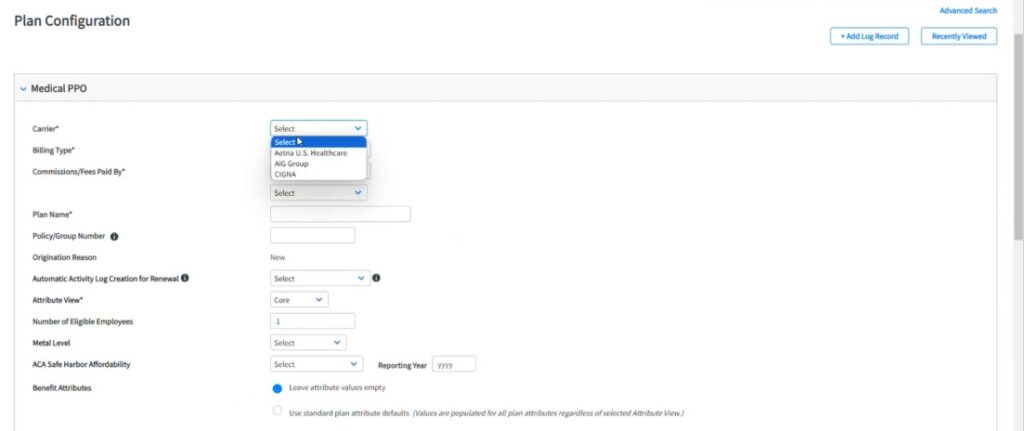
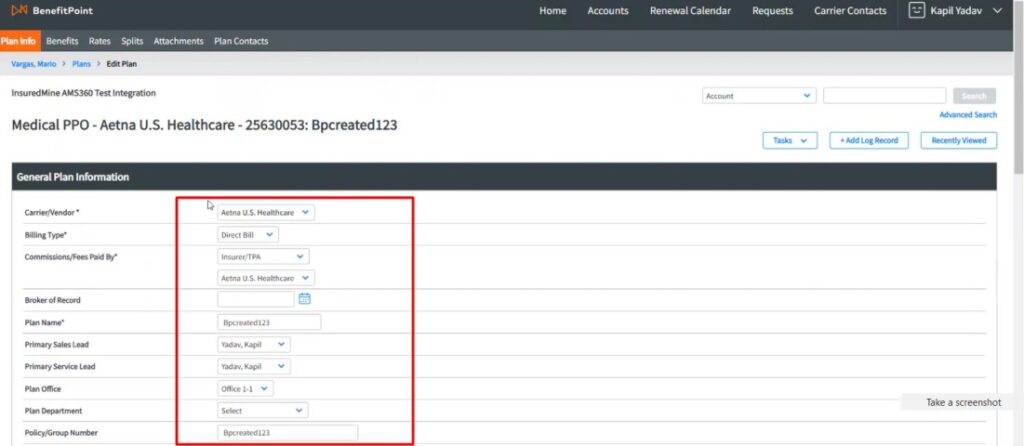
Configure your plan ( Policies) by adding carrier type, Billing type, plan name, etc.
Sync Impact on InsuredMine:
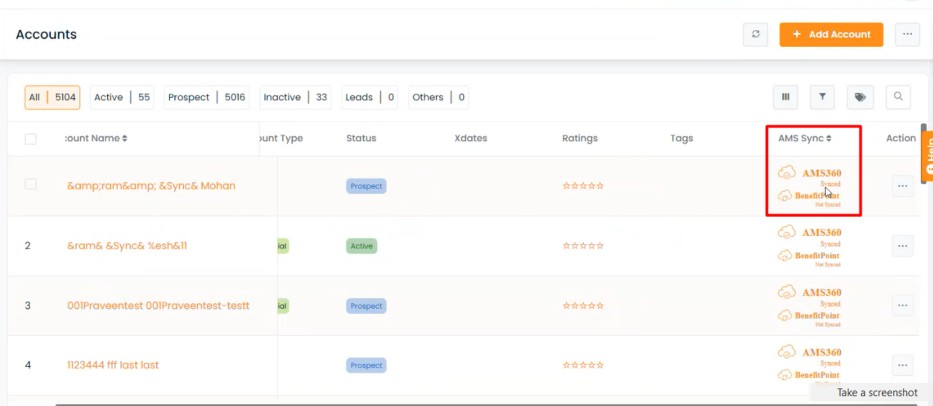
As AMS360 is a real time sync in Insuredmine, in IM the account will be showing as Ams360 synced and after the BenefitPoint daily sync the same account will have both ams360 synced and BenefitPoint synced, no duplicates will be created in IM.
2nd Scenario:If the user selects “No” for the option “Account present in AMS360” within BenefitPoint.
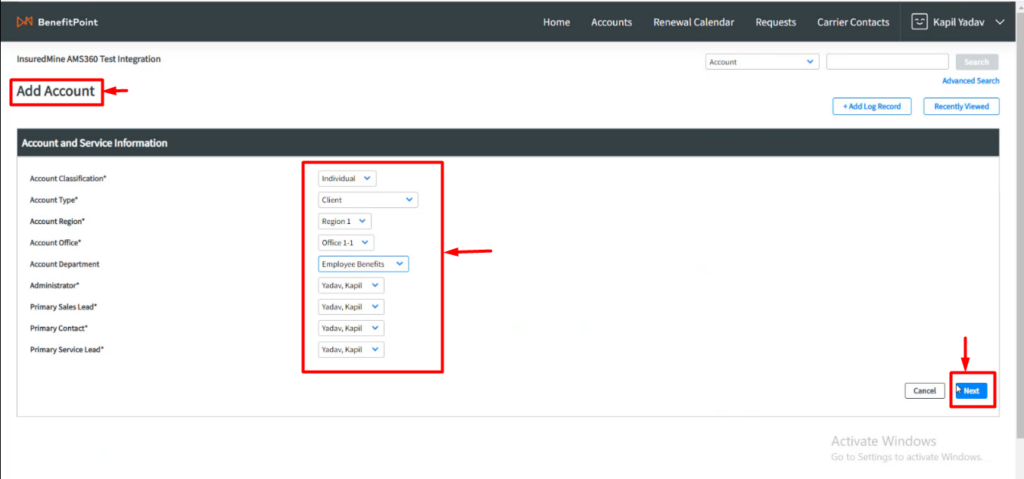
Add an account within BenefitPoint by adding Account and its Service Information.
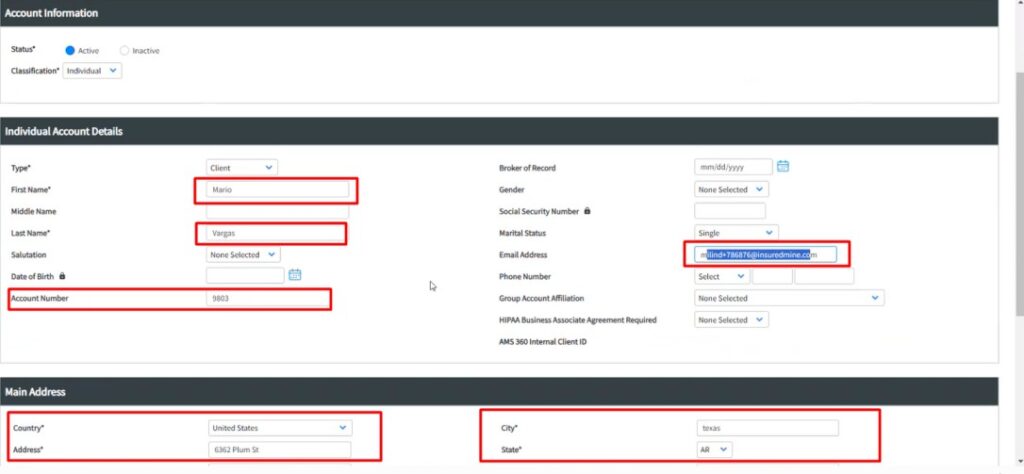
Next, fill in the mandatory fields for the individual account within Benefit Point.
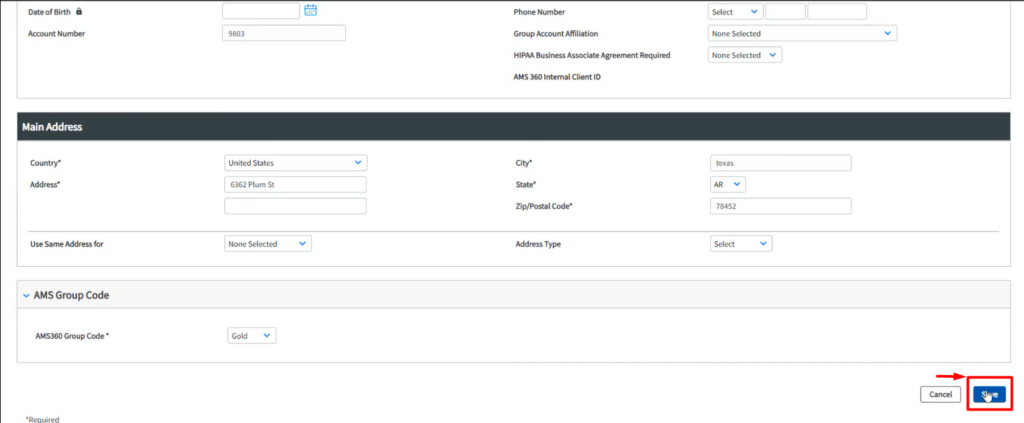
Click Save.
Fill in the mandatory fields to create an account within BenefitPoint.
Now How to get the Benefit Account Synced with InsuredMine
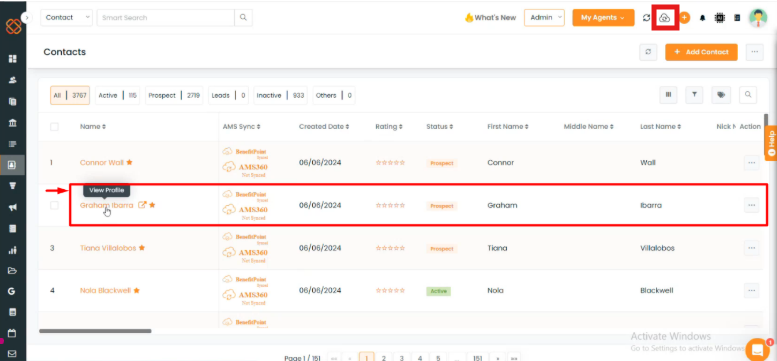
Hit the daily AMS sync button within Insuredmine to sync the account/contact data.
The account/contact will then be updated within InsuredMine.
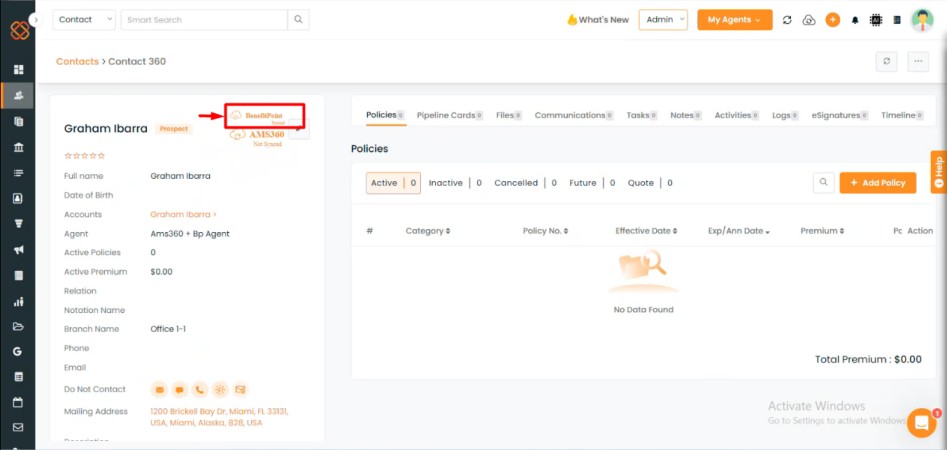
Click on it to view the Account/Contact profile.
Note: The policy sync will remain the same from BenefitPoint to InsuredMine.