Home » Knowledge Base » Reorder Documents While Uploading for eSignature
eSign Document Management, esign in other modules
Reorder Documents While Uploading for eSignature
July 16, 2026
Release Date: July 15, 2026
Available for: Admins and Agents.
Overview
We have introduced a new enhancement in the eSignature module that allows users to arrange the order of multiple PDF files while uploading them for eSignature. Users can reorder documents by dragging and dropping them, ensuring recipients view the documents in the intended sequence.
Why this matters
Use this enhancement to:
Upload multiple PDF files for eSignature.
Arrange documents in the preferred order before sending.
Send multiple documents together in a single eSignature request.
Send files for eSignature directly from a Pipeline Card.
To view the enhancement:
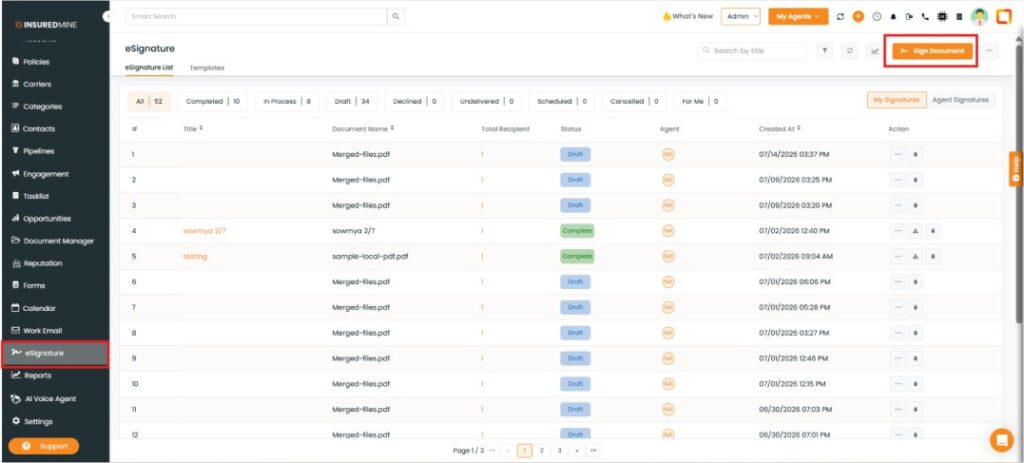
Navigate to e-signature.
Click esign Document.
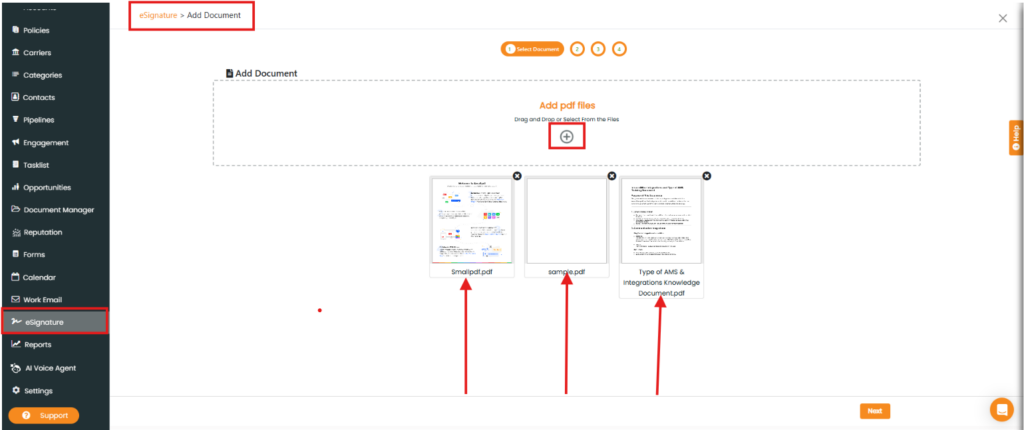
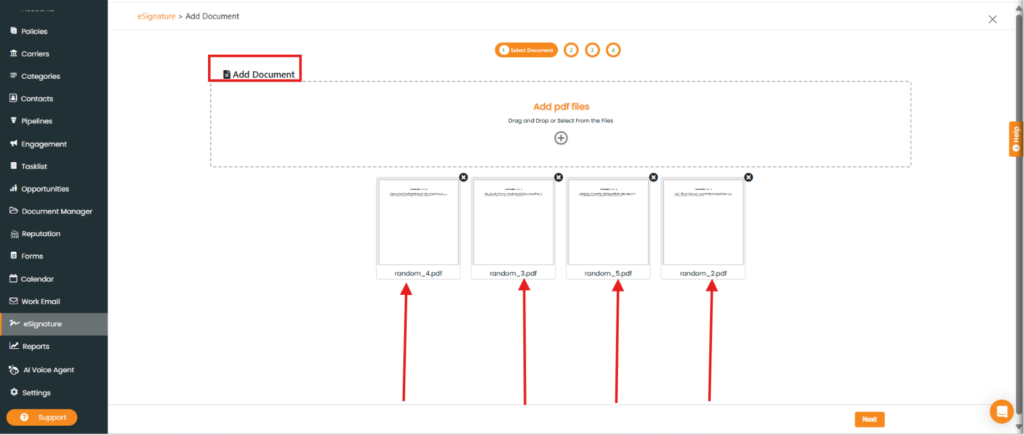
The eSignature > Add Document page appears.
Click the + icon to upload PDF files.
Note: You must upload two or more PDF files to arrange their order.
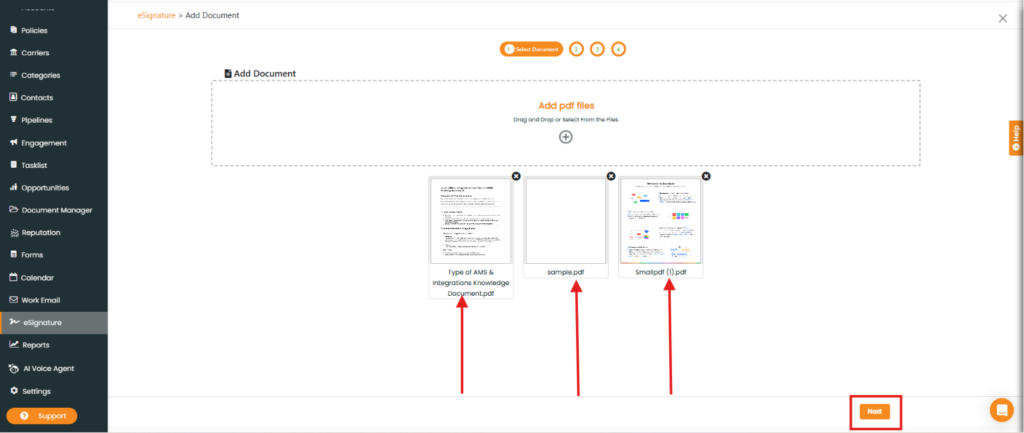
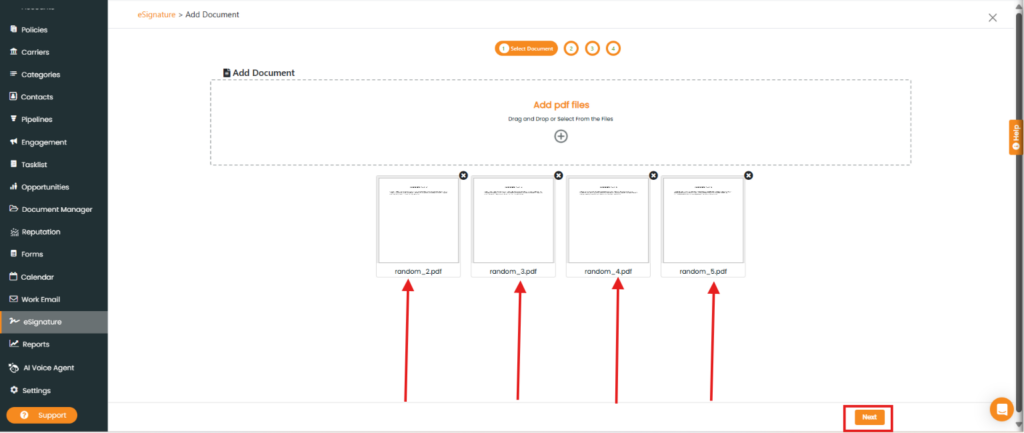
Drag and drop the PDF files to arrange them in the preferred sequence.
Click Next.
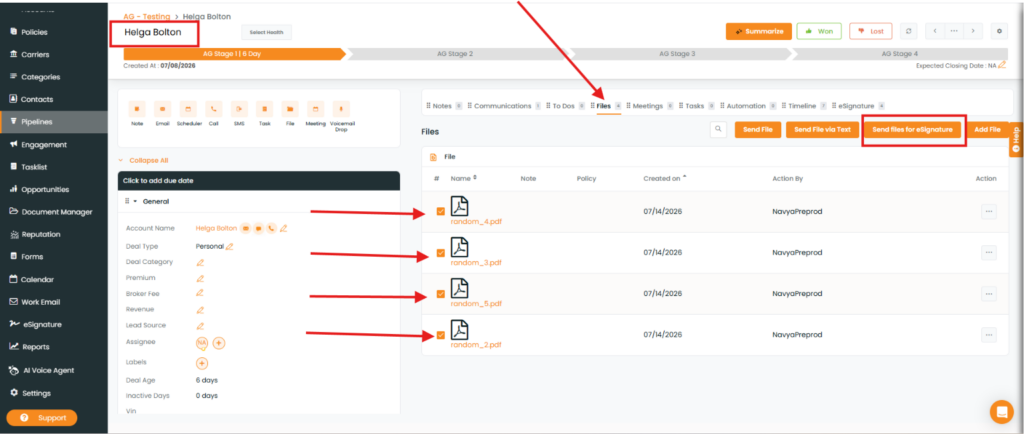
To view the enhancement in the Pipeline:
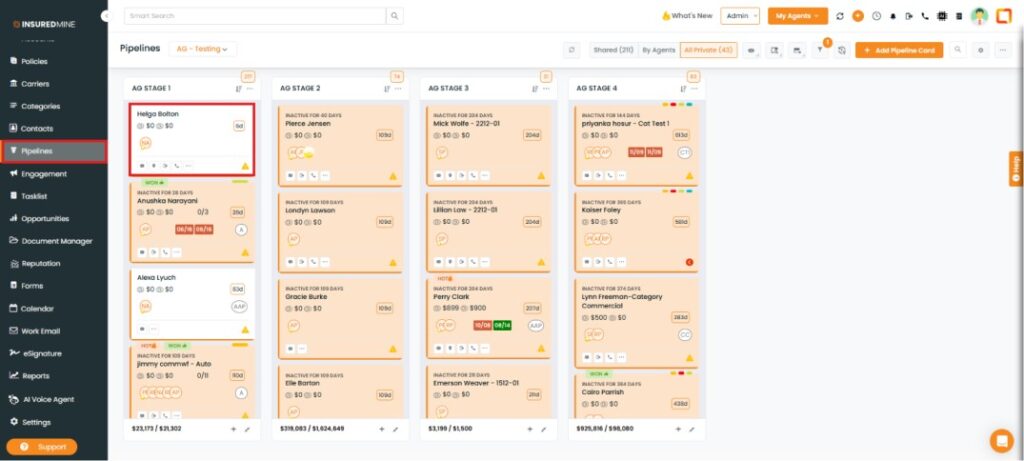
Navigate to Pipelines.
Open the required Pipeline Card.
A detailed view of the Pipeline Card appears.
Click the Files tab.
The list of uploaded files is displayed.
Select the checkbox next to the file(s) you want to send for eSignature.
Click Send Files for eSignature.
Note: You can also add files by clicking Add Files. The added files appear in the Files section, where you can select them and send them for eSignature.
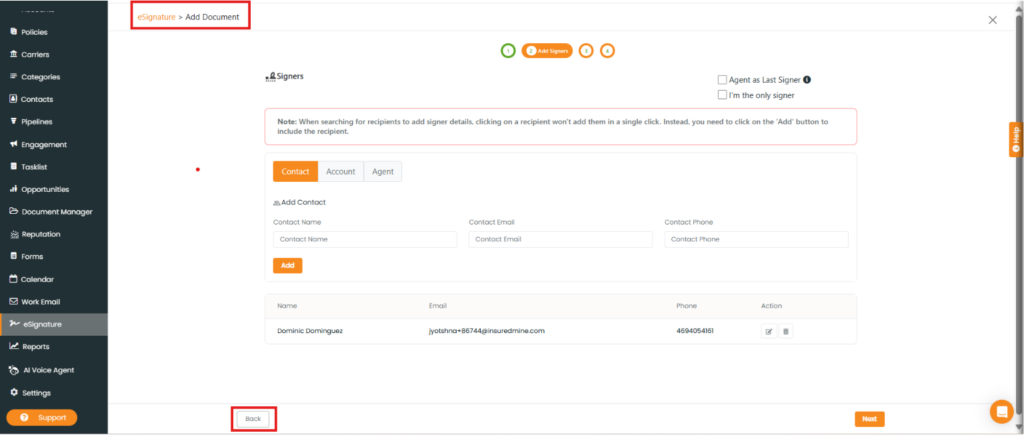
The esignature> Add Document page has been displayed.
Click Back.
The Add Document page appears with the selected files.
Note: Whether you upload documents directly in the eSignature module or send files for eSignature from a Pipeline Card, Contacts and Accounts, you can arrange the selected PDF files in the preferred order by dragging and dropping them.