Release Date:- 27 January, 2026
The InsuredMine Outlook add-in integrates InsuredMine CRM with Microsoft Outlook, providing AI generated email thread summaries and quick access to related contacts, accounts, notes, and tasks. Users can manage client context and perform key actions directly from Outlook.
Use Case: This add-in helps users quickly understand long email threads using AI-generated summaries while working in Outlook. It allows instant access to related InsuredMine CRM data, enabling users to view context, take action, and navigate to the correct contact or account without leaving their inbox.
Steps to add the Add-in:
- Open your Outlook application or Open it on the browser.
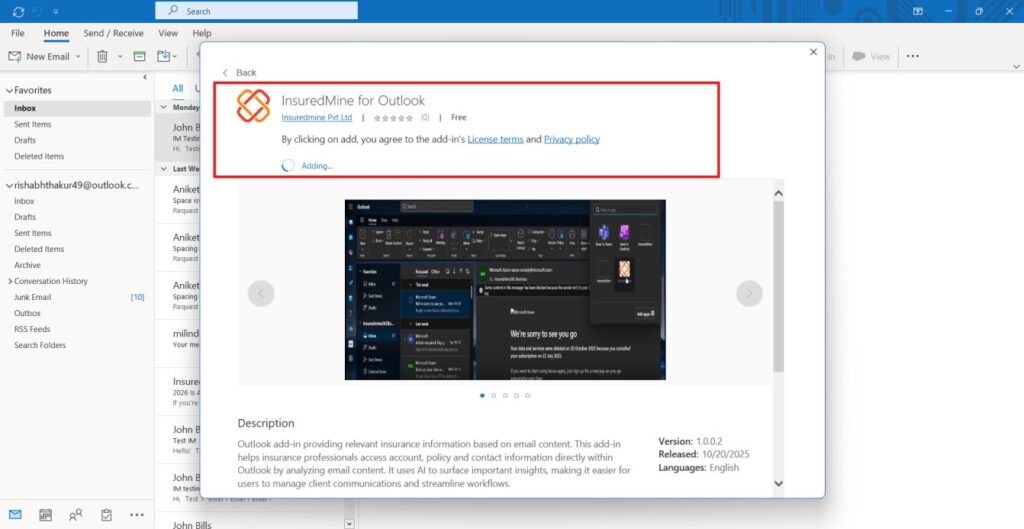
- Go to the Browse Add-ins.
- In the search bar – search InsuredMine.
- InsuredMine for Outlook appears and click on Add.
Steps to Use the InsuredMine Add-in
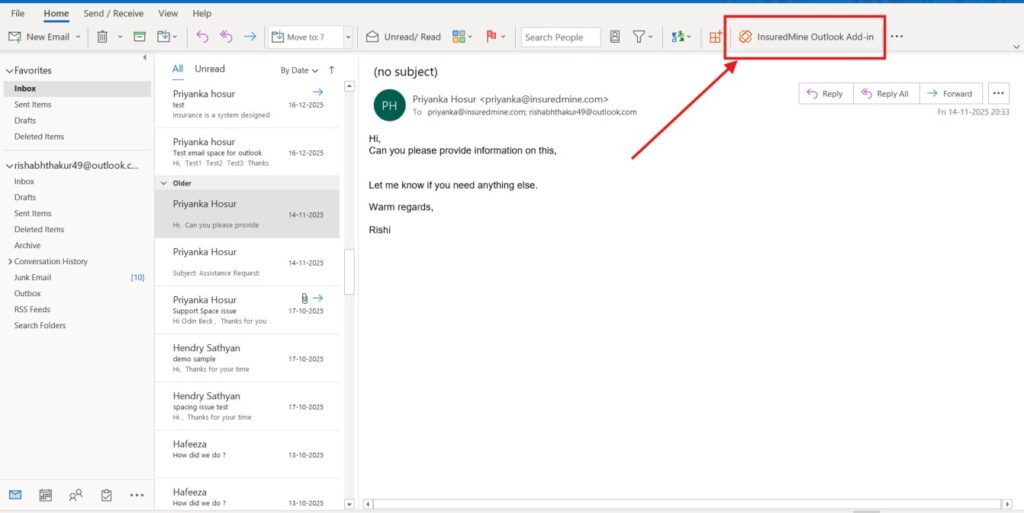
Step 1 — Open Add-in
- Launch Microsoft Outlook (Desktop or Web).
- Open any email conversation
- Click the “InsuredMine Outlook Add-in” icon.
Expected Result: Add-in panel opens showing the “InsuredMine” option.
Step 2 — Sign Up to InsuredMine
If you do not have an existing InsuredMine account and credentials, please follow the steps below to sign up:
- Click “LOGIN” in the add-in.
- Select “Sign Up” when prompted.
You will be redirected to the InsuredMine signup page, where you can start a trial version for $1 or select any available pricing plan.
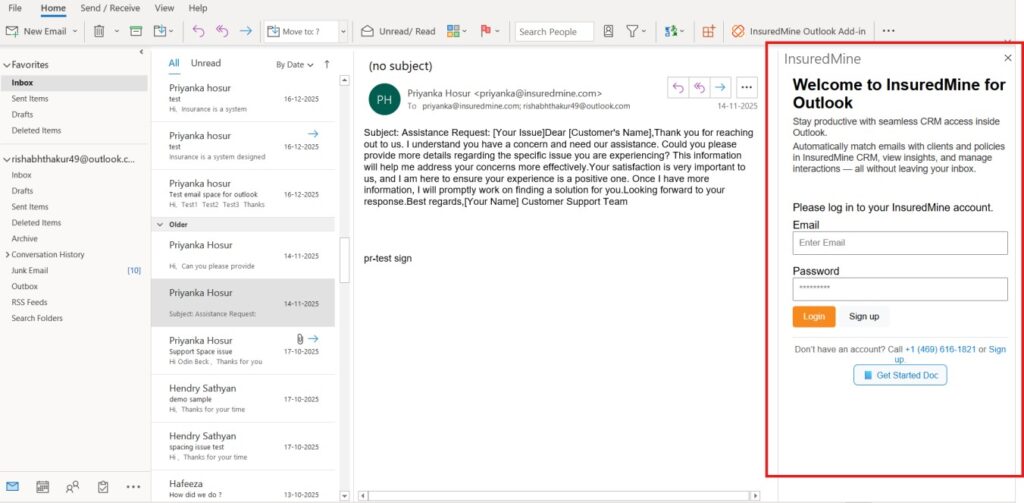
Step 3 — Login to InsuredMine
- Click on InsuredMine Add-in
- Enter your InsuredMine credentials (email & password)
- Click Login
Expected Result: Successful logged in to your InsuredMine interface within Outlook.
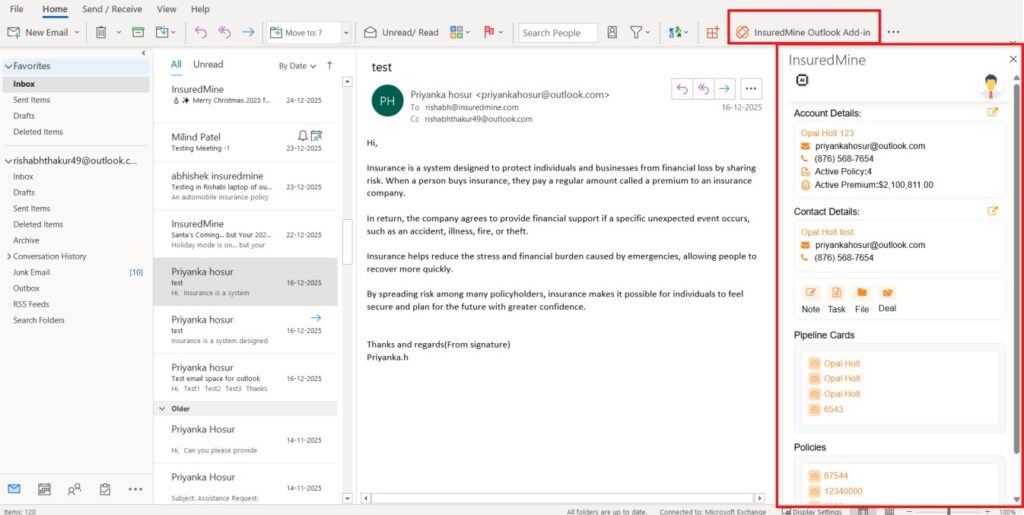
Outlook Add-In features:
- AI Email Summary
Steps:
- Click on any email or email thread.
- Once the email is opened, navigate to the InsuredMine add-in and click on it.
- Click the AI button to view the Email Summary.
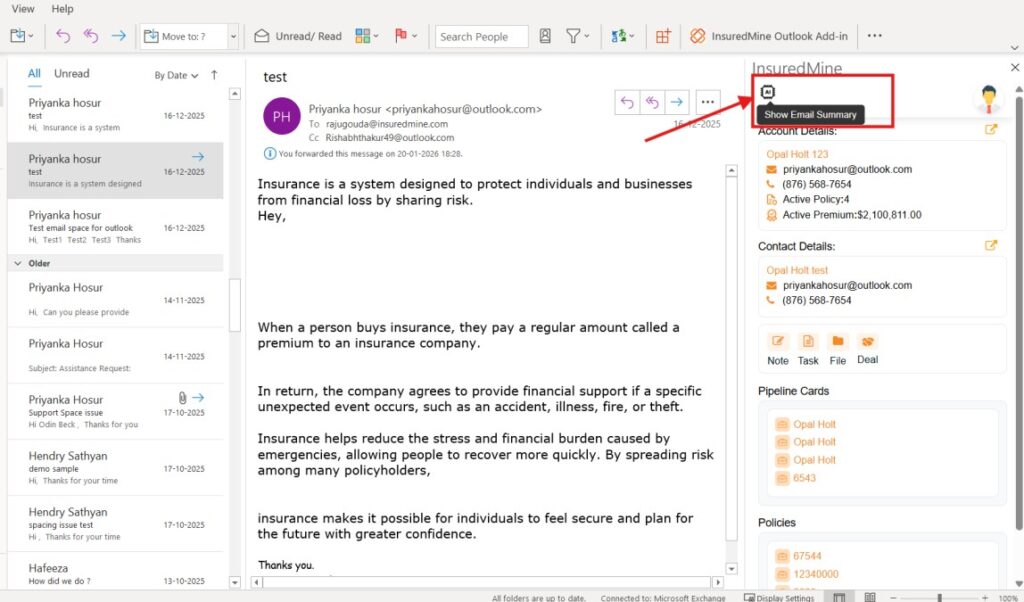
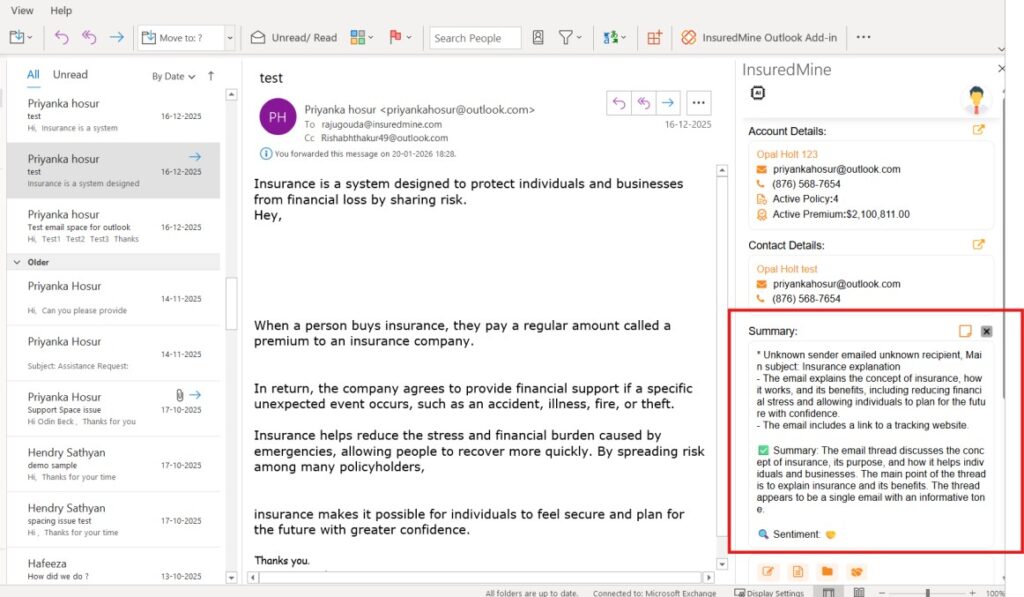
- You can view the summary of the selected email.
- The summary includes key details of the email.
The sentiment of the email (for example, Neutral) is also displayed.
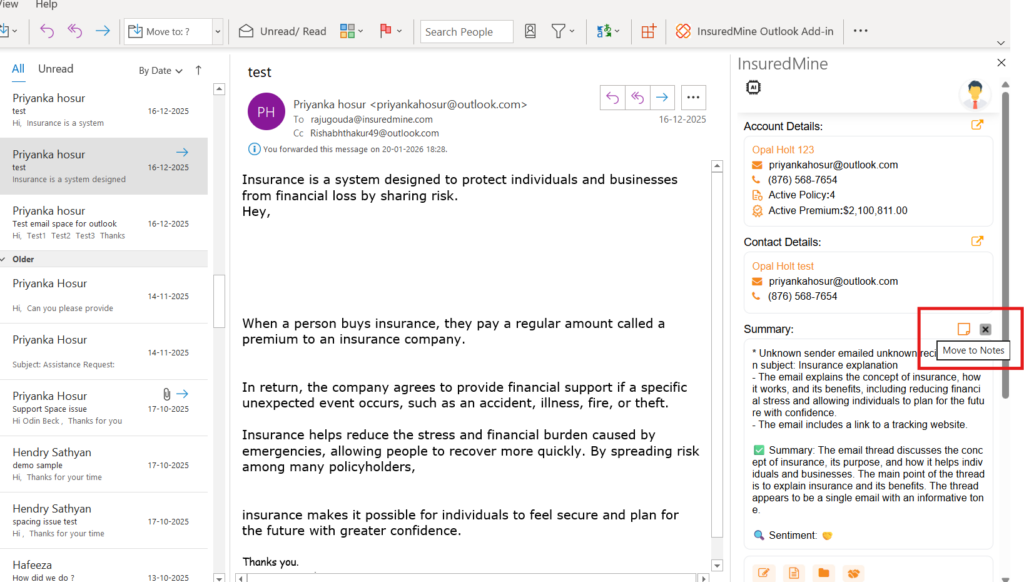
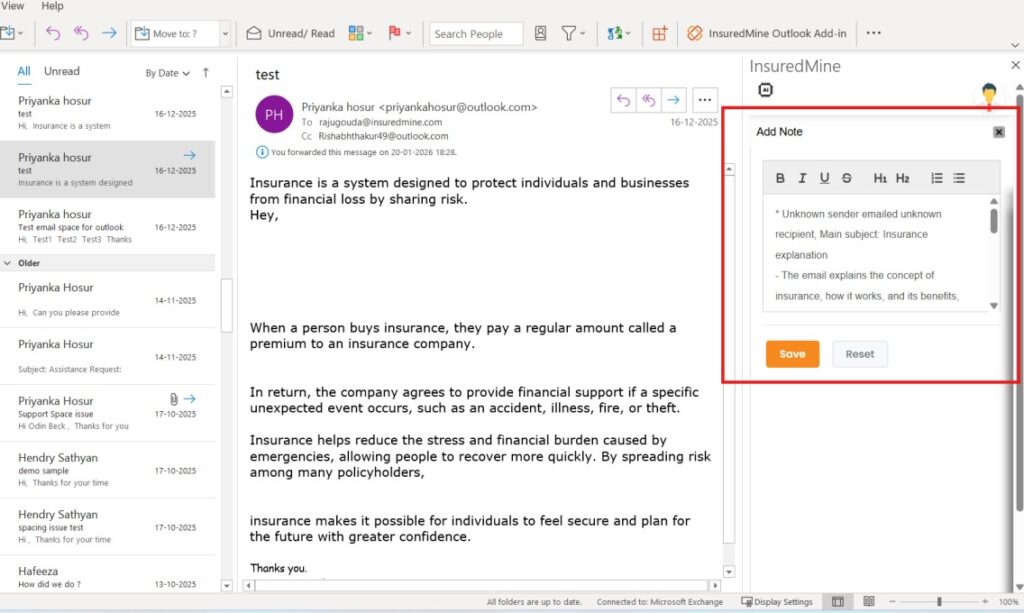
- You can also copy the generated email summary to notes by clicking on Move to Notes.
- Here, you can view the AI-generated Email Summary in the Notes.
2 . Account and Contact details.
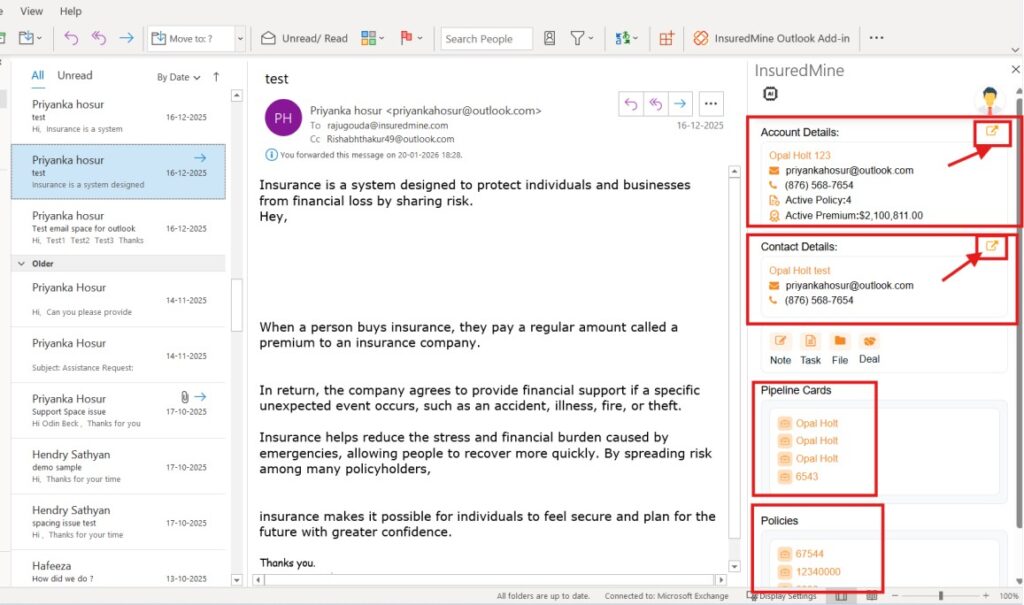
Account Details
- Account Name
- Phone Numbers
- Email Address
- Active Policy
- Active Premium
Clicking on the icon beside the Account details redirects you to the InsuredMine Account 360 portal.
Contact Details
- Name
- Phone Numbers
- Email Address
- Policies
- Pipeline
Clicking on the icon beside the Contact details redirect you to the InsuredMine Contact 360 portal.
- Notes:
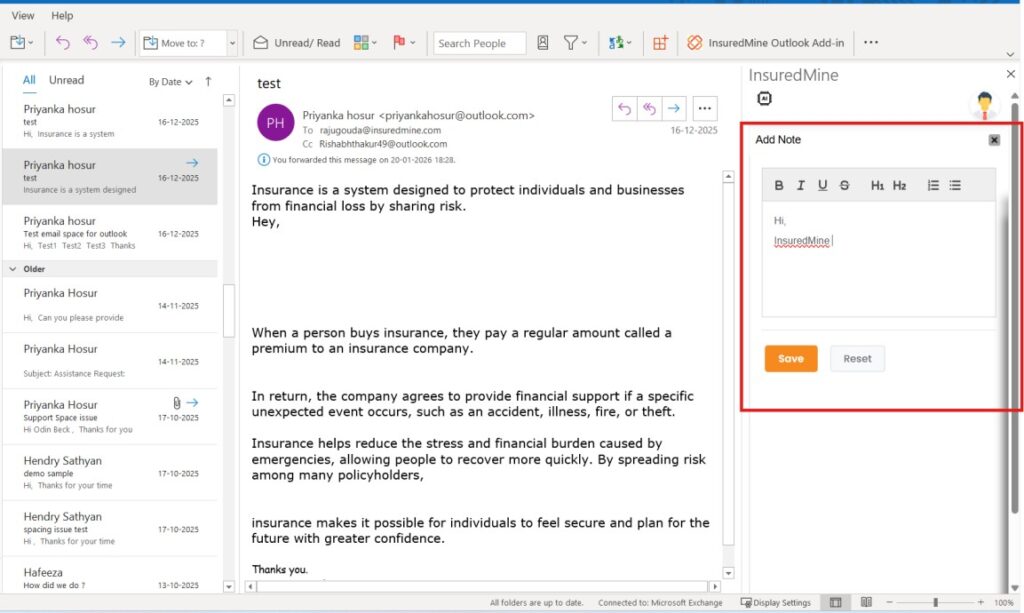
- Click on Note
- The Add Note panel appears.
- Enter the message.
- Click Save.
- Add Task:
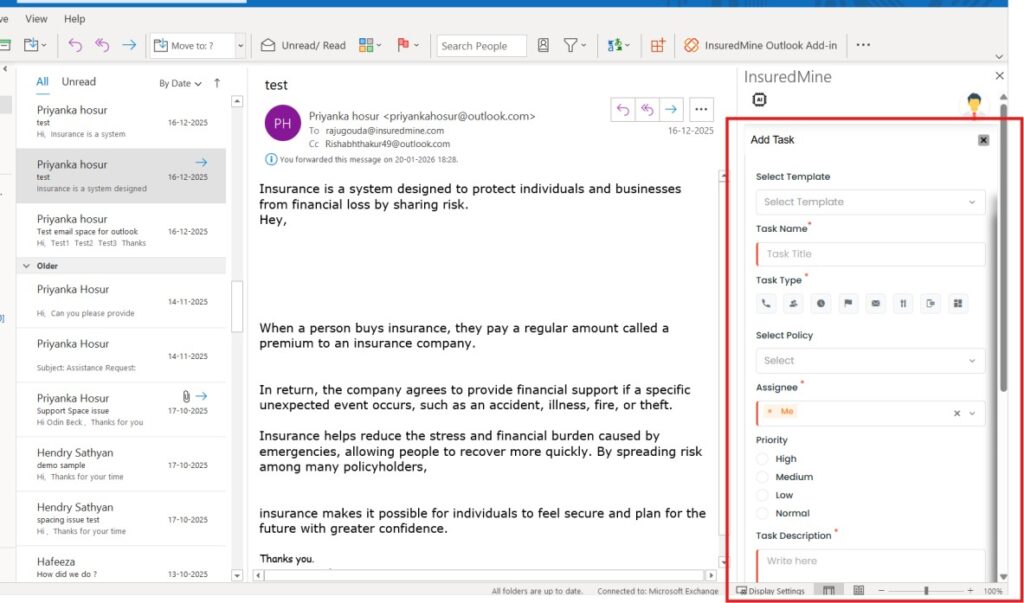
- Click on Add Task.
- The Add Task panel opens.
- Optionally, users can choose a Task Template from the Select Template dropdown.
- Enter a Task Name (mandatory) to define the task.
- Select the preferred Task Type (e.g., Email, Call, Meeting, To-Do, etc.).
- Link the task to a Policy by selecting it from the Select Policy dropdown (if applicable).
- Assign the task to a user using the Assignee field.
- Set the Priority of the task (High, Medium, Normal, or Low).
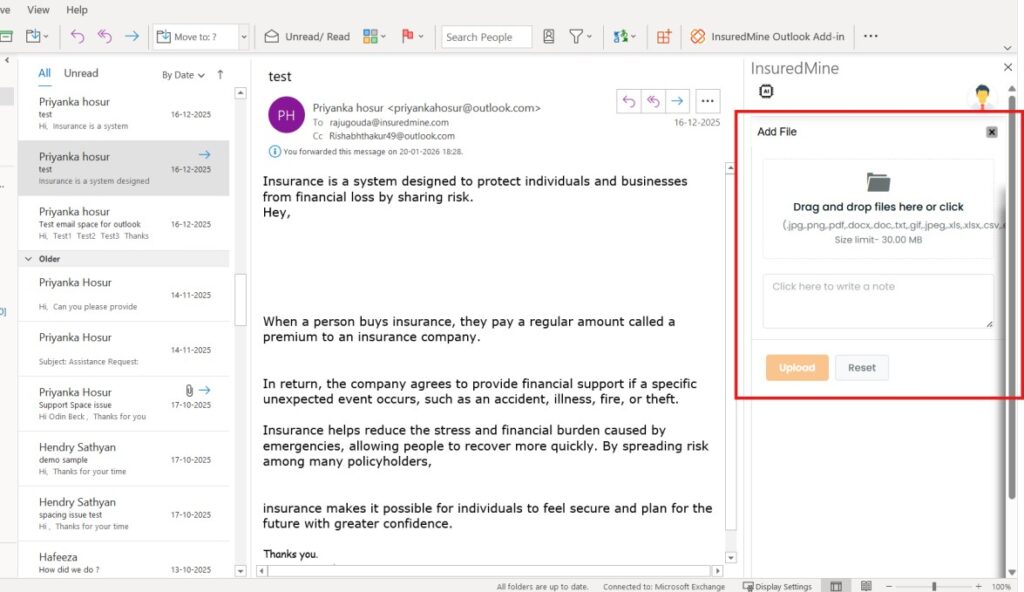
- Add File:
- Click on Add File.
- An Add File panel appears.
- Users can drag and drop files or click to browse and upload files from their system.
- Agents can optionally add a note or description for the uploaded file.
- Click Upload to attach the file successfully or Reset to clear the selection.
- Click save.
- Add Deal:
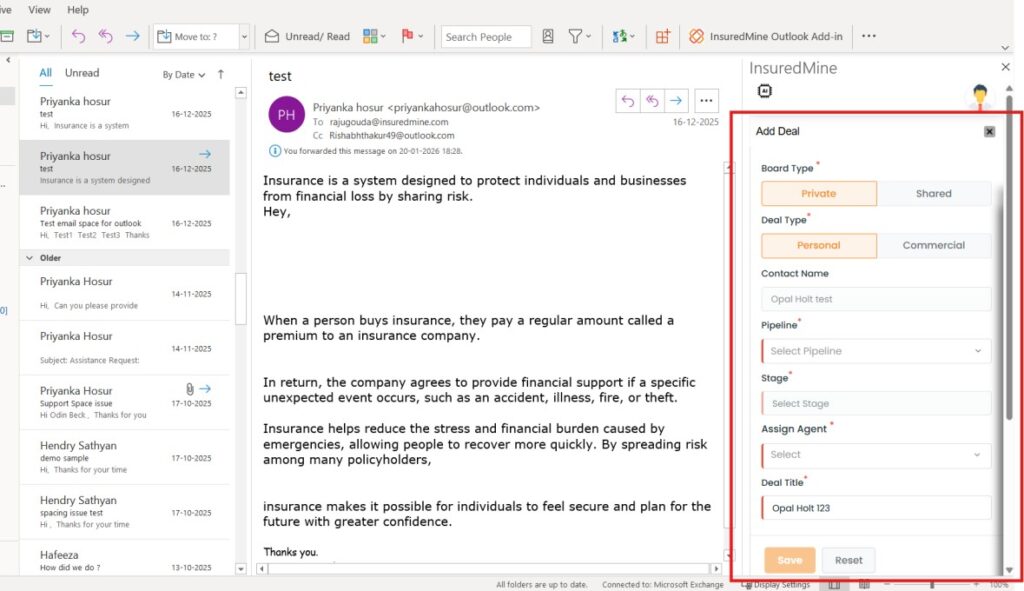
- Click on Add Deal.
- The Add Deal panel appears.
- Choose the Board Type:
- Private – visible only to the user
- Shared – visible to the team
- Select the Deal Type: Personal or Commercial.
- The Contact Name and Contact Email are auto-filled from the email sender and can be edited if required.
- Fill in all mandatory fields.
- Click Save to create the deal or Reset to clear the entered details.
Note: The Notes, Tasks, Files, and Deals added by the agent for a client are visible in the respective sections of that client’s account.
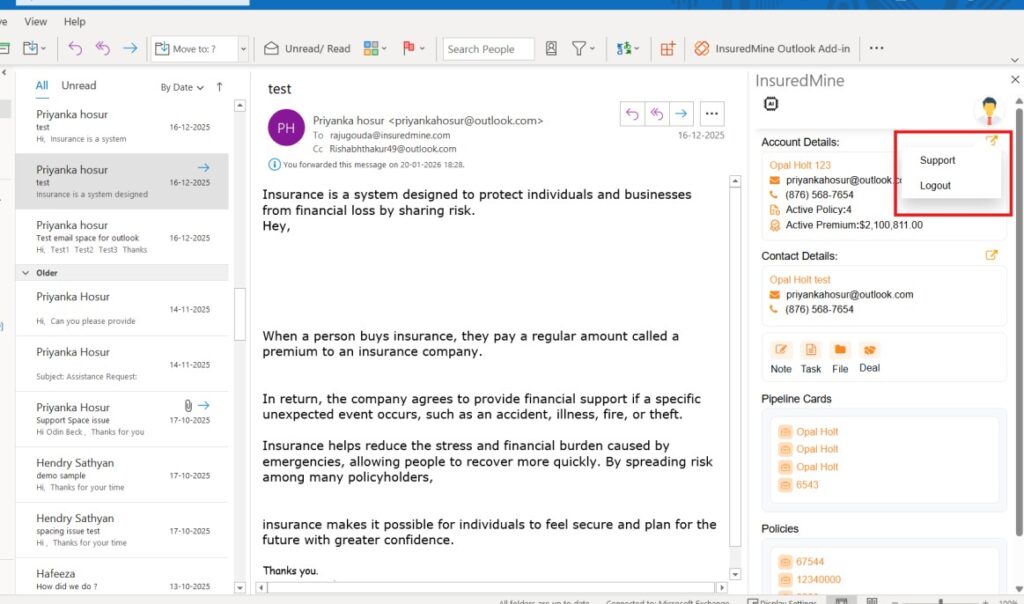
Accessing Support from the Profile Icon
- Click on the Profile icon located at the top-right corner of the InsuredMine Add-in.
- A dropdown menu appears with the following options:
- Support – This option will help you to connect to the InsuredMine support team for further assistance or queries.
- Log out – This option helps you to logout from the InsuredMine Add-in.