Home » Knowledge Base » Access Contact 360, Account 360, and Pipeline Cards from eSignature Completion Emails
eSign Sending and Reminders
Access Contact 360, Account 360, and Pipeline Cards from eSignature Completion Emails
July 16, 2026
Release Date: July 15, 2026
Overview
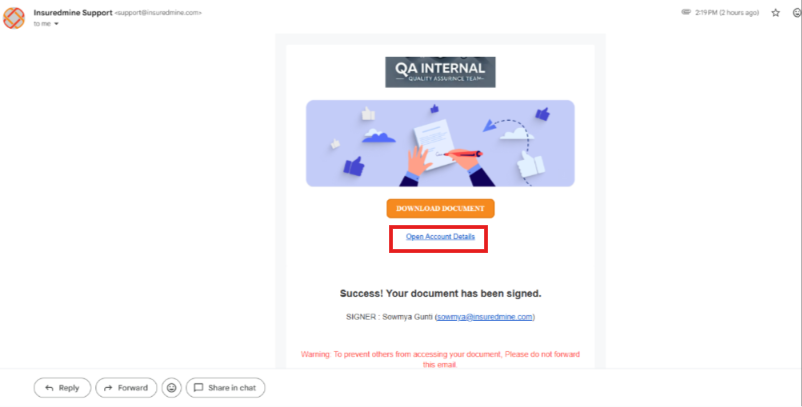
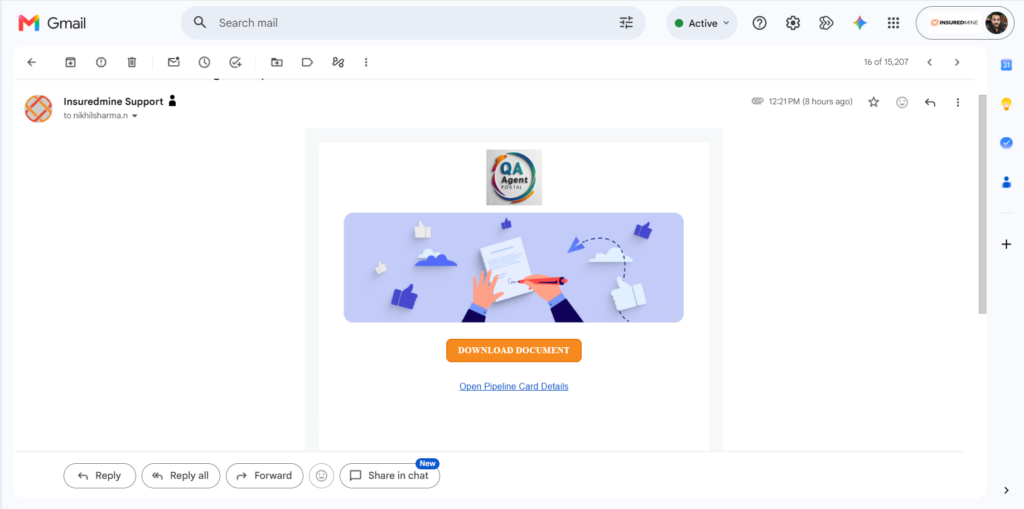
We have introduced a new enhancement in the eSignature module. Based on the record from which the eSignature request is sent (Contact, Account, or Pipeline Card), the Signed Completed email notification sent to the agent includes an Open Contact, Open Account, or Open Pipeline Card. Clicking the link redirects the sender directly to the associated record.
Why this matters
Use this enhancement to:
Access the associated Contact, Account, or Pipeline Card directly from the Signed Completed email notification.
Quickly review the record after an eSignature request is completed.
Reduce the time required to locate the related record manually.
To view the enhancement:
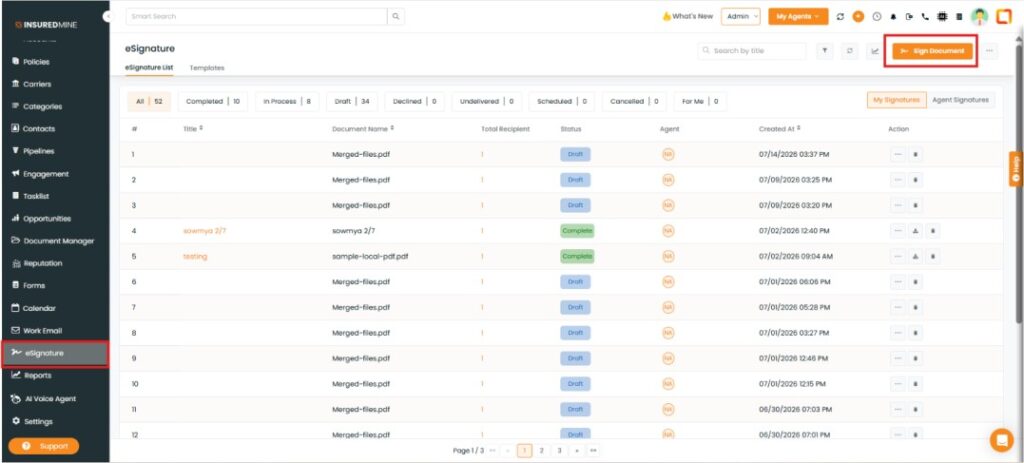
Navigate to eSignature.
Click eSign Document.
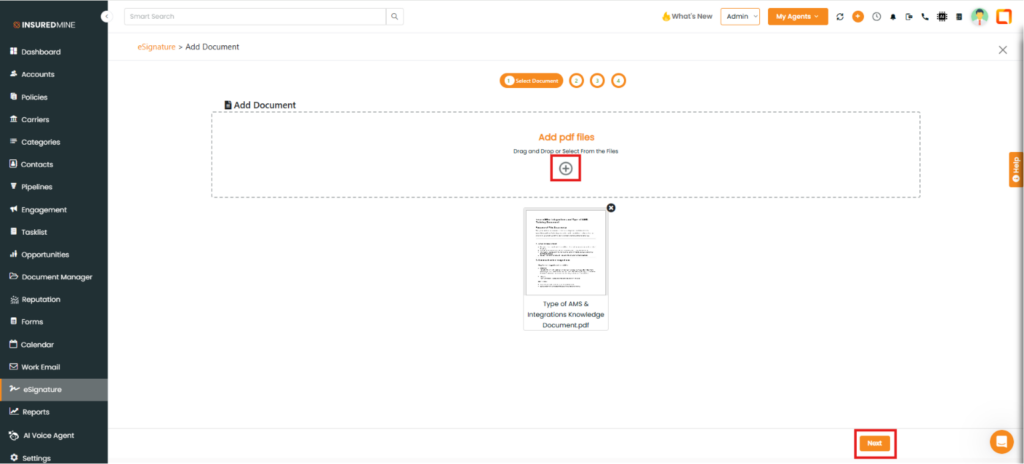
The eSignature > Add Document page appears.
Click the + icon to upload PDF files.
Click Next.
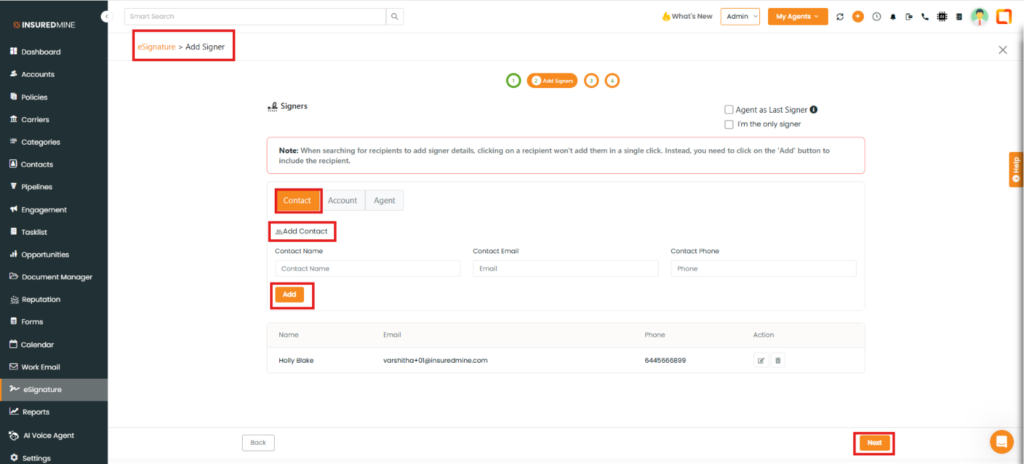
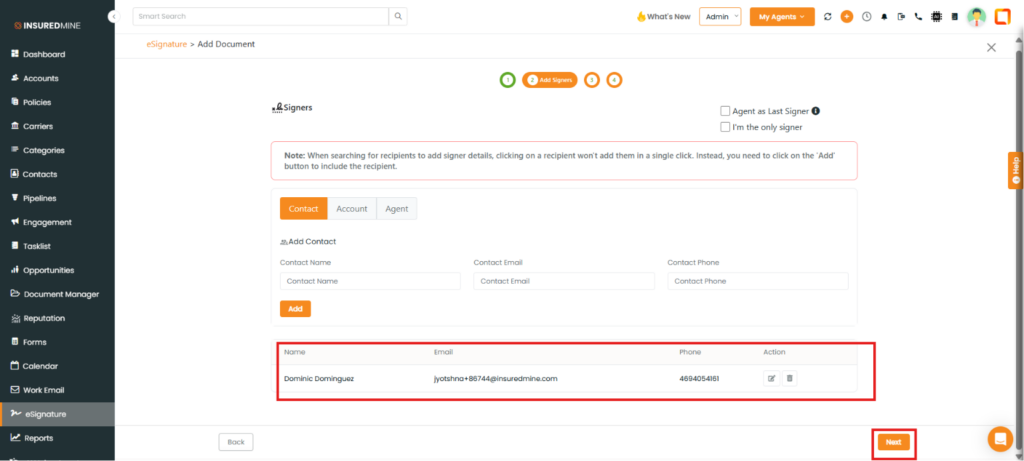
The eSignature > Add Signer page appears.
Under the Add Signer section, select Contact.
Enter the required contact details.
Click Add.
After adding the signer, click Next.
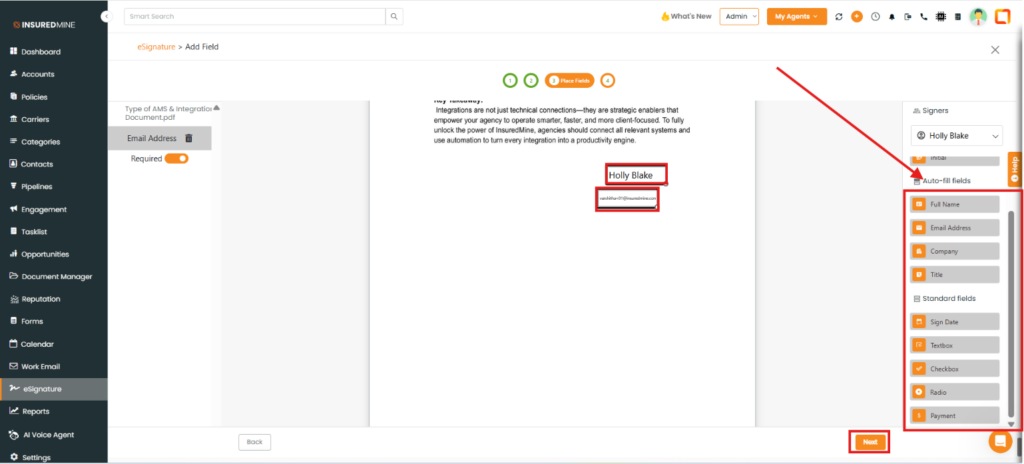
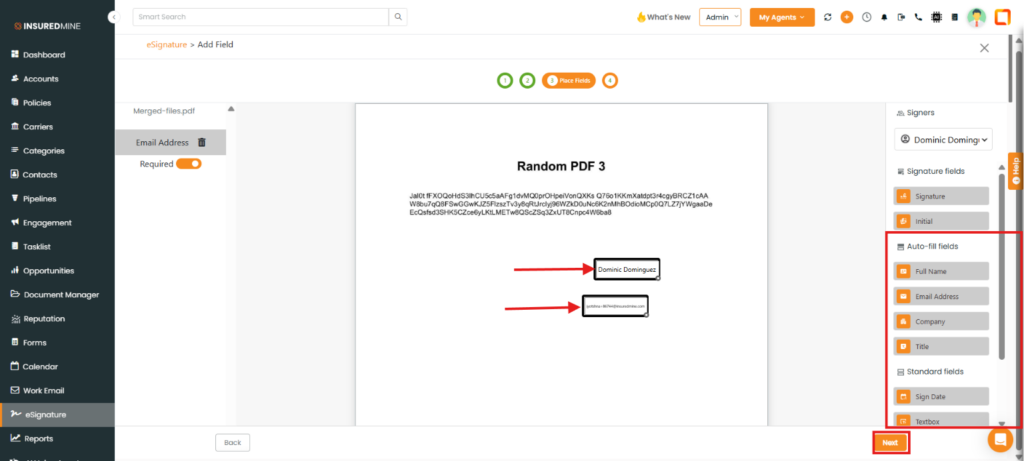
The Place Fields page appears.
Drag and drop the required fields onto the document from the Auto-fill Fields panel.
Click Next.
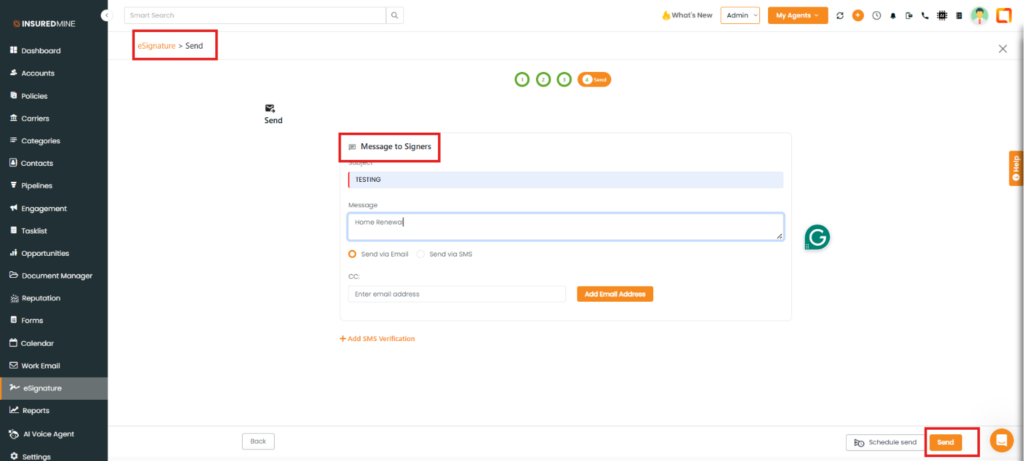
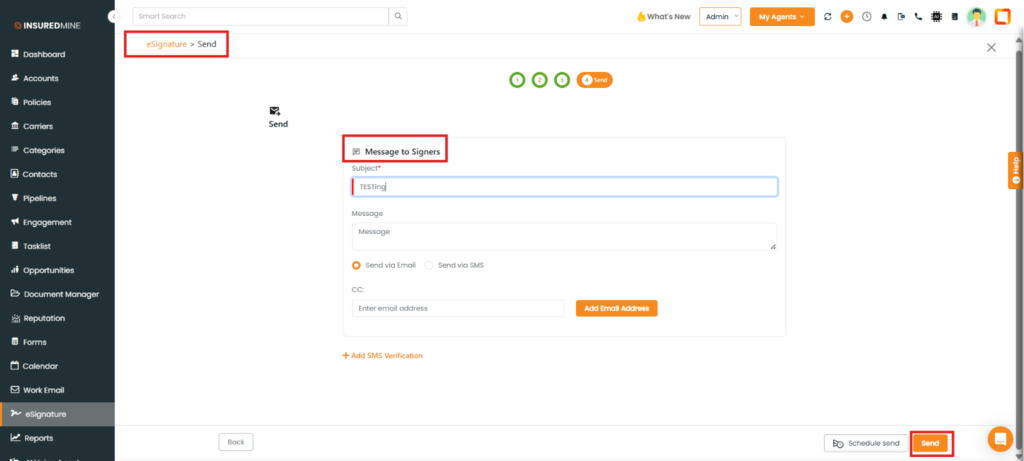
The eSignature > Send page appears.
Enter the subject and message for the recipient.
Click Send.
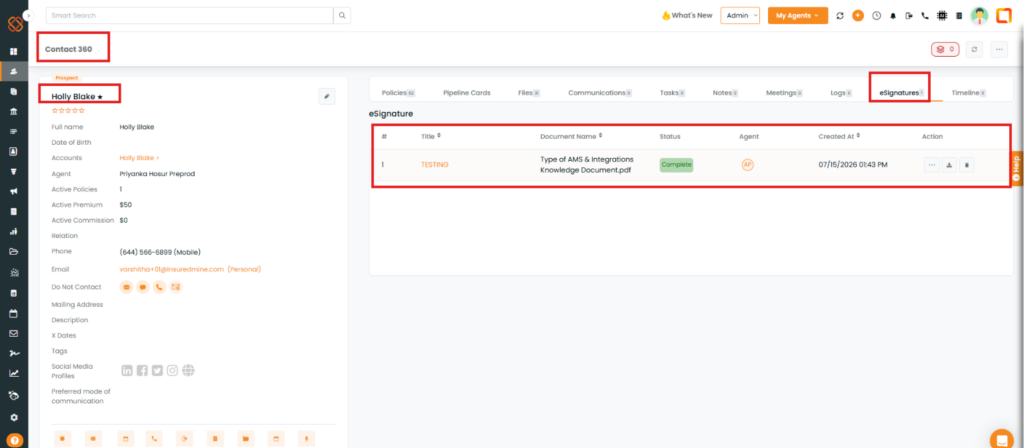
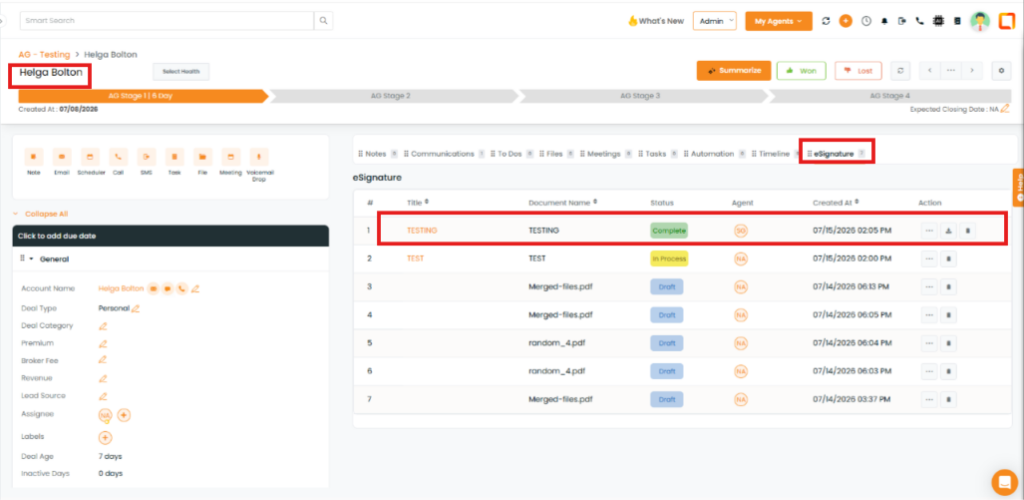
Note: After the signer signs the document, the sender(Agent) receives a Signed Completed email notification. Clicking Open Contact Details redirects the sender to the associated Contact 360 record with the eSignature tab open, where the signed document can be viewed.
View the Enhancement for Account as the eSigner
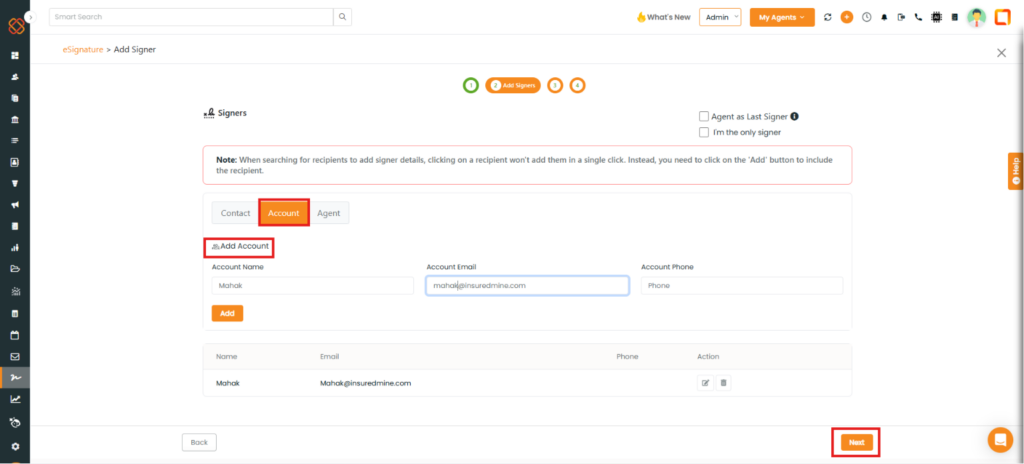
Note: Follow the same steps described above, but select Account as the signer. After the signer completes the document, the sender can click Open account details in the Signed Completed email to open the associated Account 360 record.
To view the enhancement in Pipeline Card.
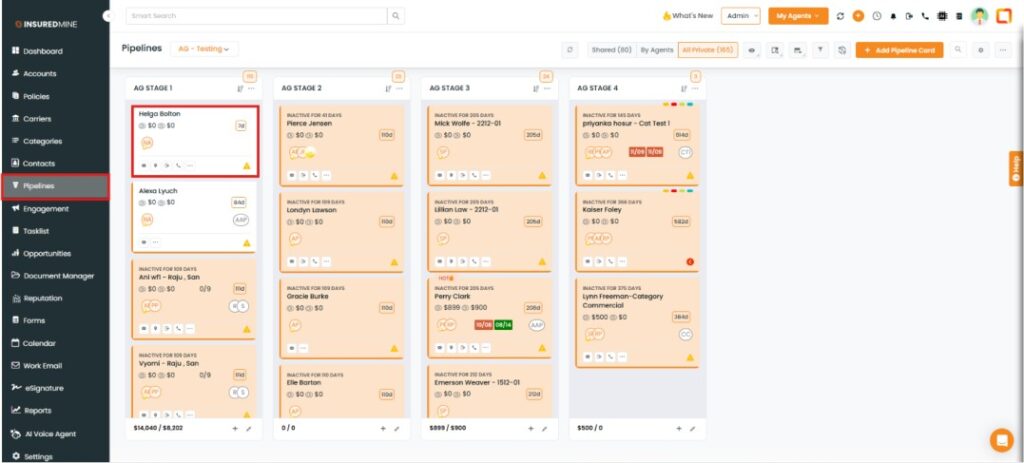
Navigate to Pipelines.
Open the required Pipeline Card.
A detailed view of Pipeline Card appears.
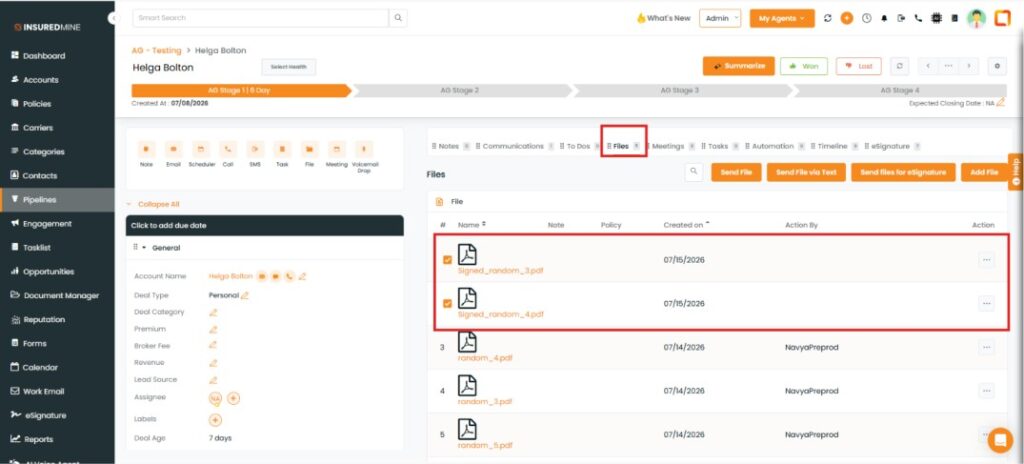
Click the Files tab.
The list of uploaded files is displayed.
Select the checkbox next to the file(s) you want to send for eSignature.
Click Send Files for eSignature.
The eSignature > Add Document page appears.
Click Next.
Note: Complete the remaining eSignature steps as described above for sending the document to a Contact for eSignature.
Note: After the signer signs the document, the sender(Agent) receives a Signed Completed email notification. Clicking View Card redirects the sender to the associated Pipeline Card record with the eSignature tab open, where the signed document can be viewed.