Release Date: June 5, 2023
This feature can be accessed by both Admin and Agent.
Overview
We have introduced an enhancement that automatically links Contacts and Accounts based on the selected Personal or Commercial account type. A contact can be associated with one or more accounts, and an account can contain multiple contacts, making it easier to manage related records. Additionally, Commercial Accounts include new fields such as DBA Name, No. of Employees, Gross Sales, and Payroll.
Use Case: This enhancement helps users efficiently organize and manage relationships between contacts and accounts. By automatically linking related records and supporting multiple account-contact associations, users can maintain accurate information while simplifying account management. The additional commercial account fields also enable users to capture important business details for commercial clients.
How to add a new contact?
- Navigate to Contacts
- Click on the Add New tab on the extreme top right.
- A new tab will open to add a new contact
- Select to mention if it is a personal account or commercial account
- Fill in the details asked
- Click to save. Â
A successful pop-up notification will arise, saying:Â contact saved.
Enhancement:Â Nickname field is added.
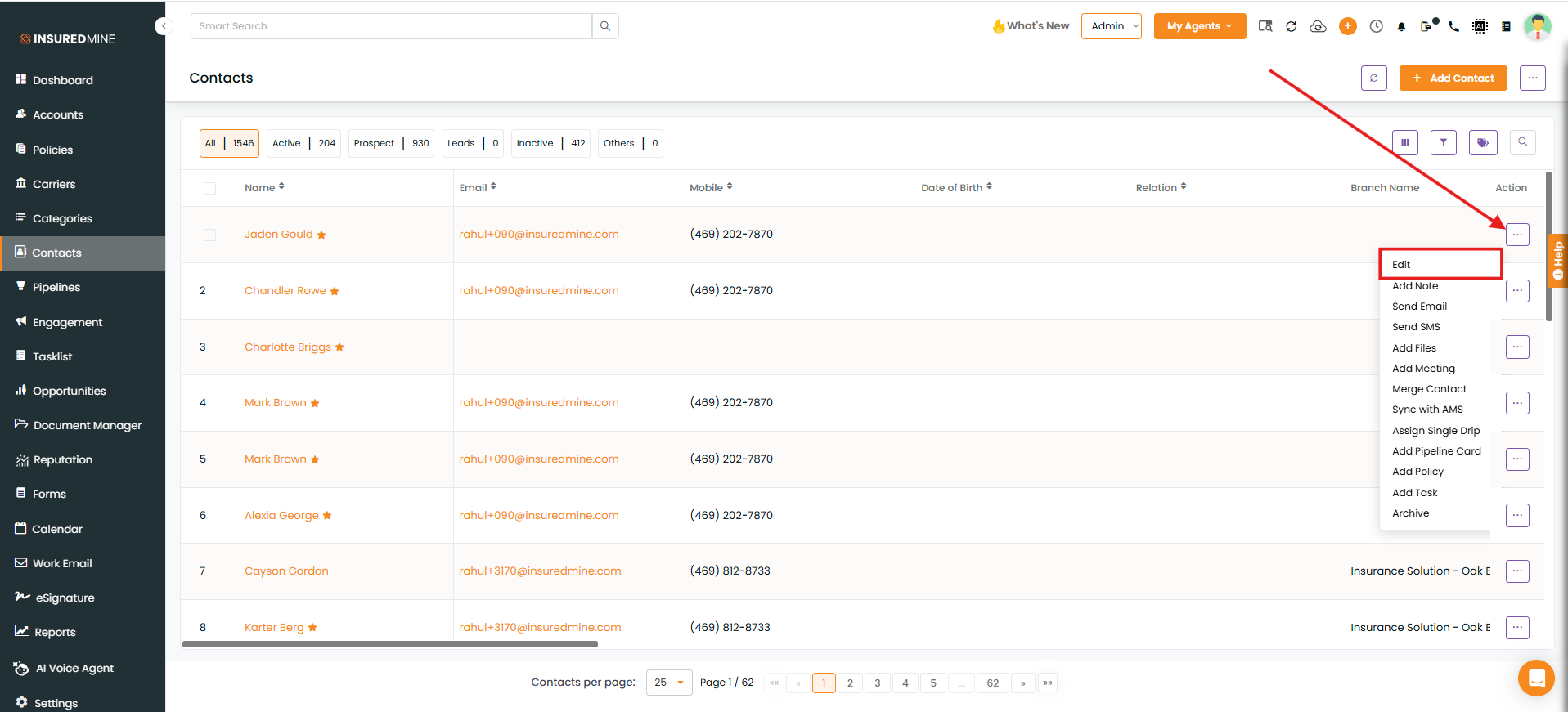
- Navigate to the contact section
- Click on view profile of the particular contact created.
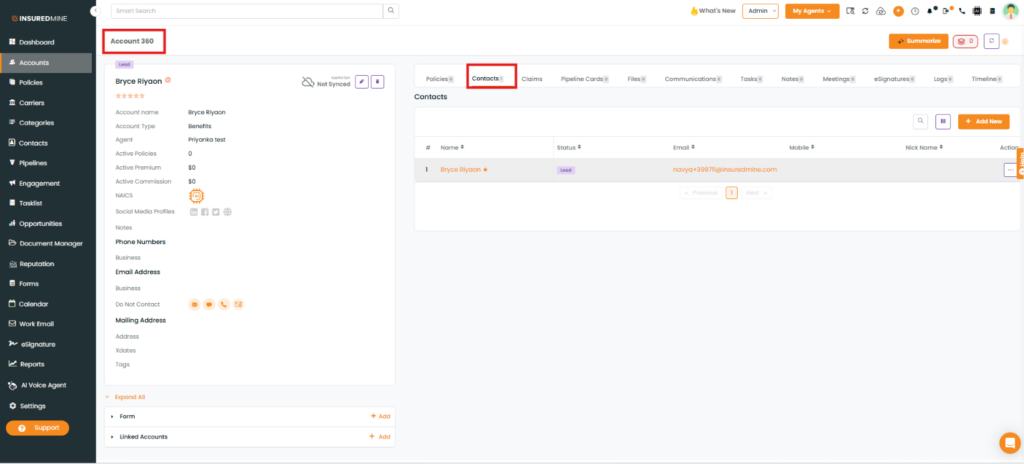
- Click on the view account 360
- A tab will open with all the details related to the contact under account 360. Â
To add more contact to the same account:
- Navigate to the contact section of the account 360 page of the particular contact you have created
- Click on Add new (add contact)
- A new tab will open where the details of the new contact to be filled.
On filling it up, a successful popup notification will arise saying:Â contact saved.
To edit the contact:
- Click on the edit icon to edit the contact.
How to map a contact in the commercial account?
- Navigate to contact
- Click on add new. Â
- Fill in the business name
- Search and select the contact name with which it is to be mapped.
- On selecting the contact, the business name will be mapped to the client.
A successful popup notification will arise, saying:Â contact saved.
Enhancement:Â March 2021
New fields added for Commercial Account- Enterprise
In Commercial accounts, four new fields have been incorporated- DBA name, No. of employees, Gross sales, and Payroll.
You can view the enhancement, while adding a new commercial account or if you edit any account and convert it from personal to commercial through account 360. In case if you edit any contact from the contact section, you will get to fill in these fields too.
Enhancement! July 2021
Business account sync change for email address, phone, address (AMS360/QQ/NC)
Whenever there will be an account sync with AMS, the business account details will also be synced.
The details that will sync will be of the primary contacts.