


Release Date: July 22, 2026
Available for: Admins and Agents
Overview
We have introduced an enhancement that allows users to select a folder while uploading files from anywhere within the InsuredMine portal.
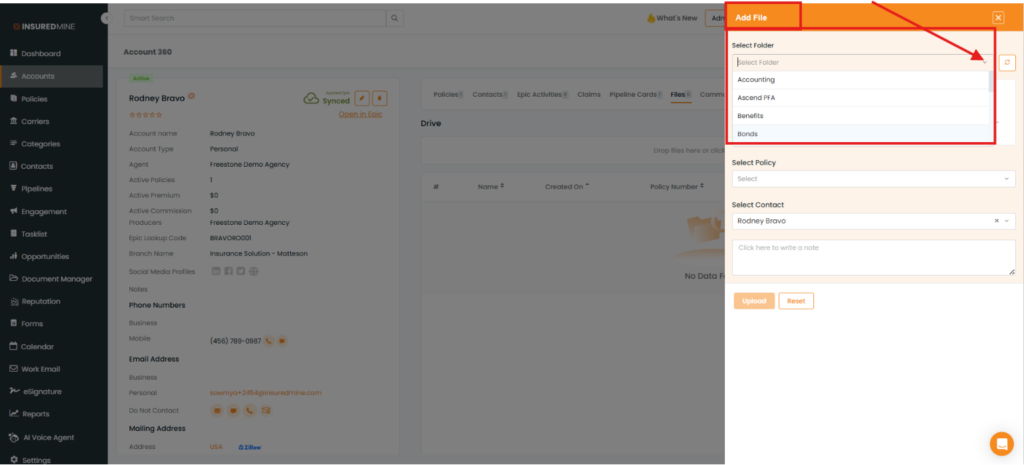
Users can now choose the preferred folder from the Folder dropdown while adding a file. This helps organize documents in the appropriate folder and ensures the uploaded file is also available in the corresponding account in EPIC under Attachments within the selected folder.
Use Case: This enhancement helps users organize account documents by allowing them to upload files directly into the appropriate folder. This makes documents easier to locate, reduces the time spent searching for files, and minimizes the need for manual file organization.
To View the Enhancement
- Navigate to Accounts. (Navigate to any section of the InsuredMine portal where the Add File option is available )
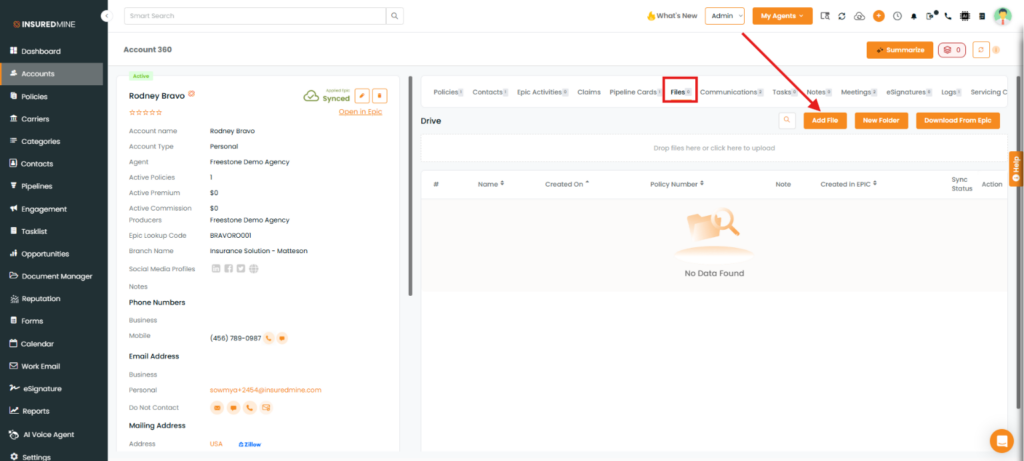
- Click the preferred Account to open Account 360
- From Account 360, click the Files tab.
- Click Add File
- The Add File panel appears on the right-hand side of the screen.
To Upload a File to a Folder
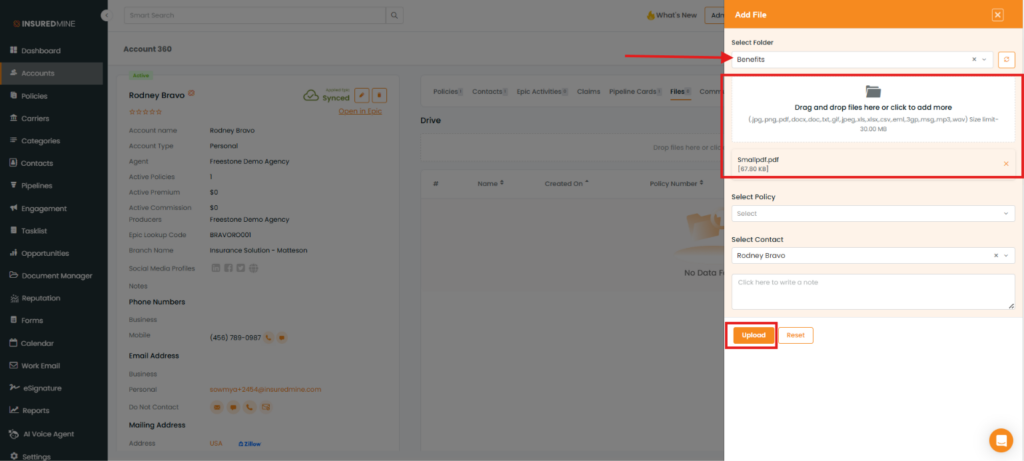
- In the Add File panel, select the desired folder from the Folder Name dropdown.
- Add the file you want to upload.
- Click Upload.
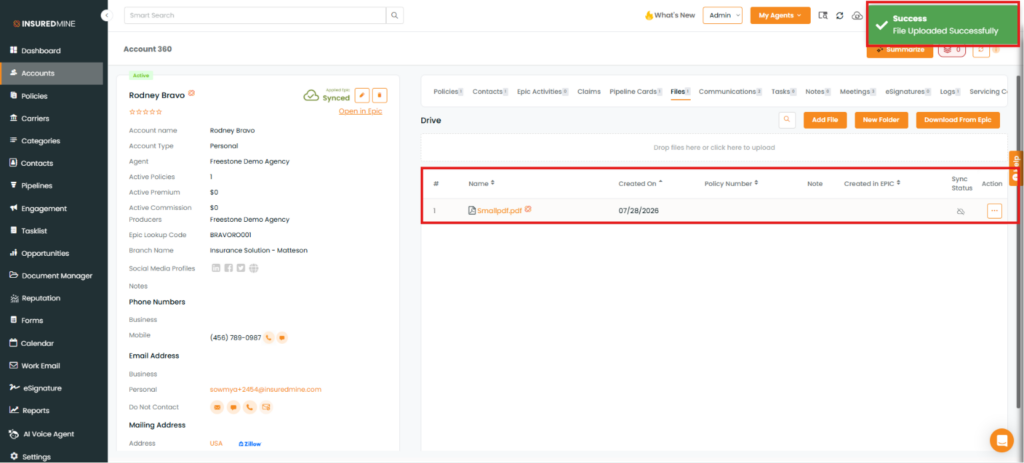
- A success message, “File Uploaded Successfully,” is displayed.
Result
- The file is uploaded to the selected folder in InsuredMine.
- The same file is also synced to the corresponding account in EPIC under Attachments within the selected folder.
Notes
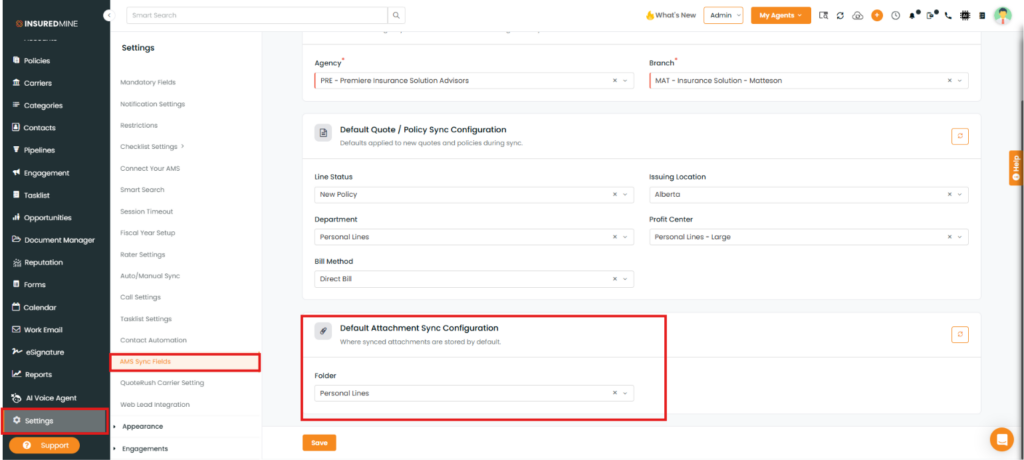
- If no folder is selected while uploading a file, the document is uploaded to the default folder configured under Settings > Configuration > AMS Sync Fields.
- If no default folder is configured in AMS Sync Fields and no folder is selected during upload, the file is uploaded only under Attachments in EPIC and is not associated with any folder.


