


Release Date:- 13 January, 2026
We have introduced a new enhancement under the Pipeline Module → Board Settings. With this update, admins can now enable Auto Sync for specific pipeline stages. Once this setting is turned on, any deal card created/moved under the selected stage will automatically sync the associated Account and Contact to AMS.
Note: Only the Admin has the authority to configure this stage.
Note: This feature is available for AMS360, Epic, QQ and NexSure.
Use Case: This enhancement ensures that once the setting is enabled, any deal card in that stage will automatically push the associated Account and Contact data to AMS without requiring manual action. This reduces dependency on agents, prevents missed or delayed syncs, and keeps information consistent and up to date across systems.
When a deal card reaches the Admin-configured stage (e.g., “Ready to Bind”), the system automatically syncs the associated Account and Primary Contact to the AMS ensuring accurate and up-to-date information without manual effort.
Note: This feature has been released on AMS360, Epic, QQ Catalyst.
How It Works
When a deal card is moved to a specific stage in a pipeline, InsuredMine will trigger an automatic sync of:
- The Account linked with that deal card
- The Primary Contact associated with that account
This ensures that the most up-to-date information flows into your AMS without manual intervention.
How to Configure It?
Account sync to Epic is demonstrated below:
- Navigate to Pipeline.
- Click on Board Settings.
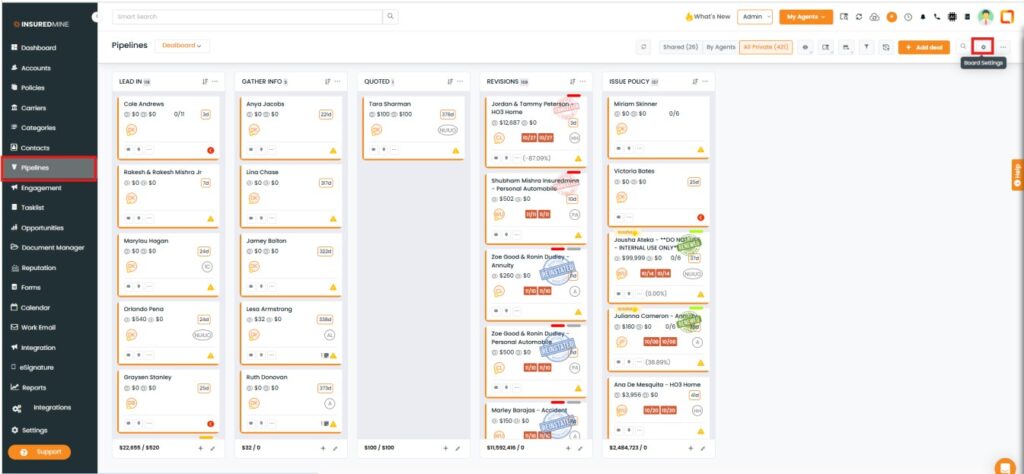
- You are redirected to the Board Settings page.
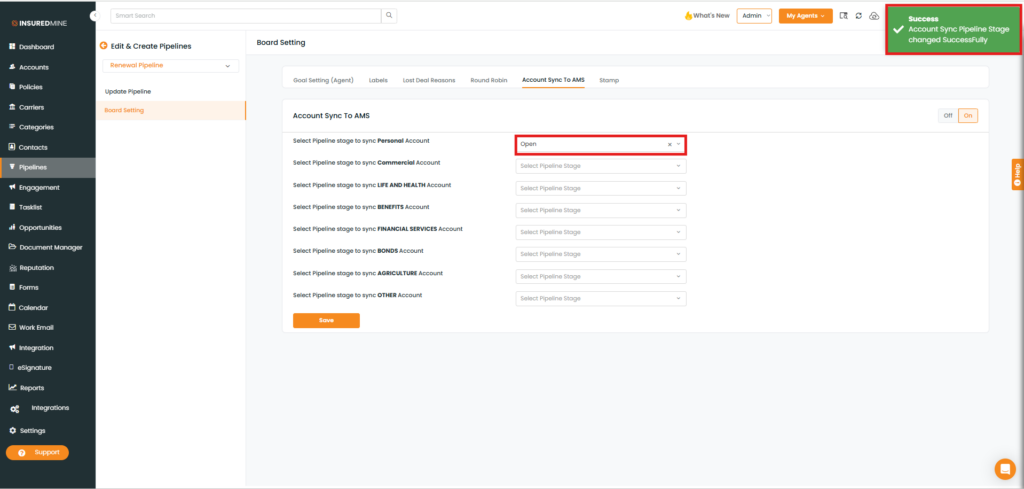
- Click on the Sync to AMS tab.
- As shown below, an option to select the pipeline stage to sync is displayed.
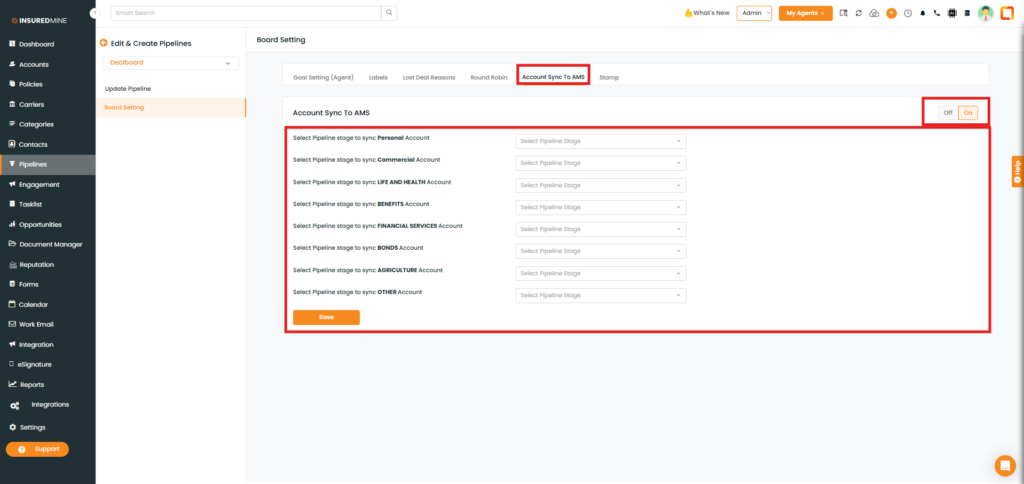
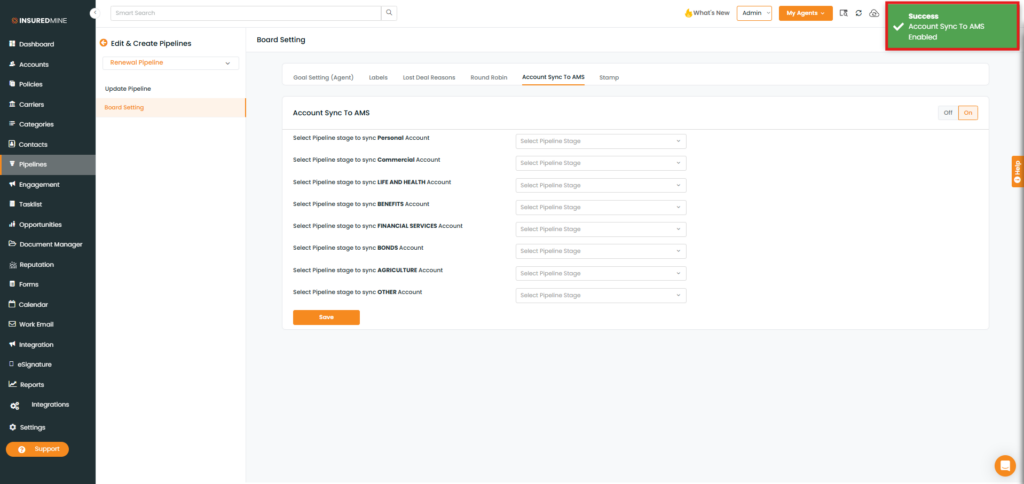
To configure the settings:
- Enable it to On.
- A success message, “Account Sync to AMS Enabled,” appears.
- From the dropdown list, select the specific stage
- All stages within that pipeline will be displayed.
- Select the stage where the sync should occur.
- Click Save.
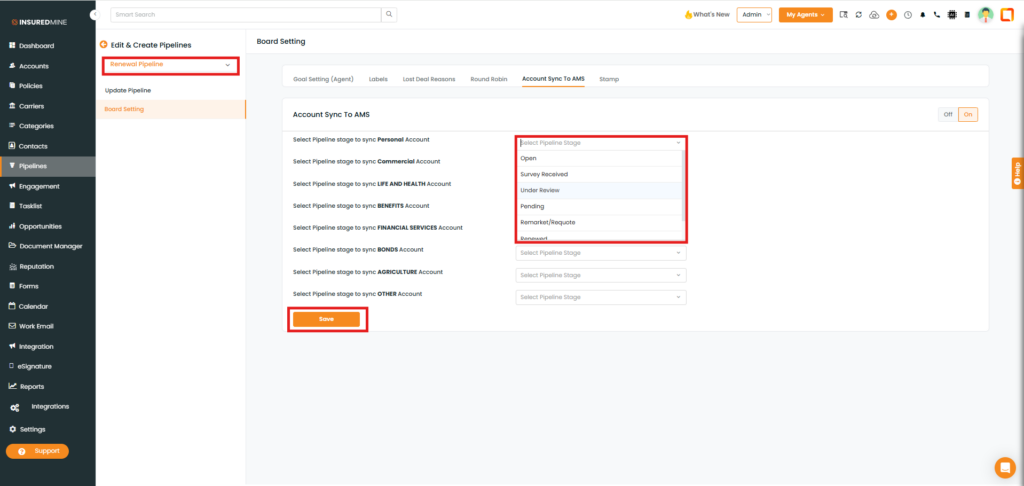
A success message, “Account Sync Pipeline Stages Changed Successfully,” appears.
To View the Result:
- Navigate back to Pipeline.
- Open any deal card created under the Renewal Pipeline → Open stage.
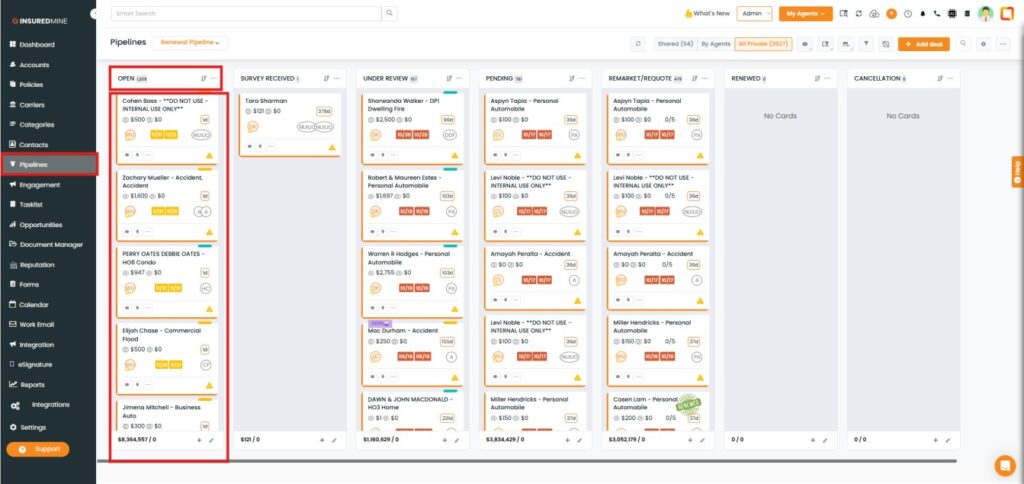
- As shown below, a deal card with the Account Name Cohen Boss opens in a new tab.
- Click on the Account Name.
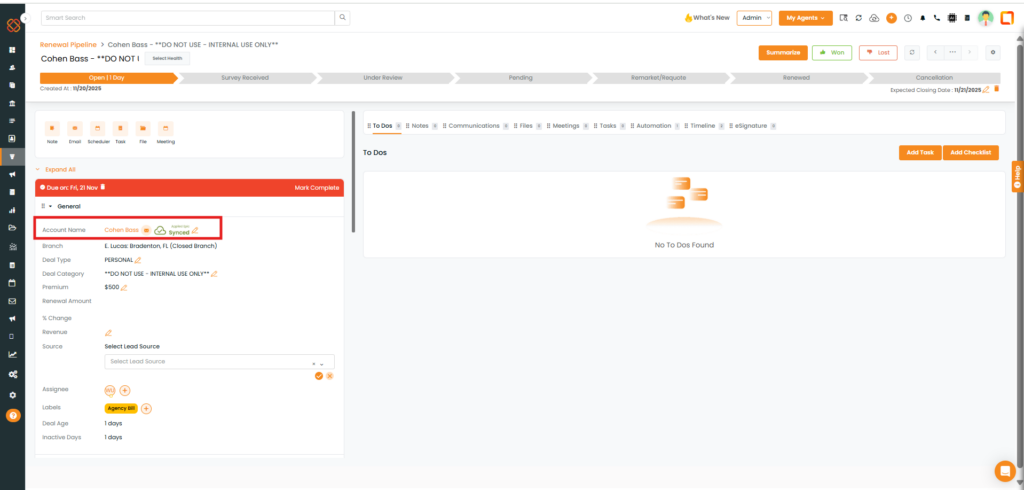
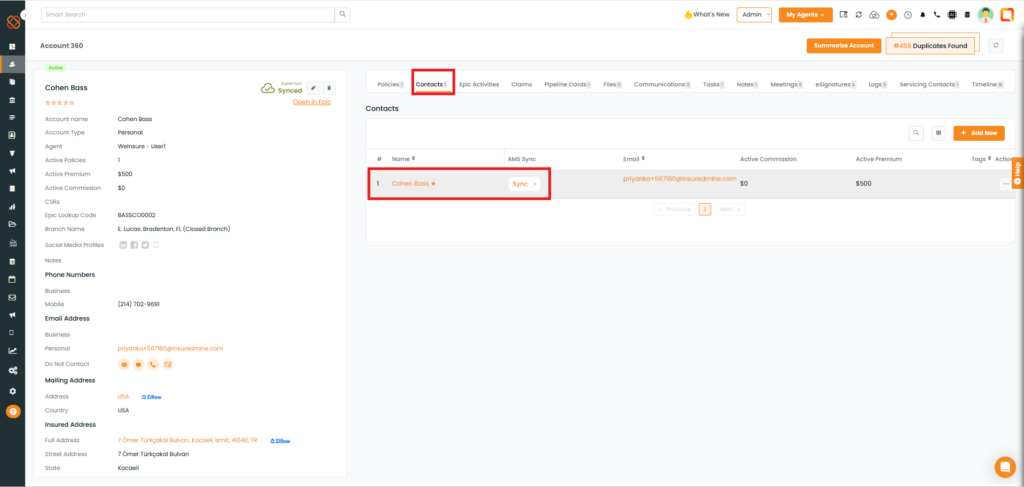
- You are redirected to the Account 360 page.
- Click on Contacts
- As shown below, the contact linked with this account has been successfully synced to AMS.
Key Notes
- Only the assigned stage will trigger the sync.
- Ensure the deal card has a valid account and primary contact linked.
- Admin can update this configuration at any time from the board settings.


