


Release Date: June 15, 2026
Overview
We have introduced a new enhancement to duplicate validation in Forms when the Do Not Create Duplicate setting is enabled.
With this enhancement, duplicate validation is performed based on the configured deal type (Personal or Commercial). The system can now validate records not only at the Contact but also at the Account levels, ensuring more accurate duplicate detection and account association.
The validation process follows a predefined matching sequence, prioritizes email matching before phone matching, and automatically uses existing records when a match is found. This helps reduce duplicate record creation and improves data accuracy across Contacts and Accounts.
Use Case: This enhancement is useful for agencies that manage both Personal and Commercial business and store customer information at either the Contact or Account level.
By validating records based on the configured deal type and checking the appropriate Contact and/or Account records, the system can identify existing records more accurately before creating new ones. This helps minimize duplicate record creation and ensures that form submissions are associated with the correct Contact or Account.
To view the enhancement in Personal Deal Type.
- Navigate to Forms.
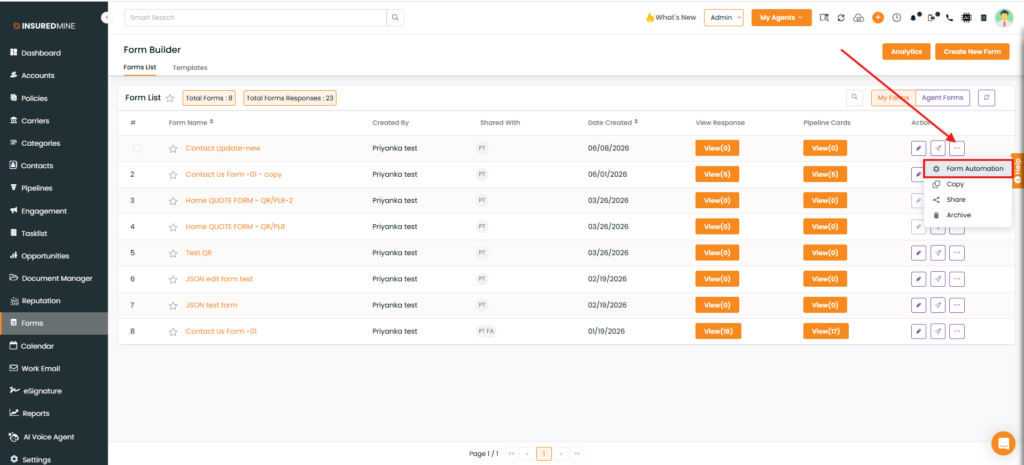
- Click the three dots and select Form Automation.
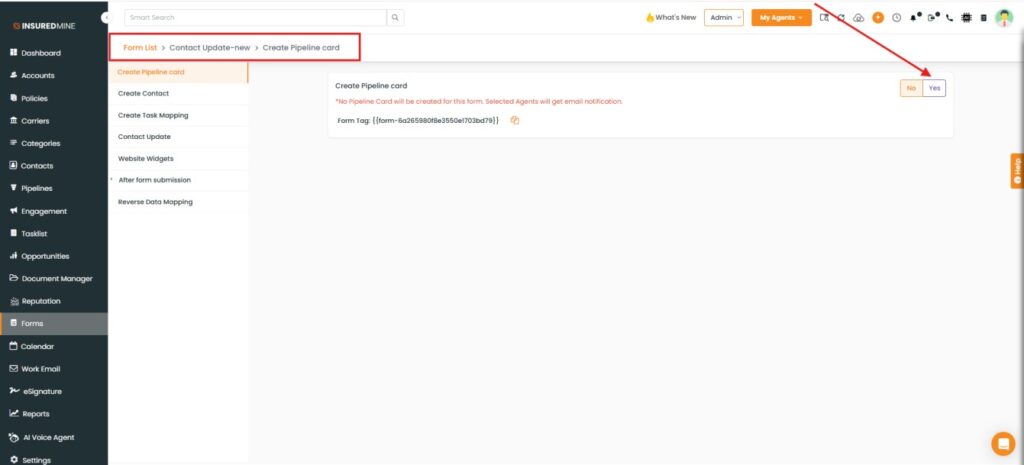
- The Form List > Contact Update – New > Create Pipeline Card page appears.
- Enable Create Pipeline Card.
- The Create Pipeline Card page appears.
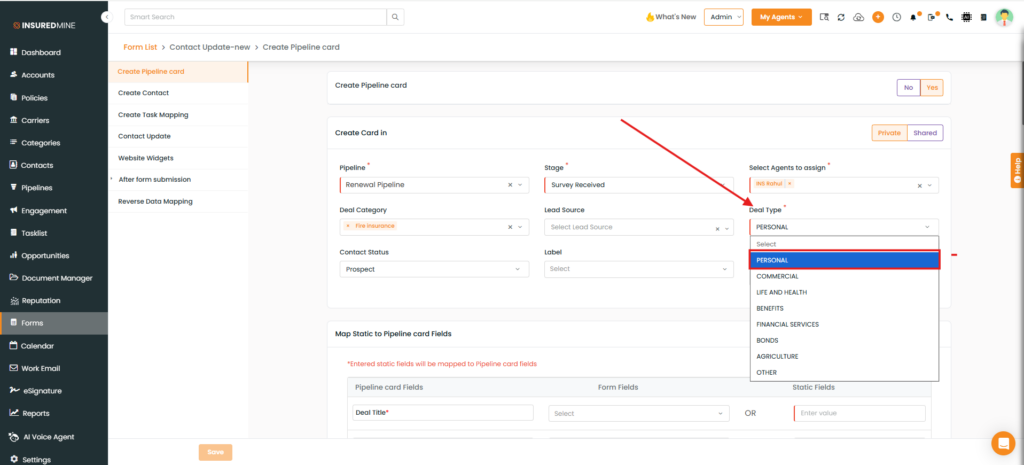
- From the Deal Type dropdown, select PERSONAL.
- Fill in the required fields.
- Scroll down the Create Pipeline Card page and enable Do Not Create Duplicate.
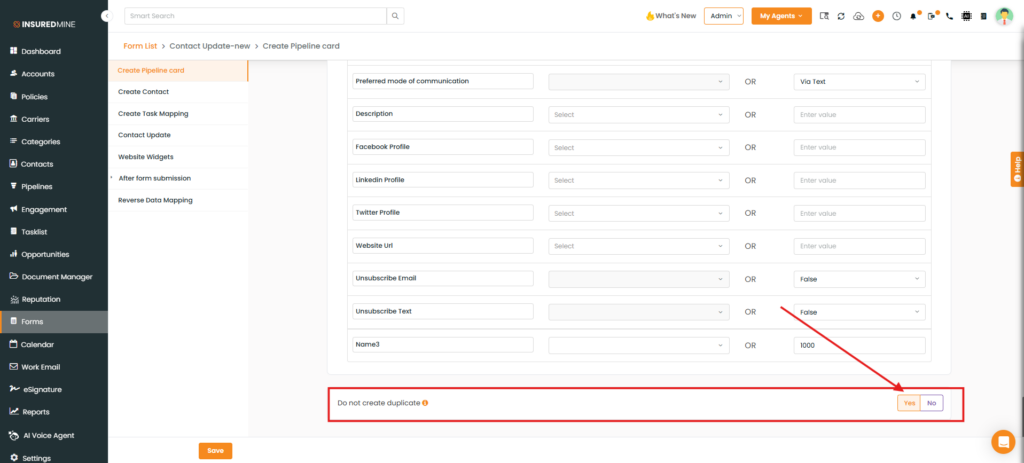
After enabling Do Not Create Duplicate, duplicate validation for Personal deals follows the sequence below.
- Personal Deal Validation Flow
Step 1: Contact Email Validation
- The system checks whether the Contact email already exists.
- If a match is found:
- The existing Contact is used.
- No further validation is performed.
Step 2: Contact Phone Validation
- If no Contact email match is found, the system checks Contact phone fields.
- If a match is found:
- The existing Contact is used.
- No further validation is performed.
Step 3: Account Email Validation
This validation occurs only when:
- Contact email is unavailable, and
- Contact phone is unavailable.
The system then:
- Checks the Account email.
- If a match is found:
- The existing Account is used.
- No further validation is performed.
Step 4: Account Phone Validation
- If no Account email match is found, the system checks the Account phone number.
- If a match is found:
- The existing Account is used.
- No further validation is performed.
Step 5: Create New Records
- If no Contact or Account match is found.
- A new Contact and Account are created.
To View the Enhancement for the Commercial Deal Type:
Follow the same steps described above for the Personal Deal Type, but from the Deal Type dropdown, select COMMERCIAL.
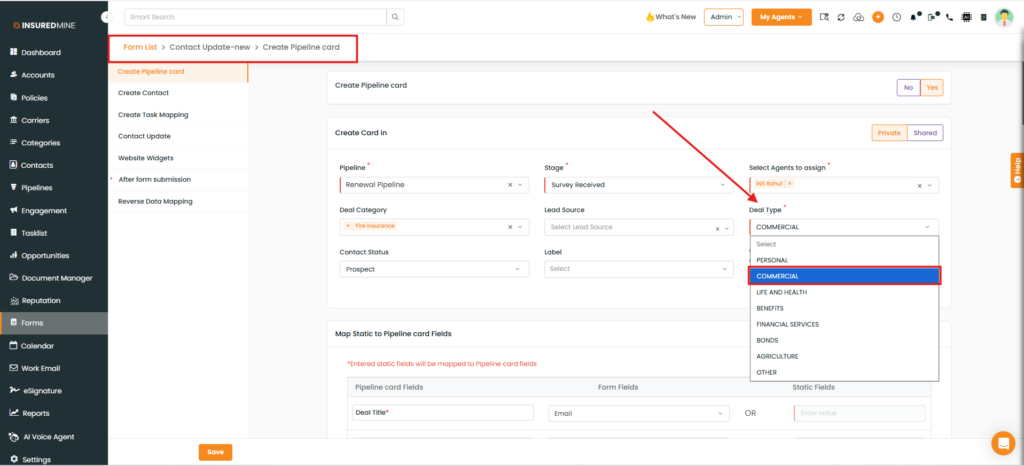
- After enabling Do Not Create Duplicate, duplicate validation for Commercial deals is performed only at the Account level.
Note: Contact-level validation is skipped for Commercial deals to prevent contacts from being associated with incorrect companies.
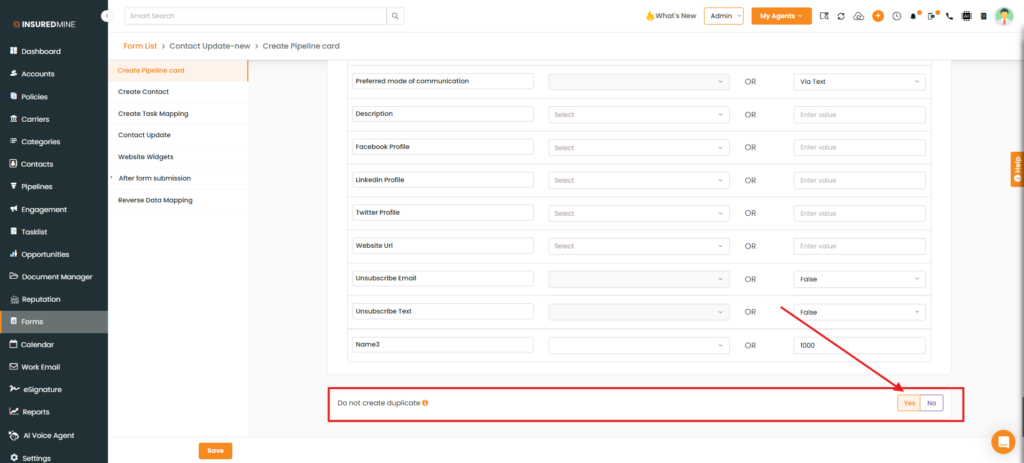
Commercial Deal Validation Flow
Step 1: Account Email Validation
- The system checks whether the Account email already exists.
- If a match is found:
- The existing Account is used.
- No further validation is performed.
Step 2: Account Phone Validation
- If no Account email match is found, the system checks the Account phone number.
- If a match is found:
- The existing Account is used.
- No further validation is performed.
Step 3: Create New Records
- If no Account match is found.
- A new Account and associated records are created.


