InsuredMine CRM | Optimize and Grow Your Insurance Agency

Lightspeed Voice Integration

Lightspeed Voice, a voice calling application, facilitates making calls from the Agent portal. The InsuredMine and Lightspeed integration enables quick access to the client information while on call. It is possible to call clients directly from anywhere in the portal where the Call Log is available, if the number is mapped in InsuredMine.

How does Lightspeed’s Voice with Insuredmine work?

  • When the call is received from a contact
  • When the call is made to contact

When the call is received from a contact.

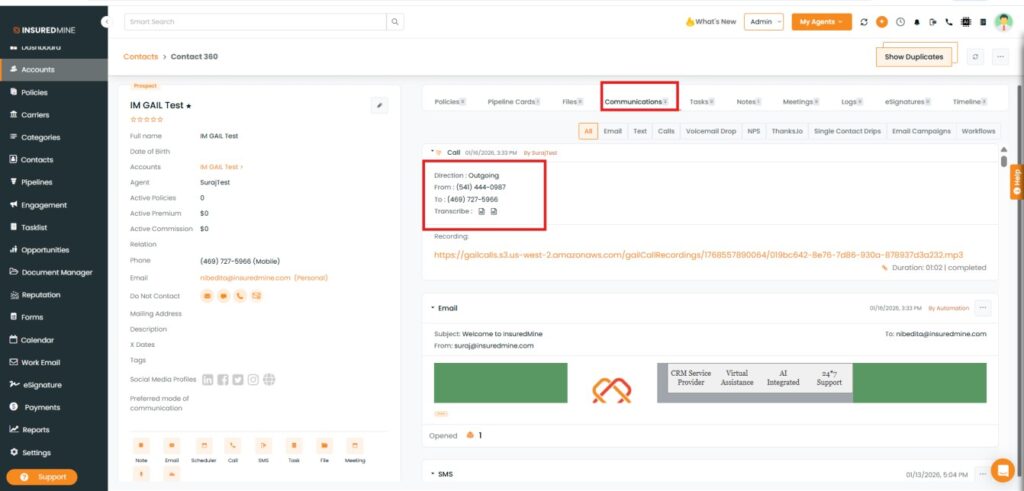
When there is an incoming call, the client entry related to the phone number is displayed if the data is available in the records. After the call is received or not received, that will be mapped in the communication section in Contact 360. 

1 . Contact link

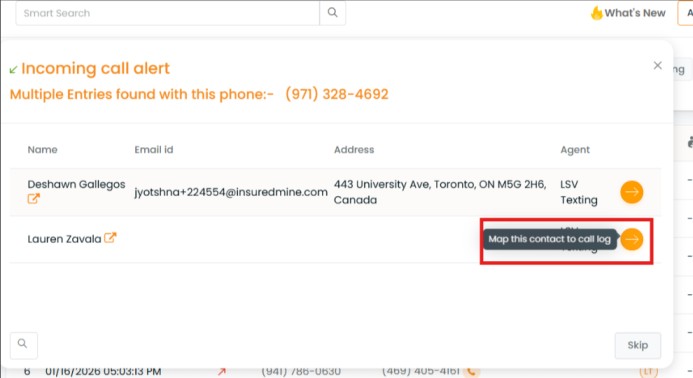
The first screen that shows up while receiving a call can be seen below. Click on the orange right arrow icon to directly open the Contact 360 view of the client who is calling.

Note: If multiple contact is mapped with the same no then only this pop-up appears to map this contact to call log .

Lightspeed Voice Configuration

You can configure the lightspeed connection for your agency as an Admin. Follow the instructions mentioned below to connect agent lightspeed numbers for calling. 

  1. Navigate to Settings in Insuredmine, make sure you have logged in as Admin. 
  2. In the bottom left, click on the Lightspeed Voice option. 
  3. In the dialog box enter the Server name and click Continue, your server will be connected and all registered agent details can be viewed.  

You can see the Agent Name, Username and Password for all agents registered with Lightspeed Voice as all phone numbers are mapped to their ID. 

 In the Action column, you can click on the edit icon(pen) to change agent information and disconnect(x) icon to disable agent connection in Insuredmine. 

In case you want to disable the server configuration, click on the Disconnect button. 

Click the link below to watch the video tutorial of Insuredmine and Lightspeed Integration.
An initial setup is required to Integrate Lightspeed Voice with Insuredmine. Click on the link below to see the instructions.


When LightSpeed Voice is connected.

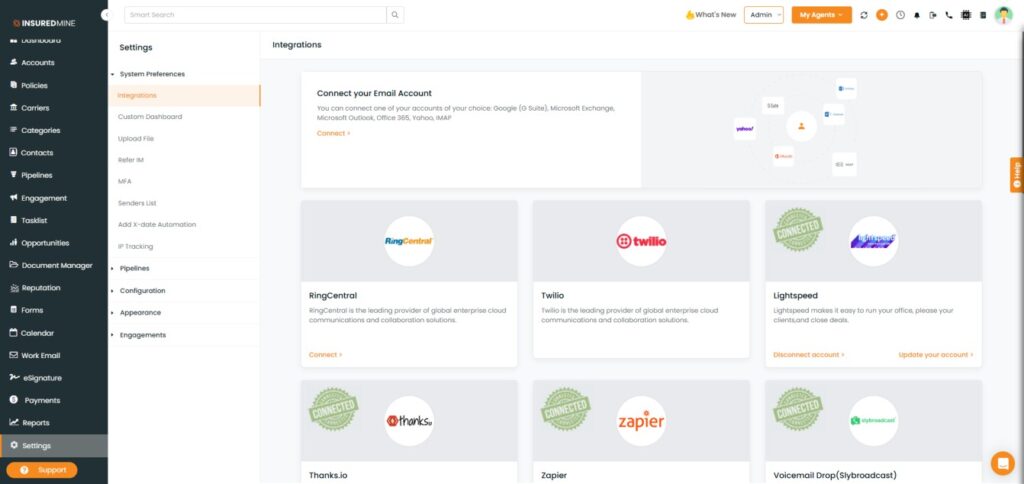
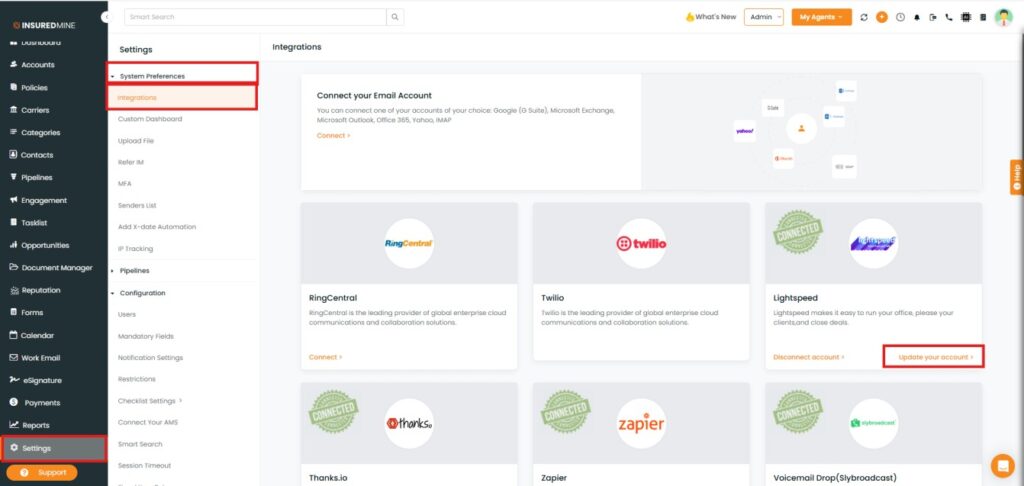
  • Navigate to Settings in InsuredMine. 
  • From the System Preferences dropdown, select Integrations.
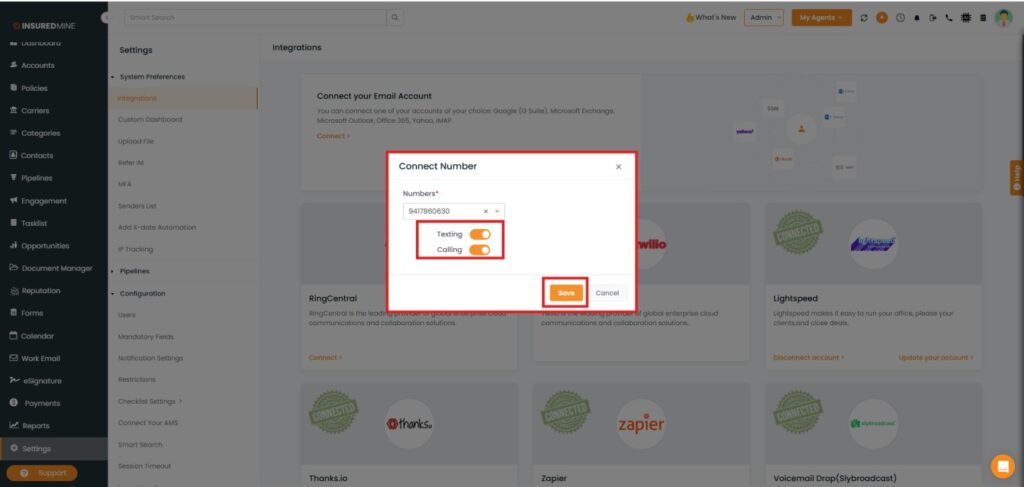
  • Under LightSpeed Voice, click on Upgrade your account.


  • As shown, the mapped contact information is displayed.
  • You can enable the Texting and Calling options as required.
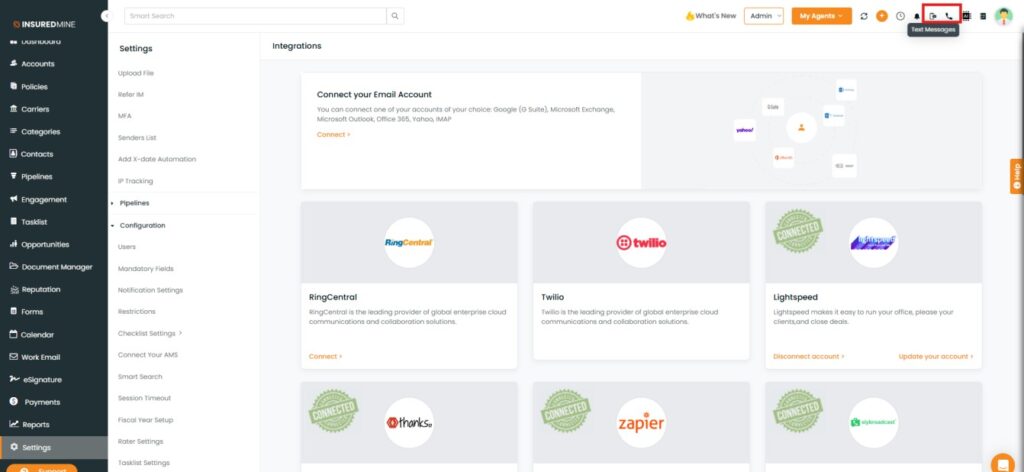
  • When both Texting and Calling are enabled, their respective icons are visible on the page.
  • Click on Save.


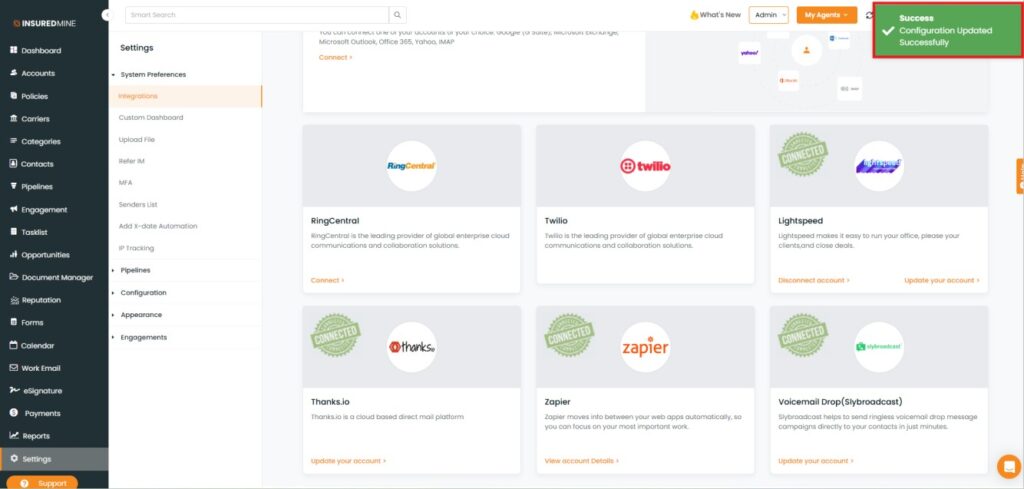
  • A success message: ‘’Configuration Updated Successfully” appears.


Note: If the Texting or Calling option is disabled, its corresponding icon is not visible. When both options are enabled, both icons are displayed.


To call:

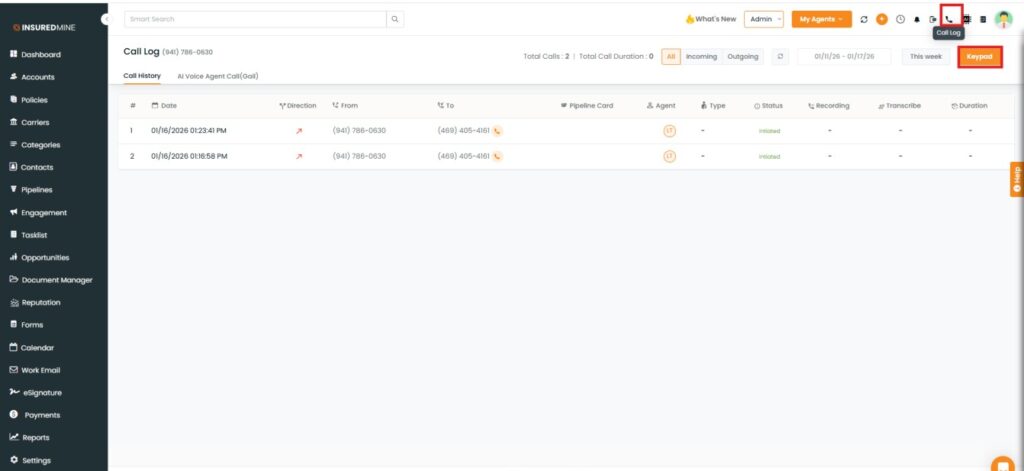
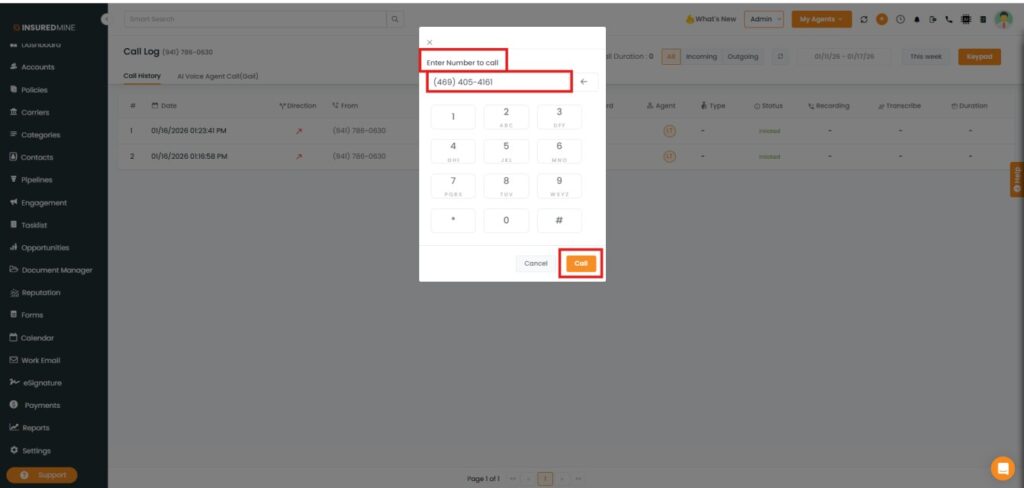
  • After clicking on the Call icon, the Call Log page appeared.
  • Click on the Keypad.


  • A Enter Number to Call panel appears.
  • Enter the preferred Number to call
  • Click on Call


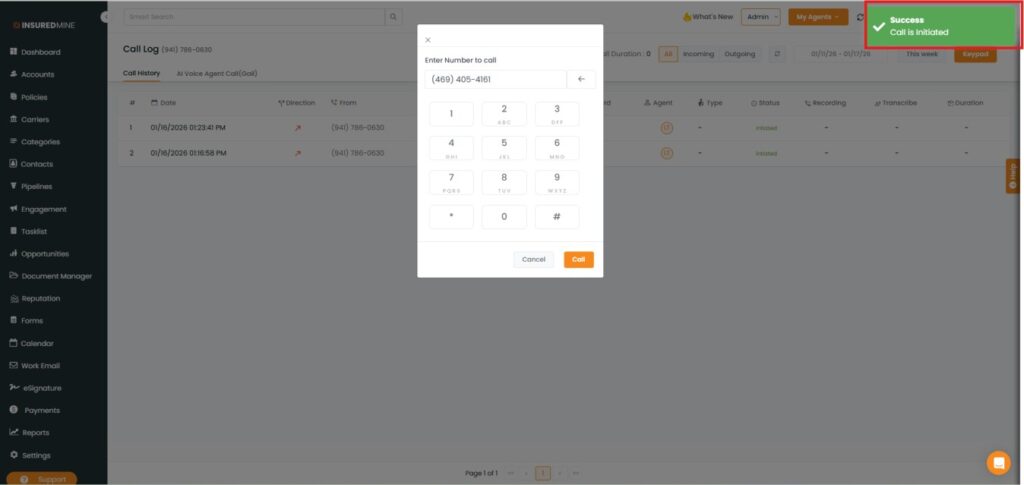
A success pop-up ‘’Call is Initiated appears’’ appears.


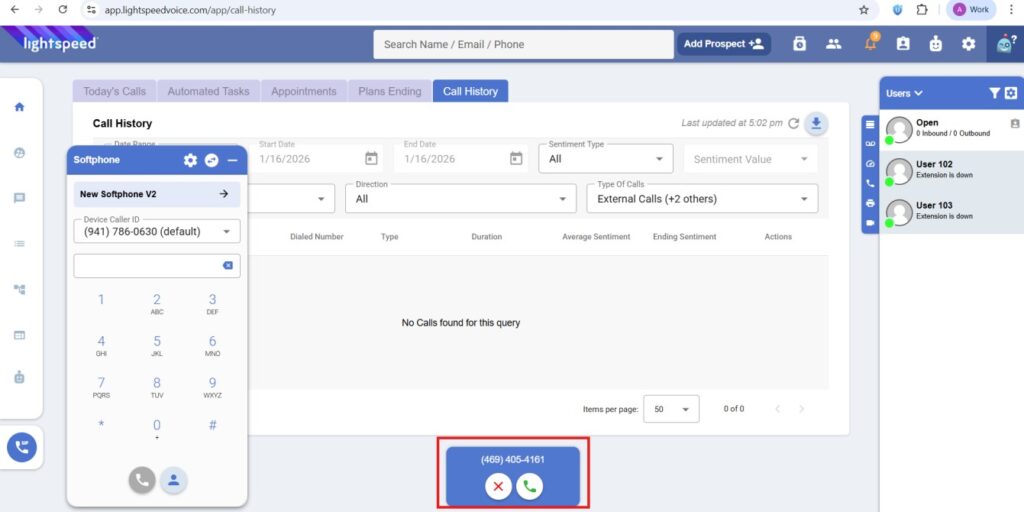
  • As shown below, the call is sent to the LightSpeed Portal to accept or decline.

Note: According to the LightSpeed Voice Portal, when a call is accepted, it is transferred to the agent. If the call is declined, the agent does not receive the call.


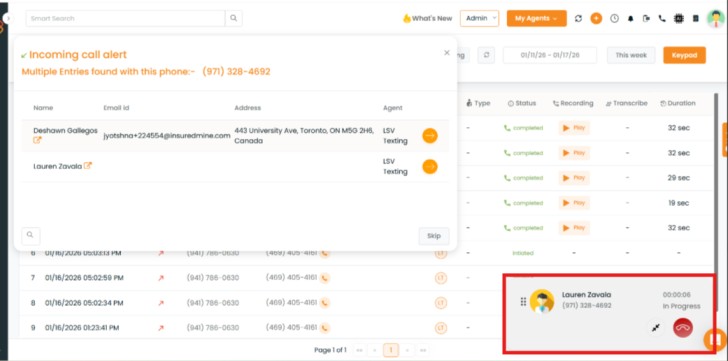
  • As shown below, the call is redirected to the agent.

Related Articles

Would you recommend this article?

Related Categories

Contact Us

Looking for more information or want to try one of our paid plans?

EMAIL

PHONE

OUR LOCATION

Search
Generic filters

Most Search: Ams360Release Notes