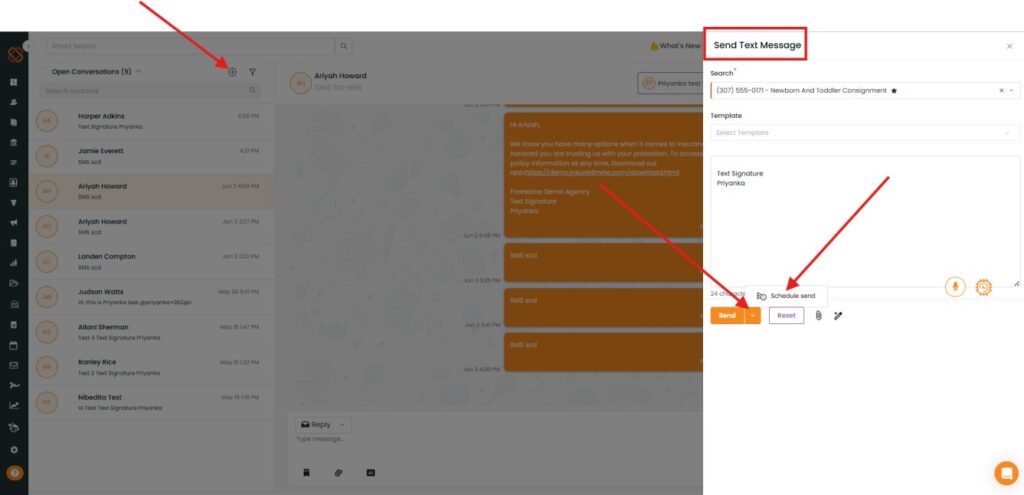
InsuredMine allows users to schedule text messages in advance from multiple areas of the platform, including Accounts, Contacts, Deal Cards, Policies, Tasklists, the Header menu, and the Text Module. This feature enables users to compose messages and specify a future date and time for delivery, ensuring timely communication with clients without requiring manual follow-up.
Use Case : This feature helps agents and agency staff plan client communications ahead of time by scheduling text messages for future delivery. It is useful for sending appointment reminders, policy renewal notifications, follow-up messages, payment reminders, and other time-sensitive communications.
By scheduling texts in advance, users can maintain consistent client engagement, improve response rates, and reduce the need for manual message management.
To View the Enhancement:
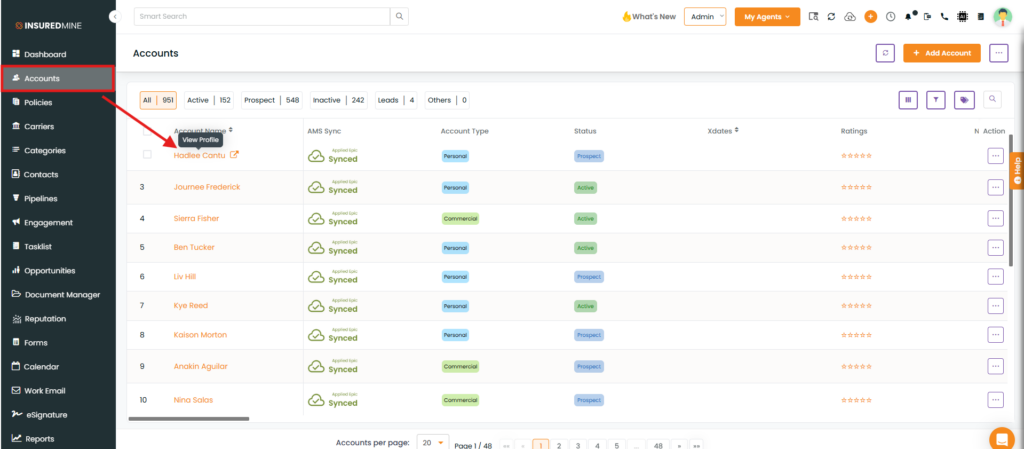
Navigate to Accounts
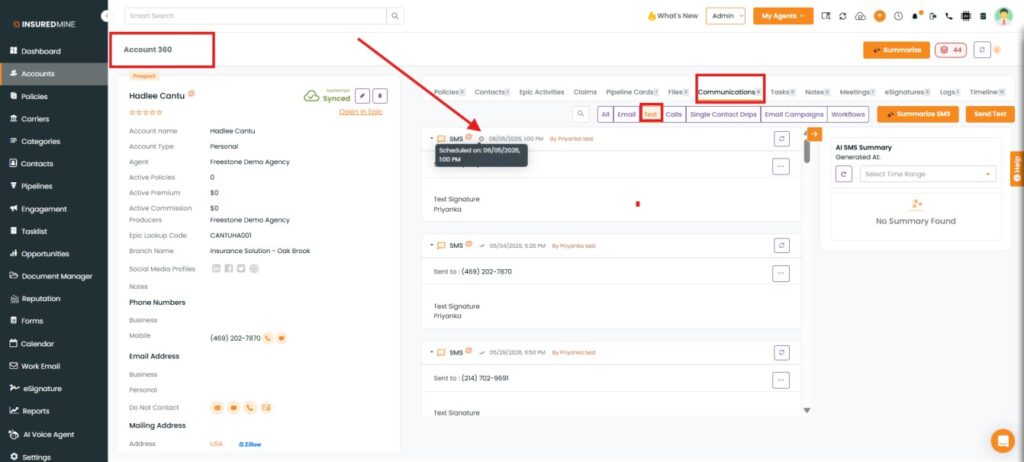
Click on Account to view Account 360
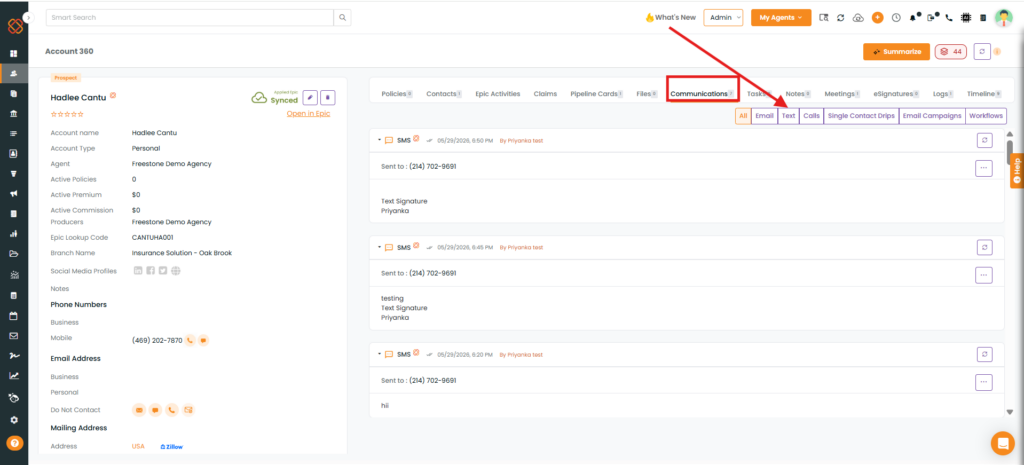
Click on the Communications tab and select Text.
As shown below, click on Send Text.
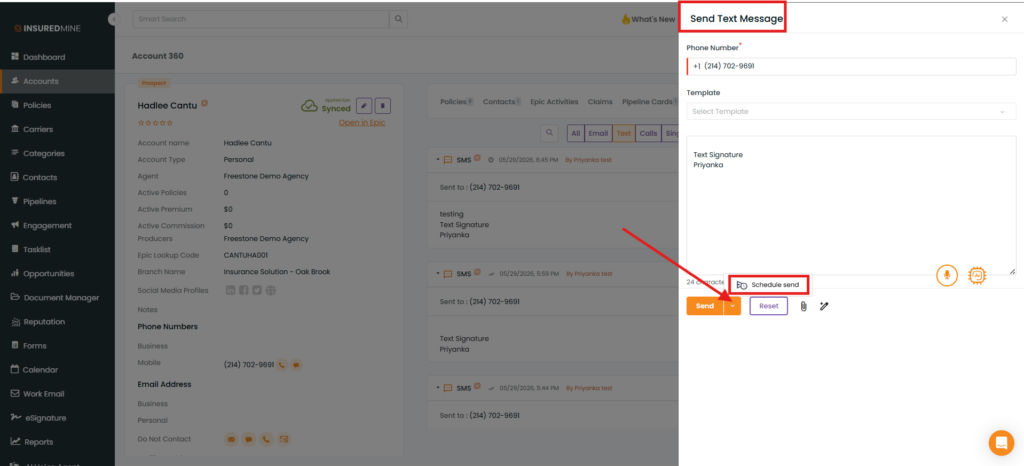
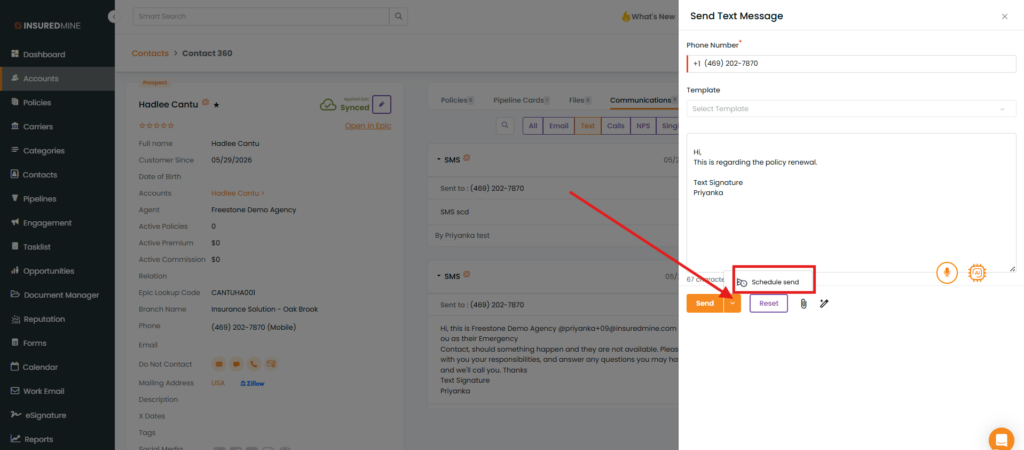
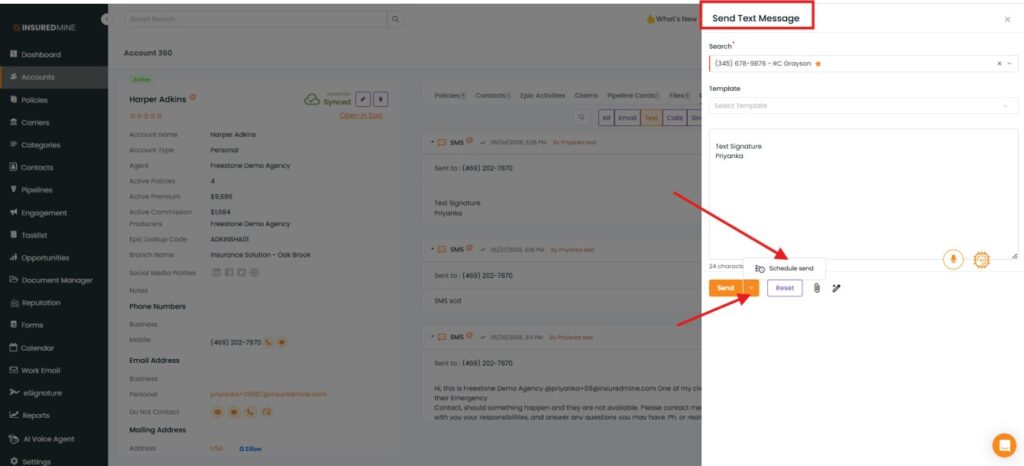
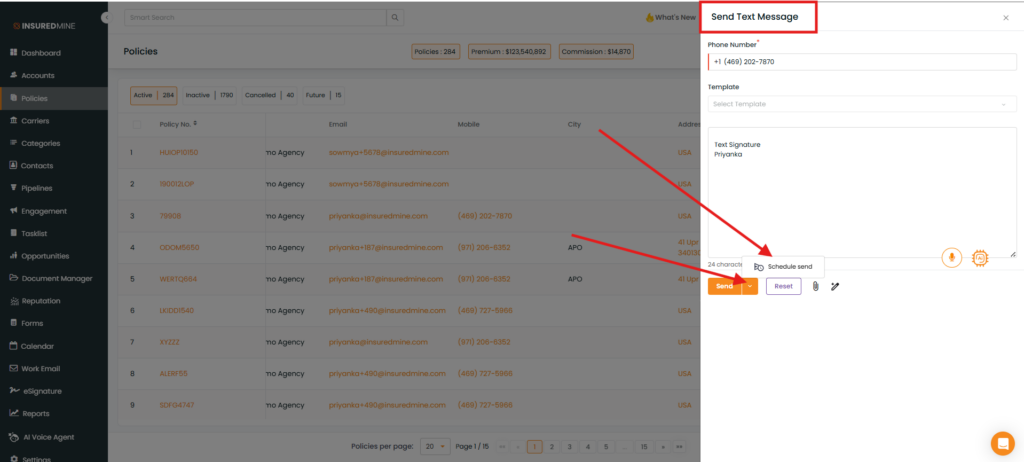
The Send Text Message Panel appears.
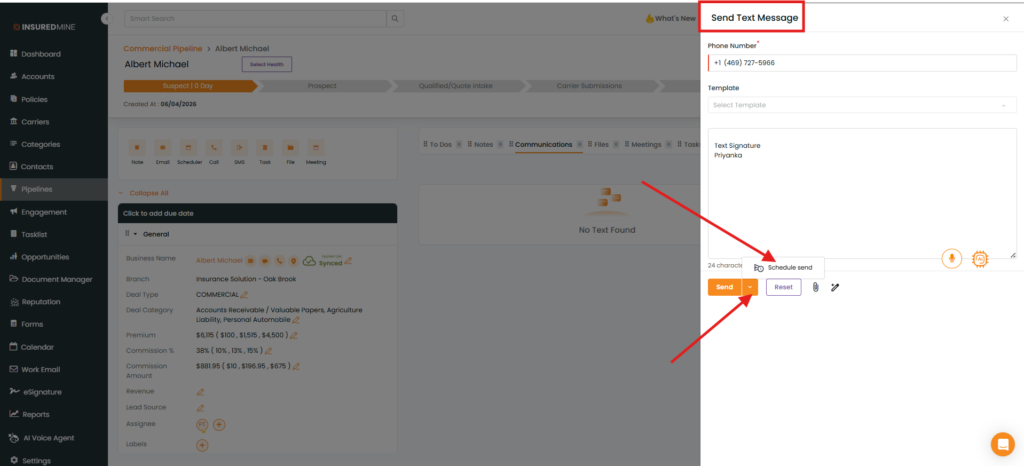
Click the drop-down arrow beside the Send button and select Schedule Send.
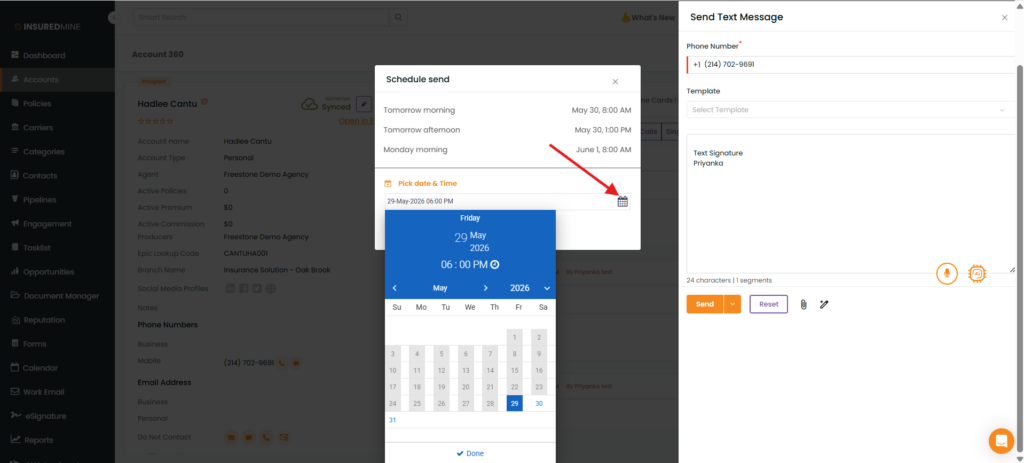
Click on the Calendar icon to select the date and time to schedule the text.
Select the date and time to schedule the text and click on Schedule.
Note: You can also view scheduled text in the Accounts > Communications > Text section.
In the Communications Tab, when a clock icon is visible, the text is scheduled
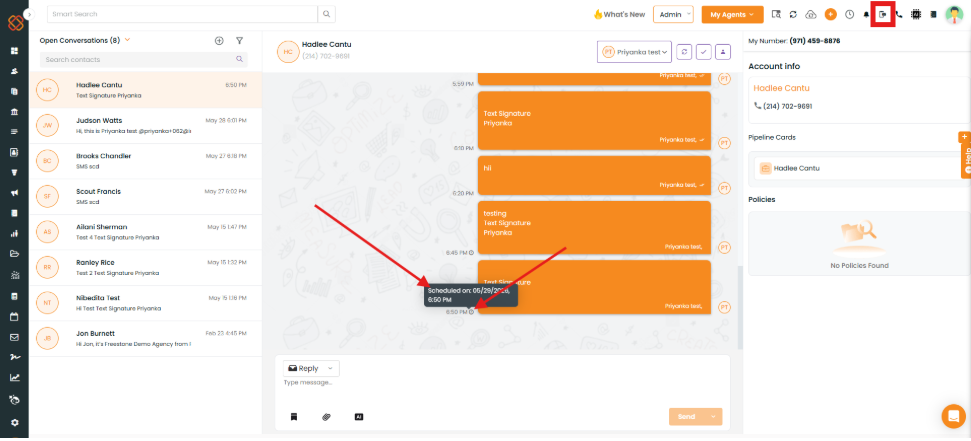
Scheduled text can also be seen by clicking on the Text Messages Icon. Scheduled text icons disappear once the text is sent.
Note:
The option to send a scheduled text is also available under:
Contact
Deal card
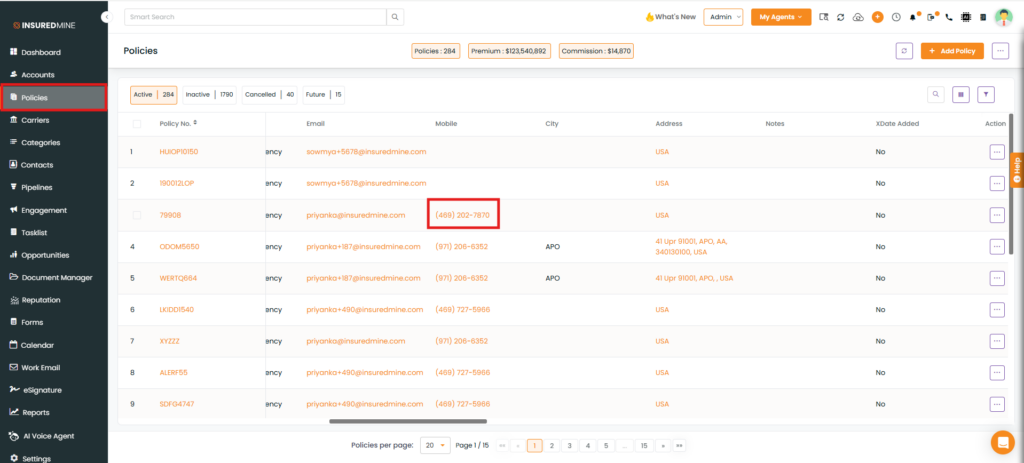
Policy
Tasklist
Header
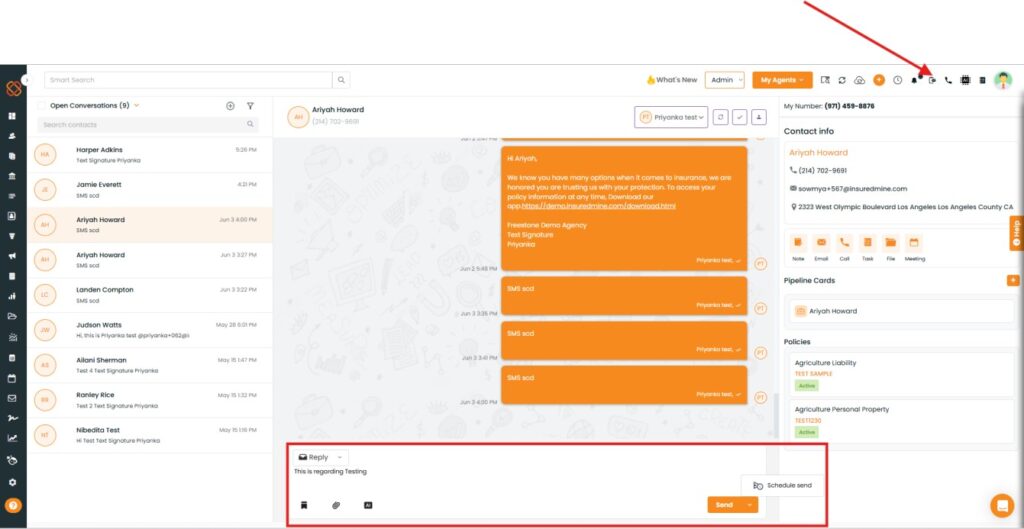
Text Module
Note: To schedule and view text messages from Contacts, follow the same steps outlined above for Accounts.
Header
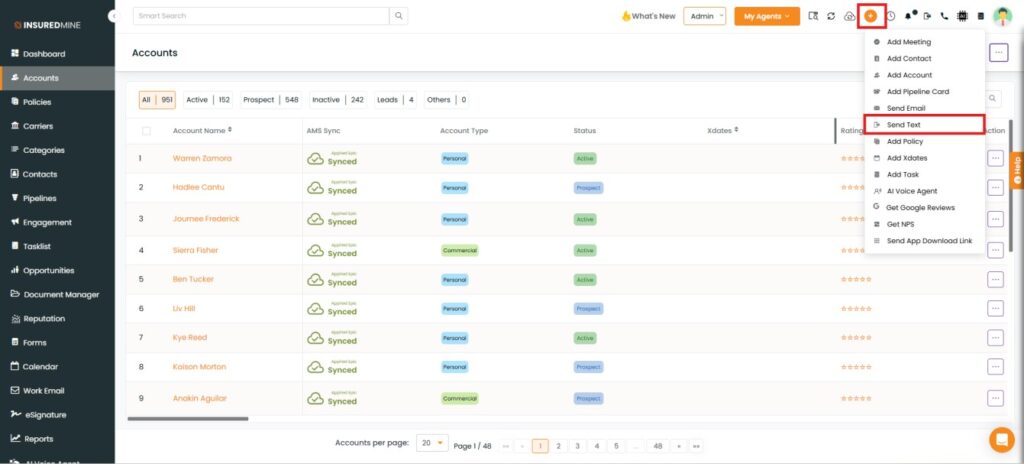
Navigate to the Header Section.
Click on the plus button.
Select Send Text.
Deal Card
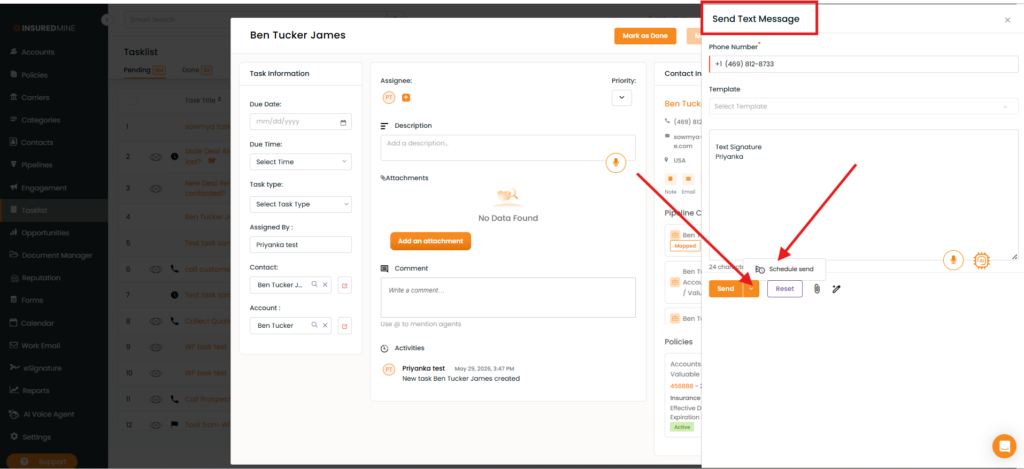
Tasklist
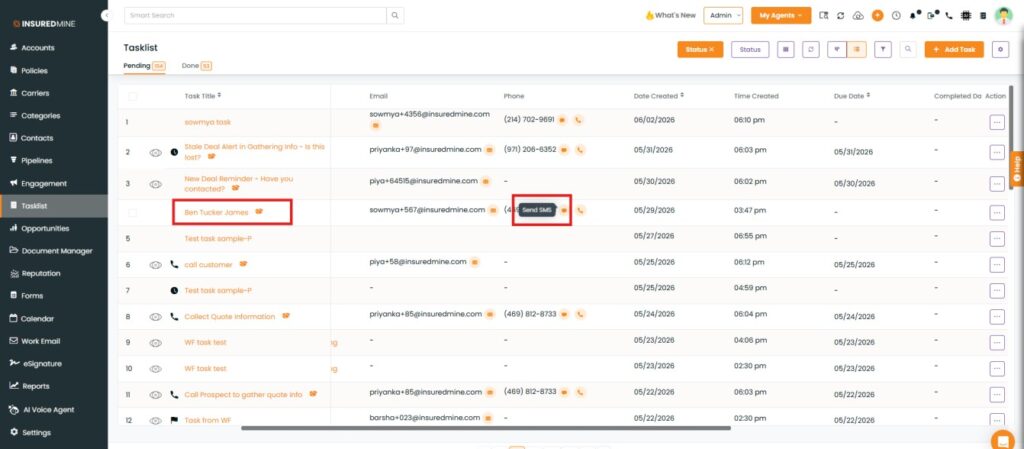
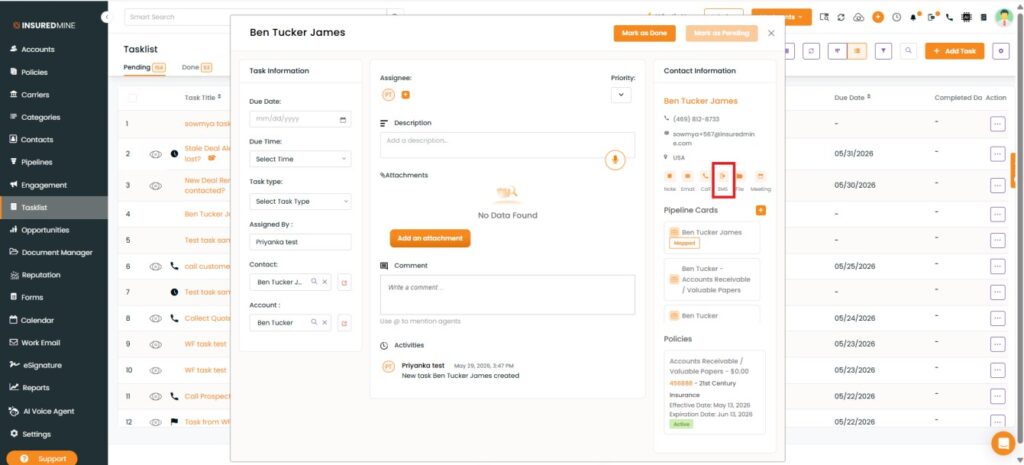
From the Tasklist module, you can schedule and send text messages using the Task Title or the Send SMS icon.