We have introduced an enhancement in the Personal Data Book report that allows users to group and filter accounts by Lead Source and Disposition. Users can also view the corresponding account details by selecting a specific lead source or disposition count, making it easier to analyze account data.
Use Case: This enhancement helps users analyze accounts based on Lead Source and Disposition. By grouping accounts and viewing the corresponding account details, users can gain better insights, track lead performance, and generate more meaningful reports for business analysis.
Lead Source and Disposition Group By option in Reports
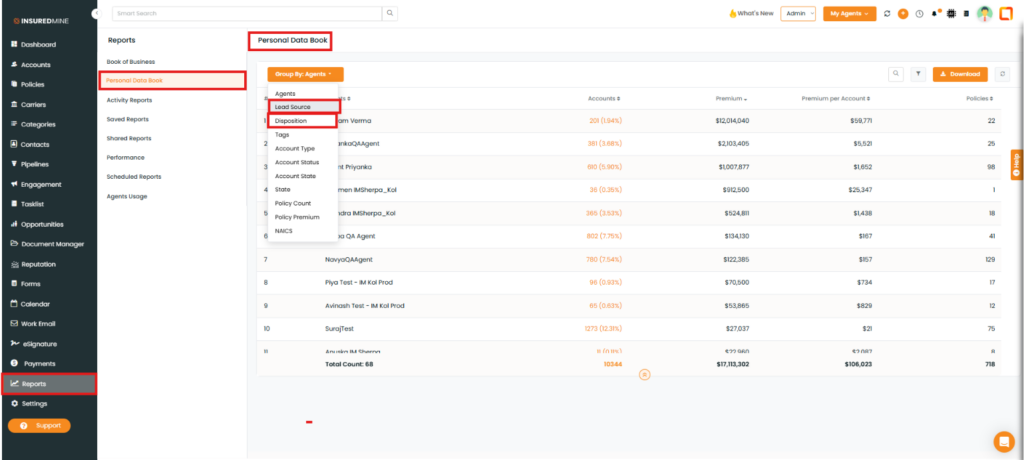
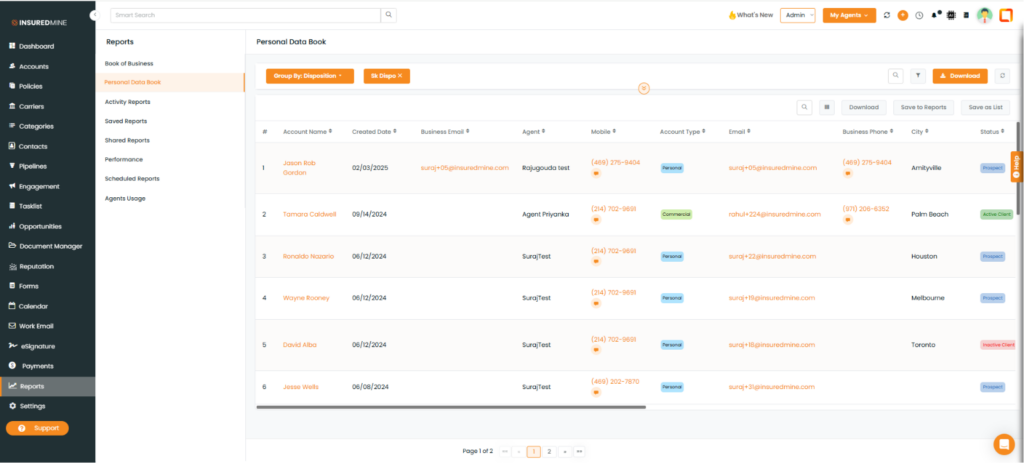
Navigate to Reports and click on the personal data book.
Click on Group By filter and select Lead Source or Disposition.
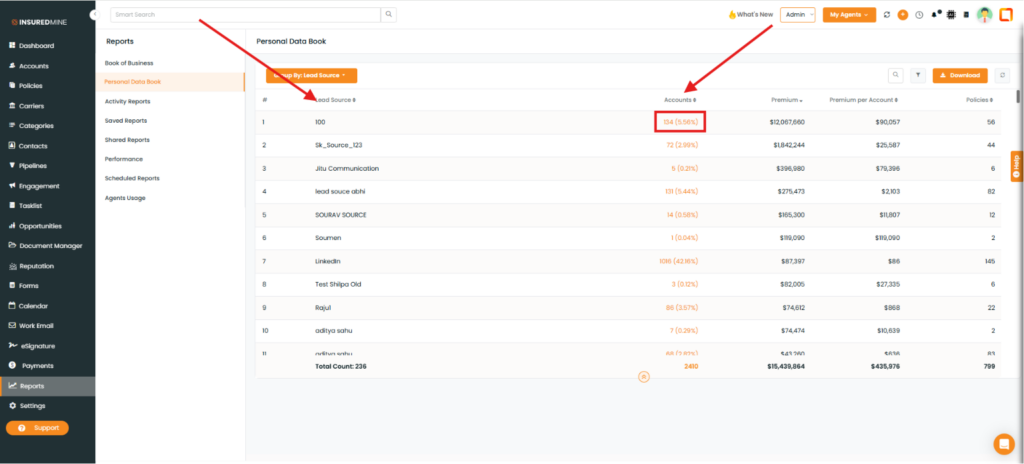
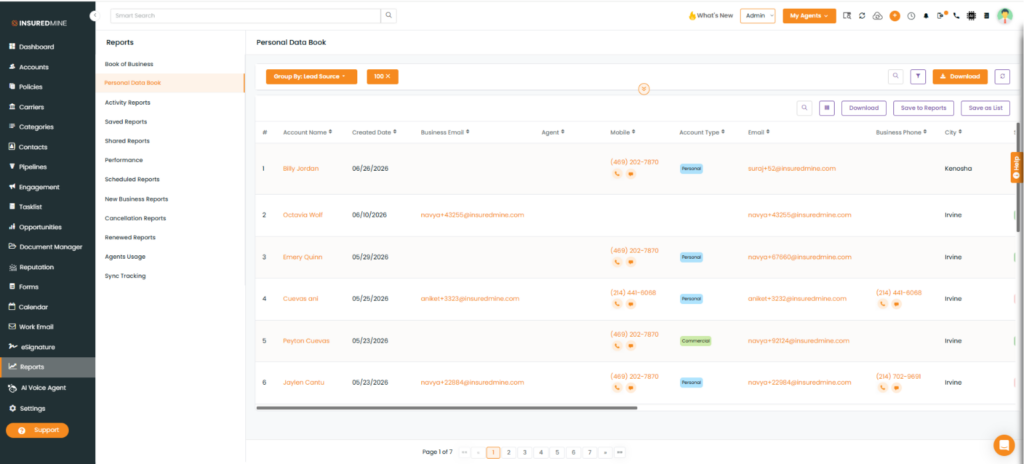
If you select Lead Source, the number of accounts associated with each lead source is displayed. Click the count for a specific lead source to view the corresponding account details in the table below.
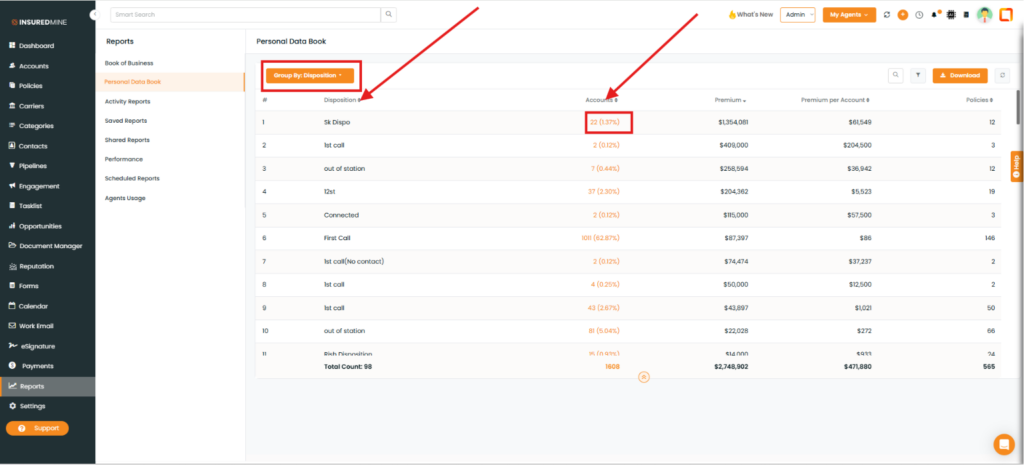
If you filter your contacts by Disposition, the number of accounts associated with each disposition is displayed. Click the count for a specific disposition to view the corresponding account details.
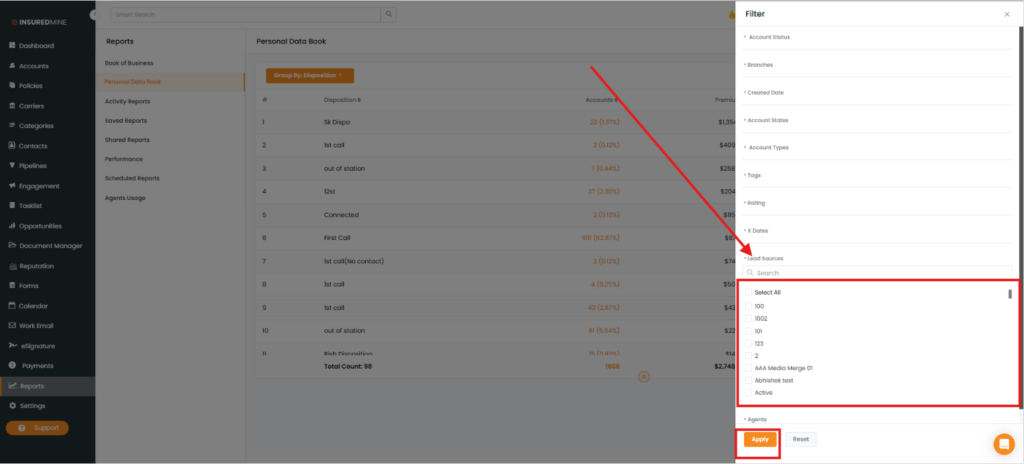
Lead Source filter in Reports
Lead Source filter is also available in the reports under the Personal Data Book Report.
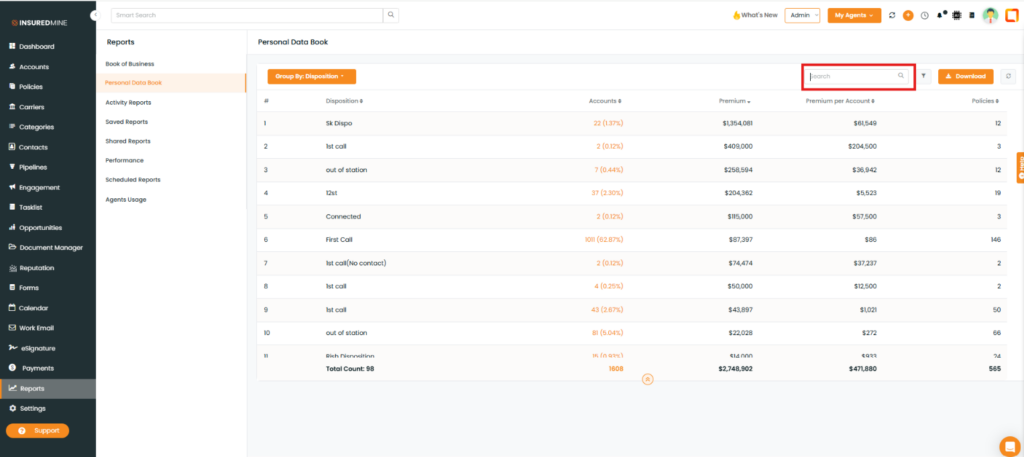
Search tab in Reports
Search tab is also introduced Reports for instant search of any report based on any contact.
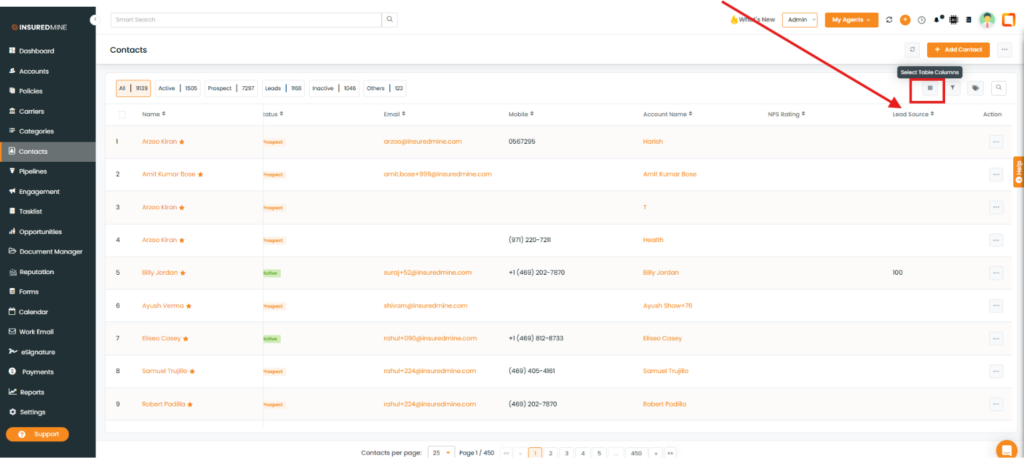
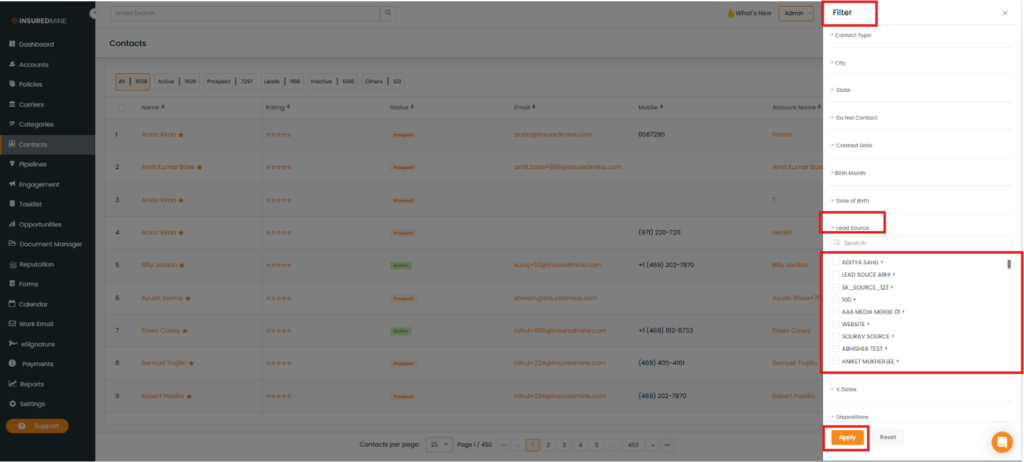
Lead Source Filter in Contacts
In the contact list you can find lead source details. You can also sort your contact list based on lead source.
Click on filter and scroll down to lead source and select the leads as required.