A new enhancement allows accounts created in AMS (Epic, Nexsure, QQ, HawkSoft, NowCerts, and AMS360) to be instantly imported into InsuredMine using the Search and Map options. This enhancement enables agents to sync and map accounts more easily and securely.
Use Case:Agents can now instantly bring accounts created in Epic, Nexsure, QQ, HawkSoft, NowCerts, and AMS360 into InsuredMine using the Search and Map feature.
This enhancement allows user for easier, accurate, and secure syncing and mapping of accounts.
To View the enhancement:
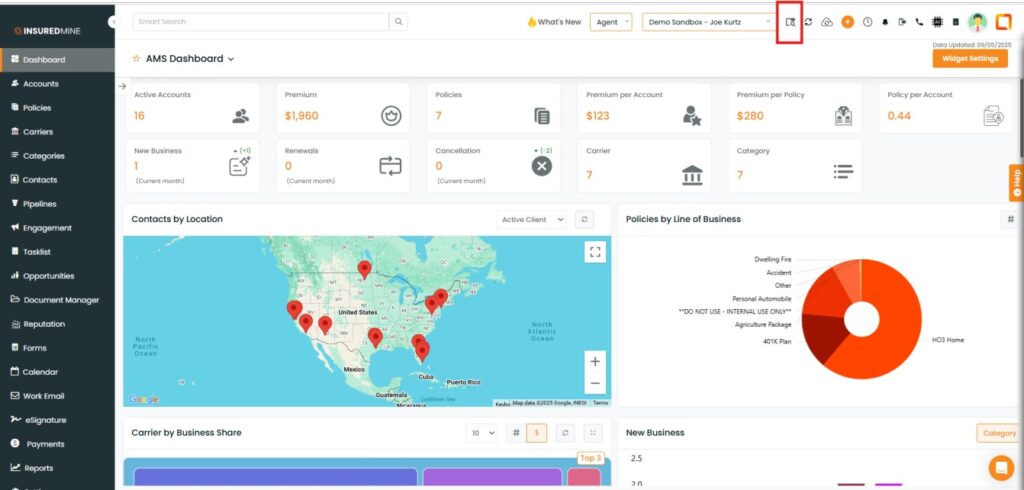
Navigate to Heading
Click on Search from Epic & Map icon
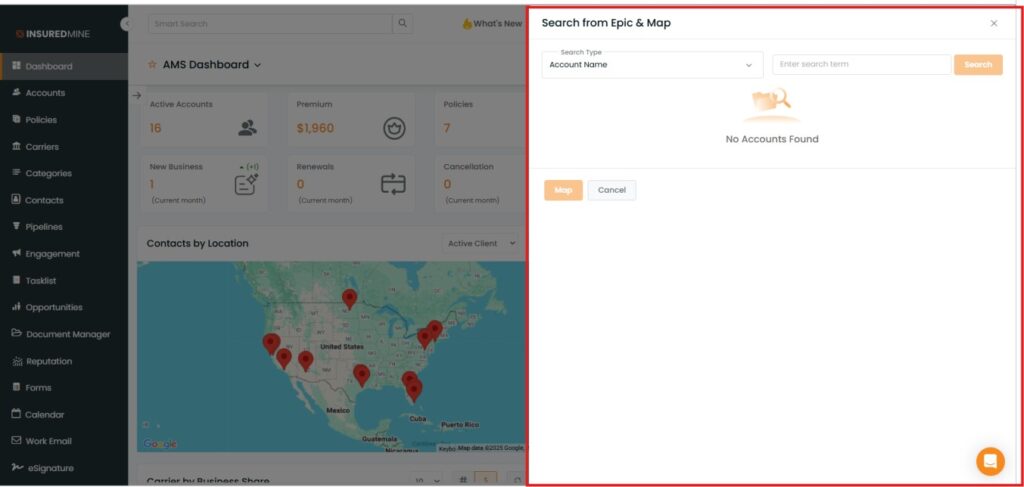
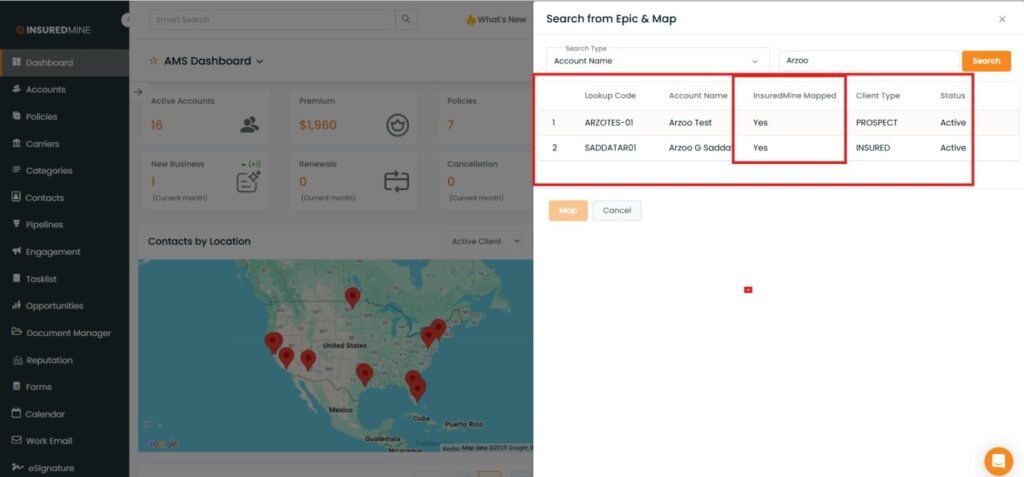
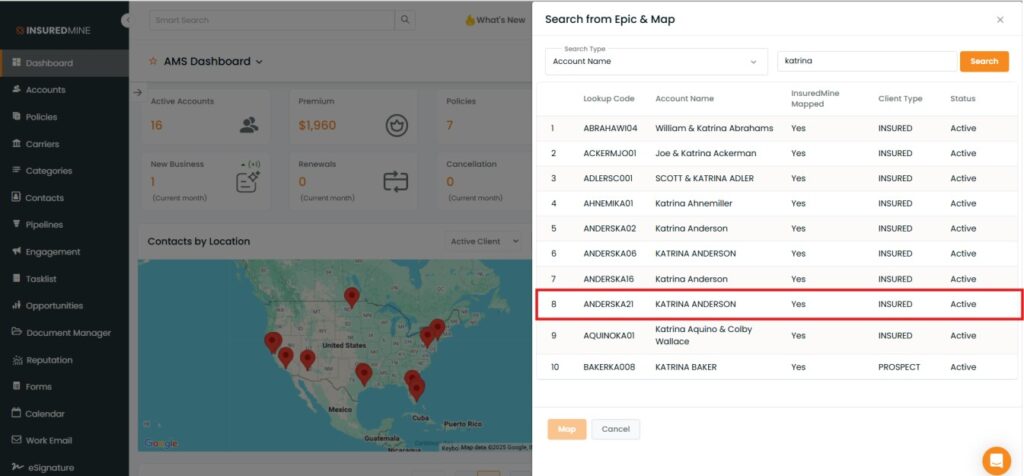
The search from the Epic & Map side panel appears on the right side.
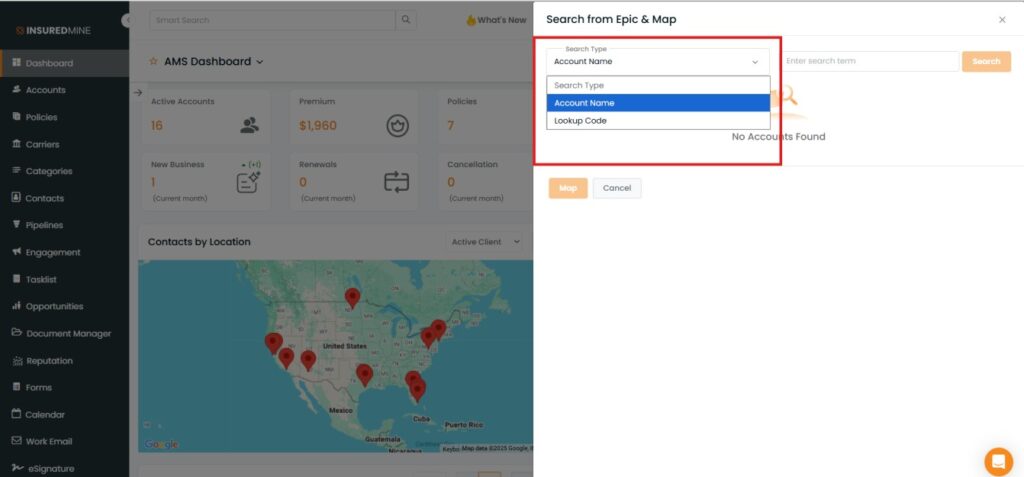
From the dropdown, select the preferred option to search your account.
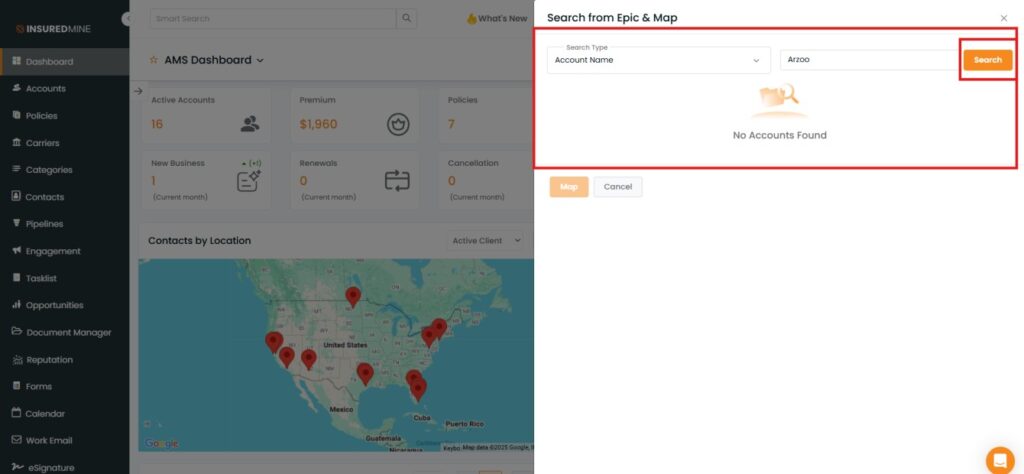
Fill in the required fields
Click on Search
As shown below, Based on the account name entered, the search results appear along with other details.
If the Epic account is already synced to InsuredMine → Mapped: Yes
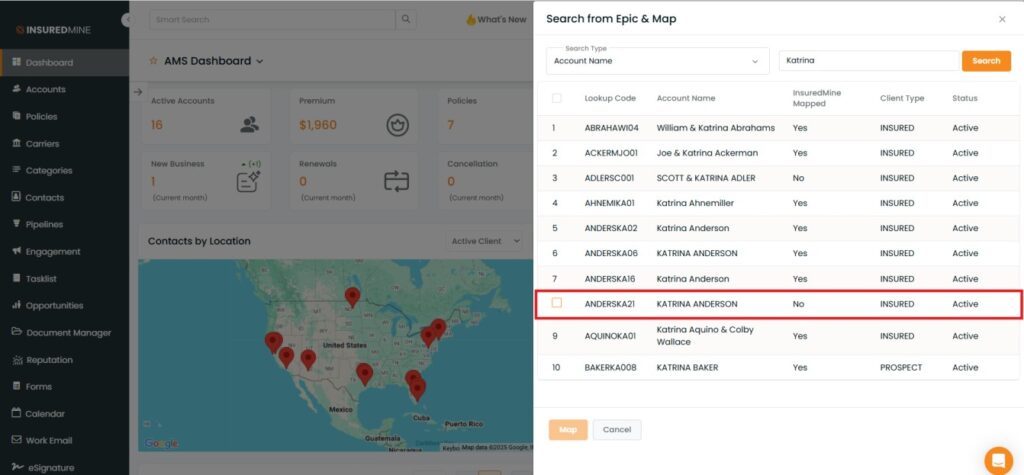
If the Epic account is not synced → Mapped: No
To Map an Epic Account into Insuredmine:
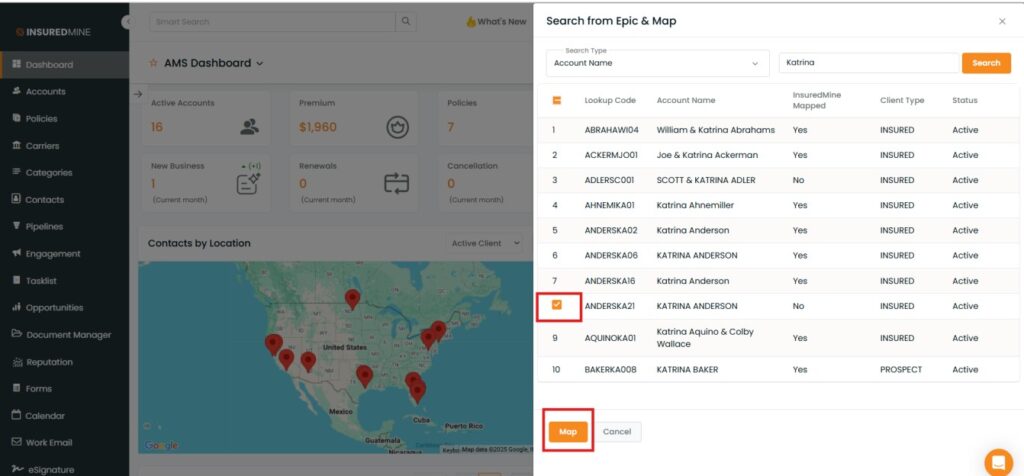
Check the Box beside the account
Click on Map
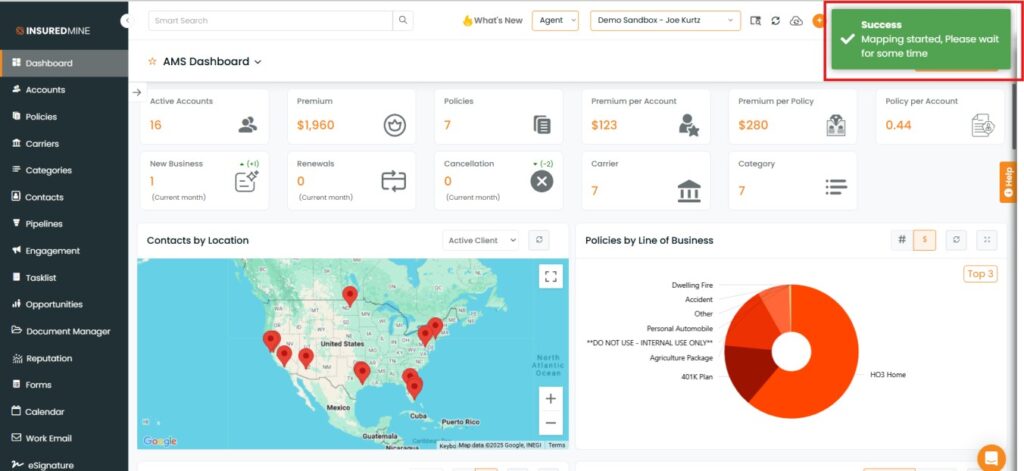
A Success Message appears: “Mapping started please wait for some time.”
Once mapped, the account (e.g., Katrina ANDERSON) shows as InsuredMine Mapped.
To view the enhancement for Search and Map for Nexsure & QQ:
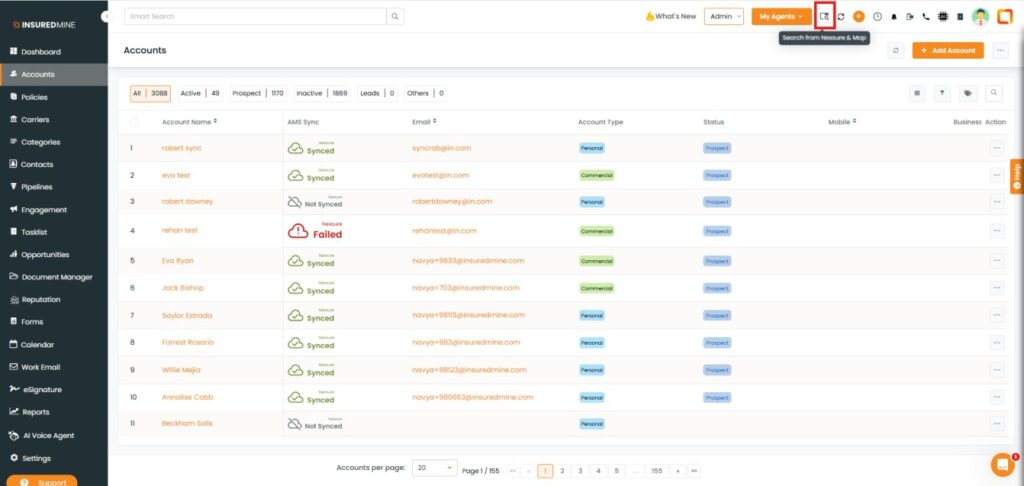
Navigate to Heading.
Click on Search from Nexsure & Map icon.
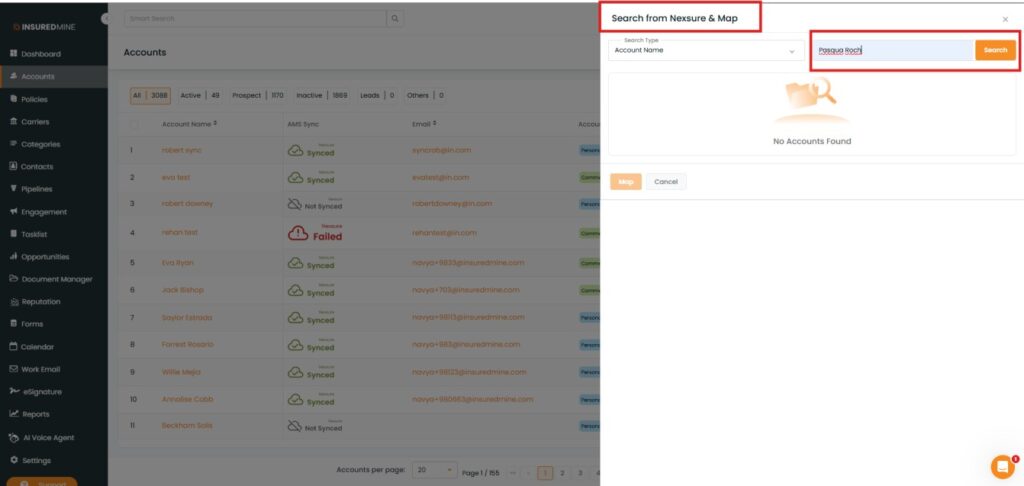
The Search from Nexsure and Map panel appears.
Enter the Account Name.
Click on Search.
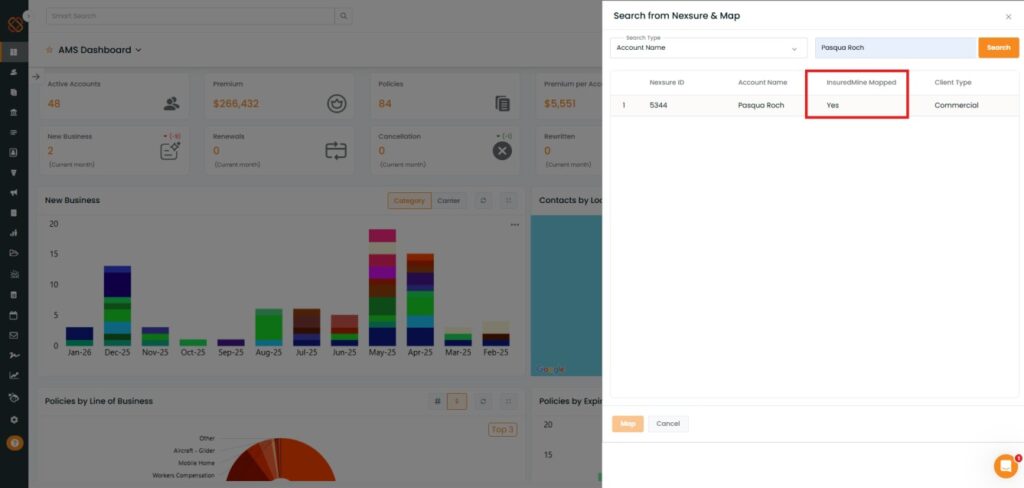
As shown below, Based on the account name entered, the search results appear along with other details.
If the Nexsure account is already synced to InsuredMine → Mapped: Yes
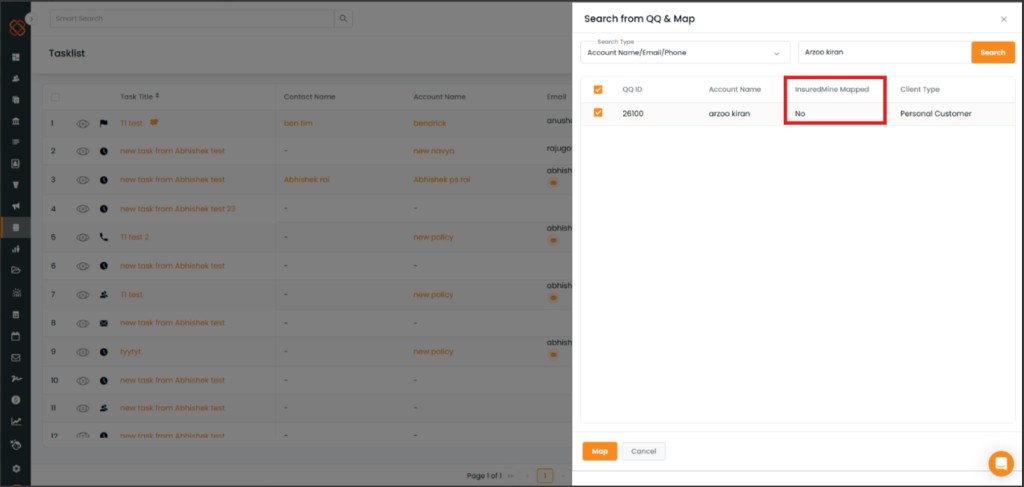
To Search & Map a QQ Account into Insuredmine:
Enter the Account Name
Click on search
As shown below, the QQ account is not synced to InsuredMine → Mapped: No
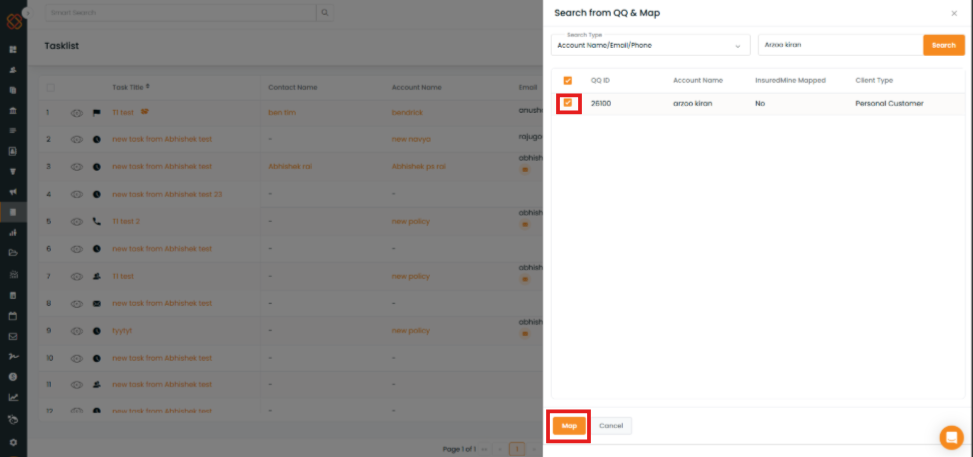
Click the checkbox beside the QQ ID.
Click the Map button at the bottom to map the selected account in InsuredMine.
Click Cancel if you do not want to proceed with mapping.
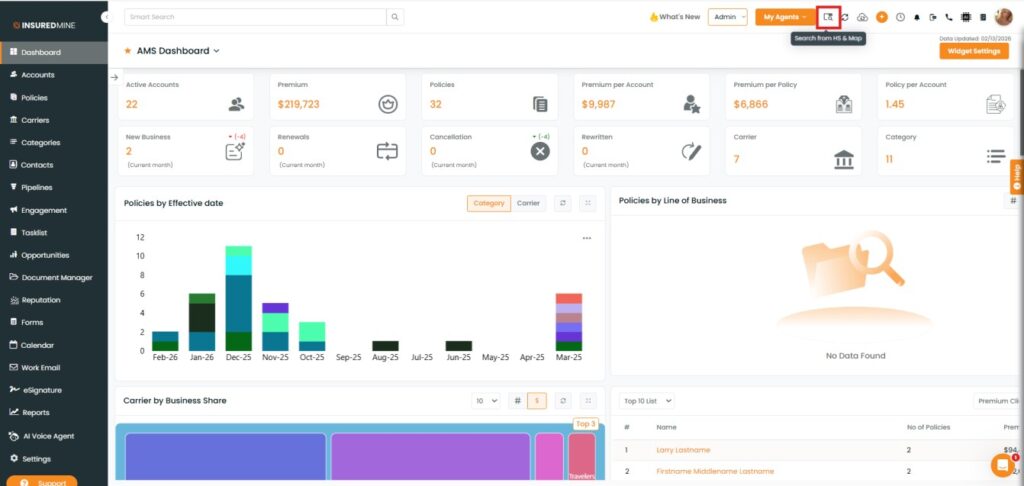
To view the enhancement for Search and Map for Hawksoft:
Navigate to Heading.
Click on Search from HS& Map icon.
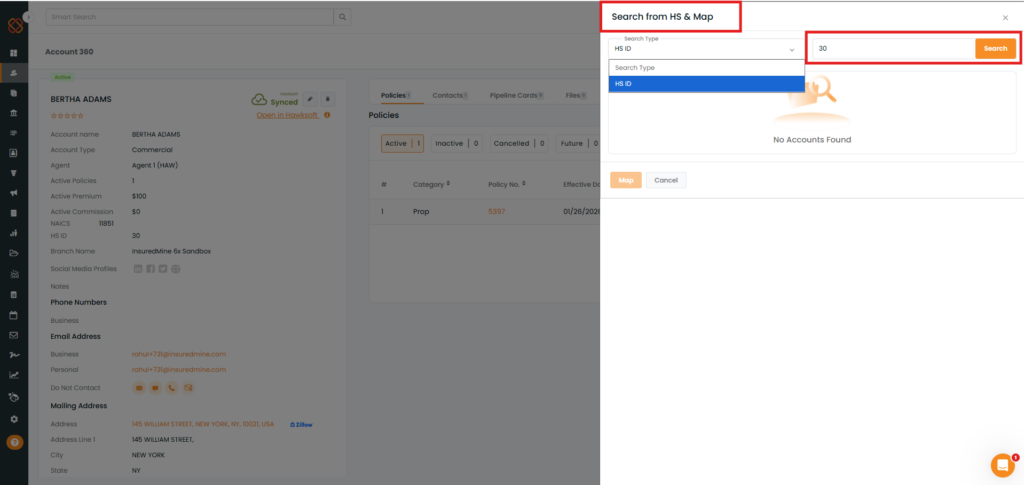
The Search from HS & Map panel appears.
Enter the HS ID.
Click on Search.
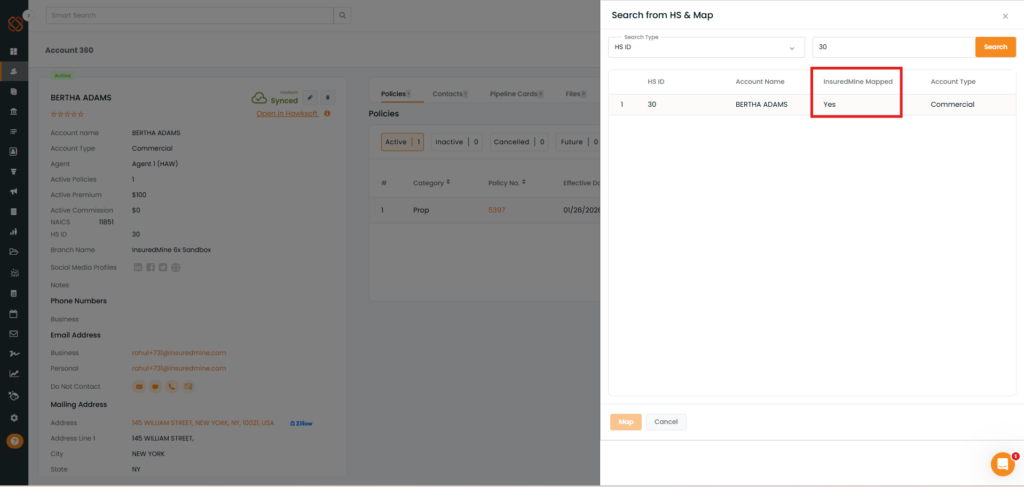
As shown below, Based on the HS ID entered, the search results appear along with other details.
If the HS account is already synced to InsuredMine → Mapped: Yes
To Search & Map a HS Account into Insuredmine:
Enter the HS ID.
Click on search.
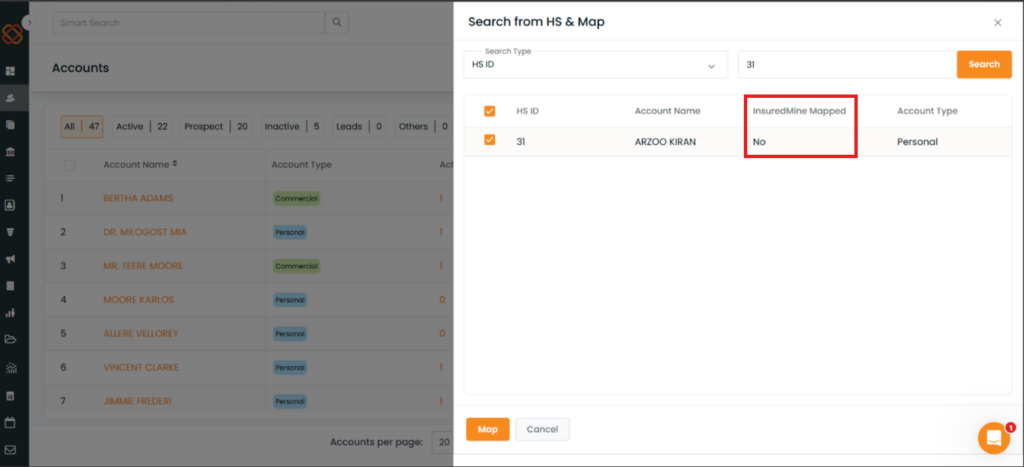
As shown below, the HS account is not synced to InsuredMine → Mapped: No.
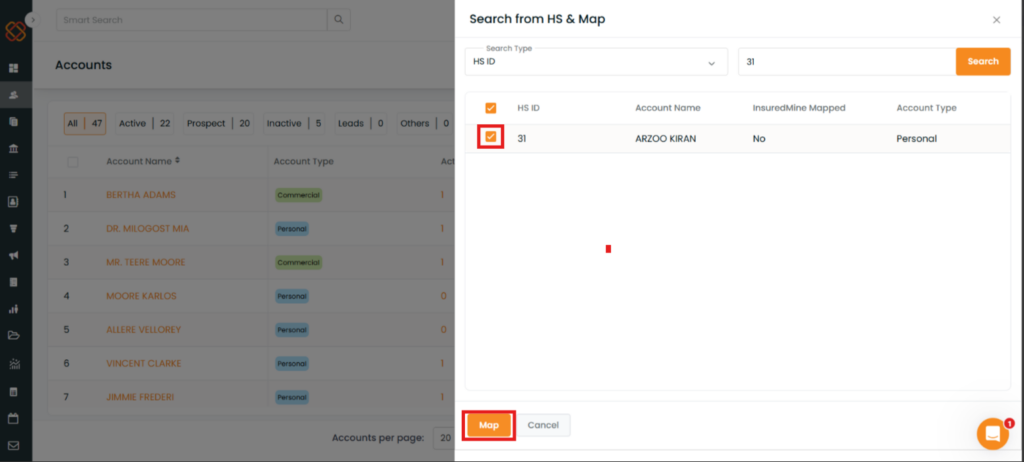
Click the checkbox beside the HS ID.
Click the Map button at the bottom to map the selected account in InsuredMine.
Click Cancel if you do not want to proceed with mapping.
To view the enhancement for Search and Map for AMS360:
Navigate to Heading.
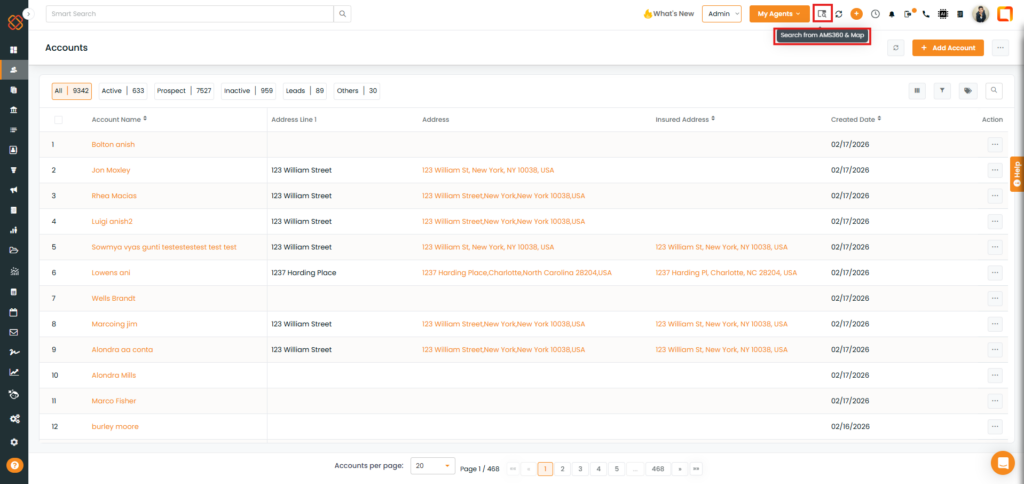
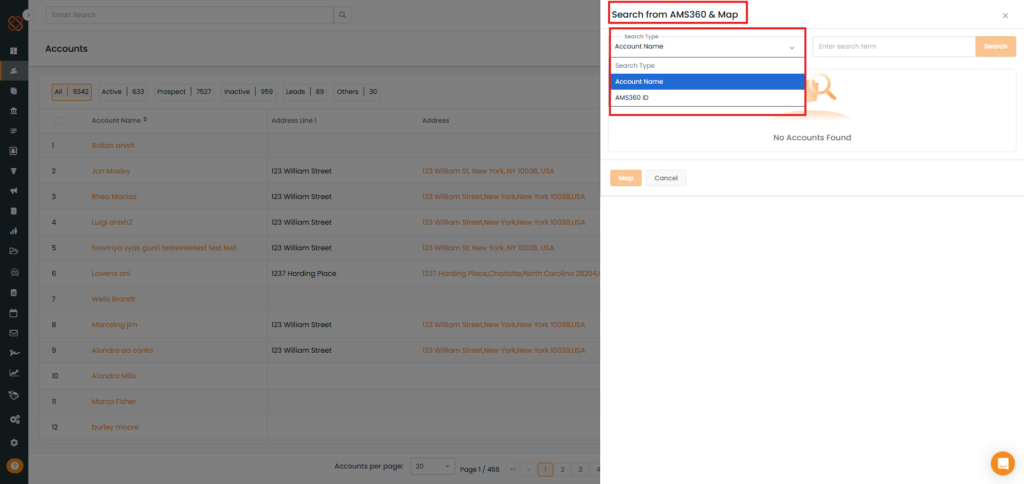
Click on Search from AMS360 & Map icon.
The Search from AMS360 & Map panel appears on the Right hand side
As shown below, From the dropdown, select the preferred option to search your account.
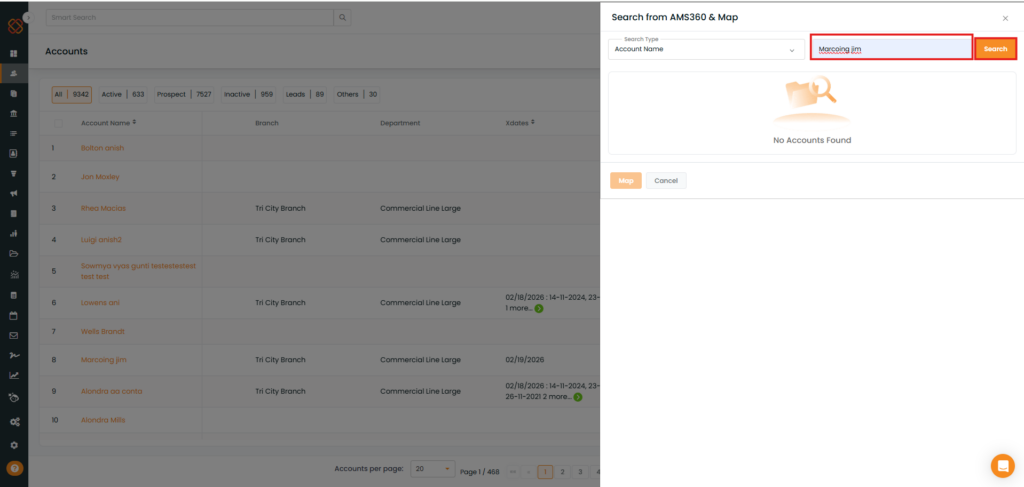
Fill in the required fields.
Click on Search.
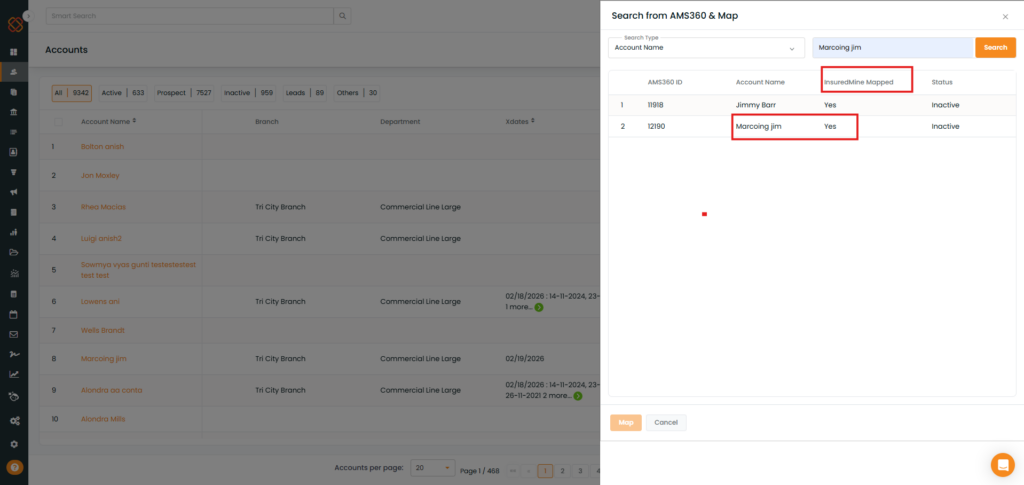
As shown below, Based on the account name entered, the search results appear along with other details.
If the AMS360 account is already synced to InsuredMine → Mapped: Yes.
To Search & Map AMS360 Account into Insuredmine:
Enter the AMS360 ID or Account Name.
Click on search
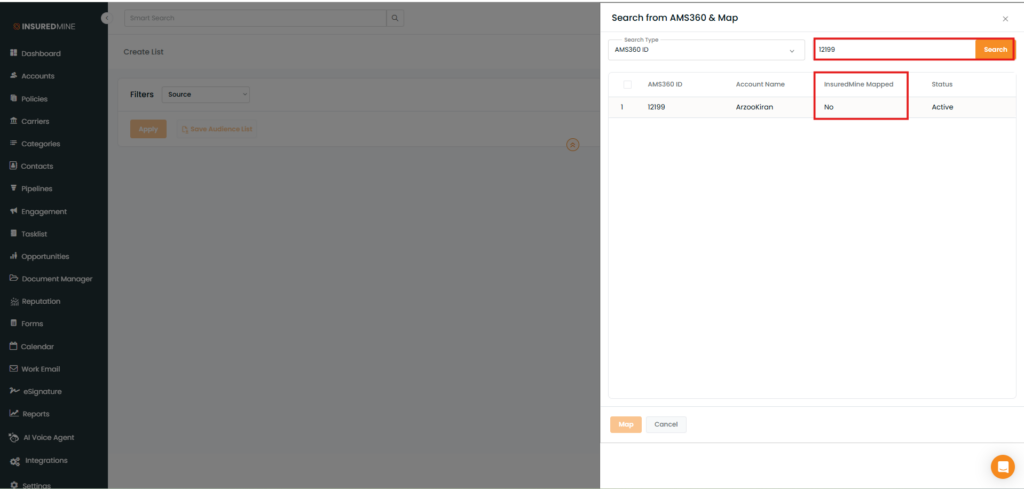
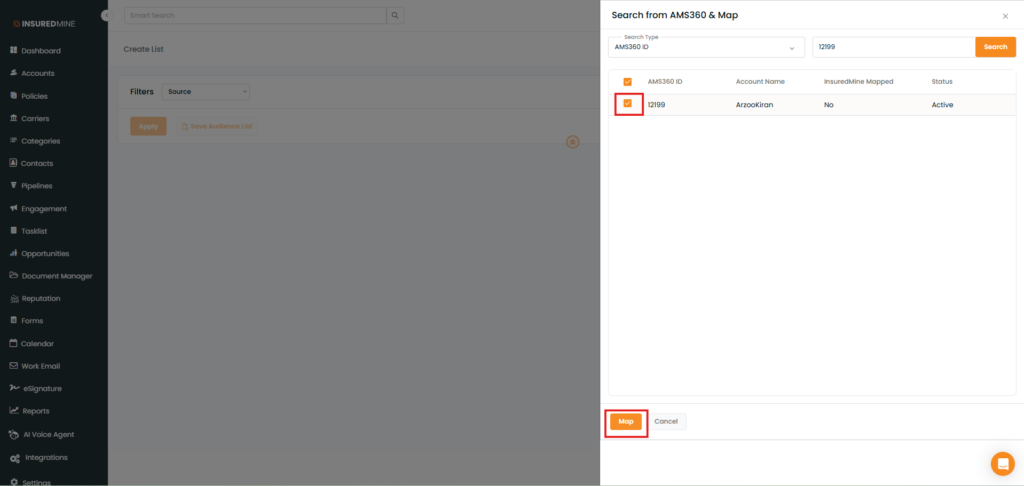
As shown below, the AMS360 ID is not synced to InsuredMine → Mapped: No.
Click the checkbox beside theAccount Name.
Click the Map button at the bottom to map the selected account in InsuredMine
Click Cancel if you do not want to proceed with mapping.
To view the enhancement for Search and Map for NowCerts:
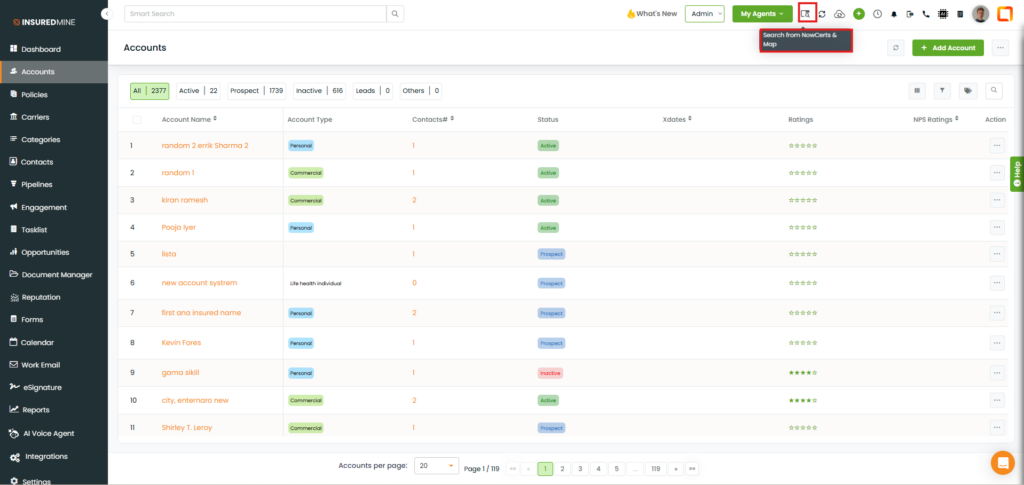
Navigate to Heading.
Click on Search from NowCerts & Map icon.
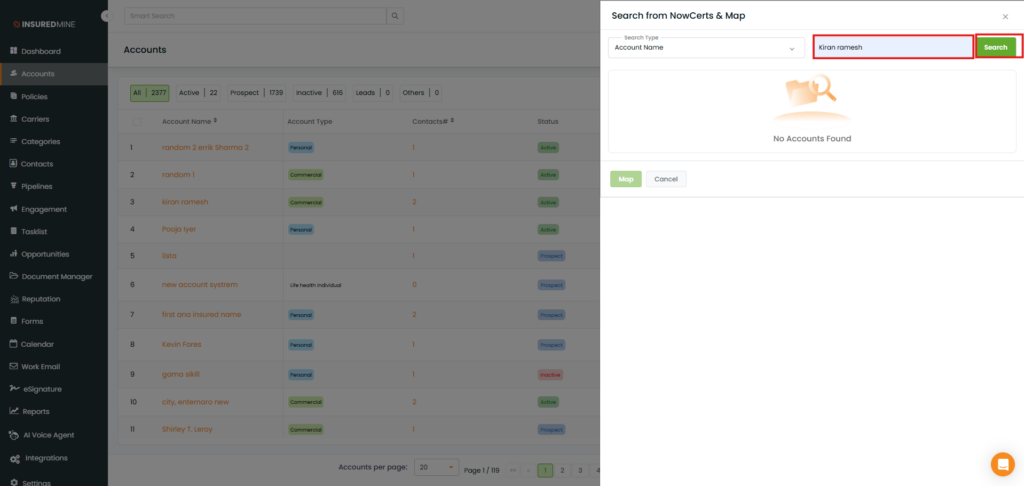
The Search from NowCerts & Map panel appears on the Right hand side.
As shown below, From the dropdown, select the preferred option to search your account.
Fill in the required fields.
Click on Search.
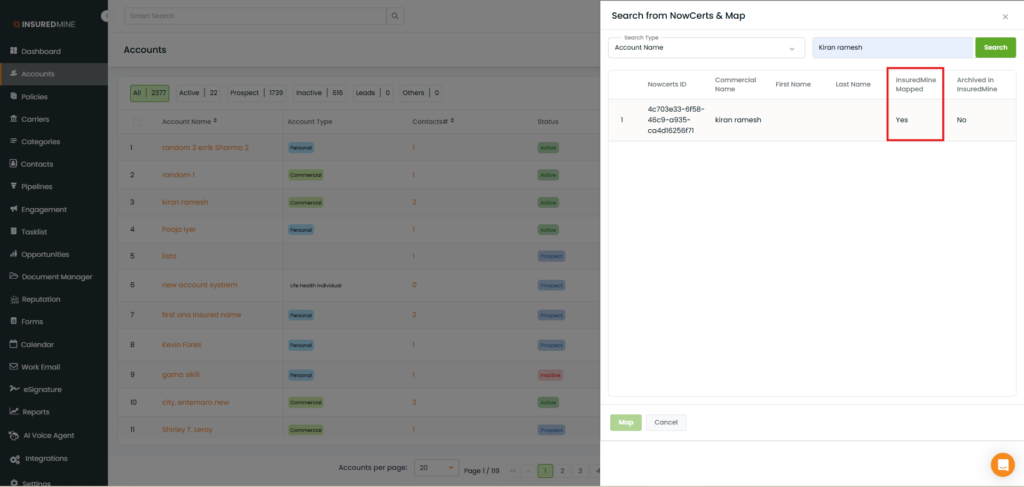
As shown below, Based on the account name entered, the search results appear along with other details.
If the NowCerts account is already synced to InsuredMine → Mapped: Yes
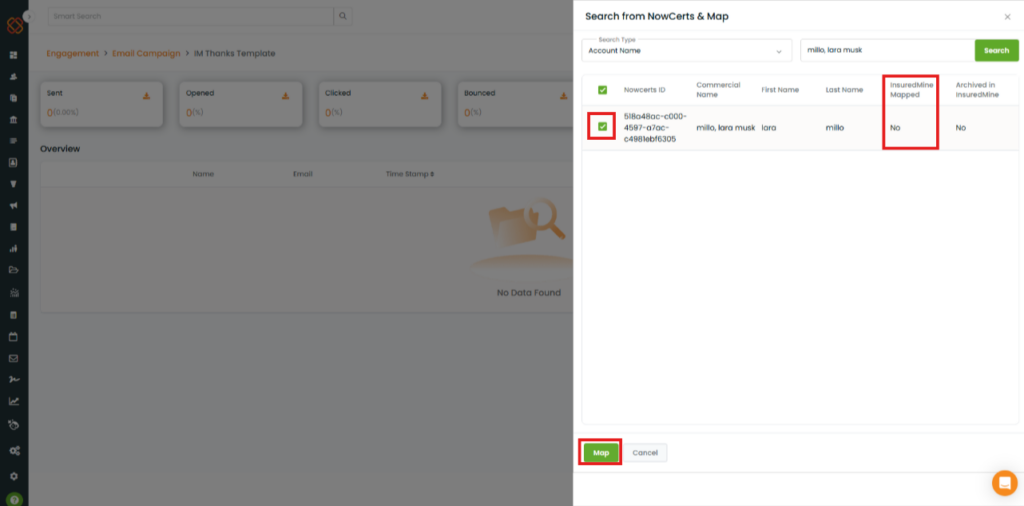
To Search & Map NowCerts Account into Insuredmine:
Enter the NowCerts ID or Account Name.
Click on search.
As shown below, the NowCerts ID is not synced to InsuredMine → Mapped: No.
Click the checkbox beside theNowCerts ID.
Click the Map button at the bottom to map the selected account in InsuredMine
Click Cancel if you do not want to proceed with mapping.
A Success pop-up: “Started Mapping from NowCerts, Please Check in a While” appears.