


Release Date: 28 July, 2026
Overview
We have introduced a new enhancement that enables users to synchronize both newly created and existing accounts from InsuredMine to HawkSoft. Depending on how an account is created, synchronization can occur automatically or be initiated manually from the Deal Card. During synchronization, the account, associated contacts, and related policy information are synced between InsuredMine and HawkSoft.
Use Case: This enhancement is designed for agencies using both InsuredMine and HawkSoft. It reduces manual data entry, minimizes data inconsistencies, and streamlines the process of creating client records in HawkSoft. Automatic synchronization ensures eligible accounts are synced as they are created, while manual synchronization allows users to sync or re-sync accounts whenever needed.
Note: To use the HawkSoft Account Synchronization feature (both automatic and manual), the Create Clients and Policies API integration scope must be enabled in the HawkSoft Marketplace.
If this permission is not enabled, InsuredMine will not be able to create clients or synchronize accounts with HawkSoft.
Prerequisites
- HawkSoft integration is connected with InsuredMine.
- You have administrator access to the HawkSoft Marketplace.
Enable the Required API Scope
Log in to the HawkSoft Marketplace.
Search for InsuredMine.
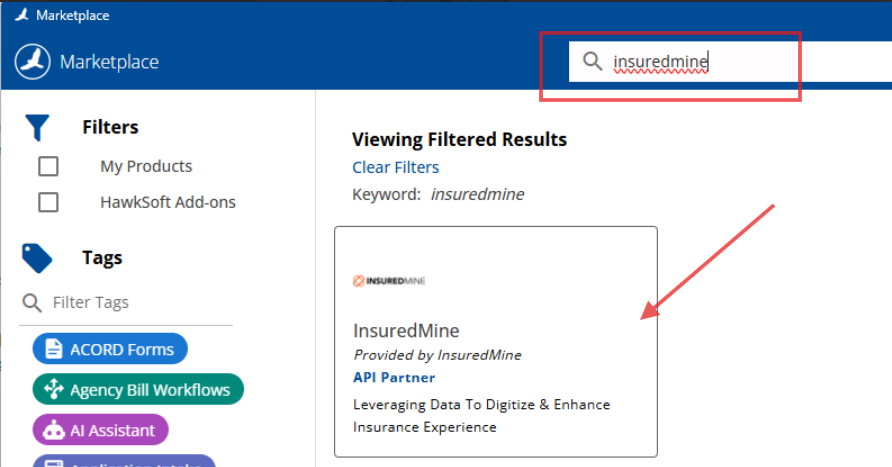
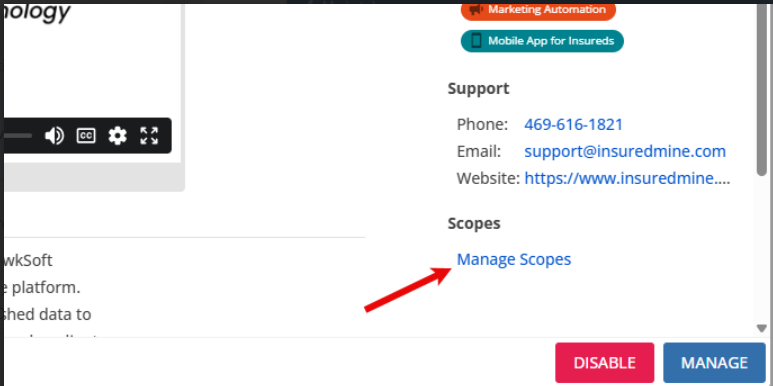
- Open the InsuredMine marketplace application.
- Click Manage Scopes.
- Enable the Create Clients and Policies permission.
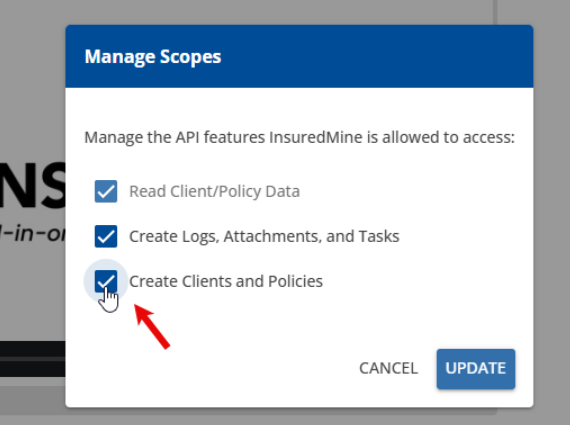
- Click Update to save your changes.
Result
Once the Create Clients and Policies scope is enabled, InsuredMine will be able to:
- Automatically synchronize eligible accounts with HawkSoft.
- Allow users to manually synchronize accounts from InsuredMine to HawkSoft.
Note
If the Create Clients and Policies scope is not enabled, all account synchronization requests from InsuredMine to HawkSoft will fail.
Steps to Sync an Account manually from IM to Hawksoft:
Note:
- At least one Contact must be added to the Account. This is mandatory.
- Synchronizing an account with HawkSoft also synchronizes its contacts.
- Click on the Account Name to open Account 360.
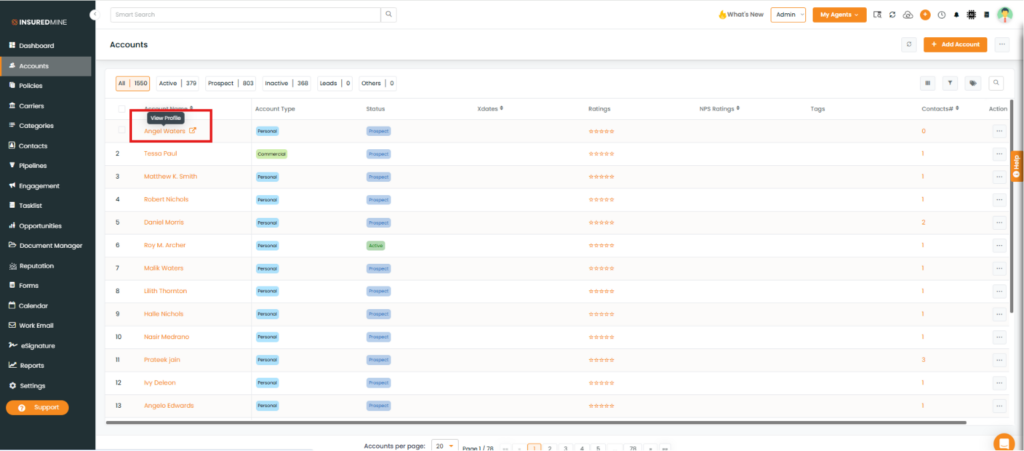
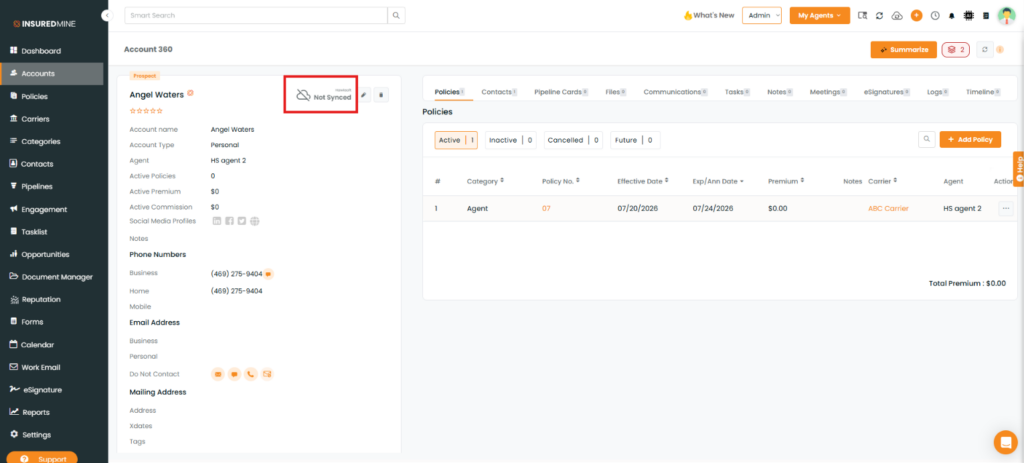
- From Account 360, click Not Synced.
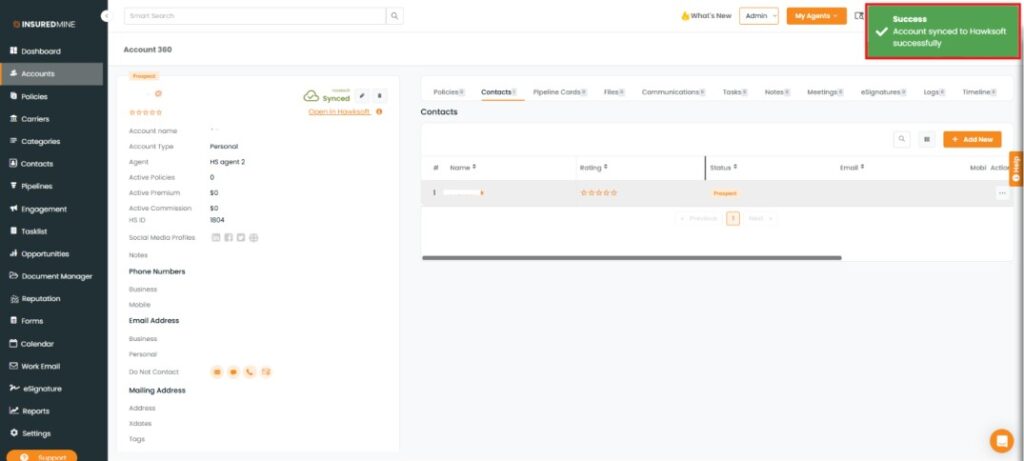
- A success message: “ Account synced to Hawksoft successfully” appears.
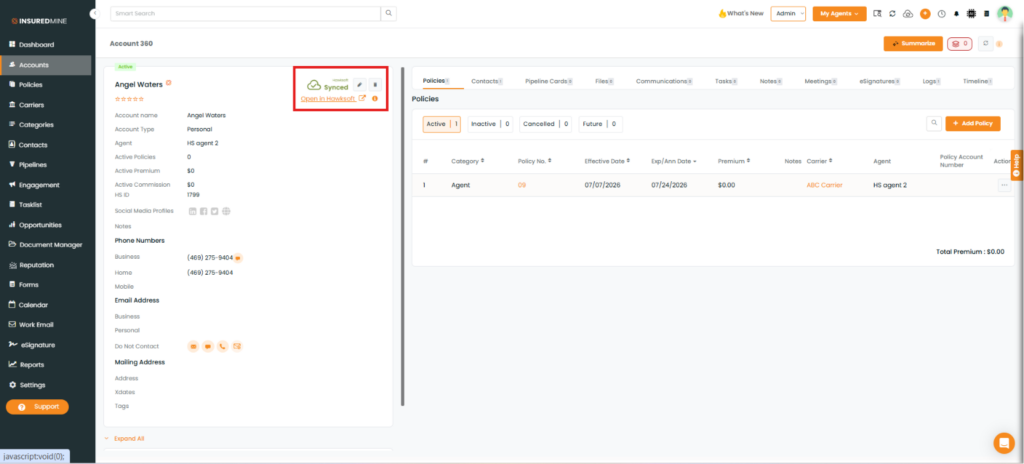
To view the synchronized Account in HawkSoft:
- After successful synchronization, the account status in Account 360 changes from Not Synced to Synced.
- From Account 360, click Open in HawkSoft
Note: After clicking Open in HawkSoft, you are redirected to the corresponding synchronized account in the HawkSoft AMS.
Account & Policy Auto Sync to HawkSoft
Overview
The HawkSoft Account & Policy Auto Sync enhancement enables newly created accounts in InsuredMine to be automatically synchronized with HawkSoft through multiple account creation methods. In addition, users can manually trigger synchronization manually as well when required.
This article explains the supported sync scenarios, prerequisites, and how to manually sync an account.
Prerequisites
Before an account can be synchronized with HawkSoft:
- The HawkSoft integration must be connected and active.
- A Primary Contact is mandatory.
- Accounts without a Primary Contact will not be synchronized.
- Required mapping and integration settings should be configured.
Automatic Account Sync
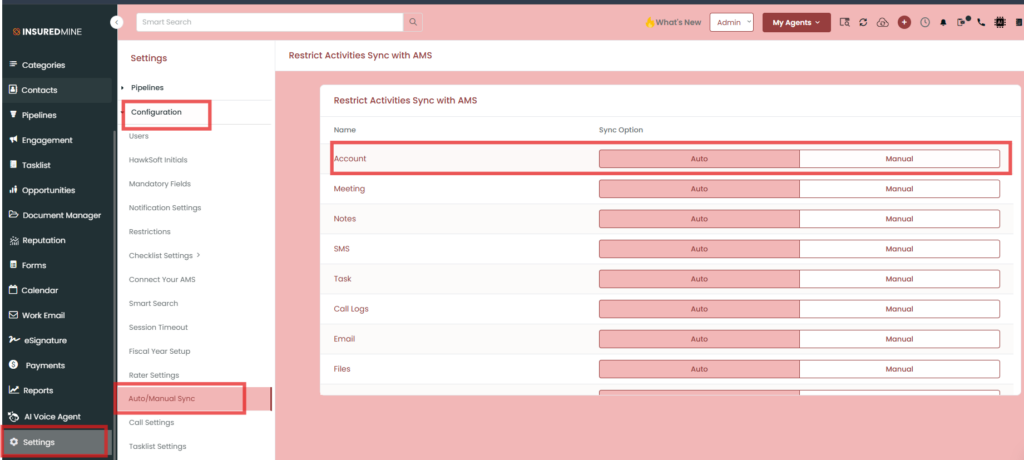
Accounts are automatically synchronized with HawkSoft when they are created using any of the following methods condition account is configured to Auto sync under Auto/Manual Sync Settings.
1. Account Created Manually
When a new account is created in InsuredMine with a Primary Contact, it is automatically synchronized with HawkSoft based on the Auto sync settings configured under the settings module.
Important
- A Primary Contact must be assigned.
- If no Primary Contact exists, synchronization will not occur.
As previously noted, the first policy added to an account will automatically sync along with it. Any subsequent policies must be manually synchronized using the CMSMTF sync process.
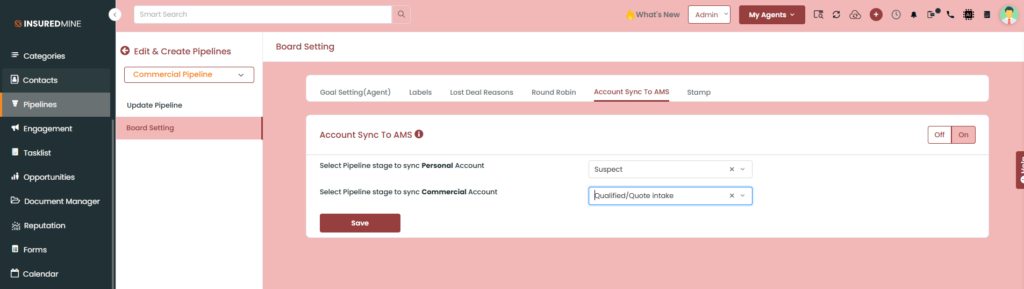
2. Deal Card Movement Through Board Settings
If your pipeline board is configured to create an account when a deal card reaches a specific stage, the newly created account is automatically synchronized with HawkSoft.
This applies only when:
- Board automation settings are enabled.
- The created account contains a Primary Contact.
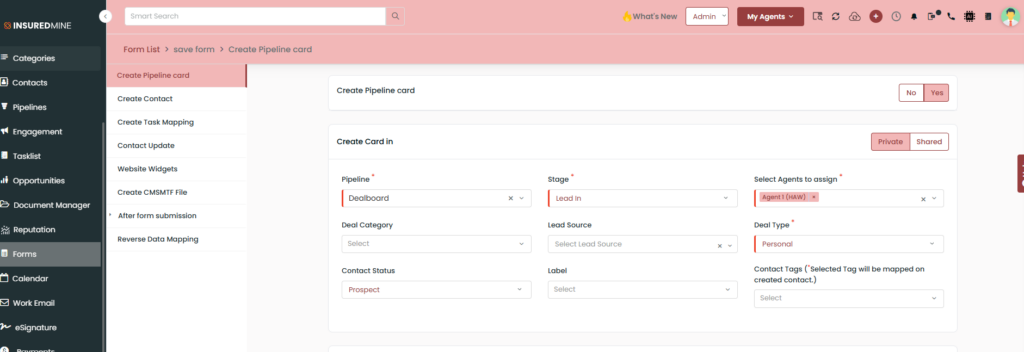
3. Form Automation – Deal Card Creation
When a submitted form creates a Deal Card and the automation creates a Personal Account, the account is automatically synchronized with HawkSoft.
No manual action is required.
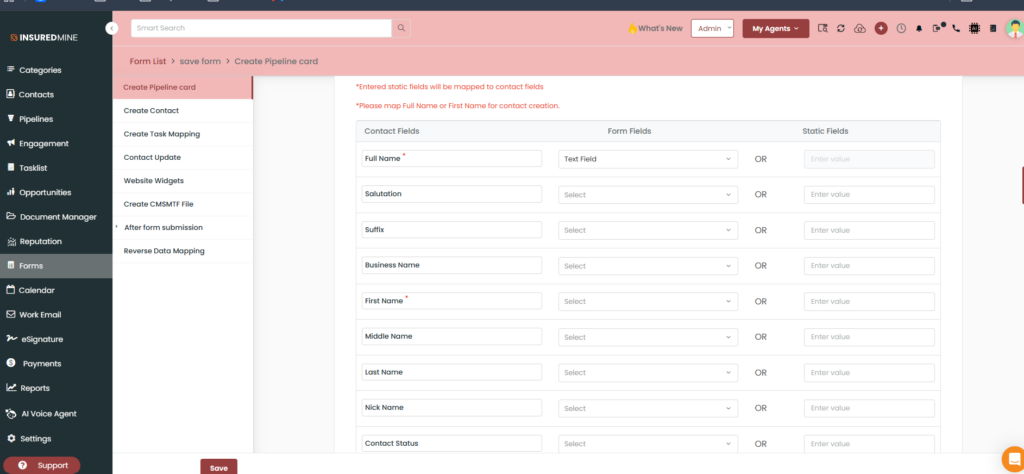
4. Form Automation – Create Contact
If a form automation creates an Account and Contact, the account is automatically synchronized after creation.
The synchronization occurs automatically, provided the account has a Primary Contact.
5. Zapier
Accounts created through the Zapier integration are also automatically synchronized with HawkSoft.
Once the account is successfully created in InsuredMine, the synchronization starts automatically based on the Auto/Manual Sync Settings.
Manual Account Sync
If an account was not synchronized automatically or requires resynchronization, users can manually initiate the sync.
Steps
- Open the Pipeline card.
- Locate the Sync to HawkSoft option.
- Click the sync action.
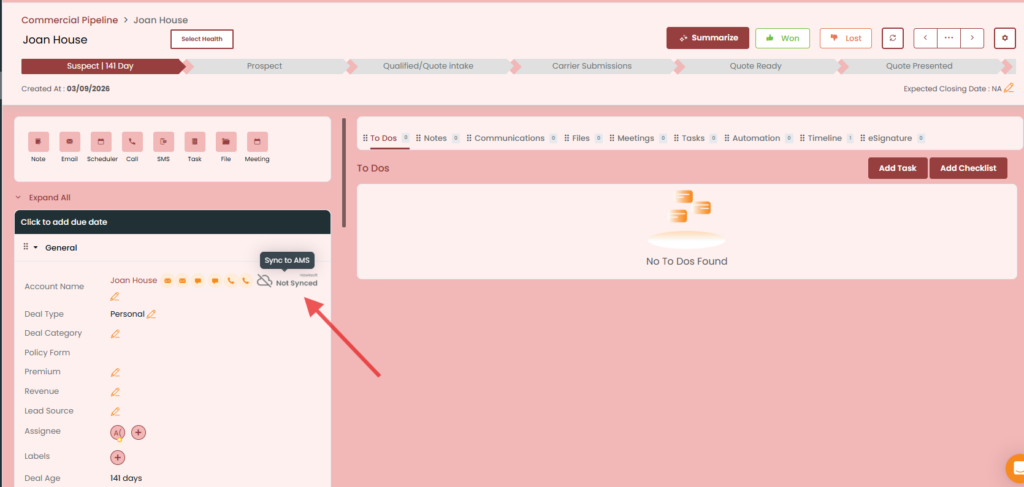
4.The account will be synchronized with HawkSoft.
Historic Sync – Account, Policy & Related Activities
The InsuredMine to HawkSoft (HS) integration also supports Historic Sync, allowing existing account, contact, and first policy data to be synced along with the historical activities associated with the account.
If an existing account contains historical activities, the following information can also be synced to HawkSoft, where available:
- Meetings
- Notes
- SMS
- Tasks
- Call Logs
- Emails
- Files
- eSignatures
How Historic Sync Works
When an account is synced from InsuredMine to HawkSoft, the integration will also sync the applicable historical activities associated with that account.
Once the account has been successfully synced, future activities will also be automatically synced if the corresponding activity type is configured as Auto Sync in the Auto/Manual Sync Settings.
Note: The availability and synchronization of each activity type depend on the activity being associated with the account and the corresponding activity type being enabled/configured in the Auto/Manual Sync Settings.
Notes
- Automatic synchronization is supported for all supported account creation methods listed above.
- Accounts without a Primary Contact will not sync.
- Manual synchronization can be used whenever automatic synchronization has not been performed or when a resync is required.
- Once an account or contact has been synchronized with HawkSoft, any subsequent updates made to the account or contact in InsuredMine will not sync back to HawkSoft. To update this information, users must make the changes directly in HawkSoft. Those updates will then sync back to InsuredMine through the standard HawkSoft-to-InsuredMine synchronization process.
HawkSoft Sync Enhancement: Mailing Address Validation
Feature Release Date: 08/25/2026
We have enhanced the InsuredMine → HawkSoft contact synchronization process to ensure complete mailing address information is available before syncing.
What Has Changed?
The following Mailing Address fields are now required for IM → HawkSoft synchronization:
- Street Address
- City
- State
- ZIP Code
This validation applies when:
- A contact is created
- A contact is updated
- A contact is added to a new deal
If any of these fields are missing, the contact/account will not sync to HawkSoft.
Mandatory Fields Configuration
This enhancement does not overwrite or modify the existing Mandatory Fields configuration. Any changes made in that section will remain unchanged.
The Street Address, City, State, and ZIP Code requirement is enforced specifically for the IM → HawkSoft synchronization.
Why This Change?
Previously, Auto Sync could fail when contact/account address information was incomplete. This enhancement helps prevent synchronization failures by ensuring the required address details are available before syncing to HawkSoft.


