


Release Date: 10/23/2026
Overview
The newly introduced Customized Voicemail feature in InsuredMine allows agents to create personalized voicemail messages for incoming calls. Instead of relying on a generic voicemail greeting, agents can write their own message and use supported merge fields to personalize it with details such as the agent’s name and agency name.
When an incoming call is not answered or the agent ends or declines the call, Twilio reads the configured voicemail message to the caller.
This feature helps agencies provide a more personalized calling experience and maintain consistent communication with clients.
Prerequisites
Before configuring a customized voicemail, ensure that:
- The agent has access to InsuredMine’s call settings.
- The agent has a unique phone number configured in the system.
- The voicemail message is prepared and ready to be entered.
- Any required merge fields are available for use in the message.
Note: Each agent must have a unique phone number for customized voicemail to work as expected. Sharing a phone number between multiple agents can cause voicemail configurations to conflict.
Use Cases
Personalizing Missed-Call Experiences: An agent is unable to answer an incoming client call. The caller hears the agent’s customized voicemail message instead of a generic greeting.
Providing a Personalized Greeting: An agent wants callers to know whose voicemail they have reached. The agent can include their name and agency name using the supported merge fields.
Maintaining Consistent Client Communication: An agent wants to provide a consistent message whenever an incoming call goes unanswered or is declined or ended by the agent. The configured voicemail is played in these scenarios.
Navigation / Access
You can access the Customized Voicemail settings through either of the following paths.
Option 1: Through Call Logs
- Log in to InsuredMine.
- Navigate to the Call Logs section using the call logs icon.
- Locate the call settings or voicemail configuration area.
Option 2: Through Settings
- Open Settings.
- Navigate to Configurations.
- Select Call Settings.
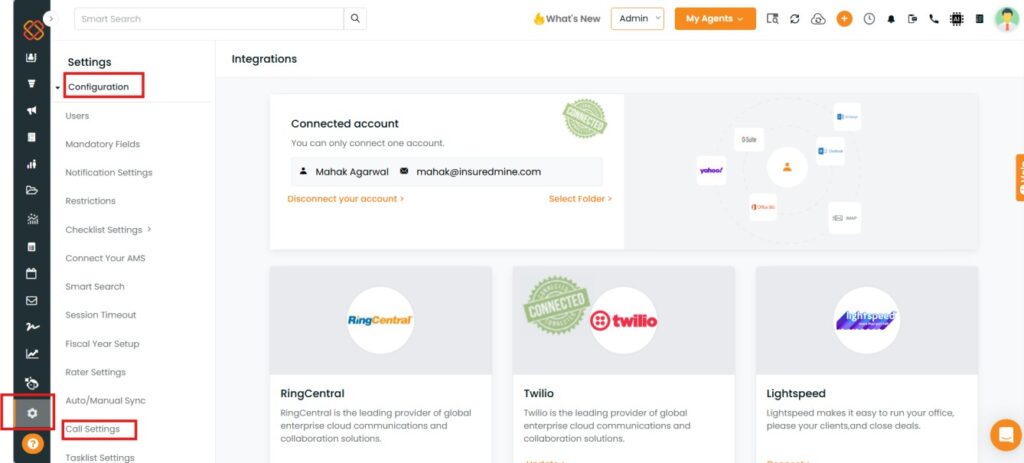
Configuration:
Step 1: Open the Customized Voicemail Settings
Access the call settings using either of the navigation paths described above.
Locate the text box provided for entering a customized voicemail message.
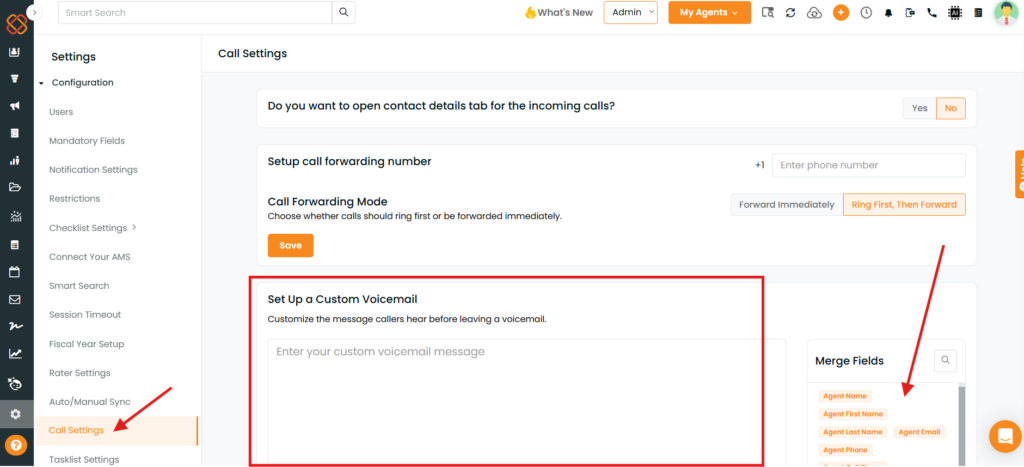
Step 2: Enter Your Custom Message
Enter the message you want callers to hear when they reach your voicemail.
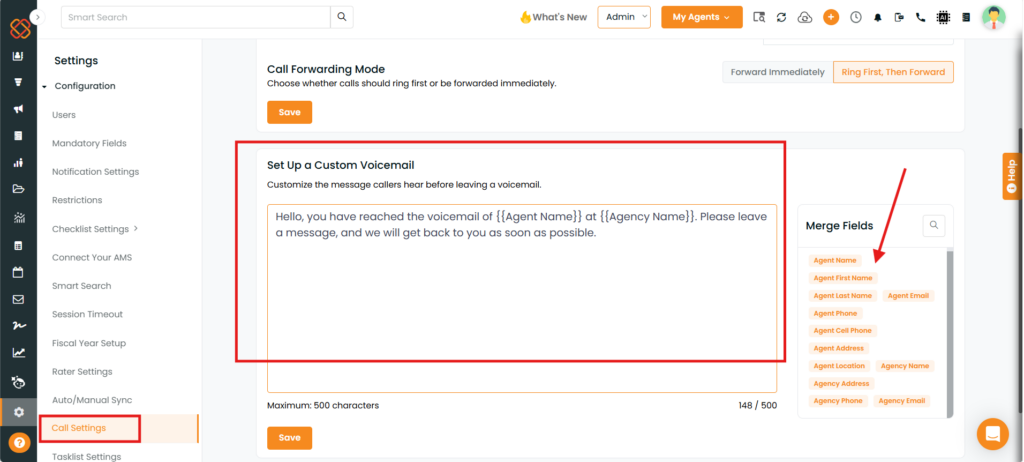
For example:
“Hello, you have reached the voicemail of [Agent Name] at [Agency Name]. Please leave a message, and we will get back to you as soon as possible.”
This is an illustrative message. You can customize the wording to suit your agency’s communication style.
Step 3: Add Supported Merge Fields
Use the available merge fields to personalize your voicemail message. For example, the message can incorporate the agent’s name and agency name.
When the voicemail is played, supported merge fields are populated with the corresponding information.
Ensure that the message reads naturally after the merge fields are populated.
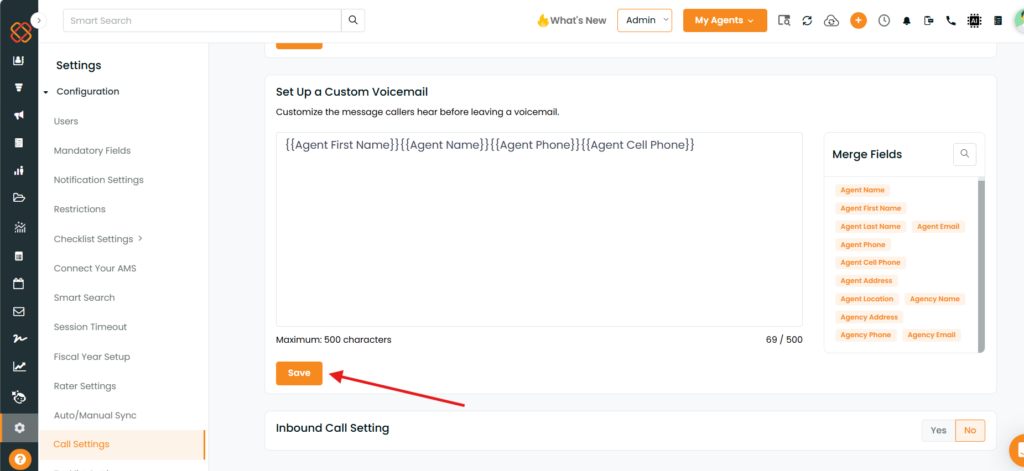
Step 4: Save the Configuration
After entering your message and adding the required merge fields, click Save.
The customized voicemail configuration is saved and becomes active.
Step 5: Verify the Voicemail
Test the configuration by placing an incoming call to the agent’s configured number.
If the call is not answered or is declined or ended by the agent, verify that the caller hears the customized voicemail message.
Confirm that the agent’s name, agency name, and other configured merge fields are populated as expected.
Important Notes/ Limitations:
Unique Phone Number Requirement
Each agent must have a unique phone number for customized voicemail to function correctly.
If two agents share the same phone number, the system uses the configuration associated with the number that was mapped first. As a result, a subsequent voicemail configuration created by another agent using that same number may not take effect.
Recommended practice: Assign a unique phone number to each agent before configuring customized voicemail.
When the Voicemail Is Played
According to the feature walkthrough, the customized voicemail is played when an incoming call is not answered or when the agent ends or declines the call.
The caller hears the message configured for the mapped phone number.
Merge Fields
Supported merge fields allow relevant information, such as the agent’s name and agency name, to be incorporated into the voicemail.
Use the merge fields available in the configuration interface. Do not assume that a particular field is supported unless it appears in the available options.
Saving Changes
Click Save after configuring the message. Review the saved message and test it to ensure that it plays as expected.
Summary
Customized Voicemail allows InsuredMine agents to personalize the voicemail experience for incoming callers by creating their own messages and incorporating supported merge fields.
To configure the feature, open Call Settings, enter the message, add the required merge fields, and save the configuration. Test the voicemail to confirm that it works as expected.
For reliable functionality, ensure that every agent has a unique phone number. Shared numbers can cause the system to apply the voicemail configuration associated with the number’s initial mapping rather than a subsequently configured message.


