


Release Date: 11/13/2026
Overview
We are thrilled to introduce a highly anticipated enhancement to InsuredMine—a complete revamp of our Epic Activities functionality, designed directly in response to feedback and requests from our user community.
This update delivers comprehensive activity management capabilities for accounts and policies synced with Epic. Agents can now seamlessly view existing activities, edit open activities, add notes, create tasks, close open activities, and reopen closed activities—all directly within InsuredMine without needing to navigate back to EPIC.
By bringing total flexibility and operational control into a single interface, this feature empowers insurance professionals to effortlessly track client interactions, maintain accurate activity records, and drive follow-up actions with elevated speed and efficiency.
Prerequisites
- The user must be logged in to InsuredMine.
- The user must have access to the relevant synced account or policy.
- The account or policy must be actively synced with Epic.
- The user must have the necessary permissions to access and manage activities.
Use Cases
The Epic Activities feature is useful when insurance agents need to manage activity records associated with their synced accounts and policies.
Some common use cases include:
- Updating existing activities: Edit an open activity when its information needs to be modified.
- Maintaining activity records: Add notes to an activity to document additional information or updates.
- Managing follow-ups: Create tasks associated with an activity to keep track of pending actions.
- Closing completed activities: Close an open activity once the required action has been completed or an outcome has been recorded.
- Reopening activities: Reopen a previously closed activity when further updates or follow-up actions are required.
How to Manage Epic Activities
Step 1: Navigate to the Synced Account or Policy
Log in to InsuredMine and navigate to the Accounts or Policies module.
- Under Accounts, locate and open the relevant active synced account.
- Under Policies, locate and open the relevant synced policy.
Within the selected record, navigate to the Epic Activities section to view the associated activities.
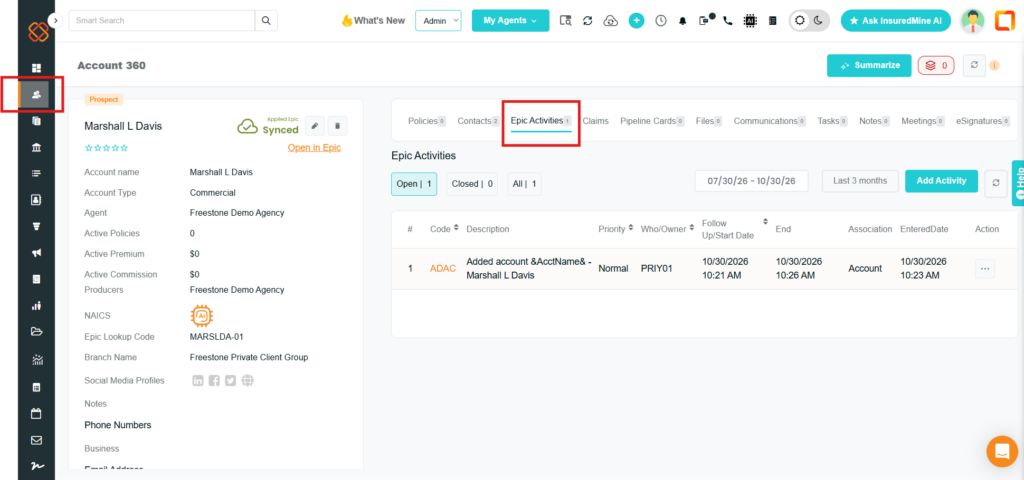
Step 2: View Existing Epic Activities
Under the Epic Activities section, you can view the activities associated with the selected synced account or policy.
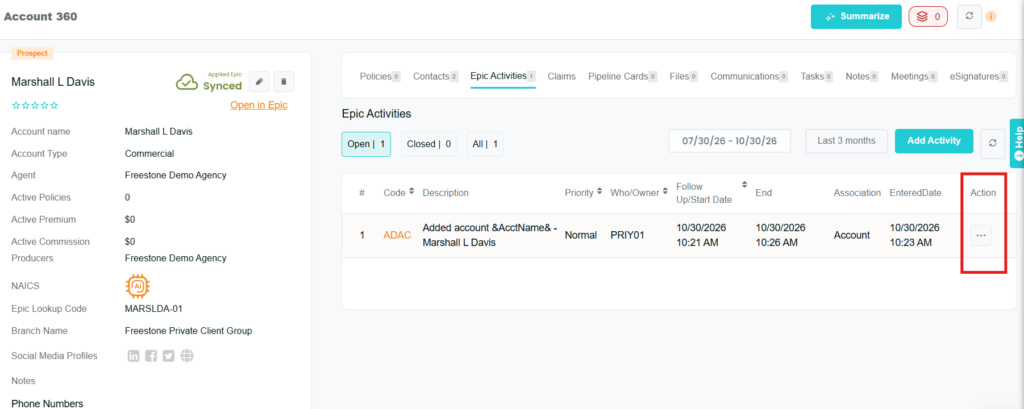
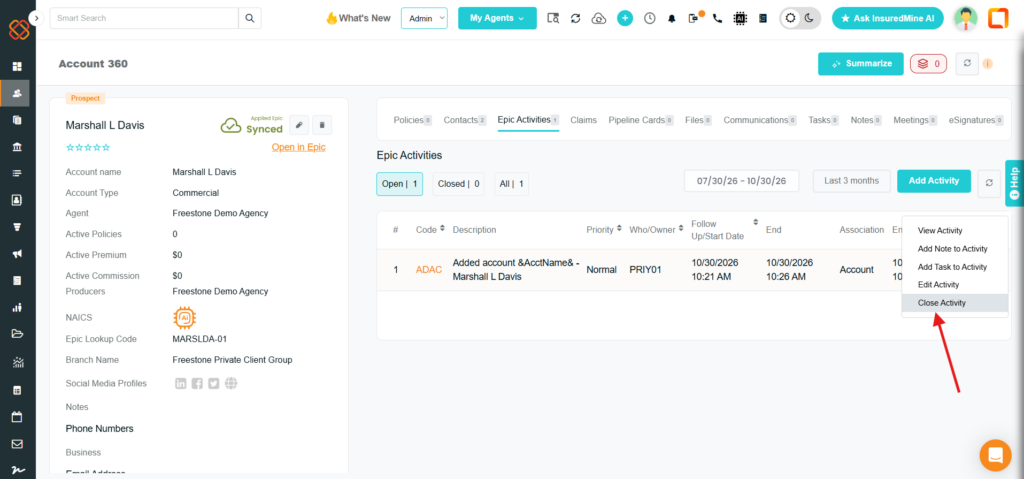
Locate the activity you want to manage. Based on its current status, you can access different activity management options. To perform any of the activities you have to locate the Actions button that is symbolized as the three dots as shown in the picture below.
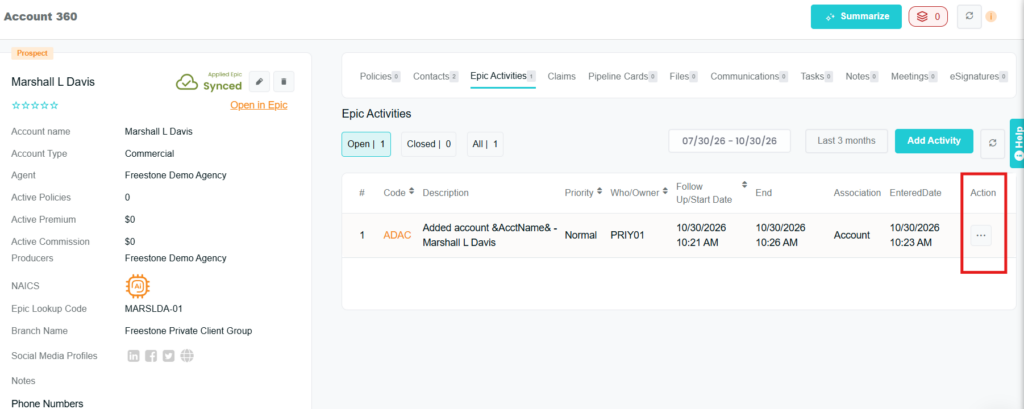
For open activities, the available actions include:
- View Activity
- Edit Activity
- Add Note
- Add Task
- Close Activity
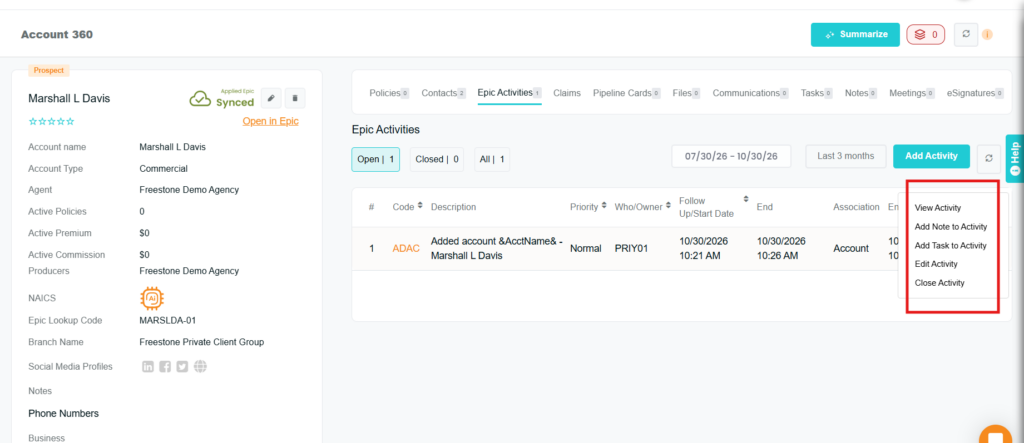
Step 3: Edit an Open Activity
InsuredMine allows you to edit an existing open activity whenever its information needs to be updated.
You can access the editing option in either of the following ways:
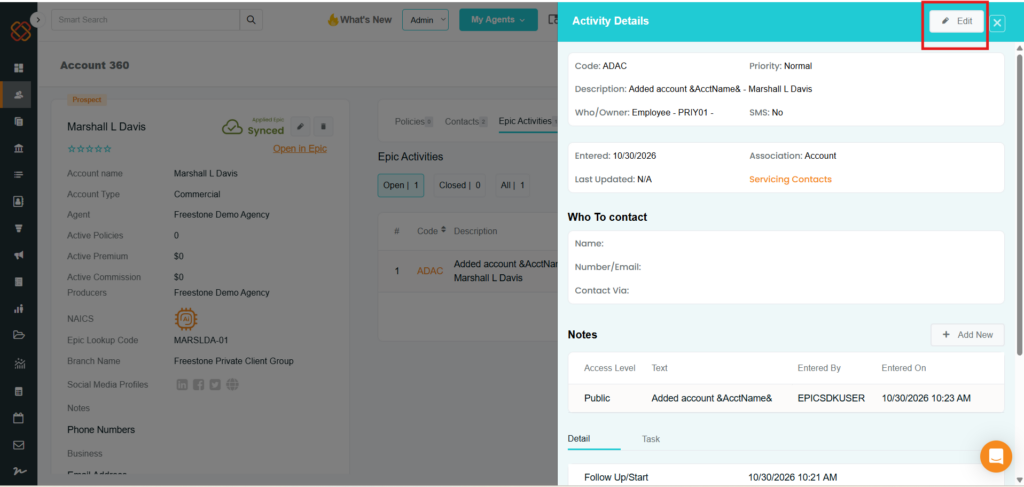
- Locate the required open activity and click on it to find Edit.
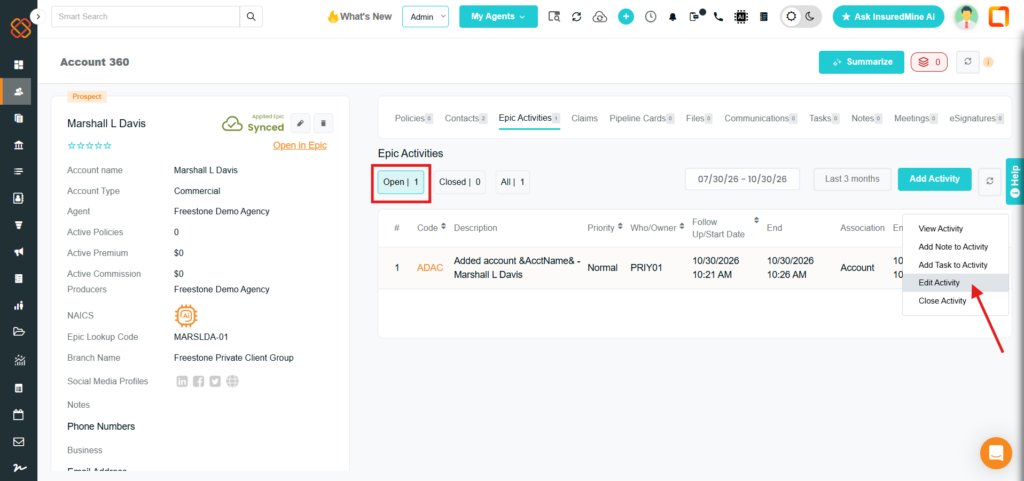
- Alternatively, use the available Edit Activity option from the activity actions menu.
For Option A. You can navigate to account or policy, click on the corresponding code to view activity and open the activity details window. From there on the top right corner find the Edit button.
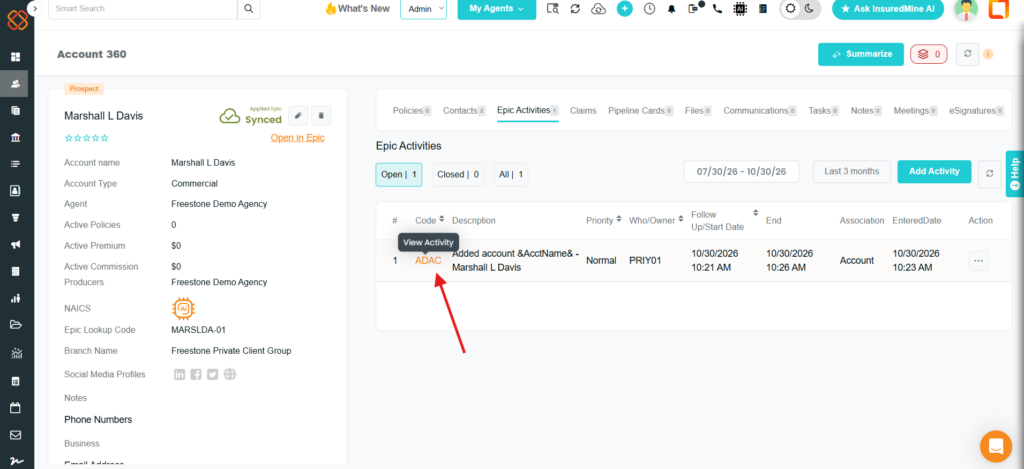
For Option B You can navigate to the activity and its corresponding Action button at the right side symbolizing three dots, open the list of actions and select Edit Activity from there
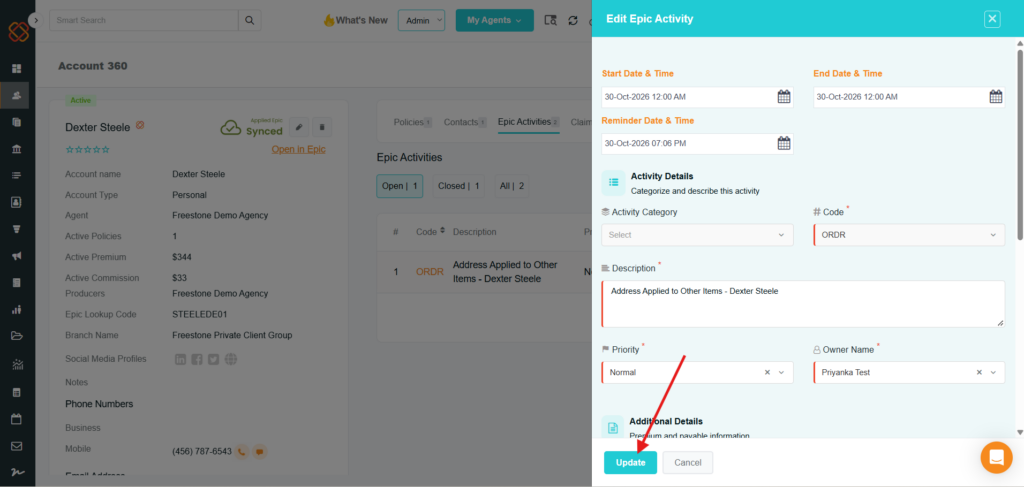
Make the necessary changes to the available fields and update it.
Note: Only open activities can be edited directly. Closed activities must first be reopened before making any changes.
Step 4: Add a Note to an Activity
You can add a note to an existing activity, both to an open or close activity to record additional information or relevant updates.
To add a note:
- Locate the required open activity under the Epic Activities section.
- Select the Add Note option from the available activity actions.
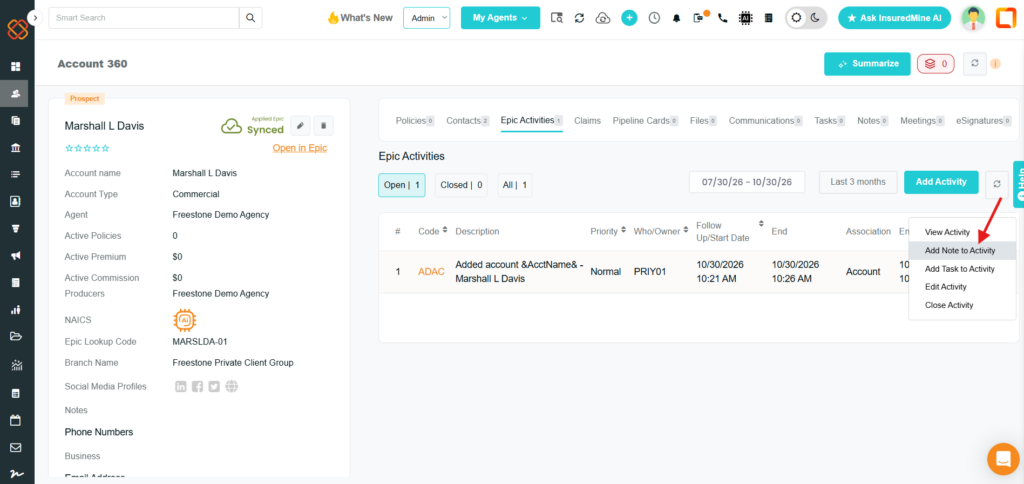
3. Add the relevant information in the note field.
4.Complete the action to add the note to the activity and save it.
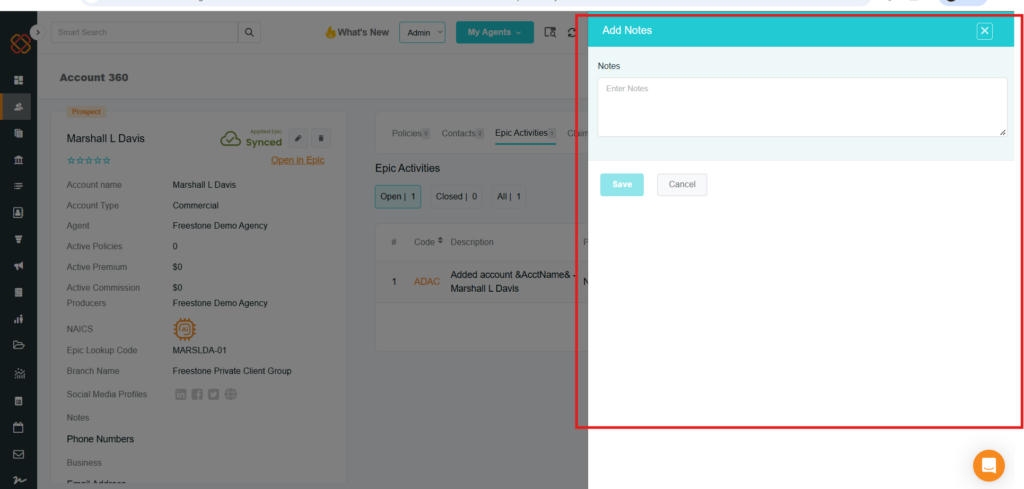
Step 5: Add a Task to an Activity
InsuredMine also allows you to add a task to an existing open activity to manage follow-up actions.
To add a task:
- Locate the required open activity.
- Select the Add Task option from the available activity actions.
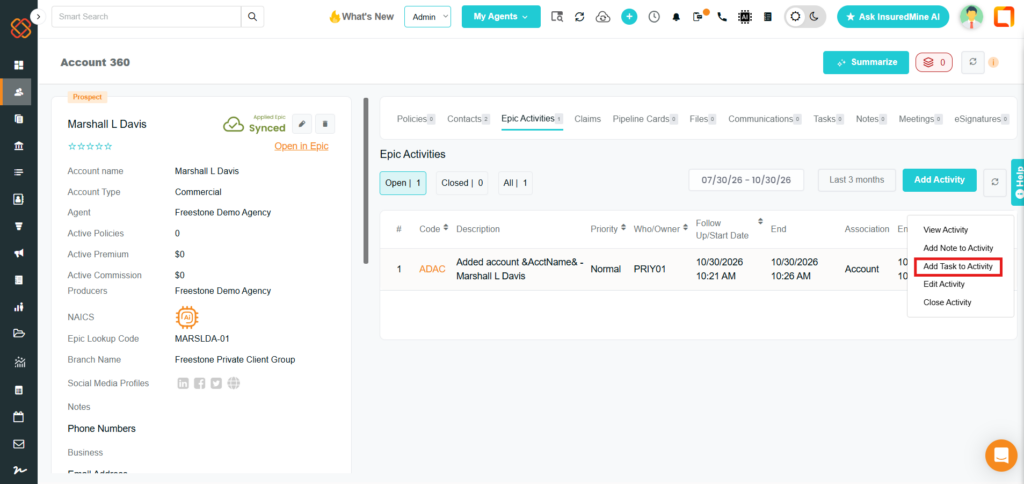
3.Provide the required task information.
4. Complete the action to add the task.
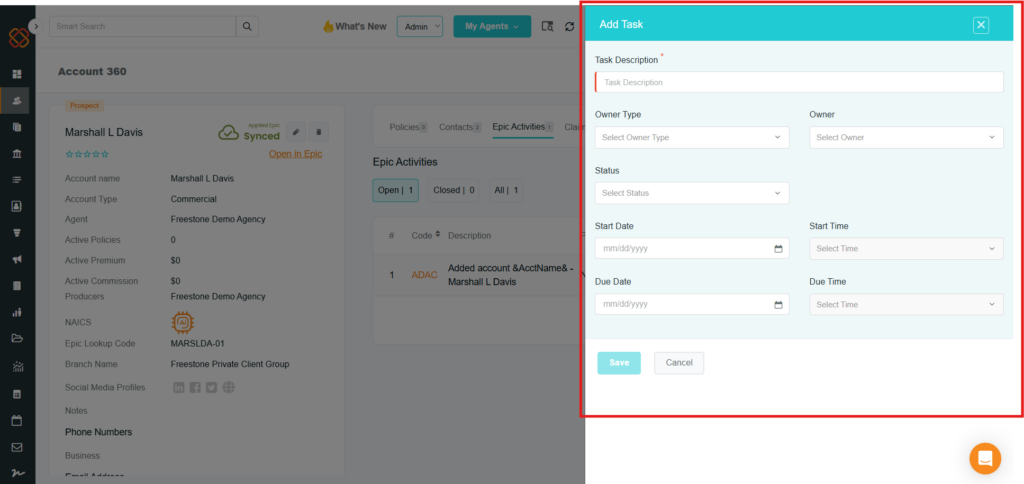
Step 6: Close an Open Activity
Once an activity is completed or no further action is required, you can close it directly from InsuredMine.
To close an activity:
- Locate the open activity you want to close.
- Open the available activity actions menu.
- Select Close Activity.
- Provide the required outcome for the activity.
- Select the relevant outcome from the available options.
- Complete the action to close the activity.
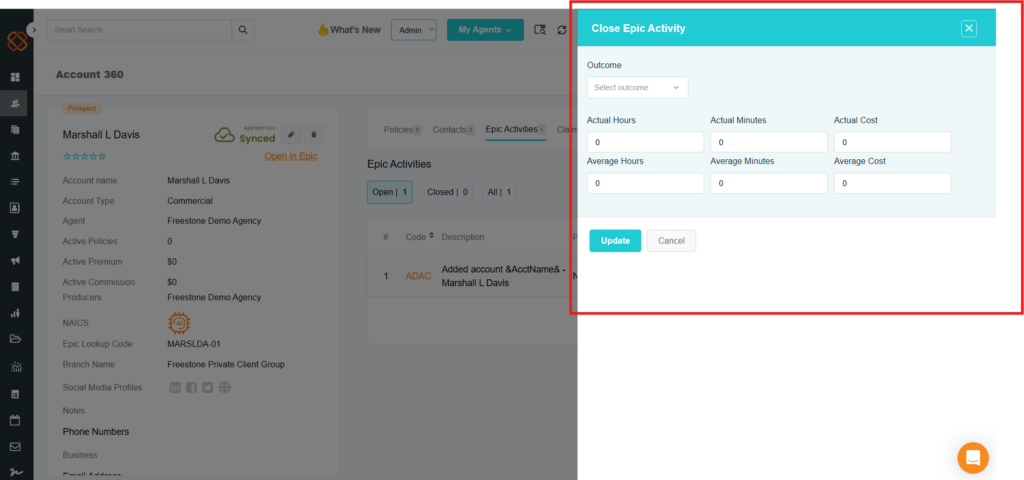
Once closed, the activity is treated as a closed activity and can be reopened if further updates are required.
Note: For closed activities, Add Note is the only action available from the actions menu.
Step 7: Reopen a Closed Activity
If you need to make changes to a previously closed activity, you must reopen it first.
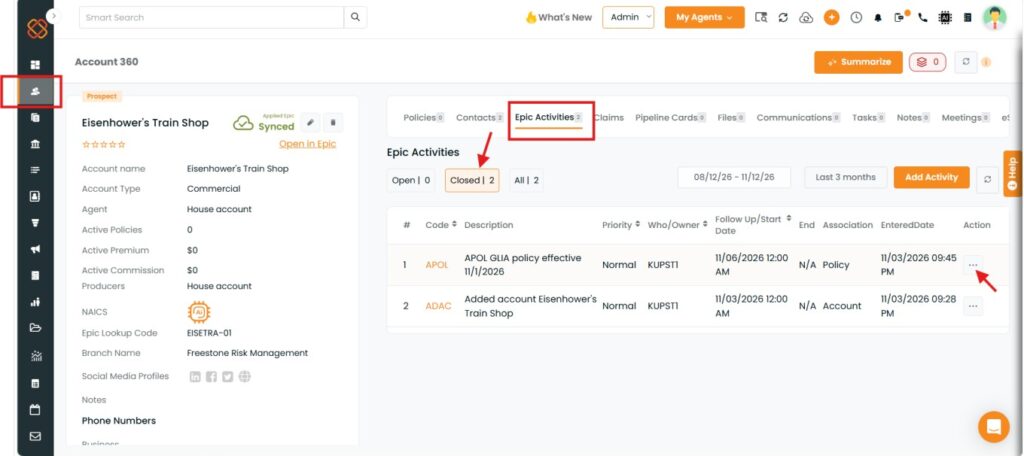
To reopen a closed activity:
- Locate the required closed activity under the Epic Activities section.
- Click the three-dot menu associated with the activity.
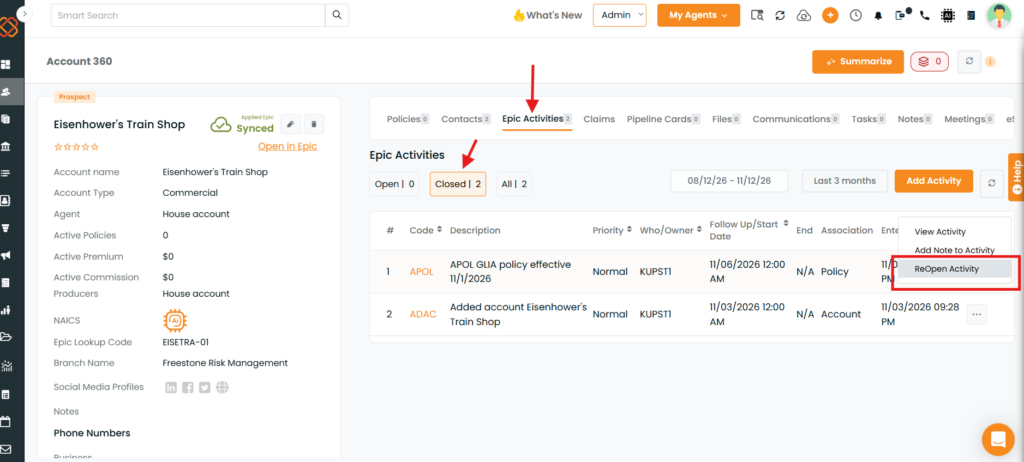
3.Select the Reopen option.
4.Then you will find a pop-up “Are you sure, Reopen this Activity?”
5.Select “Yes” to reflect the change.

6.Once the activity is reopened, you can access its available management options again.
After reopening the activity, you can make the necessary changes using the available options, including editing the activity, adding a note, or adding a task.
Module Availability
These activity management capabilities are available across both the Accounts and Policies modules.
Important Notes / Limitations
- Synced records: Epic Activities can be accessed through the relevant synced account or policy.
- Open activities: Users can view, edit, add notes, add tasks, and close open activities.
- Closed activities: Closed activities cannot be edited directly. They must first be reopened. The only activity action can be performed to a Closed activity is Add a Note.
- Reopening activities: The Reopen option is available through the three-dot menu associated with a closed activity.
- Activity management within InsuredMine: Users can manage the available Epic activity actions directly from the CRM.


