


Release Date: 11/13/2026
Overview
The newly introduced persistent filters feature allows users to retain applied filters while navigating between different sections of the InsuredMine platform. In the Accounts, Contacts, and Policies modules, users can apply filters and move to other areas of the platform without losing their filter selections.
The applied filters remain active throughout the user’s session and are cleared when the user logs out or the session expires.
Prerequisites
- The user must be logged in to InsuredMine.
- The user must have access to the Accounts, Contacts, or Policies module.
Use Case
Example: An insurance agent wants to view accounts matching specific criteria and navigate to other sections of InsuredMine before returning to the filtered account list.
With Persistent Filters enabled, the agent can return to the Accounts module without having to reapply the same filters, as long as the session remains active.
The same functionality applies to the Contacts and Policies modules.
How to Use Persistent Filters
Step 1: Navigate to the Required Module
Log in to InsuredMine and open the module where you want to filter records.
You can use this functionality in the following modules:
- Accounts
- Contacts
- Policies
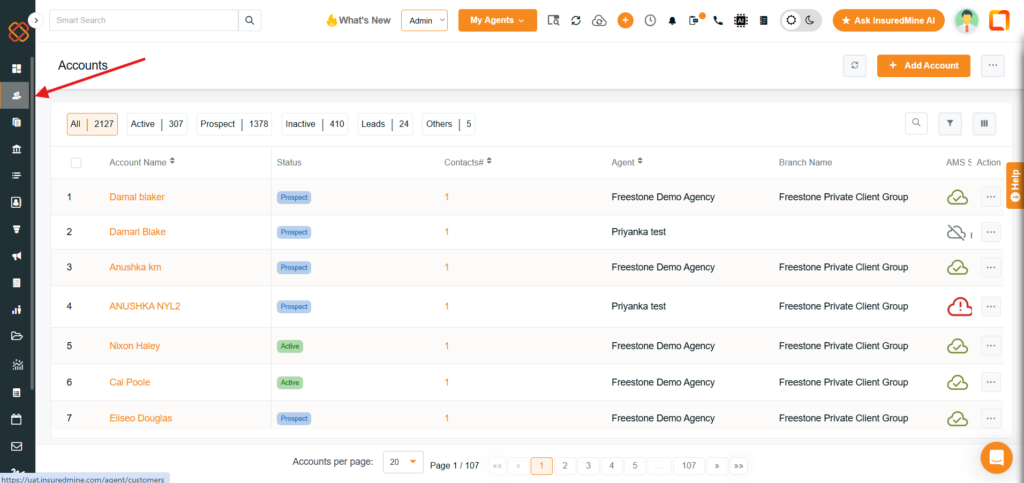
Step 2: Apply the Required Filters:
Go to the funnel icon for opening the filter tab.
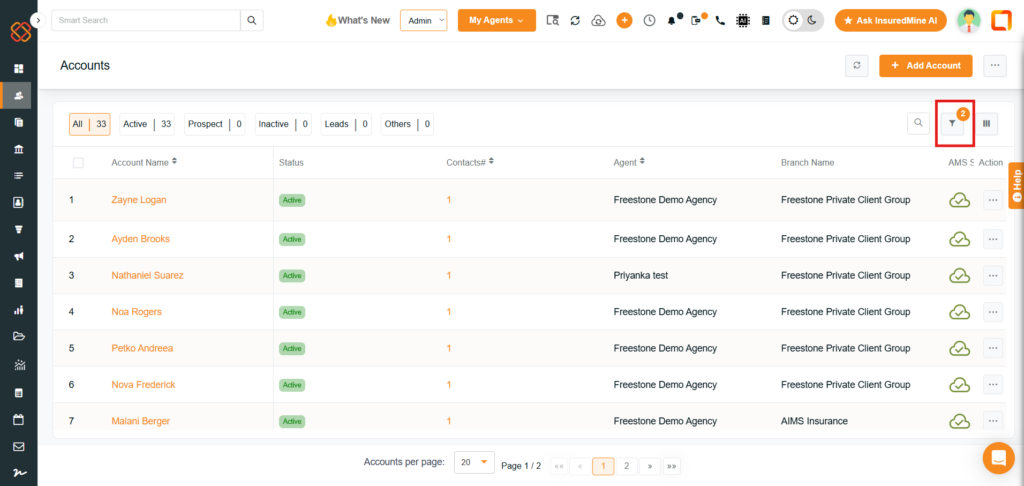
Select the filters you need by clicking on the drop down arrows and available options to narrow down the records displayed in the selected module. Click on Apply after completing all the selections.
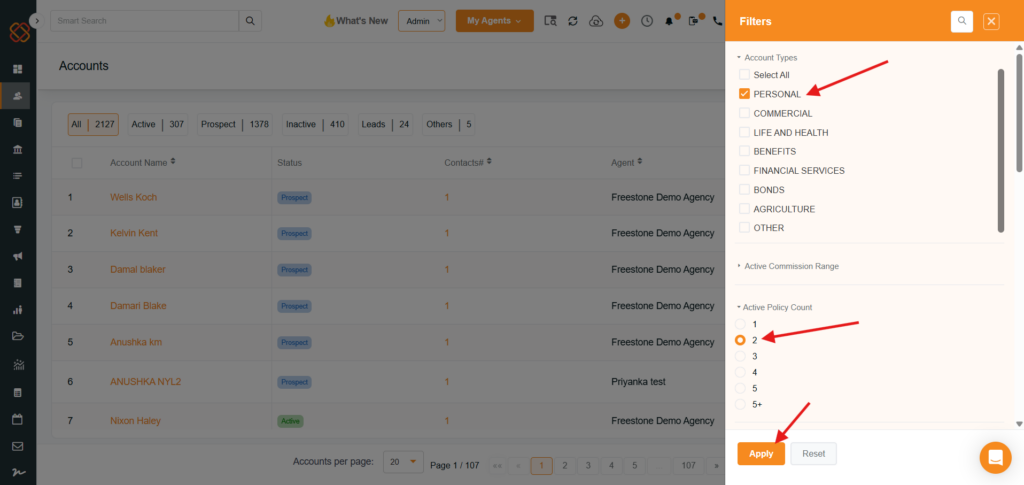
The number of filters you applied will be shown after you close the filter window.
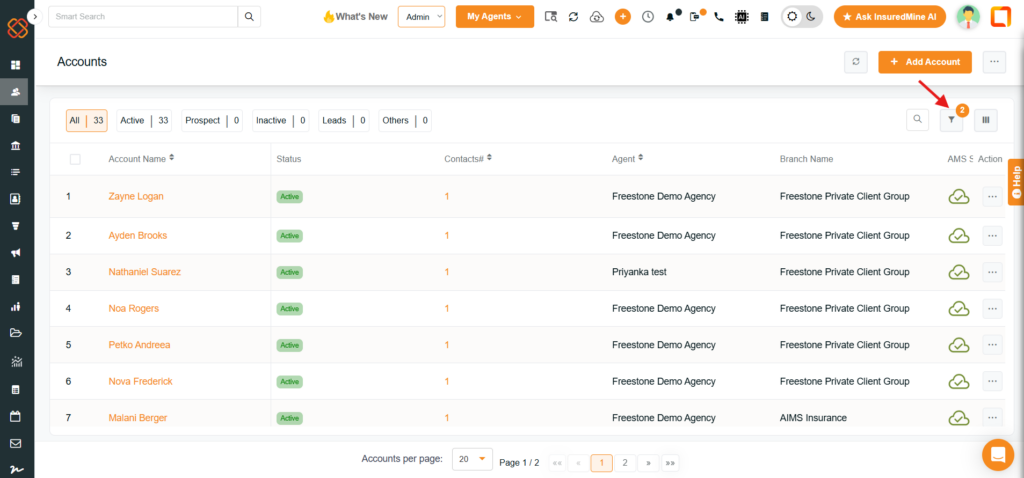
Go back to the feed where your filtered data is being seen. You can find the filter count at the top of the filter icon.
For example: If you have applied two filters as in the shown image, the filter count will show ‘2’. This also gives you the confirmation that the selected filters are active.
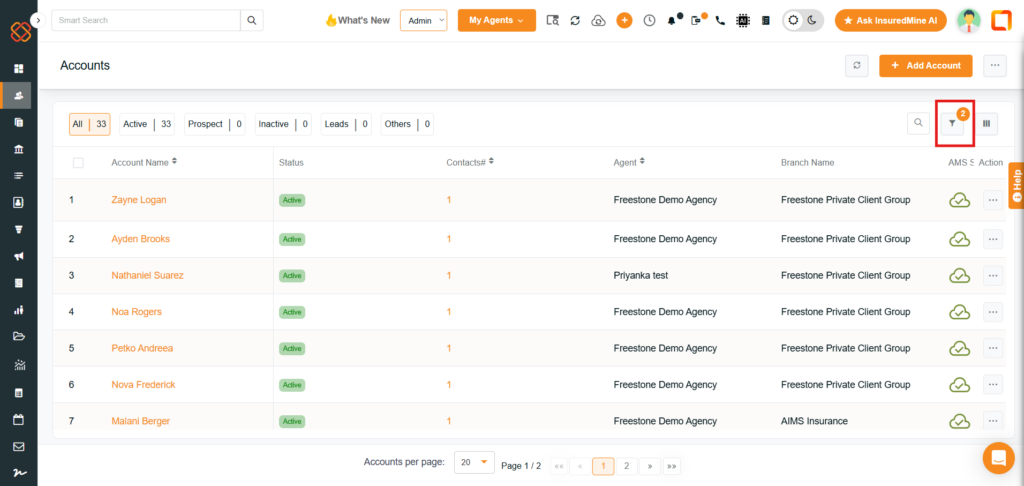
Step 3: Navigate to Other Sections
After applying the filters, navigate to other sections of InsuredMine as required.
Your applied filters should remain intact when you return to the corresponding module.
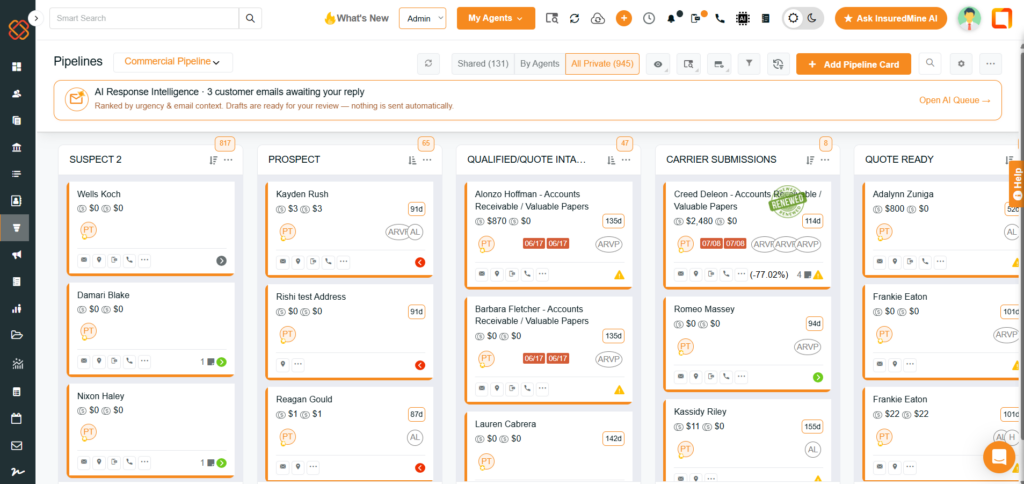
For example: opening the pipeline module and going back to accounts again.
Step 4: Continue Working With the Filtered Records
This is how the filter is being seen to stay intact even after other activities are being done. After returning to the module, continue working with the filtered records without having to reapply the filters. Unless you remove or change the filter, it will be intact at the last selected filters by you.
Note: The filters remain available throughout your active session. The filter will be changed only if you logged out of the CRM.
Important Notes/ Limitations:
- Filters persist during navigation: Applied filters remain intact when moving between different sections of InsuredMine.
- Filters are session-dependent: Filters are cleared when you log out or your session expires.
- Module coverage: The newly introduced functionality applies to Accounts, Contacts, and Policies.
- Existing functionality: Persistent Filters were already available in the Task List and Pipeline modules before this update.


