eSign Document Management, File and Document Management, File and Document Management, Policy Management, User Preferences and Settings
Rename The Files While Uploading
September 4, 2026
Release Date: 08/27/2026
Overview
InsuredMine now allows users to rename a file while uploading it. This gives users the flexibility to update the file name before it is saved in the system, making files easier to identify and organize.
This feature is available in the following modules:
Account 360
Contact 360
Pipeline Card
Policies
eSignature
How to Rename a File While Uploading
Step 1: Upload a File
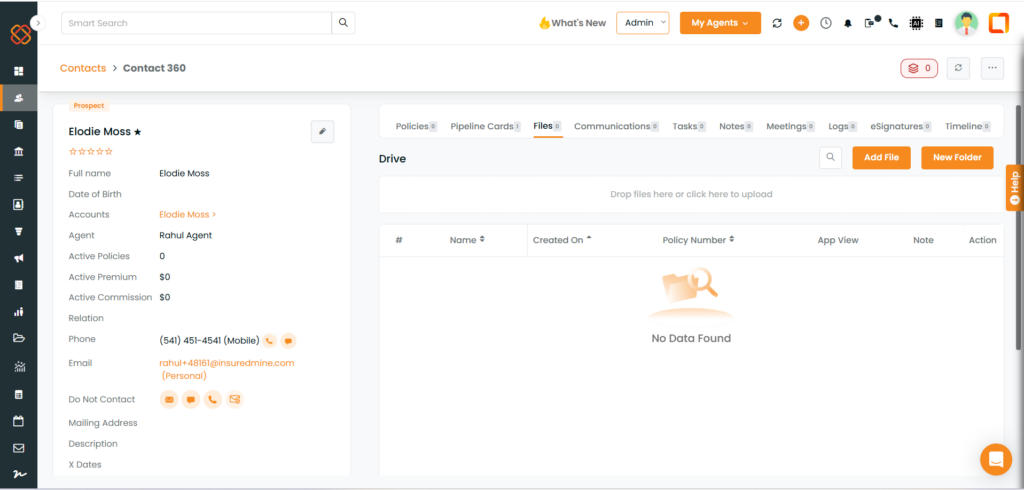
Navigate to the Files section of the supported module and upload a file.
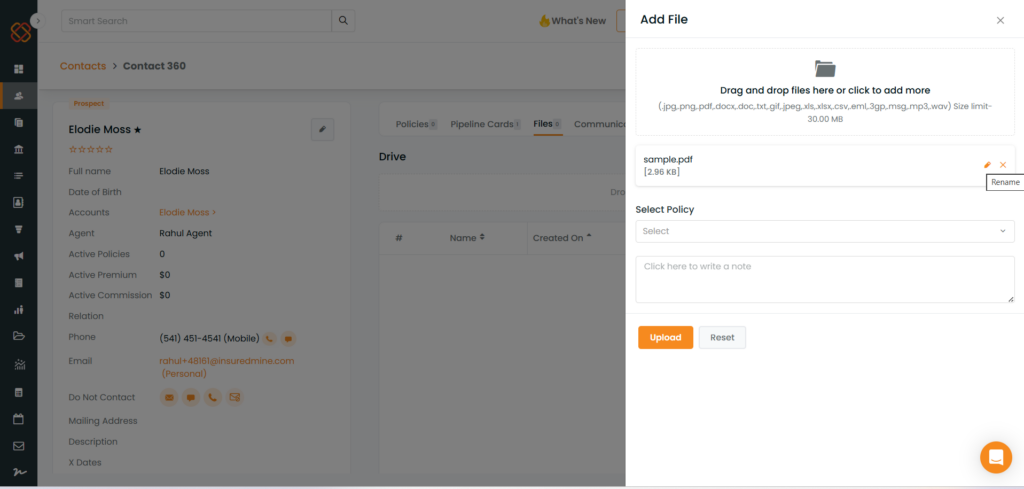
Once the file is selected, the uploaded file will be displayed with its current file name.
Step 2: Edit the File Name
Click the Edit icon next to the uploaded file.
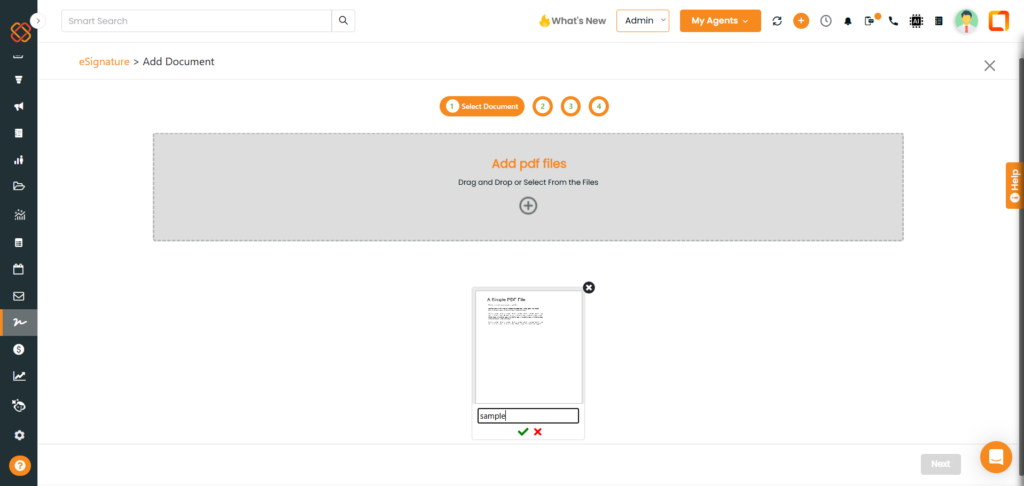
The file name will become editable.
Step 3: Enter the New File Name
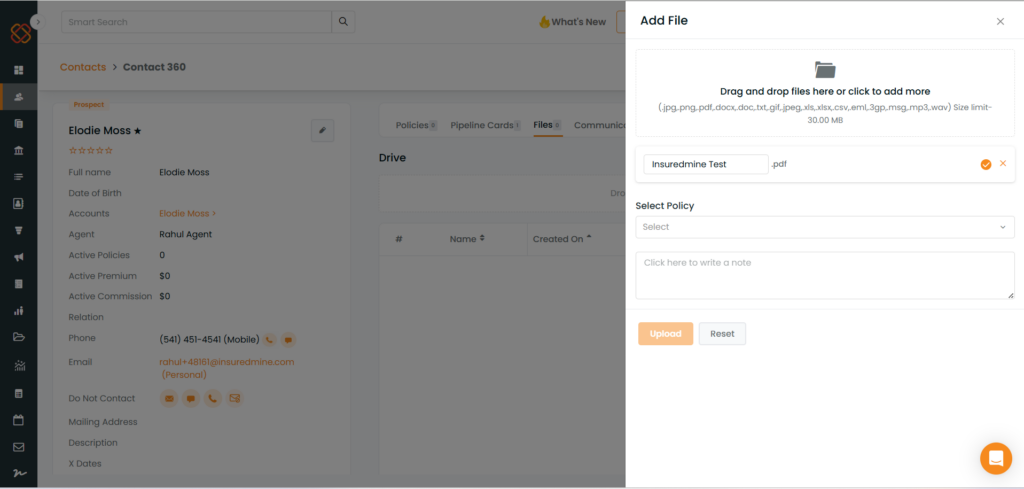
Update the file name as required.
For example:
Original:sample Renamed:Insuredmine Test
Click the ✓ (Confirm) icon to save the new file name.
Alternatively, click the ✕ (Cancel) icon to discard the changes.
Step 4: Complete the Upload
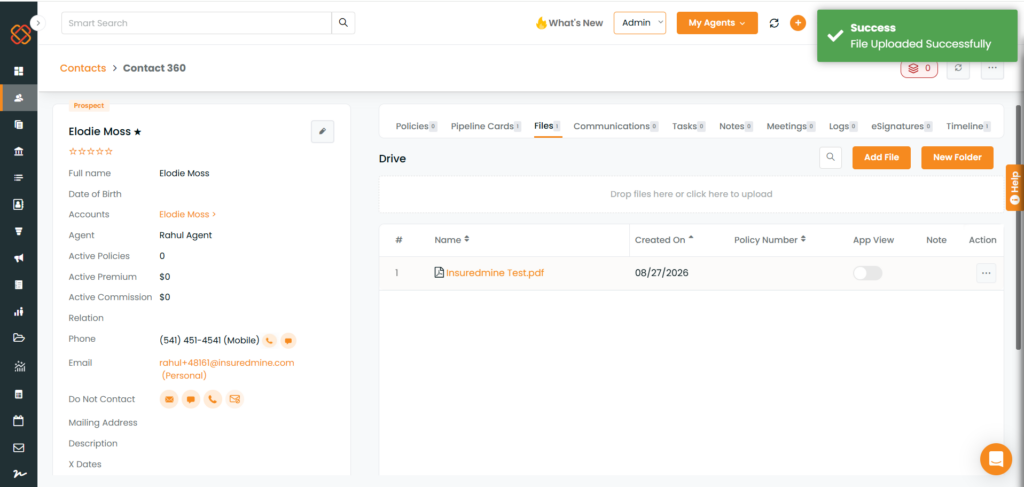
Once the file name has been confirmed, proceed with the upload.
The file will be saved using the updated file name.
Important Behavior
When the Edit icon is clicked:
The file name becomes editable.
The Upload button is disabled.
The user must either confirm the changes (✓) or cancel the editing (✕).
The Upload button remains disabled until the editing action is completed.
eSignature
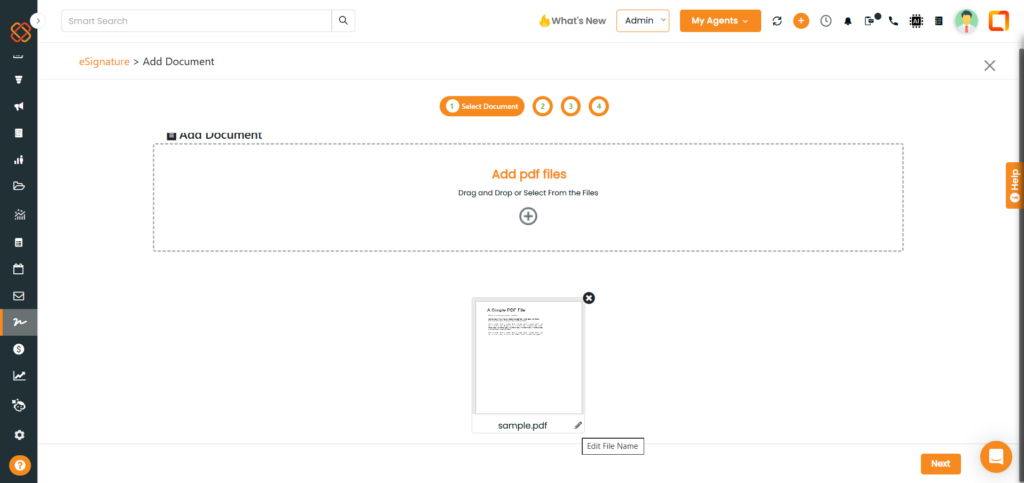
In eSignature, the rename option is available after uploading the document and before clicking Next.
Steps:
Upload the PDF document.
The uploaded document will appear on the screen.
Click the Edit icon below the document.
Modify the document name.
Click ✓ to confirm the new name or ✕ to cancel.
Once the name is confirmed, click Next to continue with the eSignature process.