


Release Date: 09/11/2026
Prerequisites
- The Business Days option is available only to Admins.
- Admin access is required to create or edit Pipeline Automations.
- The Business Days option is available when configuring the day-based trigger for a Stage Automation.
- To exclude holidays, Skip Holidays must be enabled in Settings.
Overview
Pipeline Automation now supports Business Days as a scheduling option.
Previously, automation timelines could be calculated using calendar days or by skipping weekends. With the new Business Days option, automation triggers are calculated based on working days.
When Business Days is selected:
- Monday through Friday are counted as business days.
- Saturday and Sunday are automatically excluded.
- Configured holidays can also be excluded when Skip Holidays is enabled.
- The automation trigger is executed on the applicable business day based on the configured number of days.
This helps agencies schedule automated follow-ups, tasks, communications, and other pipeline actions according to their normal working schedule.
How to Configure Business Days
Go to Pipeline Module → Automation → Create Stage Automation.
- Select After as the trigger.
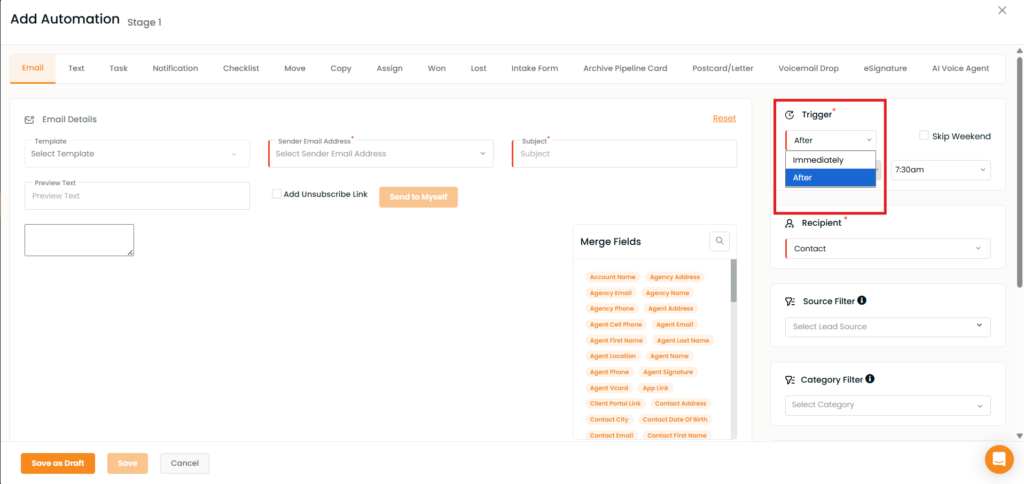
2. Enter the number of days after which the automation should execute.
3. Select Business Days as the day calculation option.
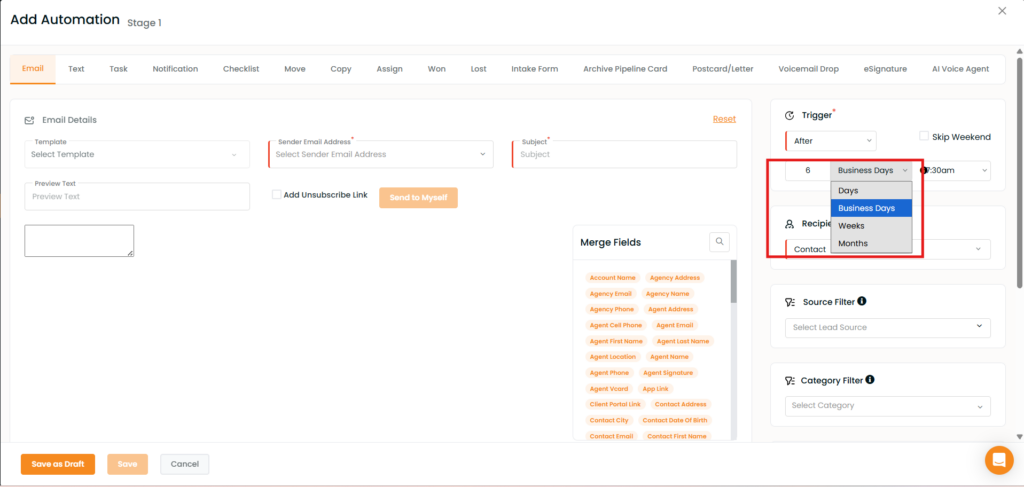
4. Configure the required automation action and other conditions.
5. Save the automation.
Once configured, the system calculates the trigger date using business days instead of calendar days.
Calendar Days vs. Business Days
The day calculation option determines how the automation trigger date is calculated.
Calendar Days
When Calendar Days is selected, the system counts consecutive calendar days.
For example, if an automation is configured for 3 Calendar Days starting Monday:
- Friday→ Day 1
- Saturday→ Day 2
- Sunday→ Day 3 → Trigger Executes
The Admin may select the Skip weekend option; any automations scheduled for Saturday or Sunday will run on Monday alongside Monday’s scheduled automations.
Business Days
When Business Days is selected, Saturday and Sunday are not counted.
For example, if an automation is configured for 3 Business Days starting Thursday:
- Thursday → Day 1
- Friday → Day 2
- Saturday → Skipped
- Sunday → Skipped
- Monday → Day 3 → Trigger Executes
Weekend Handling
When Business Days is selected, Saturdays and Sundays are automatically skipped.
No business-day count is applied to Saturday or Sunday, and the automation continues counting from the next available business day.
For example:
Friday → Day 1 → Saturday/Sunday skipped → Monday → Day 2
This is particularly useful for workflows that should not be scheduled based on non-working days.
Skip Holidays
Tip: To exclude configured holidays from the Business Days calculation, go to Settings and enable Skip Holidays.
When enabled, a configured holiday is skipped in the same way as a weekend, and the automation continues from the next available business day.
Existing Automations
Existing Pipeline Automations will continue to work without changes.
Automations configured using Calendar Days or the existing Skip Weekend option will retain their current behavior.
The Business Days option can be selected when creating or updating an automation where the trigger needs to follow business-day calculations.
Example Use Case
An agency wants to send a follow-up communication 6 working days after a pipeline stage change.
The automation is configured as:
- Trigger: After
- Days: 6
- Day Type: Business Days
- Action: Send Communication
If the stage change occurs on Monday, the system calculates the schedule as:
Monday → Tuesday → Wednesday → Thursday → Friday → Weekend skipped → Monday
The communication is triggered on the following Monday, which is the sixth business day.
This allows agencies to align pipeline automation with their operational working schedule instead of triggering actions based purely on calendar days.
- Select After as the trigger.
- Enter the required number of days.
- Change Day to Business Day.


