Home » Knowledge Base » No Assignee Filter for the Pipeline Board and Pipeline Automation
Pipeline Automation and Workflow
No Assignee Filter for the Pipeline Board and Pipeline Automation
July 16, 2026
Release Date: July 15, 2026
Overview
We have introduced a new No Assignee option in the Assignee filter within the Pipelines module. This enhancement allows users to quickly identify pipeline cards that do not have an assigned agent. Additionally, the No Assignee option is available in Pipeline Automation, enabling users to configure automation rules that are triggered only when the associated pipeline has no assignee.
Use Case:This enhancement helps users quickly identify unassigned pipeline cards and configure automation rules specifically for pipeline cards whose associated pipeline has no assignee. This enables users to track and process unassigned pipeline cards more efficiently.
To view the enhancement.
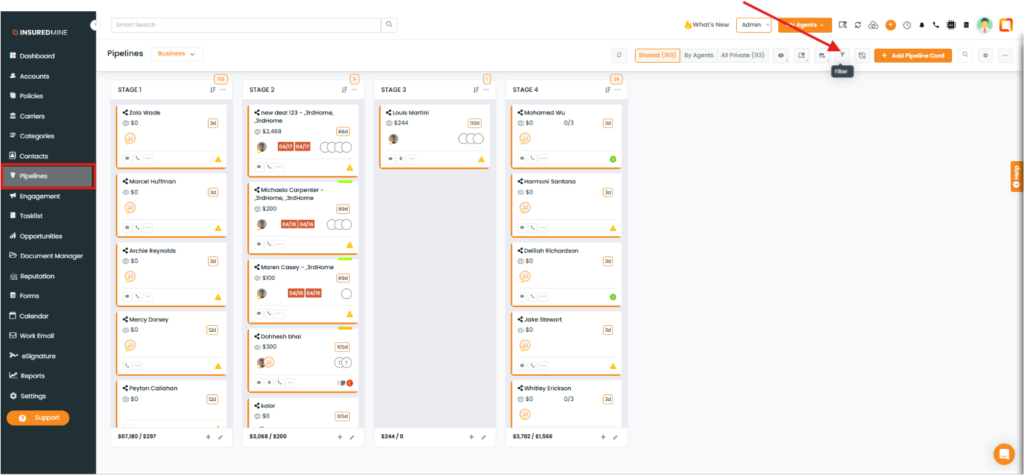
Navigate to Pipelines.
Click Filter.
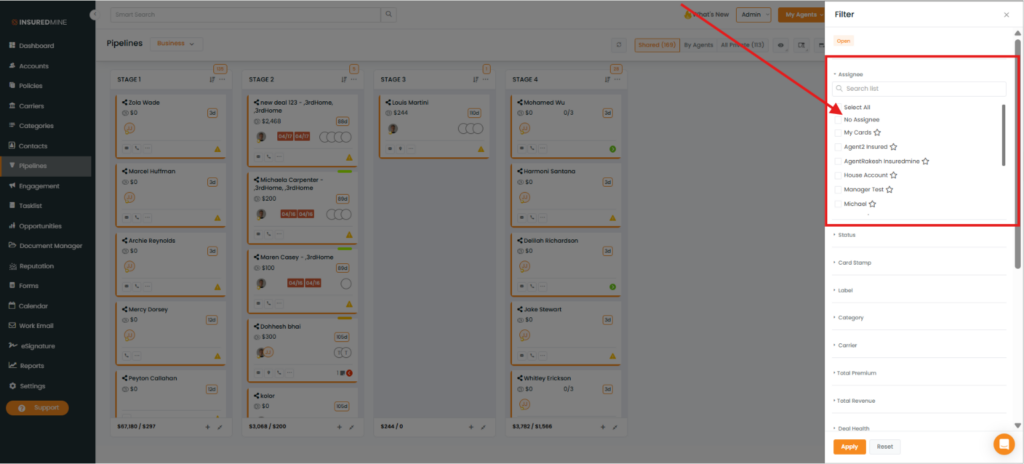
A Filter panel appears on the right-hand side.
A new No Assignee option is available in the Assignee dropdown.
To apply the filter:
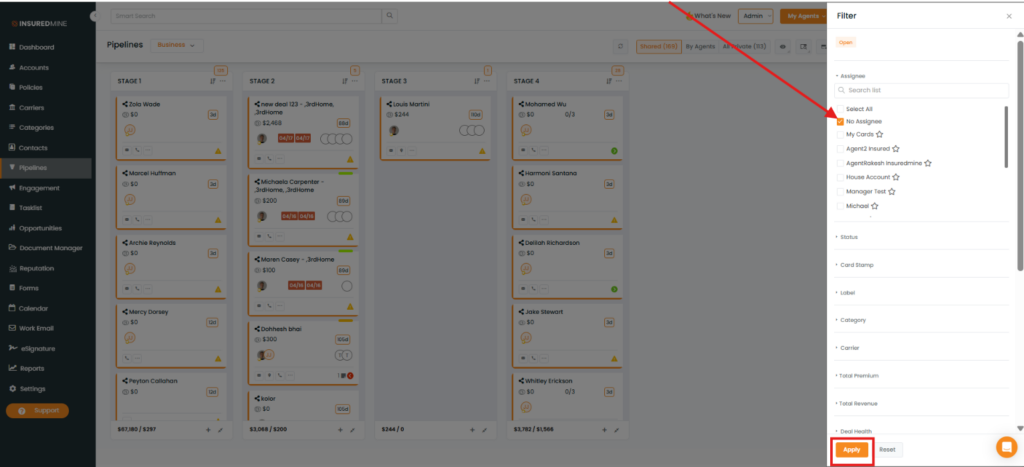
Select the No Assignee checkbox.
Click Apply.
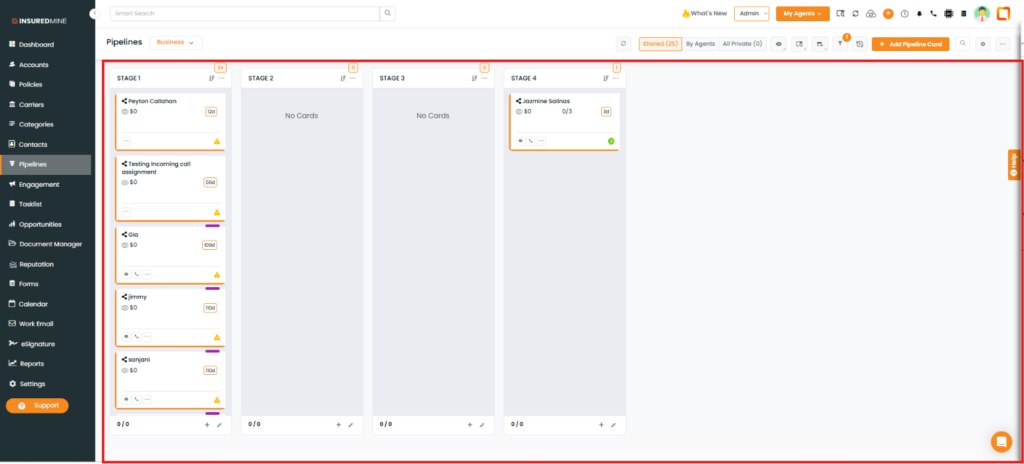
All pipeline cards that do not have an assigned agent are displayed.
For Pipeline Automation:
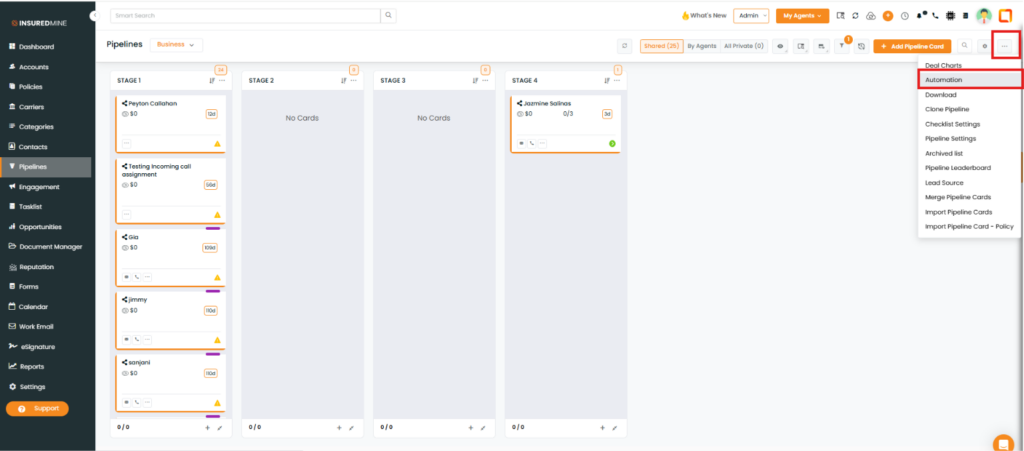
As shown below, click the three-dot icon and select Automation.
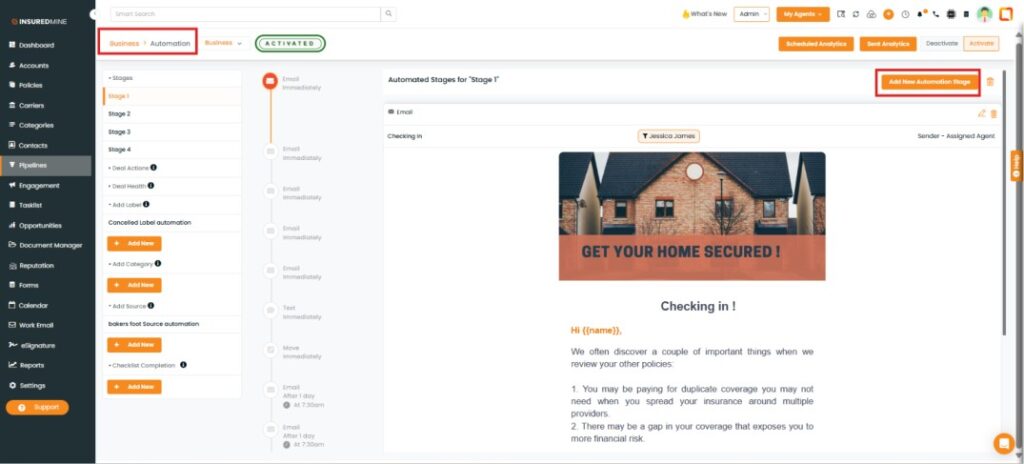
The Automation page appears.
Click Add New Automation Stage.
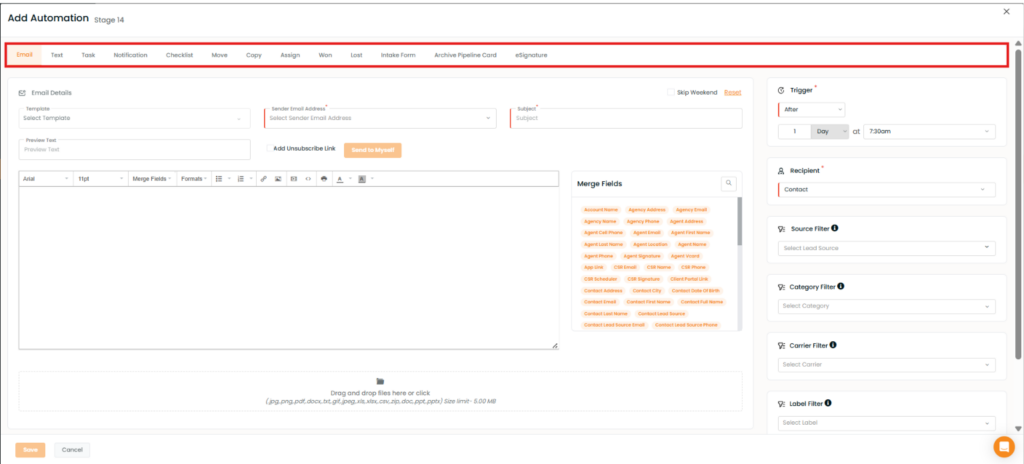
An Add Automation page appears.
Configure the required automation (for example, Email, Task, Move, eSignature, and other available actions).
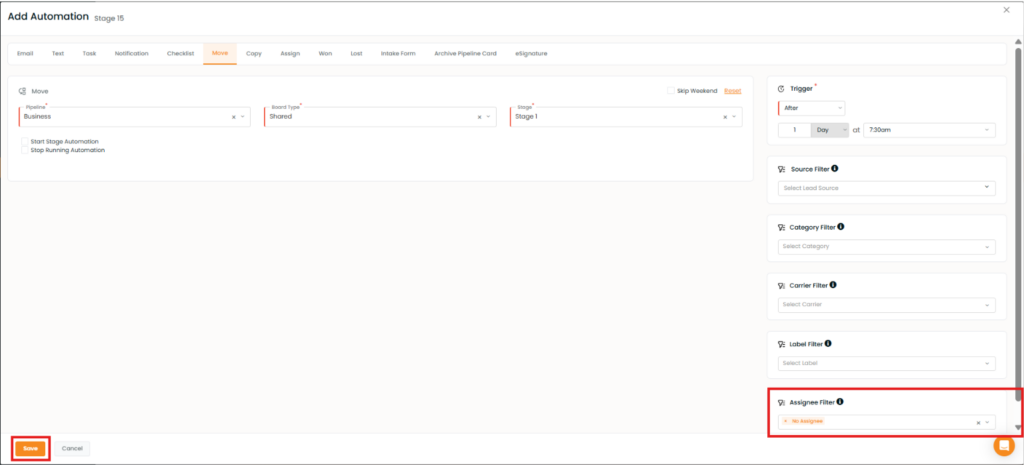
To configure Move automation:
Click the Move tab.
Enter the required details.
From the Assignee Filter, select No Assignee.
Click Save.
Note: The automation is triggered only for pipeline cards without an assignee.