


Release Date: 10/23/2026
Overview
InsuredMine now allows users to edit the scheduled date and time of an individual automation directly from the Pipeline Card’s Automation tab.
Previously, automation schedules were calculated based on the delays configured at the pipeline level. Users could not modify the scheduled date for an individual pipeline card without changing the pipeline-level automation configuration.
With this enhancement, all users can reschedule an automation for a specific pipeline card if they have access without affecting other pipeline cards in the same pipeline stage.
Understanding the Icons
- Pencil icon: Appears next to the scheduled date and time when the automation is scheduled for a future date and can be rescheduled.
- Lock icon: Appears when the automation has already been triggered and its scheduled date and time can no longer be edited.
How to Reschedule an Automation
- Navigate to Pipelines and open the required Pipeline Card.
- Select the Automation tab.
- Locate the automation you want to reschedule.
- Click the pencil icon next to the scheduled date and time.
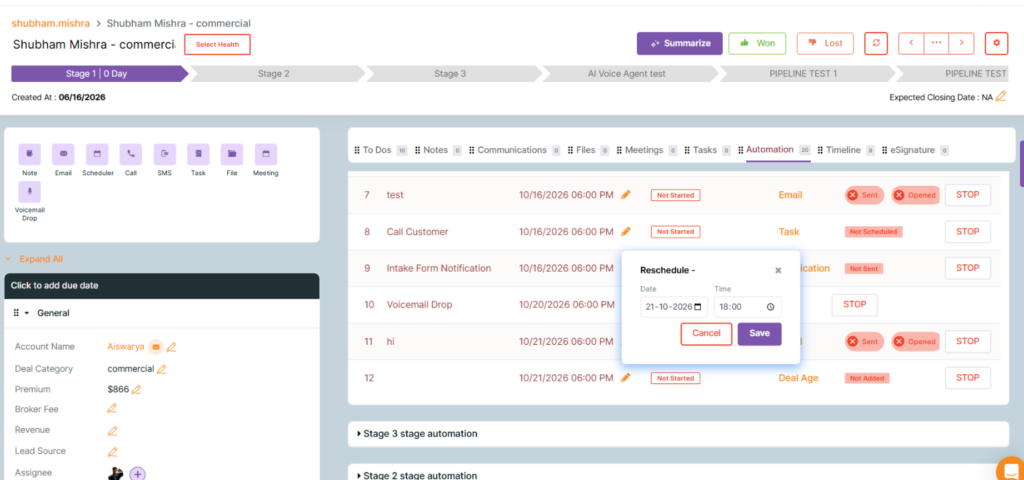
5. In the Reschedule pop-up, update the required Date and Time.
6. Click Save to apply the changes, or click Cancel to discard them.
Activity Logs
InsuredMine generates timeline logs for each automation action and any rescheduling performed. These logs help users track automation activities and identify changes made to the scheduled date and time.
Important Notes
- Rescheduling applies only to the selected automation for the specific Pipeline Card.
- Changes do not modify the pipeline-level automation configuration or affect other deals.
- Only automations scheduled for the future can be rescheduled.
- Once an automation has been triggered, its schedule cannot be edited.
Use Cases
This feature is useful in situations such as:
- Recipient Unavailability: Reschedule an email, SMS, or other follow-up when the recipient is unavailable on the originally scheduled date.
- Customer Follow-up Requests: Adjust the schedule when a customer requests to be contacted next week or at a more convenient time.
- Holidays and Weekends: Move an automation to a more appropriate date when the original schedule falls on a holiday or weekend.


