


Release Date: 10/30/2026
Overview
The Download from Epic feature now extends to the Policy Module, letting users to fetch and sync files attached to policies in Applied Epic directly into the corresponding Policy Files section in InsuredMine CRM.
Previously, this functionality lived only in the Files section of the Account module. Now users access policy-related attachments through the Policy module with no manual downloading or uploading.
Users can retrieve files categorized under Policy and Lines in Applied Epic; they appear in the corresponding policy’s Files section in InsuredMine CRM.
Prerequisites
- The account must be synced with Applied Epic.
- The corresponding policy must be available in both Applied Epic and InsuredMine.
- The required files must be attached to the corresponding account or policy in Applied Epic.
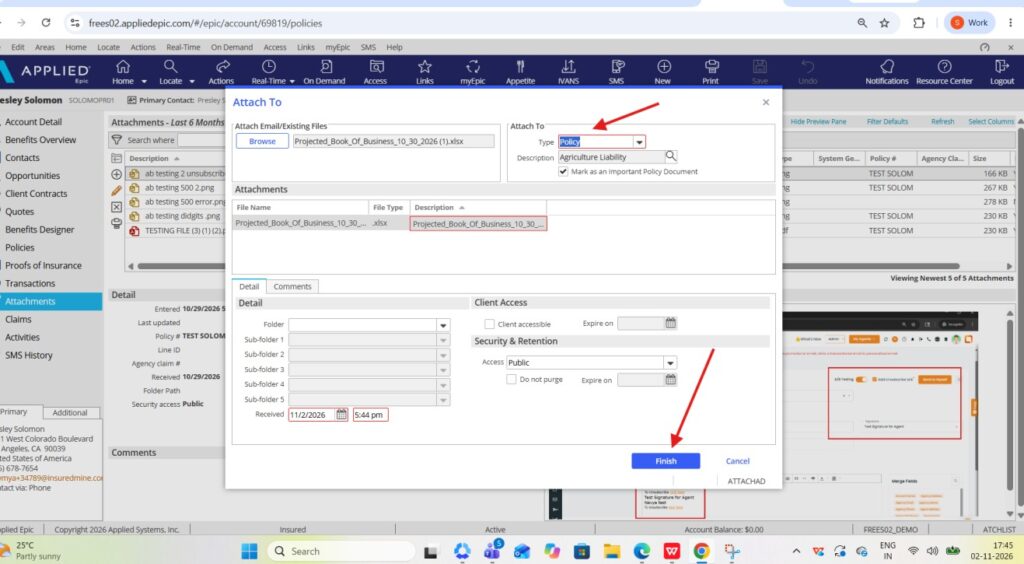
- The attachment type must be correct when uploading the file in Applied Epic.
Use Cases
- Access Policy Documents: Retrieve policy-related documents directly from Applied Epic into InsuredMine.
- Simplify File Management: Eliminate manual downloads and re-uploads between Applied Epic and InsuredMine.
- Access Line-Related Attachments: Retrieve files categorized under Lines in Applied Epic through the Policy Files section.
- Centralized Document Access: View policy-related attachments from policy and account sections in InsuredMine.
Steps to Download Policy Files from Applied Epic
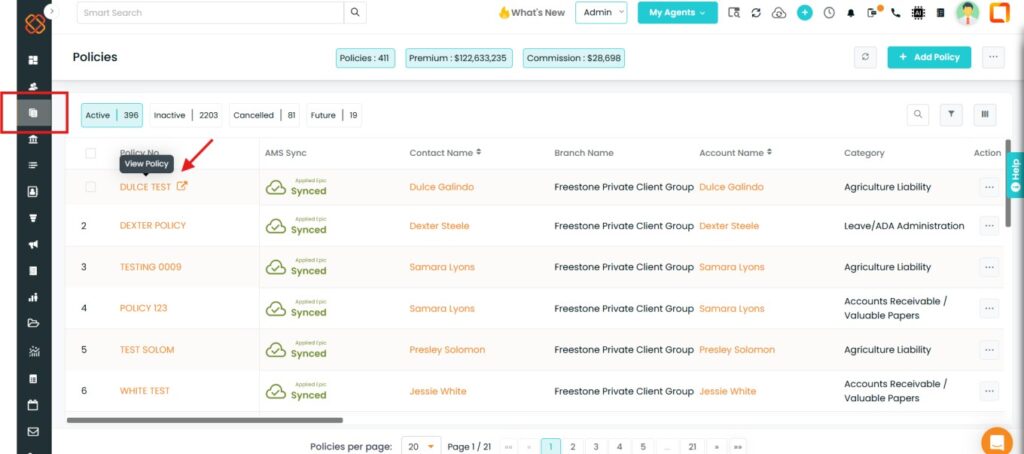
Step 1: Navigate to the Policy Module in InsuredMine
Log in to InsuredMine CRM.
Open the account and policy containing the uploaded attachment.
Click the Policy to open it
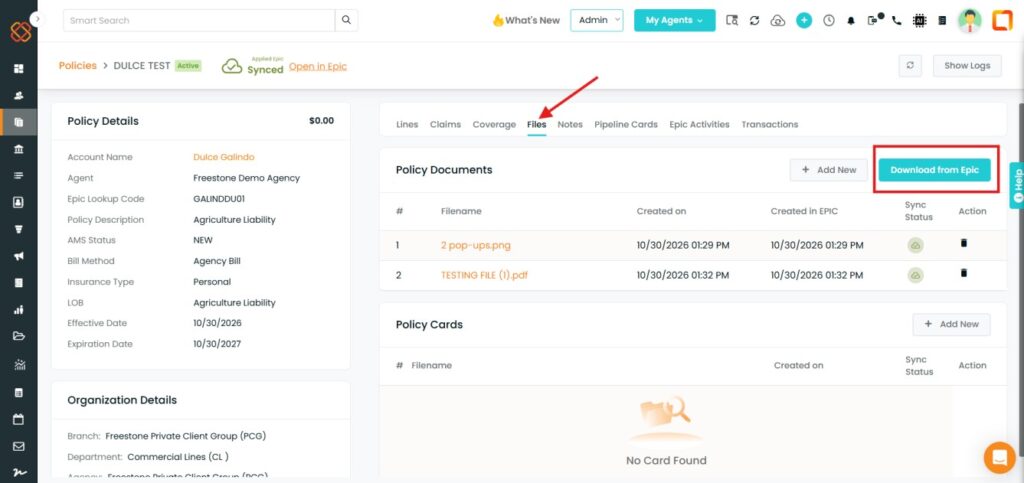
Go to the Files section under the Policy details.
Step 2: Click on Download from Epic
In the Policy Files section, click the Download from Epic button.
InsuredMine fetches policy-related attachments from the policy in Applied Epic.
Step 3: View the Downloaded Files
Fetched files appearin the Policy Files section in InsuredMine.
Access the downloaded files directly from the policy.
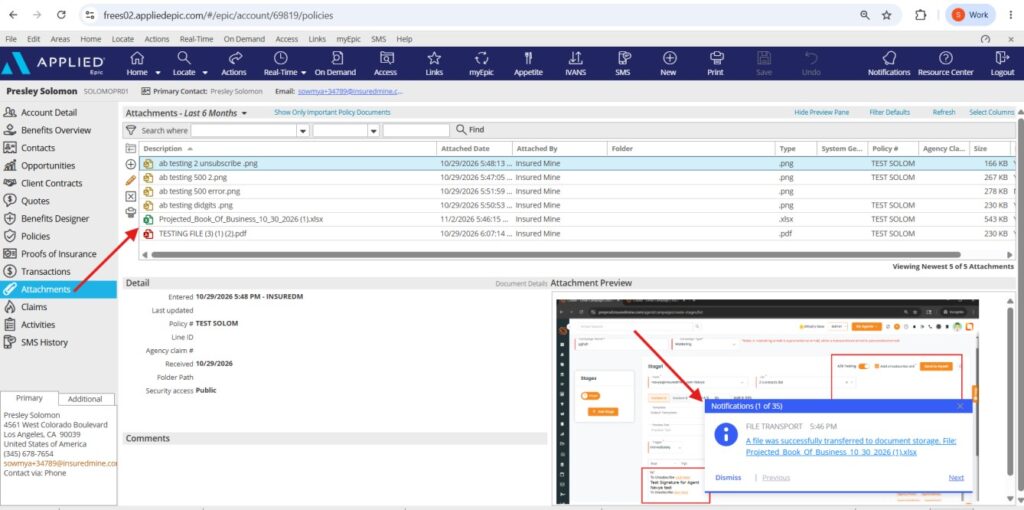
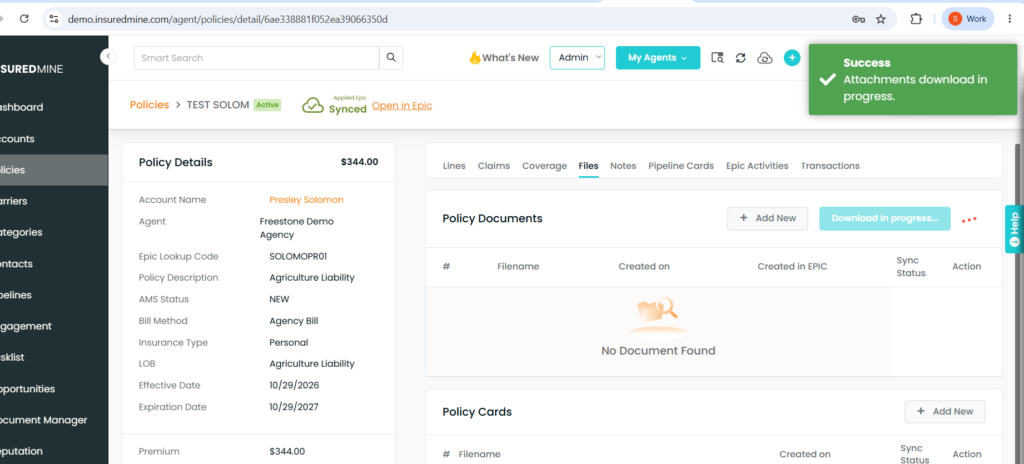
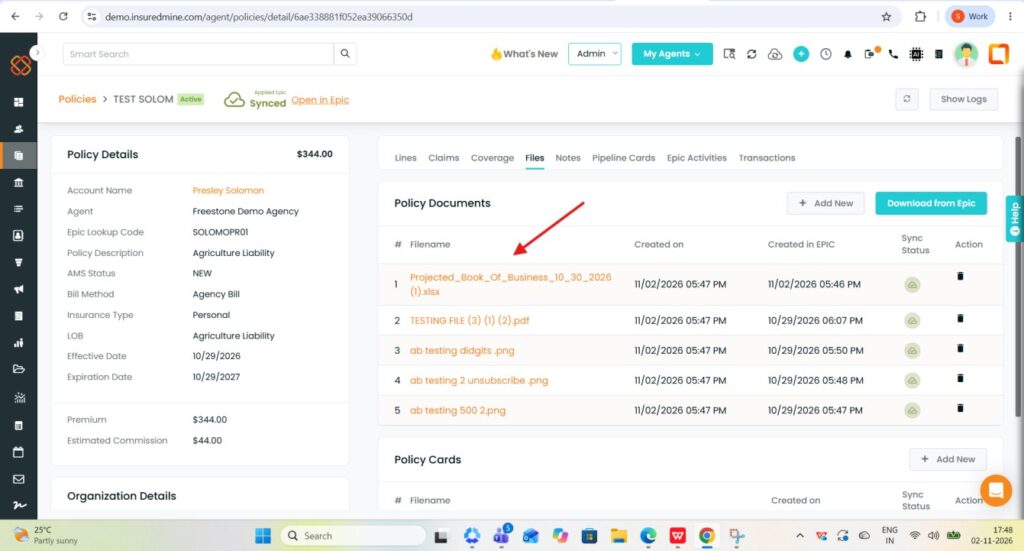
Note: If a newly attached file categorized under Lines does not appear immediately, refresh manually to view the updated file list.
File Categorization and Visibility
InsuredMine displays Applied Epic files by their selected attachment type.
File visibility across the Account and Policy modules:
Attachment Type in Applied Epic | Account Files in InsuredMine | Policy Files in InsuredMine |
Account | Yes | No |
Policy | Yes | Yes |
Important: Account-level attachments do not appear in Policy Files, but policy-related attachments are accessible from both the Account Files and Policy Files sections.
Supported File Formats
Download from Epic supports different file formats attached in Applied Epic.
Examples demonstrated during the knowledge transfer session include:
- PDF files
- Excel files
- Screenshots and image files
- GIF files
The attachment type selected in Applied Epic determines where the file appears in InsuredMine, regardless of the file format.
Important Notes/Limitations:
- This functionality applies only to accounts synced with Applied Epic.
- The Download from Epic button appears in both the Account Files and Policy Files sections.
- Attach files to the corresponding account or policy in Applied Epic before fetching into InsuredMine.
- Select the correct attachment type in Applied Epic so files appear in the intended section.
- Files categorized under Lines are policy-related attachments and appear in the Policy Files section.
- Newly attached Line-related files require a manual refresh to display.
In Summary: The Download from Epic feature in the Policy module lets users retrieve policy and line-related attachments directly from Applied Epic into InsuredMine, simplifying policy document access and management.


